Salesforce Dynamic Forms let you place fields and field sections anywhere on a Lightning record page and show or hide them based on rules, such as the record’s values or the user’s role. Dynamic Actions do the same for buttons. In our page layouts guide, all fields came from one page layout block. Now each field becomes its own piece that you can control.
In this post, you will learn how to upgrade a record page to Dynamic Forms, how visibility rules work, and how Dynamic Actions show the right buttons at the right time. Then you will build a Course page at Bright Path Tutors that shows an “Online Class Details” section only for online courses. You will use the Lightning App Builder from our App Builder guide.
What are Salesforce Dynamic Forms?
Dynamic Forms is a Lightning App Builder feature that breaks the old Record Detail block into separate Field and Field Section components. You can drag each section to any tab or column. You can also add a visibility rule, so a section appears only when a condition is true.
Similarly, Dynamic Actions is the matching feature for buttons. Instead of one fixed list of actions from the page layout, each action can have its own visibility rule.
Here is a simple analogy. Think of a restaurant menu on a tablet. Breakfast items only show in the morning, and the bar menu only shows to adults. The menu is the same app, but what you see depends on the time and on you. Dynamic Forms and Dynamic Actions make record pages work like that tablet menu.
Why Salesforce Dynamic Forms Matter
Long page layouts slow users down. For example, a support agent scrolls past 40 fields to find the two that matter. Admins also create extra page layouts and record types only to hide a few fields.
Here are some real situations at Bright Path Tutors.
- Online courses need a meeting link and platform fields, but classroom courses do not.
- Only finance users should see the Discount Approved field.
- The “Cancel Course” button should appear only before the start date.
- Phone users need a short page with just the key fields.
So Dynamic Forms give each user a cleaner page without extra layouts. As a result, you also maintain fewer record types, because many were created only to hide a few fields. In short, one smart page can replace several old layouts. That means less work every time the business adds a new field, because you change one page instead of five layouts.
How Salesforce Dynamic Forms Work
The setup follows a simple path. First, you open a record page in Lightning App Builder and select the Record Detail component. Next, you click Upgrade Now, and the builder converts the layout’s sections into Field Section components. Then you move sections and fields where you want them on the page. After that, you add visibility rules to sections or single fields. Finally, you save and activate the page for the right apps, record types and profiles.
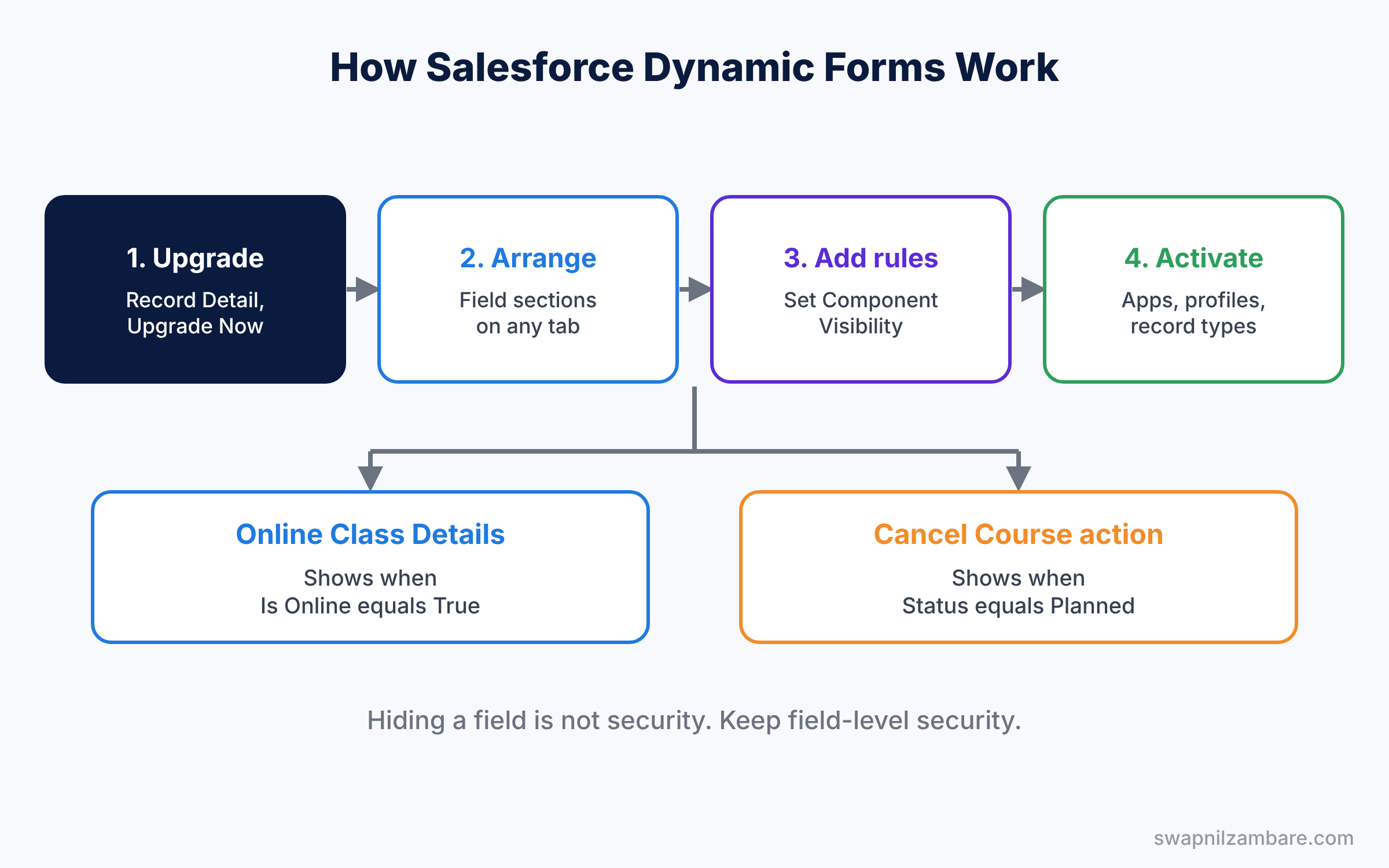
After the upgrade, the page layout still controls some things, like related lists on some pages and which fields are required on create. However, field placement on the record page now comes from the Lightning page.
Key Parts of Salesforce Dynamic Forms
Field Section components
First, a Field Section groups fields under a heading, like “Fees”. You can set one or two columns and drop it on any tab. Each section can have its own visibility rule.
Field components
Next, single Field components let you place one field anywhere. They also have UI behaviour settings, such as Read-Only or Required on this page.
Visibility rules
Then visibility rules decide when a component shows. You can filter on record fields, like Is Online equals True. You can also filter on the device, on user fields, or on permissions, such as a custom permission for finance users.
Dynamic Actions
Dynamic Actions start from the Highlights Panel. You select it, choose to use Dynamic Actions, and add actions one by one. Each action can have its own filter, like Status equals Planned.
Supported objects
Finally, Dynamic Forms work on custom objects and on many standard objects, like Account, Contact, Case and Opportunity. Check the upgrade button on your object’s page to see if it is available.
The table below shows the visibility rules we will build.
| Component | Rule | Who sees it |
|---|---|---|
| Online Class Details section | Is Online equals True | Everyone, for online courses |
| Discount Approved field | Custom permission Finance Access | Finance team only |
| Cancel Course action | Status equals Planned | Everyone, before the course starts |
| Internal Notes section | Device is not phone | Desktop users |
Dynamic Forms vs Page Layouts
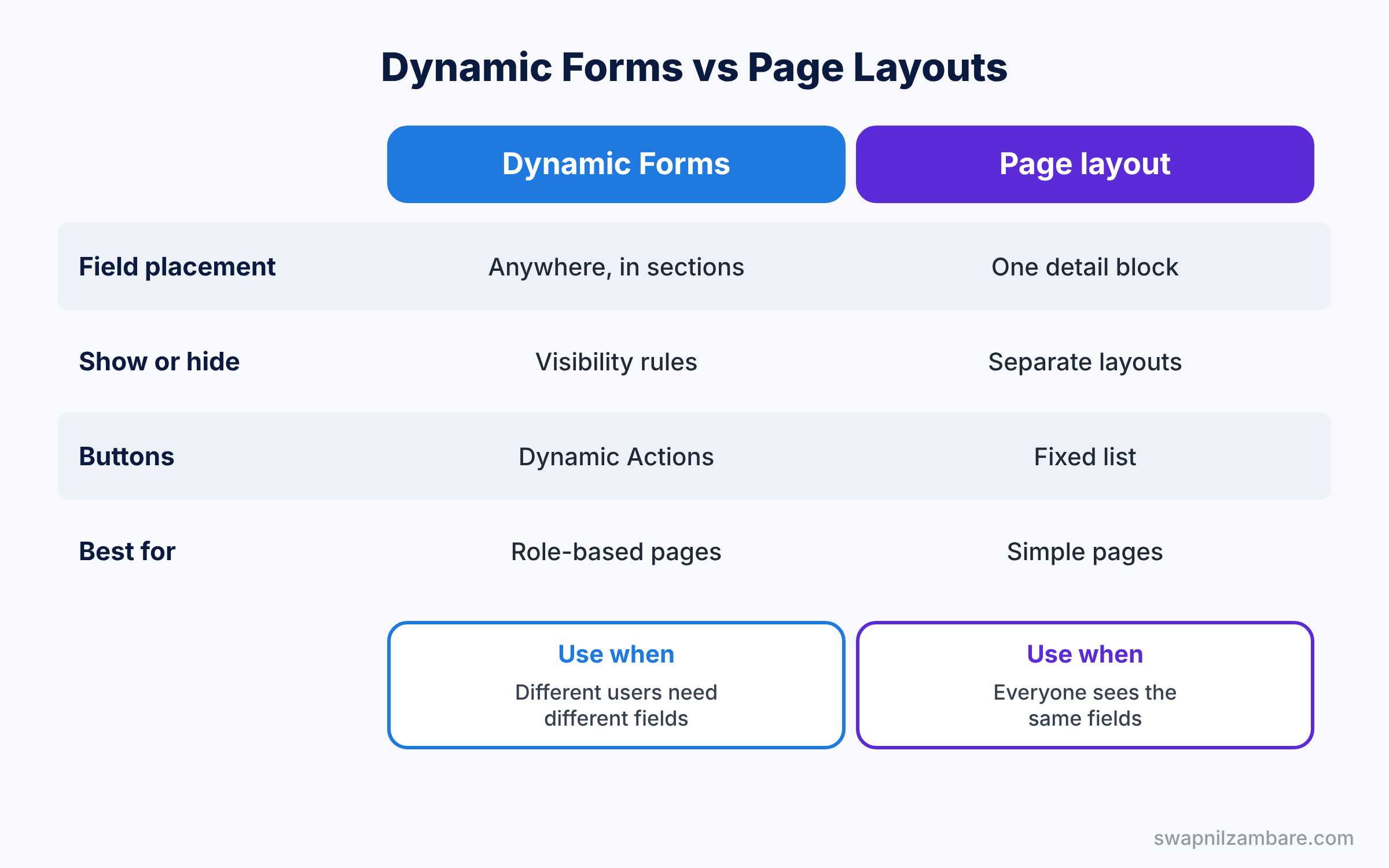
Page layouts are still around, so it helps to know what each one controls now. The table below compares them.
| Feature | Dynamic Forms | Page layout |
|---|---|---|
| Field placement | Anywhere on the page, in sections | One Record Detail block |
| Show or hide fields | Visibility rules | Separate layouts per profile or record type |
| Field-level control | Read-only or required per page | Read-only or required per layout |
| Buttons | Dynamic Actions with rules | Fixed list per layout |
| Best for | Smart, role-based record pages | Simple pages and older orgs |
In short, use Salesforce Dynamic Forms when different users or records need different fields. Keep a simple page layout when everyone sees the same fields.
Hands-on Example: Salesforce Dynamic Forms for Online Courses
Let’s build a smart Course page in your Developer Edition org.
Step 1: Prepare the fields
- In Object Manager, open Course and add a URL field “Meeting Link” and a Picklist “Platform” with Zoom, Google Meet and Teams. Also add a Picklist “Status” with Planned, Running and Cancelled.
- Do not add them to the page layout. Dynamic Forms will place them.
Step 2: Upgrade the record page
- Open a course record, click the gear icon, and choose Edit Page.
- Select the Record Detail component and click Upgrade Now.
- Choose the page layout to copy from, and finish the wizard.
Step 3: Add the online section
- Drag a Field Section onto the Details tab and set Label to “Online Class Details”.
- Drag Meeting Link and Platform into the section.
- In the section’s properties, click Add Filter under Set Component Visibility, choose Record Field, Is Online, Equal, True.
Step 4: Add a Dynamic Action
- Select the Highlights Panel and choose Enable Dynamic Actions.
- Add the “Cancel Course” quick action, then click Add Filter.
- Choose Record Field, Status, Equal, and pick Planned. Save and activate the page.
Step 5: Test and check
Now open an online course and then a classroom course. Only the online one shows the new section. Next, change the classroom course’s Status to Cancelled, and the Cancel Course button disappears too. Developers can list which courses will show it with this query.
SELECT Name, Is_Online__c, Meeting_Link__c, Platform__c
FROM Course__c
WHERE Is_Online__c = true
ORDER BY Start_Date__c
The result might look like this.
Name             Is_Online__c  Meeting_Link__c              Platform__c
Python for Kids  true          https://meet.example.com/py  Google Meet
Spoken English   true          https://meet.example.com/en  Zoom
Common Mistakes with Salesforce Dynamic Forms
- Thinking hidden means secure. Visibility rules only hide fields on the page. Use field-level security for real protection.
- Forgetting to activate the page. Users keep seeing the old page until you assign the new one.
- Too many rules. Complex filters make pages hard to maintain and slow to load.
- Mixing old and new sections. Remove the Record Detail component after the upgrade.
- Skipping mobile tests. Check the page on a phone before users find problems.
Best Practices for Salesforce Dynamic Forms
- Group fields by task. Sections like “Fees” and “Schedule” help users scan quickly.
- Use custom permissions in rules. They are clearer than long lists of profiles.
- Keep required fields consistent. Match page rules with validation rules.
- Document visibility rules. Note them in the section label or a team wiki.
- Fewer record types. Dynamic Forms often replace record types created only to hide fields.
Practice Task
Add a “Finance” field section to the Course page with Fee and Discount Approved. Make it visible only to users with a custom permission called Finance Access.
Hint: create the custom permission, add it to a permission set, then use Permission in the visibility filter.
Salesforce Dynamic Forms FAQ
Do Dynamic Forms work on mobile?
Yes, on supported objects in the Salesforce mobile app. Always test the page on a phone.
Can I go back to the page layout?
Yes. Add the Record Detail component back and remove the field sections.
Does a hidden field keep its value?
Yes. Hiding a field on the page does not change or delete its data.
Official Resources
Quick Recap
- Salesforce Dynamic Forms turn layout fields into sections you can place anywhere.
- Visibility rules show fields based on record values, device, user or permission.
- Dynamic Actions show buttons only when they make sense.
- Hidden fields are not secure, so keep field-level security in place.
- Upgrade, arrange, add rules, then activate the page.
What’s Next?
Your record pages now adapt to each user. Next, learn how to guide users on those pages with prompts and short tours. Read Salesforce In-App Guidance: Prompts and Walkthroughs.


