Salesforce In-App Guidance lets admins show short messages and step-by-step tours inside Lightning pages, right where users work. Instead of sending a long training email that nobody reads, you place a small prompt next to the new button or field. In our Dynamic Forms guide, you redesigned the Course page. In-App Guidance helps users understand that new page on their first visit.
In this post, you will learn the three prompt types, how walkthroughs join prompts into a tour, and how targeting, scheduling and frequency decide who sees what. Then you will build a prompt and a short walkthrough for Bright Path Tutors sales reps. You should know Lightning apps and record pages from our Lightning App Builder guide, because prompts live on those pages.
What is Salesforce In-App Guidance?
In-App Guidance is a Setup feature for building prompts and walkthroughs without code. A prompt is a small message box with a title, text, an optional image or video, and buttons. A walkthrough is a series of prompts that guides a user through several steps, one after another.
Here is a simple analogy. Think of a museum. A sign next to a painting is a single prompt. A guided audio tour that takes you from room to room is a walkthrough. Both help visitors without a guide standing next to them.
Why Salesforce In-App Guidance Matters
Users forget training quickly, and new features often go unused. A prompt that appears at the right moment works better than a document in a shared folder. As a result, admins spend less time answering the same “where is the button?” question in team chats.
Here are some real situations at Bright Path Tutors.
- Sales reps keep missing the new Cancel Course button on the Course page.
- New support agents need a tour of the Service Console on their first day.
- The admin wants to announce a change to the Fee Paid field for one week only.
- Managers want a link to the updated discount policy on the Opportunity page.
So In-App Guidance teaches users in the flow of work and helps new features get used.
How Salesforce In-App Guidance Works
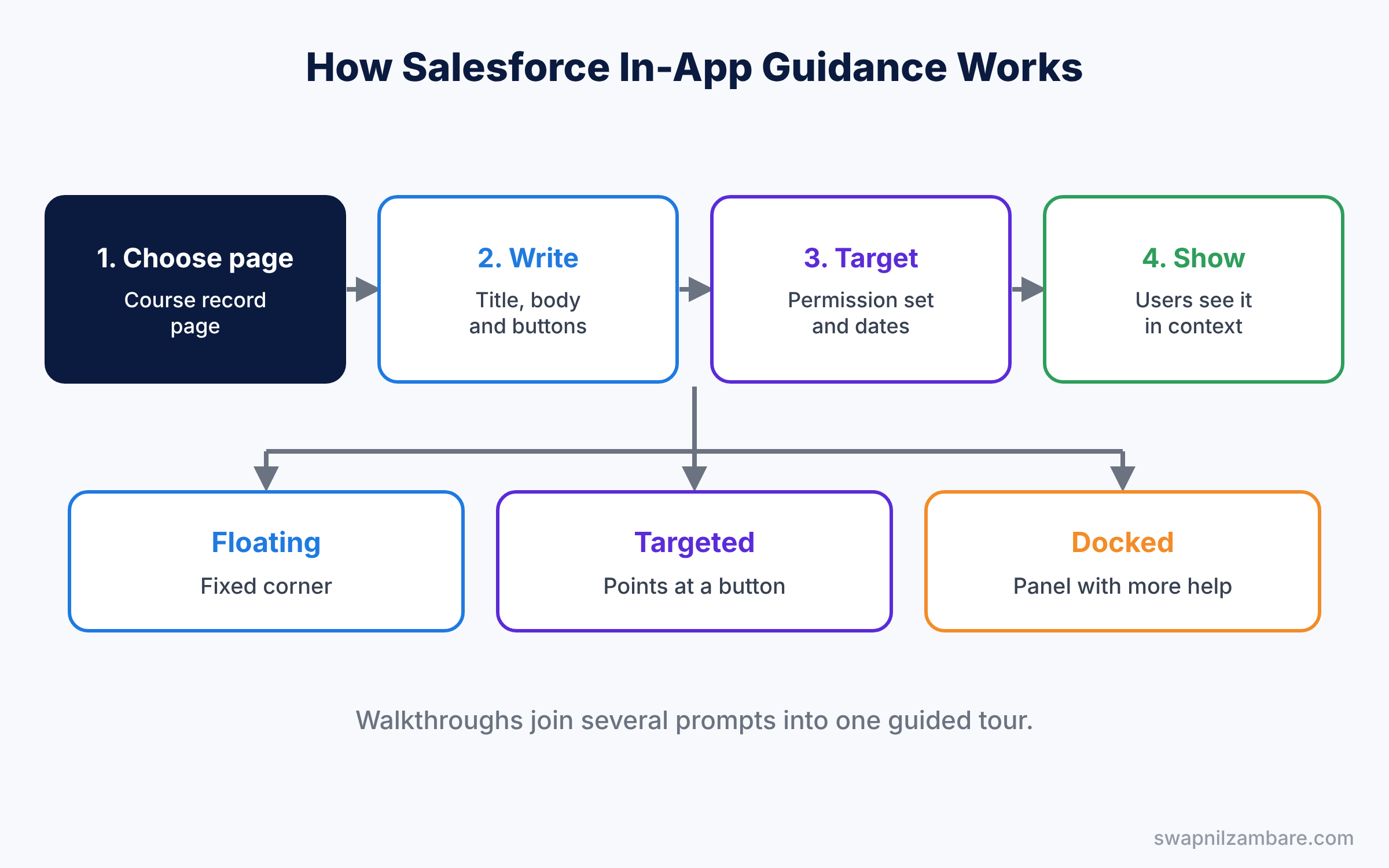
Building guidance follows a simple path. First, you open In-App Guidance in Setup and click Add. Next, you choose a prompt or a walkthrough and pick where it appears, such as the Course record page. Then you write the content, choose a type and position, and add buttons. After that, you set targeting, schedule and frequency, so only the right users see it at the right time. Finally, you save, preview, and turn it on.
Prompts appear in Lightning Experience as users open the chosen page. Users can dismiss them, and Salesforce tracks how often they are seen. Also, you can set a delay, so a prompt appears a few seconds after the page loads instead of at once. This small pause lets users see the page first, so the prompt feels less like an interruption.
Key Parts of Salesforce In-App Guidance
Floating prompts
First, a floating prompt appears in a fixed spot on the page, such as the top right corner. It suits short announcements, like “The course page has a new Online Class Details section.”
Targeted prompts
Next, a targeted prompt points at a specific part of the page, like a button or a tab. It has a small pointer, so users know exactly what you mean. For example, it can point at the Cancel Course button.
Docked prompts
Then a docked prompt sits in a panel at the bottom of the screen and stays there while users work. It can hold more text, images and video, so it suits step-by-step help.
Walkthroughs
A walkthrough joins several prompts into one tour, even across different pages. Salesforce gives every org a few free active custom walkthroughs. More walkthroughs need an extra licence, such as Salesforce Enablement.
Targeting, schedule and frequency
Finally, targeting decides who sees the guidance, by profile or permission. The schedule sets start and end dates, and frequency sets how often a user sees it, such as once or three times. For example, a prompt about a new fee rule can run for two weeks, show three times, and reach only the sales team. After that, it switches off by itself, so the admin does not need a reminder to remove it.
The table below compares the three prompt types.
| Prompt type | Where it shows | Best for |
|---|---|---|
| Floating | A fixed corner of the page | Short announcements |
| Targeted | Pointing at one page element | Explaining a button or field |
| Docked | A panel at the bottom of the screen | Longer help with images or video |
In-App Guidance vs Help Text
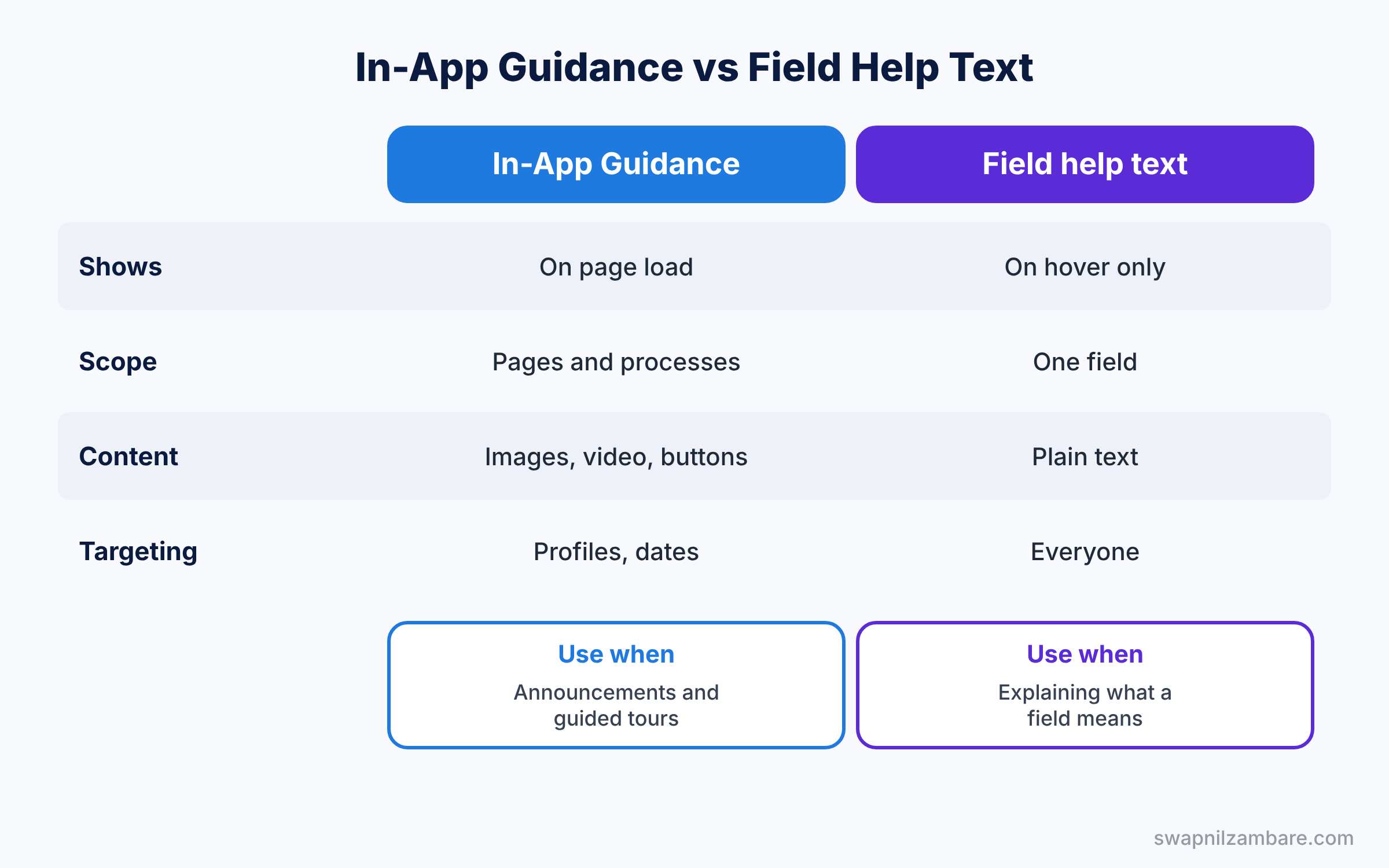
Admins already have field help text, so it helps to compare the two tools. The table below shows the differences.
| Feature | In-App Guidance | Field help text |
|---|---|---|
| Shows | On page load, by schedule | Only when the user hovers the info icon |
| Scope | Pages, buttons, whole processes | One field |
| Rich content | Images, video, buttons | Plain text |
| Targeting | Profiles, permissions, dates | Everyone who sees the field |
| Best for | Announcements and tours | Explaining what a field means |
In short, use help text to explain a single field forever. Use Salesforce In-App Guidance for announcements, tours and time-limited changes.
Hands-on Example: Salesforce In-App Guidance for Sales Reps
Let’s build guidance in your Developer Edition org.
Step 1: Create a targeted prompt
- Go to Setup, type “In-App Guidance” in Quick Find, and click Add.
- Choose Prompt, then pick a Course record page as the location.
- Choose Targeted, then select the Cancel Course button as the target element.
Step 2: Write the content
Use the values in the table below.
| Field | Value |
|---|---|
| Title | New: Cancel Course button |
| Body | Use this button only before the course starts. It emails all enrolled parents. |
| Action button | Got it |
| Dismiss button | Remind me later |
Step 3: Set targeting and schedule
- Under Targeting, choose the Sales Rep permission set group from our permission set groups post.
- Set the start date to today and the end date to 30 days from now.
- Set the frequency to show up to 3 times, then save and turn on the prompt.
Step 4: Build a walkthrough
- Click Add again and choose Walkthrough. Name it “Course Page Tour”.
- Add three steps: a floating welcome prompt, a targeted prompt on the Online Class Details section, and a docked prompt with the fee policy.
- Target new users only, and set it to show once.
Step 5: Check adoption
After a week, open the In-App Guidance page to see how many users viewed and dismissed each prompt. Then check if the button is used with a simple report on courses with Status Cancelled.
SELECT COUNT(Id) cancelled
FROM Course__c
WHERE Status__c = 'Cancelled' AND LastModifiedDate = LAST_N_DAYS:7
If the number stays at zero, update the prompt text to make the benefit clearer. Then compare the numbers again a week later, so you know whether the new wording helped.
Common Mistakes with Salesforce In-App Guidance
- Too many prompts at once. Users click them away without reading.
- No end date. Old announcements stay on screen long after they matter.
- Showing to everyone. Target the right profiles or permissions instead.
- Long text in floating prompts. Use a docked prompt for longer help.
- Forgetting to test. Preview each prompt on the real page before turning it on.
Best Practices for Salesforce In-App Guidance
- One message per prompt. Short prompts get read, while long ones get closed.
- Link to more detail. Point to a Knowledge article for long policies.
- Use dates for announcements. Two to four weeks is usually enough.
- Plan walkthroughs for new hires. A five-step tour speeds up onboarding.
- Review metrics monthly. Remove prompts that nobody needs anymore.
Practice Task
Create a docked prompt on the Case record page that explains the new case priority rules. Target only users with the Support Agent profile, and show it twice.
Hint: add a link in the body to a Knowledge article with the full priority policy.
Salesforce In-App Guidance FAQ
Does In-App Guidance cost extra?
Prompts are included. Larger numbers of walkthroughs need an extra licence.
Do prompts work on the mobile app?
In-App Guidance is built for Lightning Experience on desktop, so check Help for current mobile support.
Can I reuse a prompt in a walkthrough?
You build walkthrough steps inside the walkthrough itself, but you can copy the same text.
Can I see who dismissed a prompt?
Yes. Each prompt shows view and dismissal counts, and you can report on guidance activity to see adoption over time.
Official Resources
- Improve User Engagement with In-App Prompts (Trailhead)
- Lightning App Builder Overview (Salesforce Help)
Quick Recap
- Salesforce In-App Guidance shows prompts and walkthroughs inside Lightning pages.
- Floating, targeted and docked prompts suit different messages.
- Walkthroughs join prompts into a guided tour.
- Targeting, schedule and frequency control who sees each prompt and when.
- Short, timely prompts help users adopt new features.
What’s Next?
Your users now get help in the right place. Next, learn how to send custom alerts to users and keep reusable text in custom labels. Read Salesforce Custom Notifications and Custom Labels.


