Salesforce Custom Notifications are alerts you design yourself and send to users on desktop and in the mobile app, usually from a flow, when something important happens. For example, the Sales Manager gets a bell alert the moment a school deal over 5 lakh is won. Custom labels are a related tool: reusable text values that you keep in one place and use in formulas, flows and code. In our advanced flows guide, you built flows that run actions. Sending a notification is one more action.
In this post, you will learn how notification types, channels, recipients and target records work, and how custom labels keep text consistent and translatable. Then you will build a “Big Deal Won” notification and a label for a fee message at Bright Path Tutors. You should know record-triggered flows from our flow types guide, because that is where most notifications start.
What are Salesforce Custom Notifications?
A custom notification is a message that appears in the Salesforce bell menu on desktop, and as a push alert in the Salesforce mobile app. You first create a notification type in Setup, which defines the name and channels. Then a flow, a process or Apex sends notifications of that type, with a title, a body, recipients and a record to open.
A custom label is a named text value, such as “Fee_Warning”, with text like “Fee must be at least 1,000”. You use it by name, and you can translate it for other languages.
Here is a simple analogy. Think of a school announcement system. The notification type is the speaker channel, like “Principal’s Office”. Each announcement is one notification. Custom labels are like the printed cards the principal reads from, so the wording is the same every time, in every class.
Why Salesforce Custom Notifications Matter
Email alerts are easy to miss among hundreds of emails. A bell notification inside Salesforce, or a push alert on a phone, gets attention faster. It also opens the right record with one click.
Here are some real situations at Bright Path Tutors.
- The Sales Manager wants to know at once when a big school deal is won.
- Support agents need an alert when a Gold school raises a High priority case.
- Course owners want a push alert when a course reaches full capacity.
- The same fee warning text appears in three flows and two formulas.
So notifications reach people quickly, and labels keep repeated text in one safe place.
How Salesforce Custom Notifications Work
The process has five steps. First, you create a notification type in Setup and choose the Desktop and Mobile channels. Next, you build or open a flow that should send the alert. Then you add the Send Custom Notification action and choose the type. After that, you set the recipients, the title, the body and the target record. Finally, when the flow runs, users see the alert in the bell menu or on their phone, and clicking it opens the record.
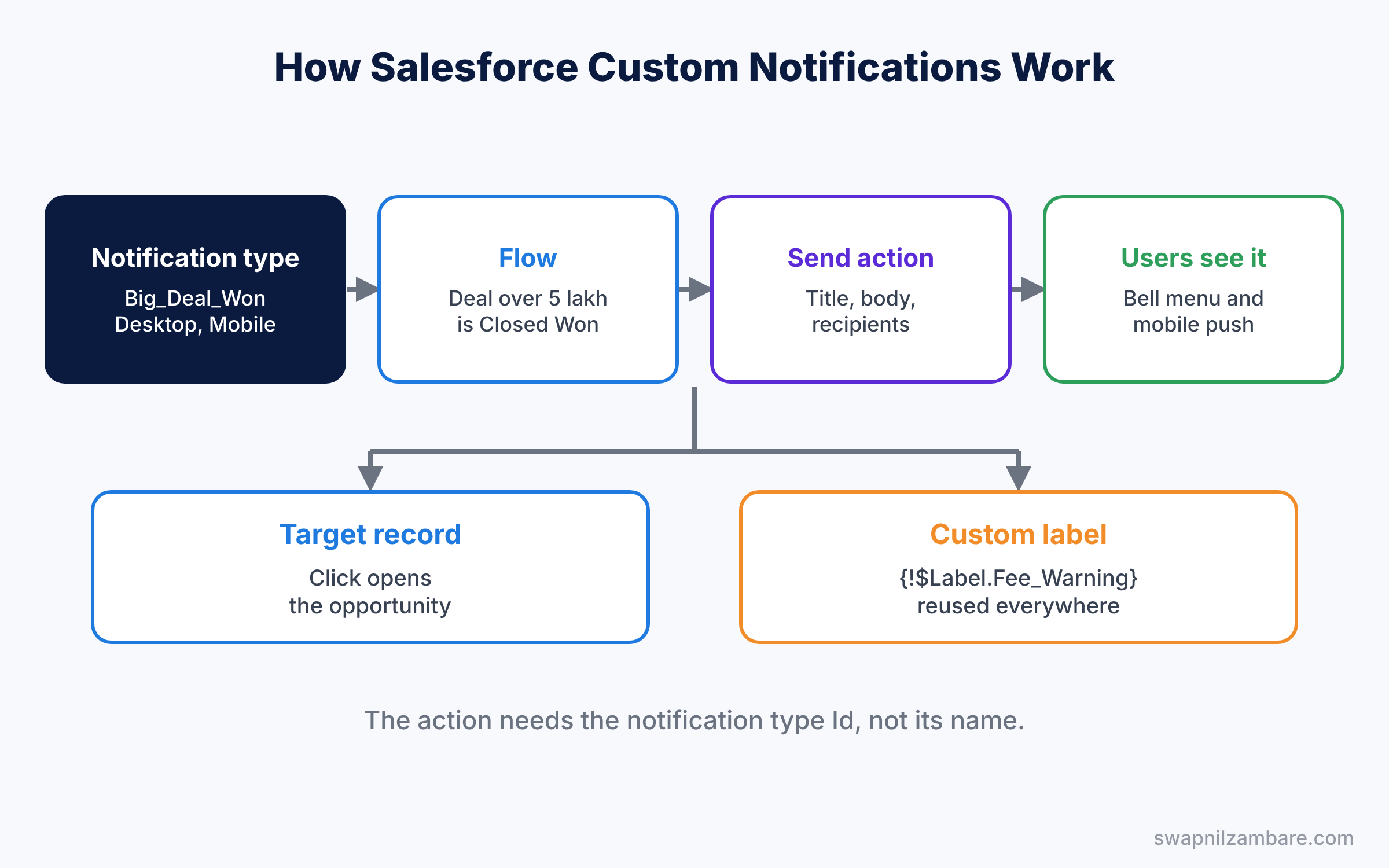
Custom labels work separately. You create the label in Setup, then refer to it by name wherever you need that text. So when the fee rule changes, you edit one label, and every flow, formula and page that uses it shows the new text at once.
Key Parts of Salesforce Custom Notifications
Notification types
First, a notification type has a name, an API name and supported channels. Desktop shows the alert in the bell menu. Mobile sends a push alert in the Salesforce mobile app.
Recipients
Next, recipients are user IDs, group IDs or queue IDs, passed as a text collection in the flow. For example, you can send to the opportunity owner and to the Sales Managers public group.
Title, body and target
Then the title and body hold the message text, and the target ID is the record that opens when the user clicks. Keep the title short, because phones cut long titles.
Custom labels
Custom labels live in Setup under Custom Labels. Each one has a name, a value and an optional category. Formulas and flows read them with $Label, for example {!$Label.Fee_Warning} in a flow.
Translations
Finally, custom labels support Translation Workbench. So a Spanish user sees the Spanish value of the same label, as in our translation workbench post.
The table below shows the notification and label we will build.
| Item | Name | Value or setting |
|---|---|---|
| Notification type | Big_Deal_Won | Desktop and Mobile |
| Recipients | Sales Managers group | Group ID in a collection |
| Target | The won opportunity | {!$Record.Id} |
| Custom label | Fee_Warning | Fee must be at least 1,000 |
Custom Notifications vs Email Alerts
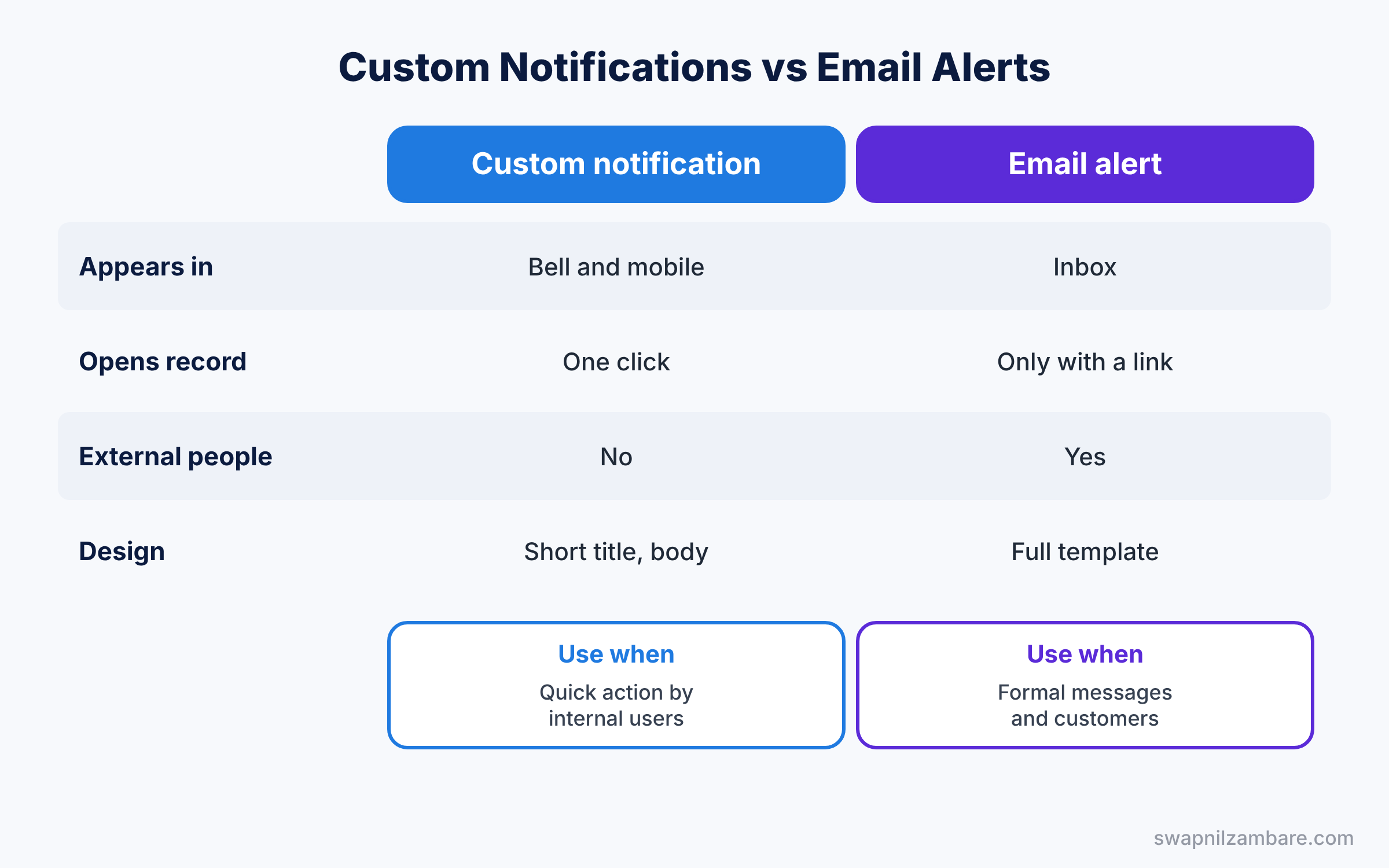
Both tools tell people about events, so it helps to compare them. The table below shows the differences.
| Feature | Custom notification | Email alert |
|---|---|---|
| Where it appears | Bell menu and mobile push | Email inbox |
| Opens the record | Yes, one click | Only with a link in the template |
| Reaches external people | No, users only | Yes, any email address |
| Message design | Short title and body | Full email template |
| Best for | Quick action by internal users | Formal messages and customers |
In short, use email alerts for customers and formal records. Use Salesforce Custom Notifications when internal users must act quickly inside Salesforce.
Hands-on Example: Salesforce Custom Notifications for Big Deals
Let’s build the alert in your Developer Edition org.
Step 1: Create the notification type
- Go to Setup, type “Custom Notifications” in Quick Find, and click New.
- Enter Custom Notification Name “Big Deal Won”, API Name “Big_Deal_Won”, and tick Desktop and Mobile. Save.
Step 2: Build the flow
- Create a Record-Triggered Flow on Opportunity, run when a record is updated, optimized for Actions and Related Records.
- Set the entry condition: Stage equals Closed Won and Amount greater than 500000. Choose “Only when a record is updated to meet the condition requirements”.
- Add a Get Records element for the public group named Sales Managers, and store its Id.
Step 3: Send the notification
- Create a text collection variable called “recipientIds” and add the group Id to it with an Assignment.
- Add the Send Custom Notification action and set the values from the table below. Save and activate.
| Input | Value |
|---|---|
| Custom Notification Type ID | Id of Big_Deal_Won, from a Get Records step |
| Notification Title | Big deal won: {!$Record.Name} |
| Notification Body | Amount {!$Record.Amount}, owner {!$Record.Owner.Name} |
| Recipient IDs | {!recipientIds} |
| Target ID | {!$Record.Id} |
The flow needs the notification type’s Id, not its name. So add a Get Records step on Custom Notification Type, filtered by Developer Name equals Big_Deal_Won.
Step 4: Create and use a custom label
- In Setup, open Custom Labels and click New Custom Label.
- Set Short Description “Fee Warning”, Name “Fee_Warning” and Value “Fee must be at least 1,000”. Save.
- In a screen flow, show the label in a Display Text component with {!$Label.Fee_Warning}.
Step 5: Check with SOQL
Developers can find the notification type Id and the label with these queries.
SELECT Id, DeveloperName, CustomNotifTypeName
FROM CustomNotificationType
WHERE DeveloperName = 'Big_Deal_Won'
Custom labels are metadata, so developers query them with the Tooling API.
SELECT Name, Value, Language
FROM ExternalString
WHERE Name = 'Fee_Warning'
ExternalString is the Tooling API object behind custom labels. Run it in the Developer Console with Use Tooling API ticked.
Common Mistakes with Salesforce Custom Notifications
- Using the type name instead of the Id. The action needs the notification type Id.
- Sending on every update. Use “only when updated to meet the conditions” to avoid repeat alerts.
- Too many alerts. Users mute or ignore a noisy bell menu.
- Hard-coding text in many places. Put shared text in a custom label instead.
- Expecting alerts for customers. Custom notifications only reach Salesforce users.
Best Practices for Salesforce Custom Notifications
- Alert only on real action items. Each notification should need a decision or a task.
- Keep titles under 50 characters. Phones show short titles best.
- Send to groups, not single users. Group membership changes without editing the flow.
- Name labels clearly. “Fee_Warning” says what the text is for.
- Translate labels early. Our translation workbench guide shows how.
Practice Task
Create a “Course Full” notification that alerts the course owner when Total Enrollments reaches Max Students. Send it only once per course.
Hint: use a record-triggered flow on Course with the condition requirement option set to “only when updated to meet”.
Salesforce Custom Notifications FAQ
Can Apex send custom notifications?
Yes. Developers use the Messaging.CustomNotification class to send the same notification types.
Can users turn off notifications?
Users can manage some notification settings in their personal settings, so do not rely on alerts alone for critical work.
How long can a custom label be?
A custom label value can hold up to 1,000 characters.
Official Resources
Quick Recap
- Salesforce Custom Notifications send bell and mobile alerts to users.
- A notification type defines the name and channels.
- Flows send alerts with recipients, a title, a body and a target record.
- Custom labels store reusable text that you can translate.
- Use email alerts for customers and notifications for quick internal action.
What’s Next?
Your users now get timely alerts. Next, we turn to analytics again and track trends over time. Read Salesforce Reporting Snapshots: Track Trends Over Time.


