Salesforce Reporting Snapshots save the results of a report into a custom object on a schedule, so you can see how numbers change over weeks and months. Normal reports only show data as it is right now. In our reports and dashboards guide, every report answered “what is true today?”. Snapshots let you answer “what was true last month, and how has it changed?”.
In this post, you will learn how a snapshot connects a source report, a target object and a schedule, and how field mapping works. Then you will build a daily “Open Cases” snapshot for Bright Path Tutors and chart the trend on a dashboard. You will reuse ideas from our custom report types guide to report on the saved rows.
What are Salesforce Reporting Snapshots?
A reporting snapshot is a scheduled job that runs a report and copies its rows into records of a custom object. Each run adds new records, stamped with the run date. Over time, that object holds a history of the report.
The report you copy from is the source report. Next, the custom object that stores the rows is the target object. Finally, the snapshot itself holds the field mapping and the schedule.
Here is a simple analogy. Think of a school weighing every student on the first day of each month and writing it in a register. One weighing tells you little. The register, read across months, shows who is growing. A reporting snapshot is that monthly register for your Salesforce data.
Why Salesforce Reporting Snapshots Matter
Many business questions are about change, not about today. However, reports cannot answer them, because records only keep their current values. For example, a case closed last week no longer counts as open, so you cannot rebuild last week’s number later.
Here are some real situations at Bright Path Tutors.
- The support manager wants to know if open cases are going up or down each week.
- The CEO asks how the sales pipeline looked at the end of every month this year.
- Finance wants to compare unpaid enrollments at the start of each term.
- The academic head wants a daily count of seats left in each course.
So snapshots give you trend data without code or an external data warehouse.
How Salesforce Reporting Snapshots Work
A snapshot has a clear flow. First, you build a source report, either tabular or summary, with the columns you want to keep. Next, you create a custom target object with fields that match those columns. Then you create the reporting snapshot, pick a running user, and choose the source report and target object. After that, you map each report column to a target field. Finally, you schedule the snapshot, and each run inserts new records into the target object.
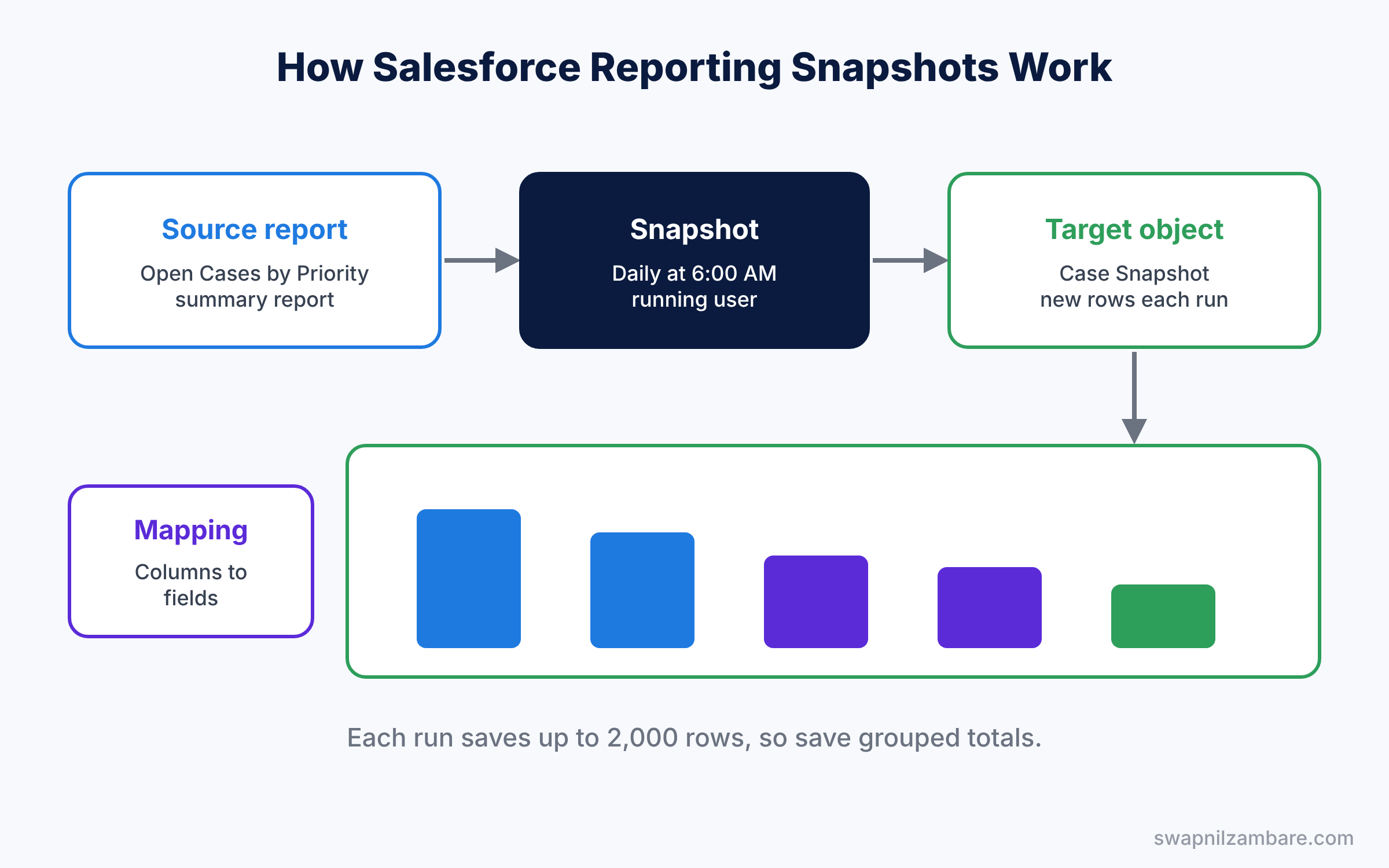
The running user matters. Because the snapshot sees only the data that this user can see, pick someone with wide access, just like a dashboard running user. Also, if that user is deactivated later, the snapshot stops running, so choose a stable account such as a manager or an integration user.
Key Parts of Salesforce Reporting Snapshots
Source report
First, the source report decides what gets saved. It must be a tabular or summary report. For a summary report, you choose which grouping level to copy, so you can save totals instead of every row.
Target object
Next, the target object is a normal custom object that you create for the snapshot. Its fields must match the data types of the report columns, such as Number for counts and Date for dates.
Field mapping
Then the field mapping links each report column to a target field. You can also map the snapshot’s Execution Time to a date field, which stamps every saved row with its run date.
Running user and schedule
The running user decides which records the report sees. The schedule can run daily, weekly or monthly at a preferred time. Pick a quiet time, like early morning, so the run does not compete with users during the day.
Row limit for reporting snapshots
Finally, each run can save only a limited number of rows, up to 2,000. So summarise the source report instead of saving every record. For example, 5,000 open cases would be cut off, but four priority totals always fit.
The table below shows the mapping for our Open Cases snapshot.
| Report column | Target field | Field type |
|---|---|---|
| Execution Time | Snapshot Date | Date/Time |
| Priority (grouping) | Priority | Text |
| Record Count | Open Case Count | Number |
| Age (average) | Average Age Hours | Number |
Reporting Snapshots vs Historical Trend Reporting
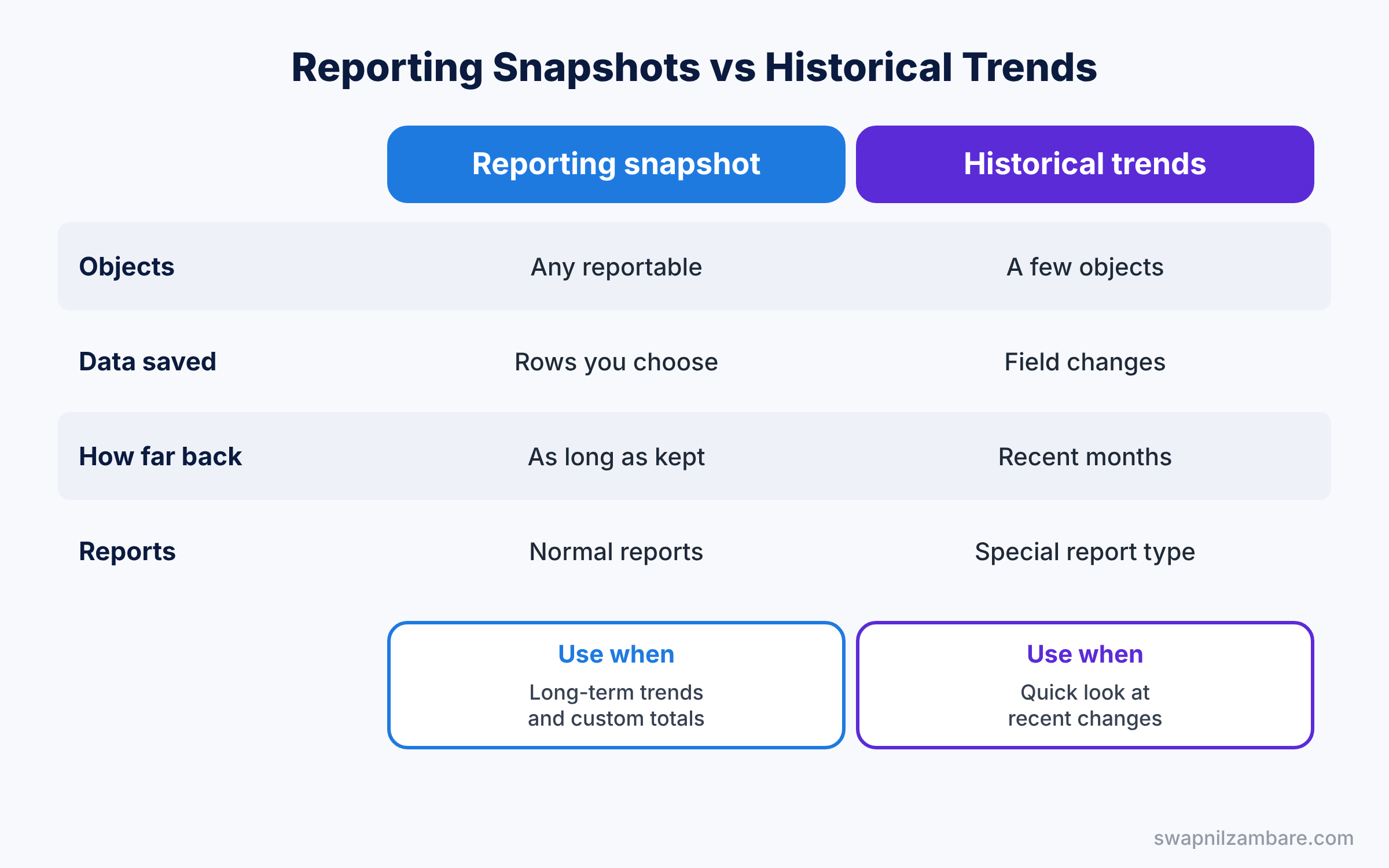
Salesforce also has historical trend reporting for a few objects, so beginners ask which to use. The table below compares them.
| Feature | Reporting snapshot | Historical trend reporting |
|---|---|---|
| Objects | Any object a report can use | Opportunities, cases, forecasts and some custom objects |
| Data saved | Rows you choose, into an object | Changes to chosen fields |
| How far back | As long as you keep the records | A limited window of recent months |
| Charts and reports | Normal reports on the target object | Special historical report type |
| Best for | Long-term trends and custom totals | Quick look at recent changes |
In short, use historical trend reporting for a quick view of recent opportunity changes. Use Salesforce Reporting Snapshots when you need long history or totals from any report.
Hands-on Example: Salesforce Reporting Snapshots for Open Cases
Let’s build a daily snapshot in your Developer Edition org.
Step 1: Build the source report
- Create a Cases report called “Open Cases by Priority” with a filter Closed equals False.
- Group rows by Priority and show the Record Count. Save it in a public folder.
Step 2: Create the target object
- In Object Manager, create a custom object “Case Snapshot” with Allow Reports ticked.
- Add the fields from the table below.
| Field label | Type |
|---|---|
| Snapshot Date | Date/Time |
| Priority | Text (40) |
| Open Case Count | Number (8, 0) |
Step 3: Create the snapshot
- In Setup, type “Reporting Snapshots” in Quick Find and click New Reporting Snapshot.
- Name it “Daily Open Cases”, choose the Support Manager as the running user, pick the source report and Case Snapshot as the target.
- Save, then edit the field mappings. Choose the Priority grouping level, and map Execution Time, Priority and Record Count.
Step 4: Schedule it
- Click Edit in the Schedule section and choose Daily at 6:00 AM.
- Save, then wait for the first run, or check results on the snapshot’s Run History.
Step 5: Report on the trend
After a few days, query the saved rows to check the data.
SELECT Snapshot_Date__c, Priority__c, Open_Case_Count__c
FROM Case_Snapshot__c
ORDER BY Snapshot_Date__c, Priority__c
The result might look like this.
Snapshot_Date__c  Priority__c  Open_Case_Count__c
2026-07-01 06:00  High         12
2026-07-01 06:00  Medium       30
2026-07-02 06:00  High         9
2026-07-02 06:00  Medium       27
Then build a Case Snapshot report grouped by Snapshot Date and Priority, and add a line chart to the support dashboard. As a result, the line shows at a glance whether open cases are falling. After a month, you can also compare this trend with staffing changes, so the support manager can prove that a new agent made a difference.
Common Mistakes with Salesforce Reporting Snapshots
- Using a matrix or joined report. The source must be tabular or summary.
- Wrong data types. A text column cannot map into a number field.
- Running user with little access. The snapshot saves only what that user sees.
- Saving every record. The row limit cuts the data, so save grouped totals instead.
- Changing the source report later. Renamed or removed columns break the mapping.
Best Practices for Salesforce Reporting Snapshots
- Always map Execution Time. Without a date, the saved rows have no timeline.
- Name target objects clearly. “Case Snapshot” tells everyone what the object holds.
- Lock the source report. Store it in a folder only admins can edit.
- Check run history weekly. Failed runs leave silent gaps in the trend.
- Archive old rows. Delete or export very old snapshot data to save storage.
Practice Task
Create a weekly “Pipeline by Stage” snapshot from an opportunity summary report. Map Stage, the sum of Amount and Execution Time into a “Pipeline Snapshot” object.
Hint: choose the Stage grouping level so each run saves one row per stage.
Salesforce Reporting Snapshots FAQ
Can a snapshot run more than once a day?
No. The most frequent schedule is daily, at the time you choose.
Does a snapshot use data storage?
Yes. Each saved row is a normal record in the target object.
Can I edit the saved snapshot records?
Yes, like any custom object records, but it is better to lock them down so history stays accurate.
Official Resources
- Report on Historical Data with Reporting Snapshots (Salesforce Help)
- Prepare Reporting Snapshots (Salesforce Help)
Quick Recap
- Salesforce Reporting Snapshots save report results into a custom object on a schedule.
- The source report must be tabular or summary.
- Field mapping links report columns to target fields, including Execution Time.
- The running user decides which data is saved.
- Report and chart the target object to see trends over time.
What’s Next?
You can now track how your numbers change. Next, learn how to organise and protect reports with folders, and answer “with or without” questions with cross filters. Read Salesforce Report Folders, Folder Sharing and Cross Filters.


