Salesforce Report Folders store reports and dashboards and control who can view, edit or manage them. Folder sharing decides access to the report itself, while record sharing still decides which rows each person sees. Cross filters, the second topic of this post, let you filter a report by related records, such as “schools with no open cases”. In our reports and dashboards guide, you saved reports in folders without thinking about access. In our reporting snapshots guide, you locked a source report in an admin folder. Now you will learn how that works.
In this post, you will learn the three folder access levels, how to share folders with users, roles and groups, how subfolders work, and how cross filters use “with” and “without”. Then you will set up folders for the Bright Path Tutors sales and support teams and build a cross-filtered report. These topics appear in the Platform Administrator II exam, so they are worth practising.
What are Salesforce Report Folders?
A report folder is a container for reports, and a dashboard folder is a container for dashboards. Every saved report sits in one folder. Each person also has a private folder that only they can see.
Folder sharing gives users, roles or public groups an access level on a folder: View, Edit or Manage. That access controls the report definition, not the data. A rep who opens a shared pipeline report still sees only the opportunities their sharing settings allow.
Here is a simple analogy. Think of a school library with locked cupboards. The cupboard key decides who can open it and read the books inside. However, some pages in each book are blacked out, depending on who reads it. The cupboard is the folder, and the blacked-out pages are record sharing.
Why Salesforce Report Folders Matter
Without a plan, reports pile up in the wrong places. Some sensitive reports end up in public folders, and important ones get edited by accident. As a result, users stop trusting the numbers, because they do not know which version is correct. A clear folder plan fixes this, because everyone knows where the official reports live.
Here are some real situations at Bright Path Tutors.
- Finance reports with fee totals should be visible only to managers.
- Sales reps should view team reports, but not change them.
- The Support Manager wants to edit support reports without admin help.
- The CEO asks for a list of schools that have deals but no support cases.
So folders protect reports, and cross filters answer “with or without” questions that normal filters cannot.
How Salesforce Report Folders Work
Access follows a clear check. First, a user opens the Reports tab and sees only the folders shared with them. Next, the folder access level decides what they can do: view, edit, or manage the folder. Then, when they run a report, Salesforce applies record sharing and field security to every row. Finally, the user sees the results that both checks allow.
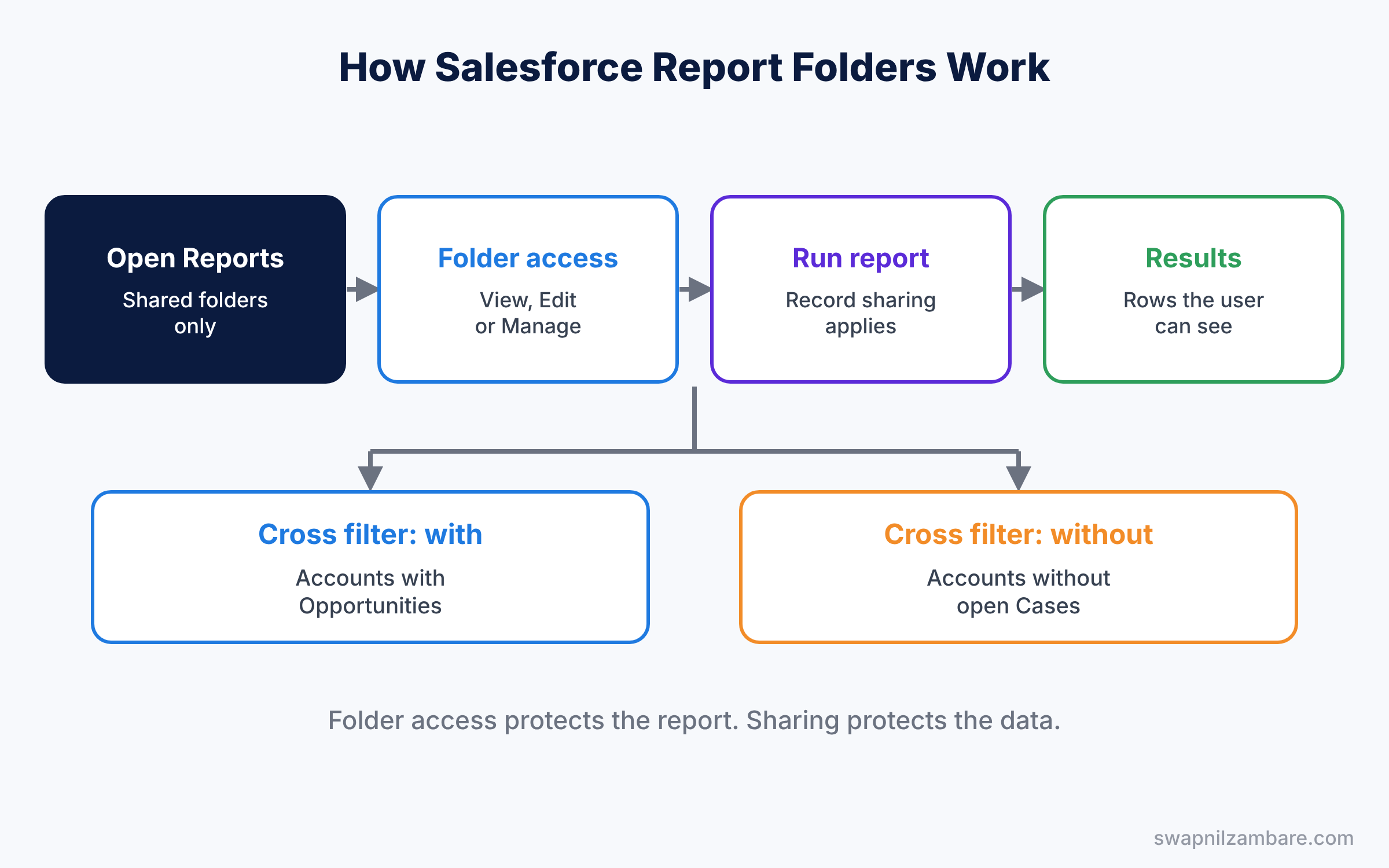
Cross filters work inside the report. They keep or remove parent records based on whether related child records exist. For example, a filter can keep only schools that have at least one won deal. Then a second filter can remove schools that already have open support cases, which leaves a clean call list.
Key Parts of Salesforce Report Folders
Access levels for report folders
First, View lets users run reports in the folder. Edit adds the right to change and save reports there. Manage adds the right to share, rename and delete the folder.
Sharing targets
Next, you can share a folder with users, roles, roles and subordinates, and public groups. With the role option, a new rep who joins the Sales Rep role gets access on day one. Groups are the easiest to maintain, as our queues and public groups guide explains.
Subfolders inside report folders
Then you can create subfolders inside folders. A subfolder takes its sharing from the top-level folder, so plan sharing at the top.
Private folders
Every user has a private reports folder. Nobody else can see it, so remind users to move shared reports out of it before they leave the company. Admins can still find these reports later, but it takes extra work.
Cross filters
Finally, a cross filter keeps parent records with or without related records, like “Accounts with Cases” or “Accounts without Opportunities”. You can add a subfilter on the related object, such as cases where Status is not Closed.
The table below shows the folder plan for Bright Path Tutors.
| Folder | Shared with | Access |
|---|---|---|
| Sales Reports | Sales Managers group | Manage |
| Sales Reports | Sales Reps group | View |
| Support Reports | Support Manager role | Edit |
| Finance Reports | CEO and Finance group | View |
| Admin Source Reports | Admins only | Manage |
Cross Filters vs Normal Filters
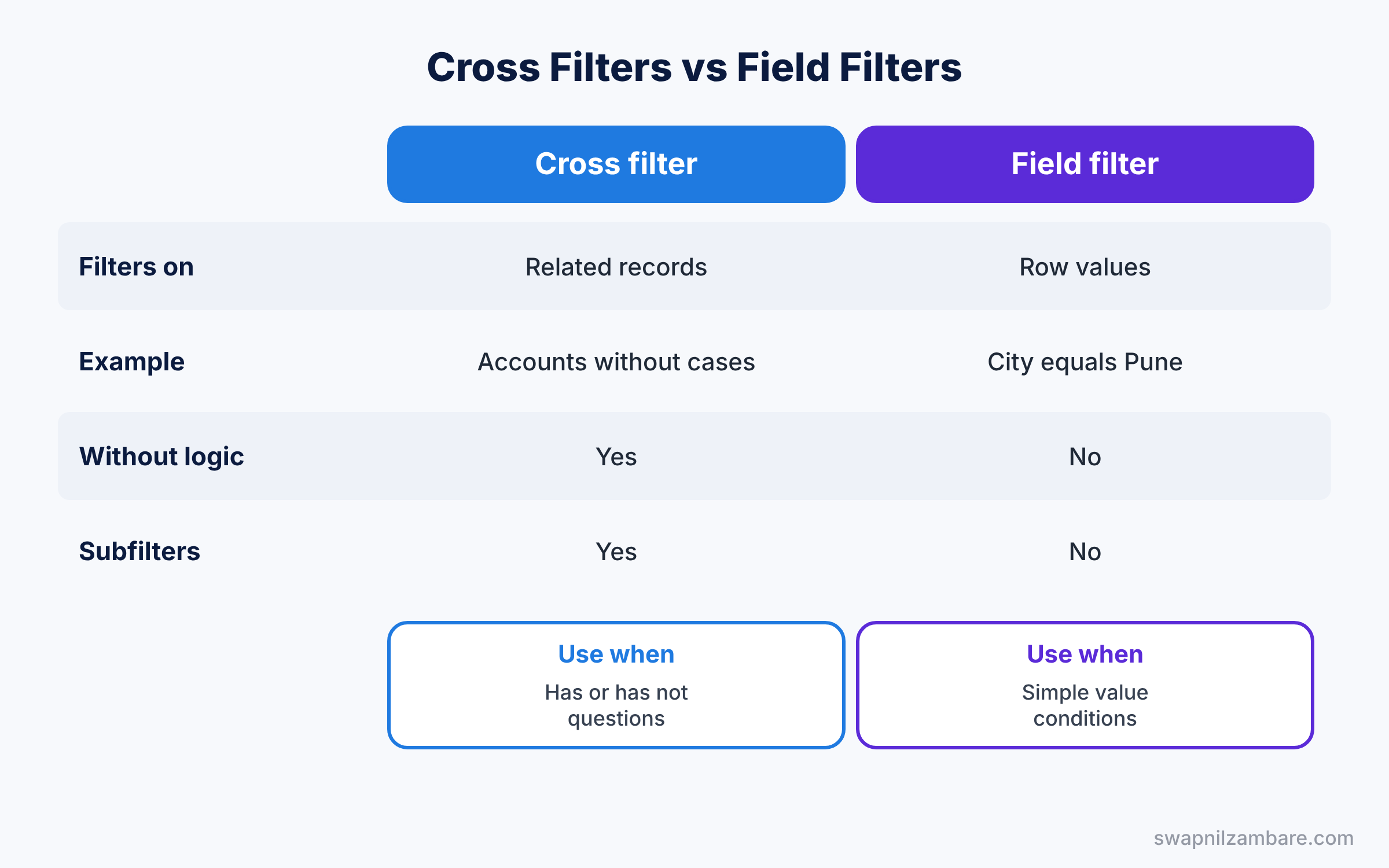
Both narrow a report, but they work on different things. The table below compares them.
| Feature | Cross filter | Normal field filter |
|---|---|---|
| Filters on | Existence of related records | Field values on the row |
| Example | Accounts without cases | Accounts where City equals Pune |
| “Without” logic | Yes | No |
| Subfilters | Yes, on the related object | No |
| Best for | “Has or has not” questions | Simple value conditions |
In short, use field filters for values on the row. Use cross filters when the question is about related records that exist or do not exist.
Hands-on Example: Salesforce Report Folders for Sales and Support
Let’s set up folders and a cross filter in your Developer Edition org.
Step 1: Create folders
- Open the Reports tab and click New Folder. Name it “Sales Reports”.
- Create “Support Reports” and “Finance Reports” the same way.
Step 2: Share the folders
- Click the arrow next to Sales Reports and choose Share.
- Add the Sales Managers group with Manage access and the Sales Reps group with View access.
- Share Support Reports with the Support Manager role with Edit access, using the plan in the table above.
Step 3: Build a cross-filtered report
- Click New Report, choose Accounts, and click Start Report.
- In Filters, click the filter menu and choose Add Cross Filter.
- Set it to Accounts with Opportunities, then add a second cross filter: Accounts without Cases.
- Save the report as “Schools with Deals but No Cases” in Sales Reports.
Step 4: Add a subfilter
Edit the “without Cases” cross filter and add a subfilter: Status not equal to Closed. Now the report shows schools with deals and no open cases. This is a good list for the account team to call for feedback. Finally, add the report to the sales dashboard, so managers see the list every Monday without asking for it.
Step 5: Compare with SOQL
The same logic in SOQL uses semi-joins and anti-joins.
SELECT Name
FROM Account
WHERE Id IN (SELECT AccountId FROM Opportunity)
AND Id NOT IN (SELECT AccountId FROM Case WHERE IsClosed = false)
ORDER BY Name
IN keeps accounts that have opportunities, and NOT IN removes accounts with open cases. So the report and the query give the same list of schools.
Developers can also list report folders and their types with this query.
SELECT Name, DeveloperName, Type, AccessType
FROM Folder
WHERE Type IN ('Report', 'Dashboard')
ORDER BY Name
Common Mistakes with Salesforce Report Folders
- Thinking folder access shows all data. Record sharing still limits each row.
- Giving Manage to everyone. Users can then delete or reshare folders.
- Leaving key reports in private folders. They vanish when the owner leaves.
- Using a normal filter for “without” questions. Only cross filters handle missing records.
- Sharing with many single users. Groups and roles are easier to maintain.
Best Practices for Salesforce Report Folders
- Organise folders by team. Sales, Support and Finance folders are easy to find.
- Give View by default. Add Edit and Manage only where needed.
- Keep an admin folder. Store snapshot source reports and key dashboards there.
- Name reports by their question. “Schools with Deals but No Cases” says exactly what it shows.
- Review unused reports. Delete or archive old reports every quarter.
Practice Task
Create a “Courses without Enrollments” report using a cross filter on the custom report type from our custom report types post. Save it in Sales Reports.
Hint: cross filters need a relationship between the objects, like Enrollment to Course.
Salesforce Report Folders FAQ
Can I share a single report instead of a folder?
Sharing works at the folder level. Move the report to a folder that the right people can see.
Do dashboard folders work the same way?
Yes. Dashboard folders use the same View, Edit and Manage levels.
How many cross filters can a report have?
A report can use a few cross filters, each with its own subfilters. Check Help for the current limit.
Official Resources
- Analyze Your Data with Reports and Dashboards (Salesforce Help)
- Reports and Dashboards for Lightning Experience (Trailhead)
Quick Recap
- Salesforce Report Folders hold reports and control View, Edit and Manage access.
- Folder access protects the report, while record sharing protects the data.
- Subfolders take sharing from the top-level folder.
- Cross filters find records with or without related records.
- Share folders with groups and roles, not single users.
What’s Next?
Your reports are now organised and safe. Next, we return to Sales Cloud and see what happens after a deal is won. Read Salesforce Contracts and Orders Explained.


