Salesforce Contracts and Orders track what happens after a deal is won: the contract records the agreed terms and dates, and the order records exactly which products the customer wants delivered. Together they connect sales to delivery and billing. In our opportunities guide, deals ended at Closed Won. In our products and price books guide, you priced courses for schools. Now you will see what comes next.
In this post, you will learn how contracts and orders work, their statuses, how activation locks them, and how they link to accounts and price books. Then you will create a yearly contract and an order for 40 course seats at Bright Path Tutors. You will also check the data with SOQL, which is a good habit before reporting.
What are Salesforce Contracts and Orders?
A contract is a record of an agreement with an account. It stores the start date, the term in months, the status and the signed terms. For example, Green Valley School North signs a one-year training contract starting 1 July 2026.
An order is a request for products or services. It belongs to an account, can link to a contract, and holds order products from a price book. For example, the school orders 40 seats of Spoken English for the July batch.
Here is a simple analogy. Think of a mobile phone plan. The yearly plan you sign is the contract. Each time you buy extra data packs under that plan, that is an order. The plan sets the rules, and each order says exactly what you want this time.
Why Salesforce Contracts and Orders Matter
An opportunity shows that a deal was won, but not what must be delivered or when the agreement ends. However, teams outside sales need that detail every day. For example, the academic team plans trainers by seats, not by deal amounts. Also, finance cannot bill from a forecast, because forecasts change until the very last day.
Here are some real situations at Bright Path Tutors.
- The academic team must know how many seats each school bought for each batch.
- Finance wants to bill from a clean list of activated orders.
- Account managers need a reminder 30 days before a school contract ends.
- Schools sometimes cancel seats, and the team must record the reduction.
So contracts and orders give delivery and finance teams a clear, locked record of what was agreed.
How Salesforce Contracts and Orders Work
The flow usually follows the deal. First, a rep wins an opportunity for the account. Next, the rep creates a contract with the start date and term, and it moves from Draft to In Approval Process to Activated. Then the rep creates an order on the account, links it to the contract, and picks a price book. After that, the rep adds order products, like 40 seats of a course. Finally, someone activates the order, which locks the products for delivery and billing.
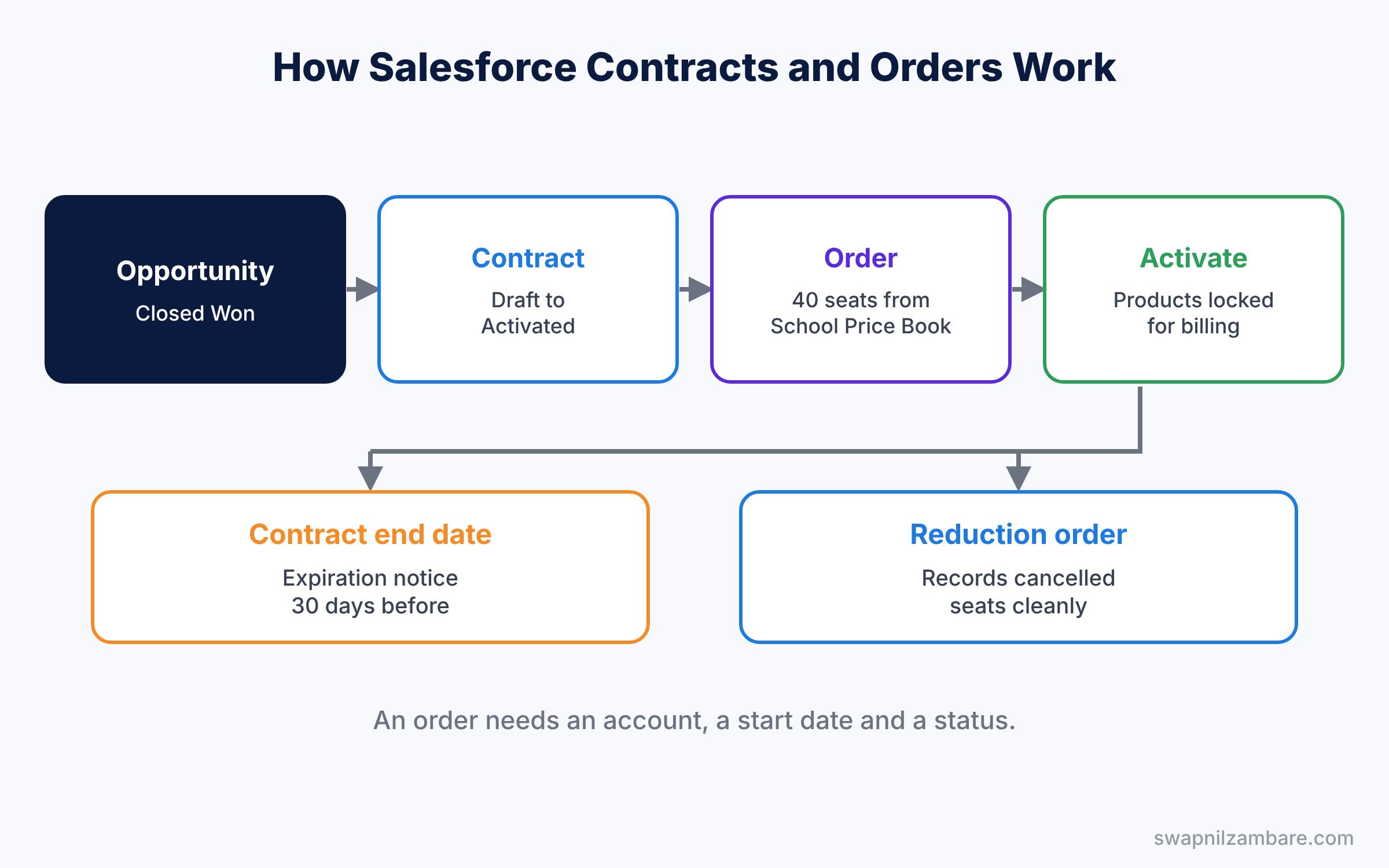
Activation is the key moment. Before it, records are drafts you can change freely. After it, they become the official record. So agree on who activates each record, because that person confirms the numbers are final. At Bright Path Tutors, the Sales Manager activates contracts, while finance activates orders.
Key Parts of Salesforce Contracts and Orders
Contract fields and statuses
First, a contract needs an account, a start date and a term in months. Salesforce can calculate the end date for you. The standard statuses are Draft, In Approval Process and Activated, and you can add more values.
Contract settings
Next, the Contract Settings page in Setup controls helpful options. For example, you can calculate the end date automatically and send expiration notices to the account owner.
Turning on contracts and orders
Then orders must be enabled in Setup under Order Settings. On the same page, you can turn on reduction orders, which record returns or cancelled seats.
Order products
An order uses one price book, like an opportunity. Order products store the product, quantity and unit price. Then the order’s total amount adds them up, so you never calculate it by hand.
Activation and permissions
Finally, users need permissions like Activate Contracts and Activate Orders. You can add these to a permission set for the finance team, instead of changing their profile. Once an order is activated, you cannot add or remove its products. A reduction order is then the clean way to change quantities.
The table below shows the main statuses.
| Record | Status | What it means |
|---|---|---|
| Contract | Draft | Terms are still being written |
| Contract | In Approval Process | Waiting for sign-off |
| Contract | Activated | Signed and in force |
| Order | Draft | Products can still change |
| Order | Activated | Locked for delivery and billing |
Contracts and Orders vs Opportunities
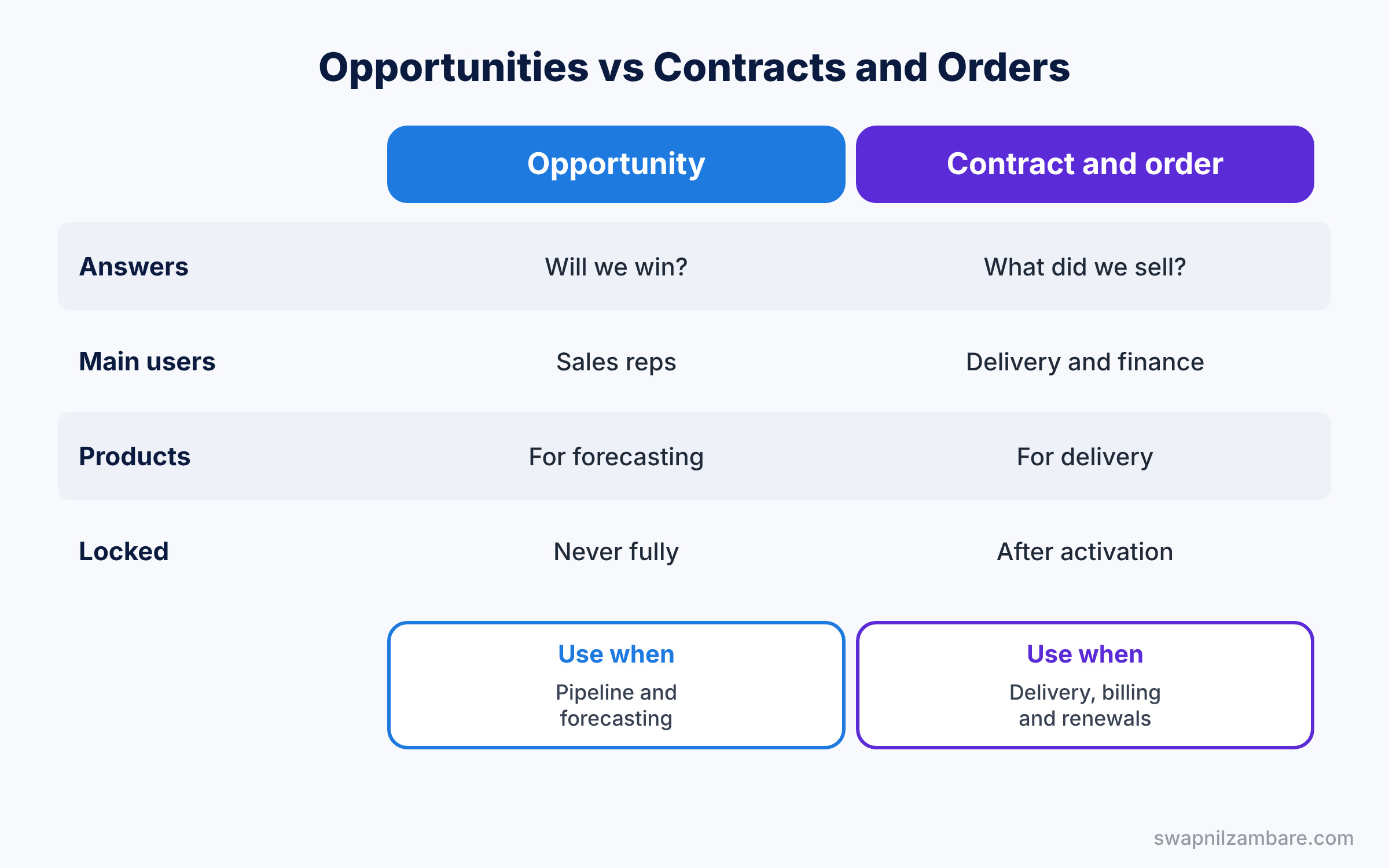
Opportunities, contracts and orders all relate to sales, so beginners mix them up. The table below compares them.
| Feature | Opportunity | Contract and order |
|---|---|---|
| Question it answers | Will we win this deal? | What exactly did we agree and sell? |
| Main users | Sales reps and managers | Delivery, finance and account managers |
| Products | Opportunity products for the forecast | Order products for delivery |
| Locked after | Never fully locked | Activation |
| Best for | Pipeline and forecasting | Delivery, billing and renewals |
In short, use opportunities to win the deal and forecast it. Use Salesforce Contracts and Orders to record and deliver what the customer bought.
Hands-on Example: Salesforce Contracts and Orders for a School
Let’s record a school deal in your Developer Edition org.
Step 1: Check the settings
- Go to Setup, type “Contract Settings” in Quick Find, and tick Auto-calculate Contract End Date. Save.
- Then type “Order Settings”, tick Enable Orders, and save.
- Add the Orders and Contracts tabs to your Sales app if they are not there yet, using App Manager.
Step 2: Create the contract
- Open Green Valley School North and click New in the Contracts related list.
- Enter the values from the table below and save.
| Field | Value |
|---|---|
| Status | Draft |
| Contract Start Date | 1 July 2026 |
| Contract Term (months) | 12 |
| Owner Expiration Notice | 30 days |
- When the school signs, change Status to Activated.
Step 3: Create the order
- Click New in the Orders related list on the account.
- Set Contract to the new contract, Order Start Date to 1 July 2026 and Status to Draft. Save.
- In Order Products, choose the School Price Book and add Spoken English 12 Weeks, quantity 40, unit price 7,500.
Step 4: Activate the order
Click Activate on the order. Now its products are locked, and finance can bill from it. Next, try to add another product. Salesforce blocks the change, which shows the lock is working. As a result, everyone can trust the order as the final record of the sale.
Step 5: Check with SOQL
Developers can list activated orders with their contract and total.
SELECT OrderNumber, Account.Name, Contract.ContractNumber,
       Status, TotalAmount, EffectiveDate
FROM Order
WHERE Status = 'Activated'
ORDER BY EffectiveDate DESC
The result might look like this.
OrderNumber  Account.Name               ContractNumber  Status     TotalAmount
00000107     Green Valley School North  00000012        Activated  300000
EffectiveDate is the API name of Order Start Date. This query also finds contracts that will end soon.
SELECT ContractNumber, Account.Name, EndDate
FROM Contract
WHERE Status = 'Activated' AND EndDate = NEXT_N_DAYS:30
Common Mistakes with Salesforce Contracts and Orders
- Forgetting to enable orders. The Orders tab and related list stay hidden.
- Activating too early. You cannot change order products after activation.
- No price book on the order. You cannot add products until you choose one.
- Ignoring end dates. Without expiration notices, renewals get missed.
- Editing activated records to fix mistakes. Use reduction orders for clear history.
Best Practices for Salesforce Contracts and Orders
- Link orders to contracts. Reports then show everything a school bought under one agreement.
- Use approvals before activation. Our approval processes guide shows how to add a sign-off step.
- Limit who can activate. Give the activate permissions only to finance or managers.
- Track renewals with reports. A “Contracts ending in 60 days” report keeps renewals on time.
- Keep price books consistent. Use the same price book on the opportunity and the order.
Practice Task
Turn on reduction orders, then create a reduction order that removes 5 seats from the activated order. Check the new total on the account’s orders.
Hint: open the activated order and use the Reduce Order action, then enter the number of seats to remove.
Salesforce Contracts and Orders FAQ
Is a contract required for every order?
No. By default, an order only needs an account, a start date and a status. You can link a contract when one exists.
Can an order come from an opportunity?
Yes. Many teams use a flow to create an order from a won opportunity and copy its products.
Can I undo activation?
Users with the right permission can change status back in some cases, but it is better to use reduction orders.
Official Resources
Quick Recap
- Salesforce Contracts and Orders record what was agreed and sold after a win.
- Contracts store dates, terms and status, from Draft to Activated.
- Orders hold order products from one price book.
- Activation locks the records for delivery and billing.
- Reduction orders record cancelled seats without editing history.
What’s Next?
Your sales records now cover the full deal. Next, learn how to spread revenue and quantity across months with schedules. Read Salesforce Product Schedules: Revenue and Quantity.


