Salesforce Product Schedules split the revenue or quantity of a product on an opportunity into installments over time, such as 12 monthly payments or 4 quarterly deliveries. They show when money will actually arrive, not just the total deal value. In our products and price books guide, you added course seats to opportunities. In our forecasting guide, you predicted revenue by month. Schedules connect those two ideas.
In this post, you will learn the difference between quantity and revenue schedules, the Divide and Repeat schedule types, how default schedules work on products, and how reps edit installments. Then you will set up a yearly school programme at Bright Path Tutors that is billed monthly. You will also check the installments with SOQL, so you can trust the numbers before they reach a dashboard.
What are Salesforce Product Schedules?
A product schedule is a list of installments attached to an opportunity product. Each installment has a date and either a quantity, a revenue amount, or both. Together they show how the product’s total is spread across time.
There are two kinds. A quantity schedule spreads units, like 40 seats delivered in two batches of 20. A revenue schedule spreads money, like 3,00,000 billed as 12 monthly payments of 25,000.
Here is a simple analogy. Think of buying a phone on EMI. The total price is fixed, but you pay it in monthly installments. A revenue schedule is that EMI plan for a deal. A quantity schedule is like a newspaper subscription, where the copies arrive one day at a time.
Why Salesforce Product Schedules Matter
Without schedules, Salesforce books the whole amount on the opportunity close date. For a yearly contract, that makes one month look huge and the next eleven look empty. As a result, managers may think sales dropped, even though money keeps coming in every month. Finance also has to rebuild the monthly view in spreadsheets, which takes time and invites mistakes.
Here are some real situations at Bright Path Tutors.
- A school signs a 3,00,000 programme and pays 25,000 every month for a year.
- Seats for a large group course arrive in two batches, in July and October.
- Finance wants monthly revenue reports that match real billing.
- Managers want forecasts that reflect when money arrives, not just when deals close.
So schedules make reports and forecasts match how the business really earns money.
How Salesforce Product Schedules Work
The setup follows a clear order. First, an admin turns on quantity schedules, revenue schedules or both in Setup. Next, the admin enables scheduling on each product and can add a default schedule. Then a rep adds the product to an opportunity, and Salesforce creates the installments from the default schedule. After that, the rep can edit dates and amounts or re-establish the schedule. Finally, reports and forecasts can use the installment dates and amounts.
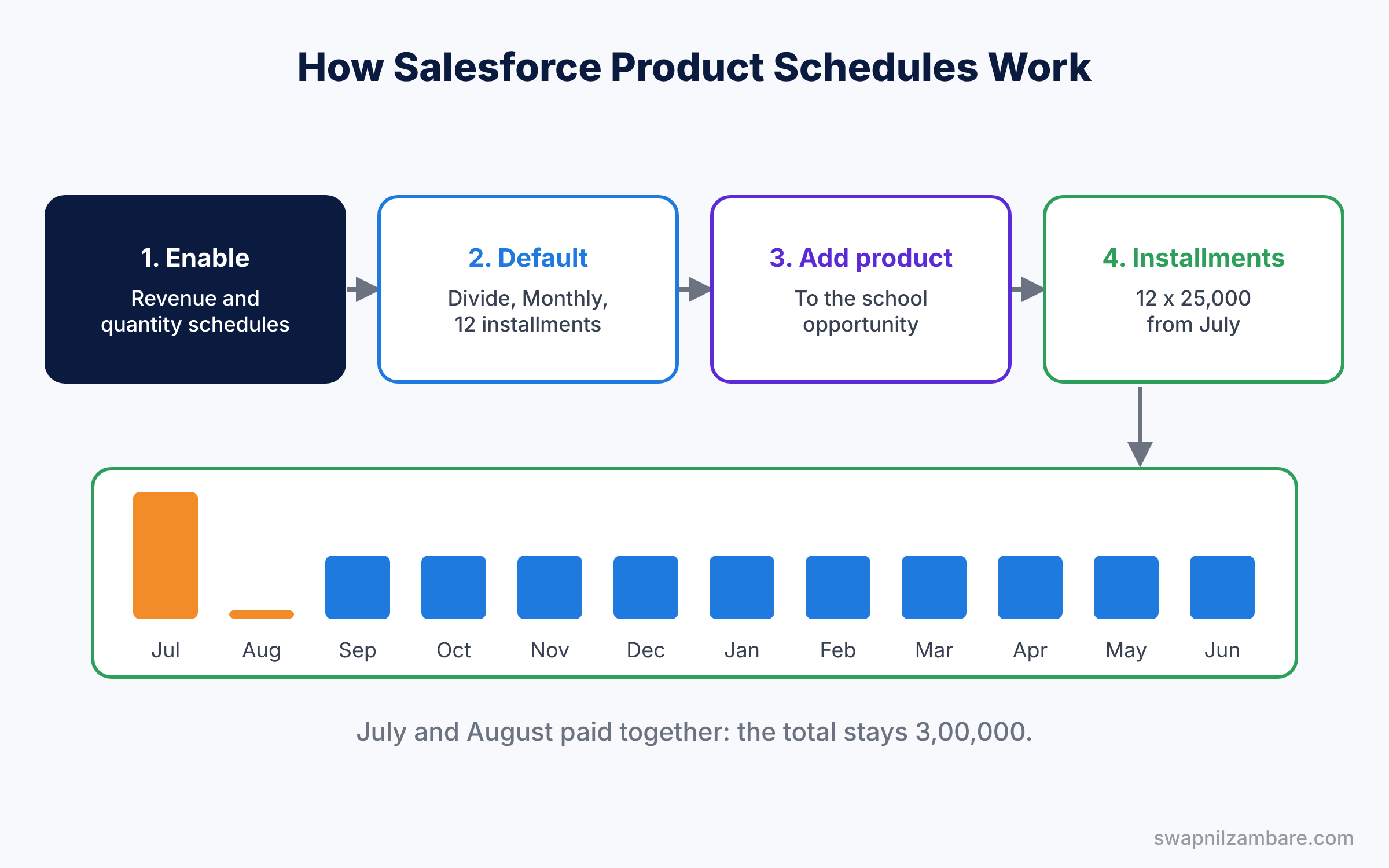
Schedules live on the opportunity product, not on the product itself. The product only holds the default pattern. So two opportunities for the same product can have different installments, because each school may agree to a different payment plan.
Key Parts of Salesforce Product Schedules
Quantity and revenue schedules
First, quantity schedules split units, and revenue schedules split money. A product can use one or both. If you use both, each installment holds a quantity and a revenue amount together.
Types of product schedules
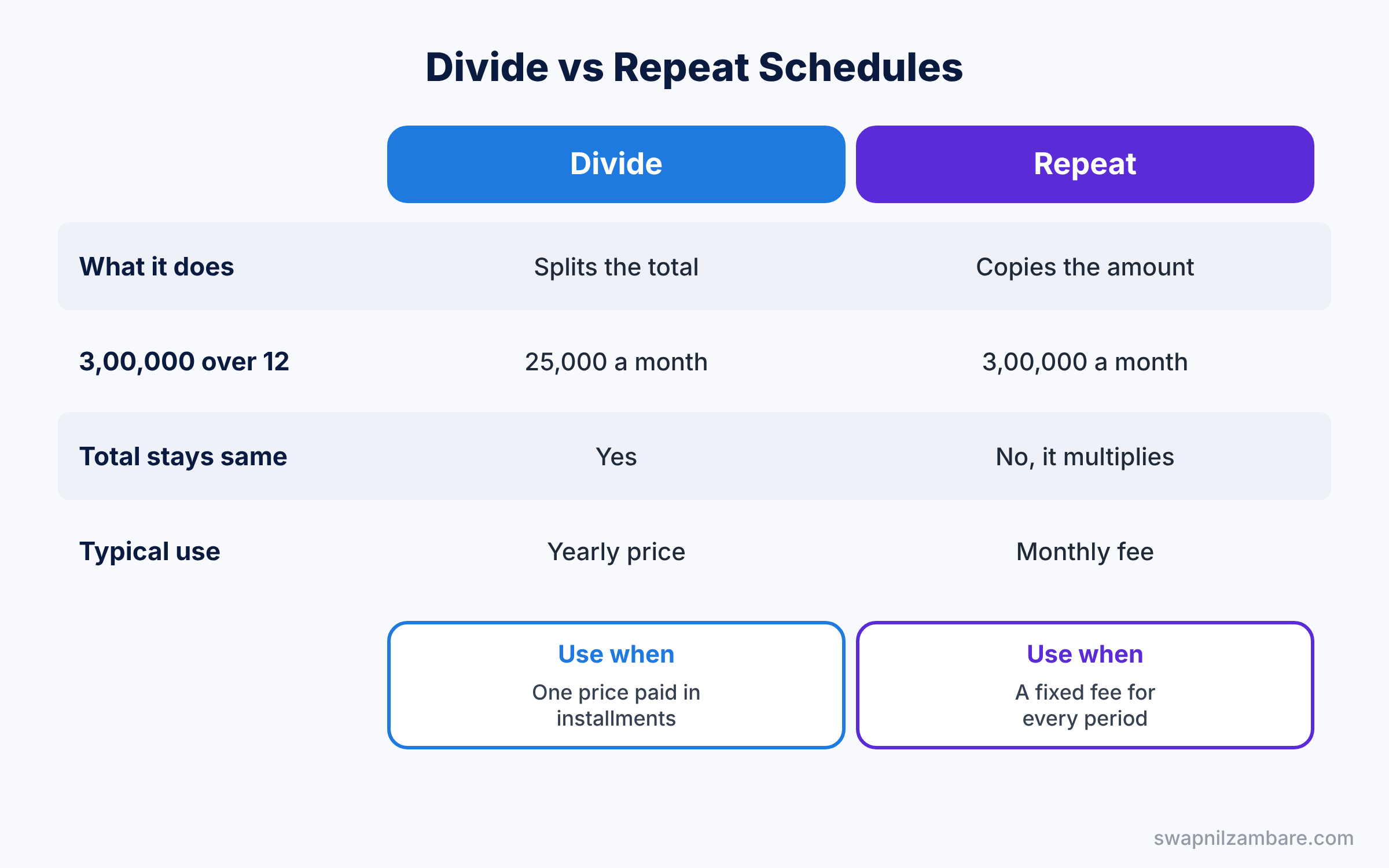
Next, the Divide type splits the total into equal installments. For example, 3,00,000 divided over 12 months gives 25,000 each. The Repeat type copies the full amount into every installment, which suits fixed monthly fees.
Installment period and count
Then each schedule has an installment period, such as Daily, Weekly, Monthly, Quarterly or Yearly. It also has a number of installments, such as 12. Together with the start date, these two settings decide every installment date. For example, Monthly with 12 installments from 1 July gives one date on the first of each month until June next year.
Default schedules on products
On each product, admins can set a default schedule type, period and number of installments. When a rep adds the product, Salesforce creates the installments automatically. This saves reps time and keeps every school deal on the same billing pattern, unless a manager agrees to a change.
Editing and re-establishing
Finally, reps can edit single installments, for example when a school pays two months together. Then the total updates to match the new amounts. Re-establish rebuilds all installments from new settings, and it replaces earlier manual edits.
The table below shows our school programme schedule.
| Setting | Value |
|---|---|
| Product | School Coding Programme |
| Schedule type | Revenue, Divide |
| Installment period | Monthly |
| Number of installments | 12 |
| Start date | 1 July 2026 |
Product Schedules: Divide vs Repeat
Both schedule types look similar in Setup, but they give very different totals. So compare them before you set a default.
| Feature | Divide | Repeat |
|---|---|---|
| What it does | Splits the total into equal parts | Copies the full amount to each part |
| 3,00,000 over 12 months | 25,000 each month | 3,00,000 each month |
| Total stays the same | Yes | No, it multiplies |
| Typical use | One price paid in installments | Fixed fee charged every period |
| Best for | Yearly contracts billed monthly | Subscriptions priced per month |
In short, use Divide when the price covers the whole period. Use Repeat when the sales price is already a per-period fee.
Hands-on Example: Salesforce Product Schedules for a School Programme
Let’s set up a monthly billed programme in your Developer Edition org.
Step 1: Turn on schedules
- Go to Setup, type “Product Schedules Settings” in Quick Find, and open it.
- Tick Enable Revenue Schedules and Enable Quantity Schedules, then save.
Step 2: Set a default schedule on the product
- Open the Products tab and create “School Coding Programme” with a standard price of 3,00,000.
- Click Edit on the product. Tick Revenue Scheduling Enabled.
- Set the default schedule type to Divide, the installment period to Monthly, and the number of installments to 12. Save.
Step 3: Add the product to an opportunity
- Open the Green Valley School North renewal opportunity.
- Add School Coding Programme with quantity 1 and sales price 3,00,000.
- Open the opportunity product. The Schedule related list now shows 12 installments of 25,000.
Step 4: Edit an installment
The school pays July and August together. So edit the schedule, set July to 50,000 and August to 0, and save. The total stays 3,00,000. However, if you later click Re-establish, Salesforce rebuilds 12 equal installments and your July change is lost. So add a note on the opportunity whenever you edit installments by hand.
Step 5: Check with SOQL
Developers can list the installments for the opportunity with this query.
SELECT ScheduleDate, Revenue, Type
FROM OpportunityLineItemSchedule
WHERE OpportunityLineItem.Opportunity.Name = 'Green Valley Renewal 2026'
ORDER BY ScheduleDate
The result might look like this.
ScheduleDate  Revenue  Type
2026-07-01    50000    Revenue
2026-08-01    0        Revenue
2026-09-01    25000    Revenue
Type shows whether each row is a Revenue, Quantity or Both installment. So you can filter reports to the kind of schedule you care about. Then build a report with the Opportunities with Products and Schedules report type, grouped by schedule month, to see revenue by month.
Common Mistakes with Salesforce Product Schedules
- Using Repeat by accident. A 3,00,000 deal becomes 36,00,000 over the year.
- Re-establishing after manual edits. Re-establish wipes the edited installments.
- Forgetting to enable scheduling on the product. No schedule appears on the opportunity.
- Changing the sales price later. Check that installments still add up to the new total.
- Reporting on close date only. Use schedule dates for monthly revenue views.
Best Practices for Salesforce Product Schedules
- Set defaults on products. Reps then get correct installments without extra clicks.
- Agree on rules with finance. Use the same months as your billing system.
- Lock edits after billing starts. Validation rules or approvals protect history.
- Report by schedule month. Monthly views match invoices and cash flow.
- Train reps on Divide vs Repeat. A short example prevents costly mistakes.
Practice Task
Add a quantity schedule to a “Group Course Seats” product: 40 seats delivered in two installments, in July and October. Then check the installments on an opportunity.
Hint: set the installment period to Quarterly and the number of installments to 2, then adjust the dates.
Salesforce Product Schedules FAQ
Can I use schedules with price books?
Yes. The sales price comes from the opportunity product, and the schedule spreads that amount.
Do schedules change the opportunity amount?
No. The opportunity amount stays the same. Schedules only spread it across dates.
Can forecasts use schedule dates?
Yes. Forecast types can use product and schedule dates, so check your forecast settings.
Official Resources
Quick Recap
- Salesforce Product Schedules spread quantity or revenue across installments.
- Divide splits a total, while Repeat copies the amount to each period.
- Defaults on products create installments automatically.
- Re-establish rebuilds the schedule and replaces manual edits.
- Report by schedule date to see revenue month by month.
What’s Next?
Your deals now show when money arrives. Next, we move to Service Cloud and learn how customers chat with your team from your website. Read Salesforce Enhanced Chat: Messaging for Web and Apps. You can also revisit our contracts and orders guide.


