Salesforce Enhanced Chat lets customers chat with your support team from a website or a mobile app, with every conversation saved in Salesforce and routed to the right agent. It was earlier called Messaging for In-App and Web. Salesforce retired the older Legacy Chat on 14 February 2026, so Enhanced Chat is now the standard way to offer chat. In our Omni-Channel guide, you routed cases to agents. Chats use the same routing engine.
In this post, you will learn how a messaging channel, an embedded deployment, Omni-Channel routing and messaging sessions fit together. Then you will plan and build a website chat for Bright Path Tutors parents. You should also know Experience Cloud sites from our Experience Cloud guide, because many teams add chat to their help site.
What is Salesforce Enhanced Chat?
Enhanced Chat is a messaging channel in Service Cloud. A small chat window sits on your website or inside your mobile app. When a parent types a question, Salesforce creates a messaging session and Omni-Channel routes it to an available agent.
Unlike older live chat, conversations can be asynchronous. A parent can start a chat, close the browser, and continue later in the same conversation. Agents see the full history in one place.
Here is a simple analogy. Think of a school reception desk with a message book. A parent leaves a question, the receptionist passes it to the right teacher, and the answer goes back into the same book. Enhanced Chat is that message book, but online and instant.
Why Salesforce Enhanced Chat Matters
Many parents prefer typing to calling, especially during work hours. Chat also lets one agent help several people at once. For example, an agent can answer three timing questions while a fourth parent fills the pre-chat form. As a result, the same team handles more questions without longer queues.
Here are some real situations at Bright Path Tutors.
- Parents ask about class timings while browsing the course pages.
- The support team wants chats to reach agents who are free, not a shared inbox.
- Managers want every chat saved and linked to the parent’s contact record.
- The team plans to let an AI agent answer simple questions first.
So Enhanced Chat gives customers a fast channel and gives managers full records of every conversation.
How Salesforce Enhanced Chat Works
A chat follows a clear path. First, the parent opens the chat window on the website, which comes from an embedded service deployment. Next, the parent fills a short pre-chat form, such as name and email. Then Salesforce creates a messaging session and Omni-Channel routes it to a queue or an agent. After that, the agent accepts the work in the Service Console and replies. Finally, the conversation is stored on the messaging session, linked to the contact and, if needed, to a case.
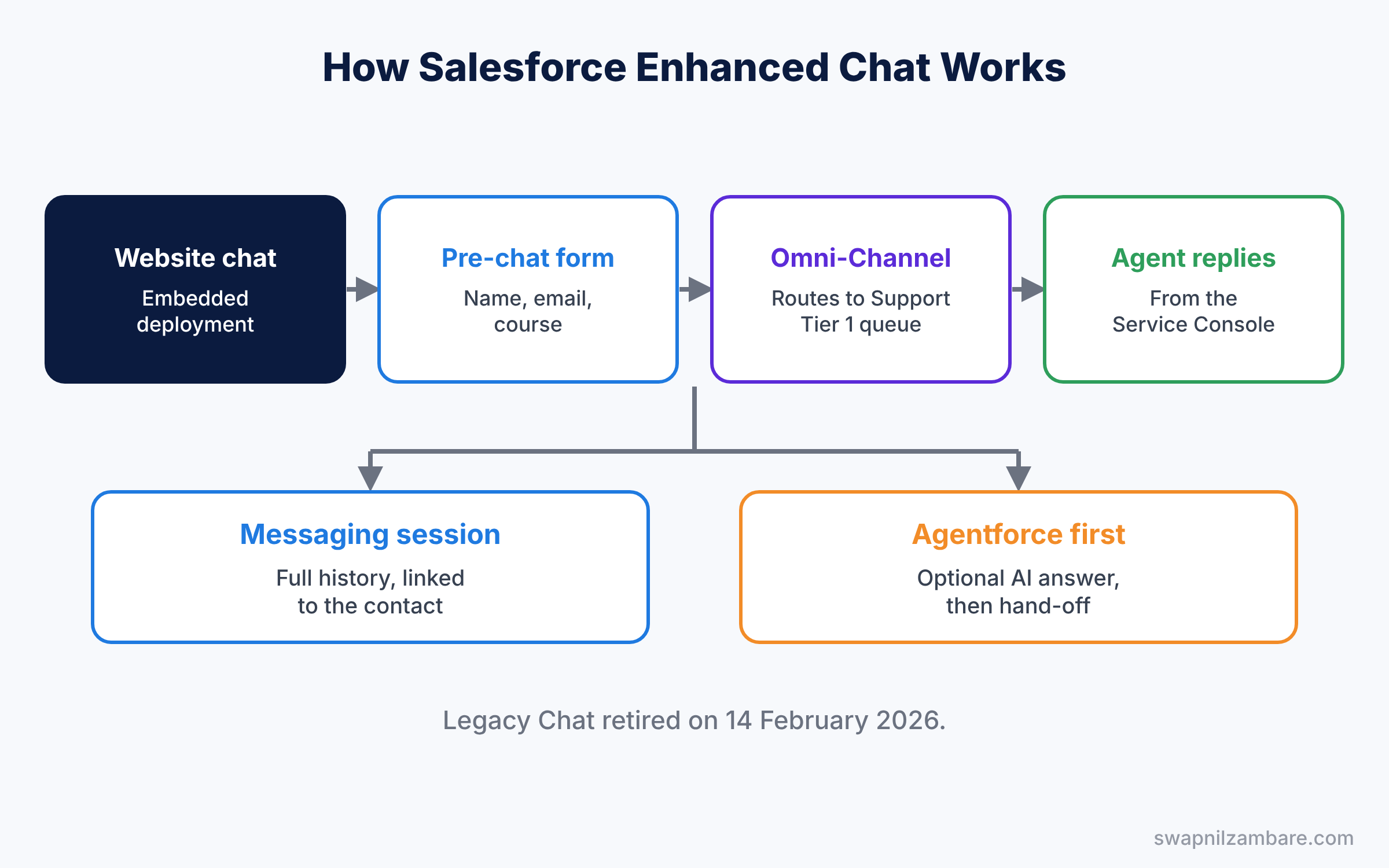
The same channel can also start with an Agentforce service agent. If the agent cannot help, it hands the chat to a human through the same routing. So you can begin with human agents only, then add an AI agent later without rebuilding the channel.
Key Parts of Salesforce Enhanced Chat
Enhanced Chat messaging channel
First, the messaging channel is the setup record for the chat. It defines routing, business hours and the auto-response messages that parents see.
Embedded service deployment
Next, the embedded service deployment creates the chat window and the code snippet for your website. You set the branding, colours and pre-chat fields here, then publish it. However, every later change also needs a new publish, so plan your branding before going live.
Omni-Channel routing
Then routing decides who gets each chat. You can route to a queue, or use an Omni-Channel flow to pick a queue based on the pre-chat answers, like course type. Routing also respects agent capacity, so a busy agent does not get a fifth chat while others are free.
Messaging sessions and users
Each conversation is a messaging session record. Also, each person who chats becomes a messaging user, which can link to a contact. So reports can show chats per parent, per agent or per day.
Agent tools
Finally, agents work in the Service Console with the Omni-Channel widget. They can use quick text, open related records and create a case from the chat. When a chat needs follow-up, such as a refund check, the case keeps the work open after the chat ends.
The table below shows our chat plan for Bright Path Tutors.
| Setting | Value |
|---|---|
| Channel name | Parent Website Chat |
| Routing | Omni-Channel flow to Support Tier 1 queue |
| Business hours | India Office Hours |
| Pre-chat fields | First name, last name, email, course |
| Linked records | Contact and, if needed, a case |
Enhanced Chat vs Email-to-Case
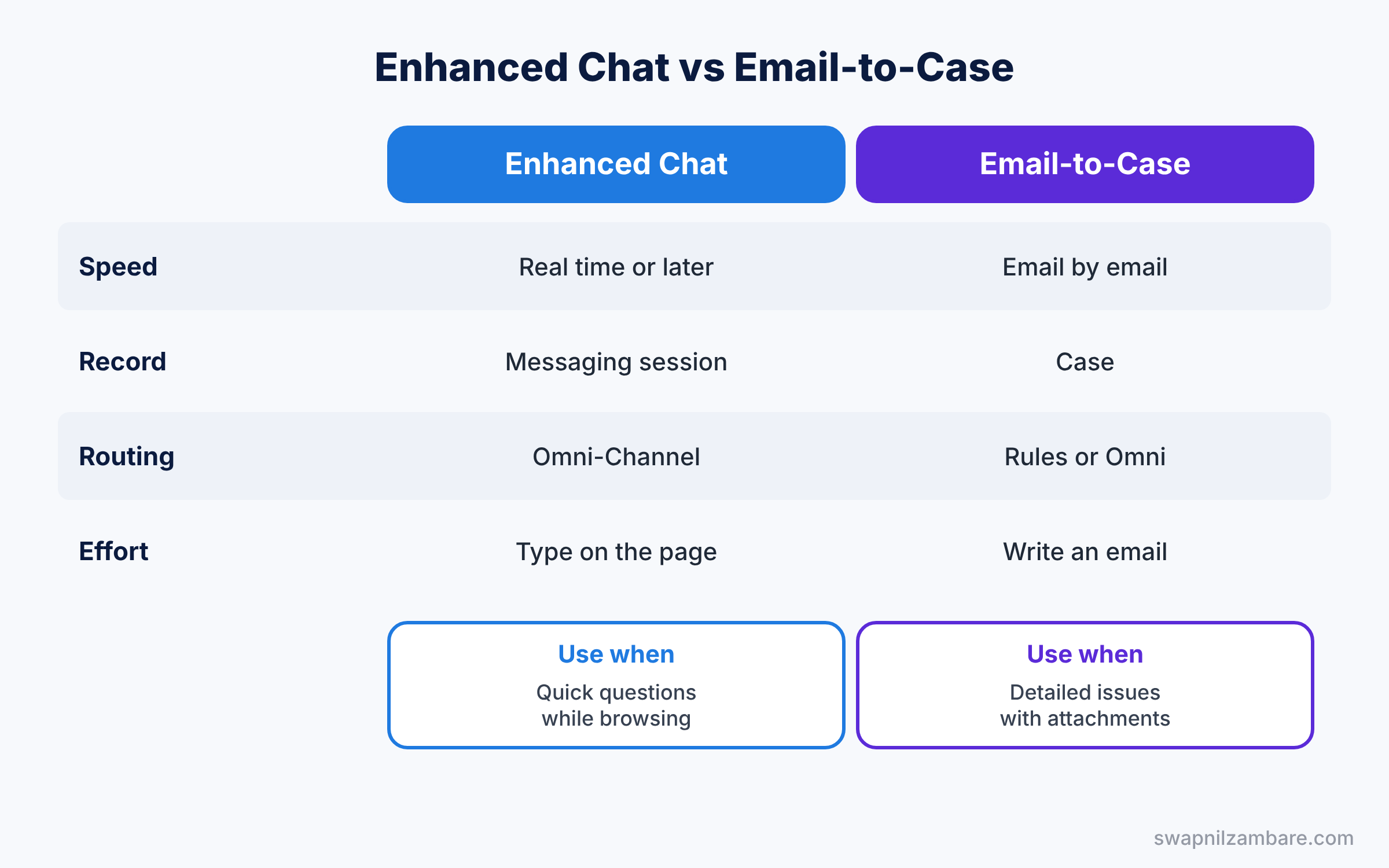
Both channels bring customer questions into Salesforce. The table below compares them.
| Feature | Enhanced Chat | Email-to-Case |
|---|---|---|
| Speed | Real time, or later in the same thread | Slower, email by email |
| Record created | Messaging session | Case |
| Routing | Omni-Channel to available agents | Assignment rules or Omni-Channel |
| Customer effort | Type in a window on the page | Write and send an email |
| Best for | Quick questions while browsing | Detailed issues and attachments |
In short, use Email-to-Case for detailed problems that need records and attachments. Use Salesforce Enhanced Chat for quick questions that need fast answers.
Hands-on Example: Salesforce Enhanced Chat for Parents
Let’s plan the setup in your Developer Edition org. Menu names can change between releases, so follow the current Help steps if a label looks different.
Step 1: Prepare Omni-Channel
- Make sure Omni-Channel is on and the Support Tier 1 queue exists, as in our Omni-Channel post.
- Give support agents the right presence status and permission set for messaging.
Step 2: Create the messaging channel
- Go to Setup, type “Messaging Settings” in Quick Find, and turn on Messaging.
- Click New Channel and choose the Enhanced Chat type for web.
- Name it “Parent Website Chat”, choose routing to the Support Tier 1 queue, and save.
Step 3: Create the embedded deployment
- In Quick Find, open Embedded Service Deployments and click New Deployment.
- Choose Enhanced Chat and Web, link the “Parent Website Chat” channel, and add your website domain.
- Add the pre-chat fields from the table above, set the brand colours, and click Publish.
Step 4: Add the chat to the website
- Open the deployment and click Install Code Snippet, then copy the code.
- Paste it into your website pages, or add the chat component to an Experience Cloud site.
Step 5: Test and report
First, open the website as a parent and start a chat. Then accept it in the console as an agent and reply. Then check the session with this SOQL query.
SELECT Id, Status, StartTime, EndTime, MessagingEndUser.Name
FROM MessagingSession
WHERE CreatedDate = TODAY
ORDER BY StartTime DESC
MessagingEndUser is the person who chatted, and Status shows whether the session is active or ended. So managers can count chats per day and per agent. Build a report on messaging sessions grouped by owner, then add it to the support dashboard next to open cases. This shows at a glance how much work arrives through chat compared with email.
Common Mistakes with Salesforce Enhanced Chat
- Skipping Omni-Channel setup. Chats have nowhere to go without routing.
- No business hours. Parents wait at midnight for an answer that never comes.
- Long pre-chat forms. Ask only what agents really need.
- Forgetting to publish the deployment. Changes do not reach the website until you publish.
- Not linking chats to contacts. History is lost if sessions stay unlinked.
Best Practices for Salesforce Enhanced Chat
- Set clear auto-responses. Tell parents when an agent will reply.
- Use quick text for common answers. Agents answer faster and more consistently.
- Route by topic. A flow can send fee questions to finance-trained agents.
- Watch capacity. Do not give agents more chats than they can handle well, because slow replies frustrate parents.
- Start with a pilot page. Add chat to one course page first, then expand once agents feel confident.
Practice Task
Add a “Course” picklist to the pre-chat form and build an Omni-Channel flow that sends coding course chats to a separate Coding Support queue.
Hint: read the pre-chat value from the messaging session in the routing flow.
Salesforce Enhanced Chat FAQ
What happened to Legacy Chat?
Salesforce retired Legacy Chat on 14 February 2026. Enhanced Chat replaces it.
Can customers send files in chat?
Enhanced Chat supports attachments in many setups. Check your channel settings and Help for current options.
Can an AI agent answer first?
Yes. An Agentforce service agent can answer simple questions and hand over to a human when needed.
Official Resources
Quick Recap
- Salesforce Enhanced Chat adds chat to websites and apps, saved in Salesforce.
- It replaced Legacy Chat, which retired in February 2026.
- An embedded deployment creates the chat window and website code.
- Omni-Channel routes each messaging session to the right agent.
- Sessions link to contacts and cases for full history.
What’s Next?
Your parents can now chat with support. Next, learn how agents answer faster with macros and quick text. Read Salesforce Macros and Quick Text for Service Agents.


