Salesforce Experience Cloud lets you build websites and portals, called sites, where customers, partners or the public can log in and work with your Salesforce data. A parent can check their child’s enrollments, read help articles and raise a support case, all without calling the office. In our Knowledge guide, you published articles to a Customer channel. In our cases guide, customers sent cases by web form and email. A site brings all of this together.
In this post, you will learn how sites, templates, members, licences and sharing work, and how Experience Builder and Experience Workspaces fit in. Then you will build a simple “Parent Portal” for Bright Path Tutors with the Customer Service template. You should know profiles and sharing from our sharing and roles guide, because external users follow special sharing rules.
What is Salesforce Experience Cloud?
Experience Cloud is the Salesforce product for building branded sites on top of your org. A site has its own web address, pages and look, but it reads and writes the same records as your internal users. However, older orgs called these sites communities, so you may still see that word in Help.
People who log in to a site are external users. Each one is linked to a contact, and through that contact to an account. Also, sites can have public pages that anyone can see without logging in, served by a guest user.
Here is a simple analogy. Think of a bank with a back office and a customer counter. Staff work in the back office with full access. However, customers come to the counter and see only their own account. Your internal Salesforce is the back office, and an Experience Cloud site is the counter.
Why Salesforce Experience Cloud Matters
Many questions that reach your support team are simple. For example, parents want to know a class time, download a receipt, or update a phone number. So a portal lets them help themselves at any hour, even at midnight before an exam. As a result, agents spend their time on the hard cases instead of repeating class timings.
Here are some real situations at Bright Path Tutors.
- Parents want to see their child’s enrollments and fees paid.
- The support team wants parents to search help articles before raising a case.
- Partner schools need a place to register students for group courses.
- Public visitors should read course FAQs without logging in.
So a site cuts support work and gives customers and partners a better experience.
How Salesforce Experience Cloud Works
Building a site follows clear steps. First, you turn on digital experiences in Setup and choose a domain. Next, you create a site from a template, such as Customer Service. Then you add members, which are the profiles or permission sets of external users allowed to log in. After that, you design pages in Experience Builder and set up sharing so each user sees only their own records. Finally, you publish the site and enable contacts as external users.
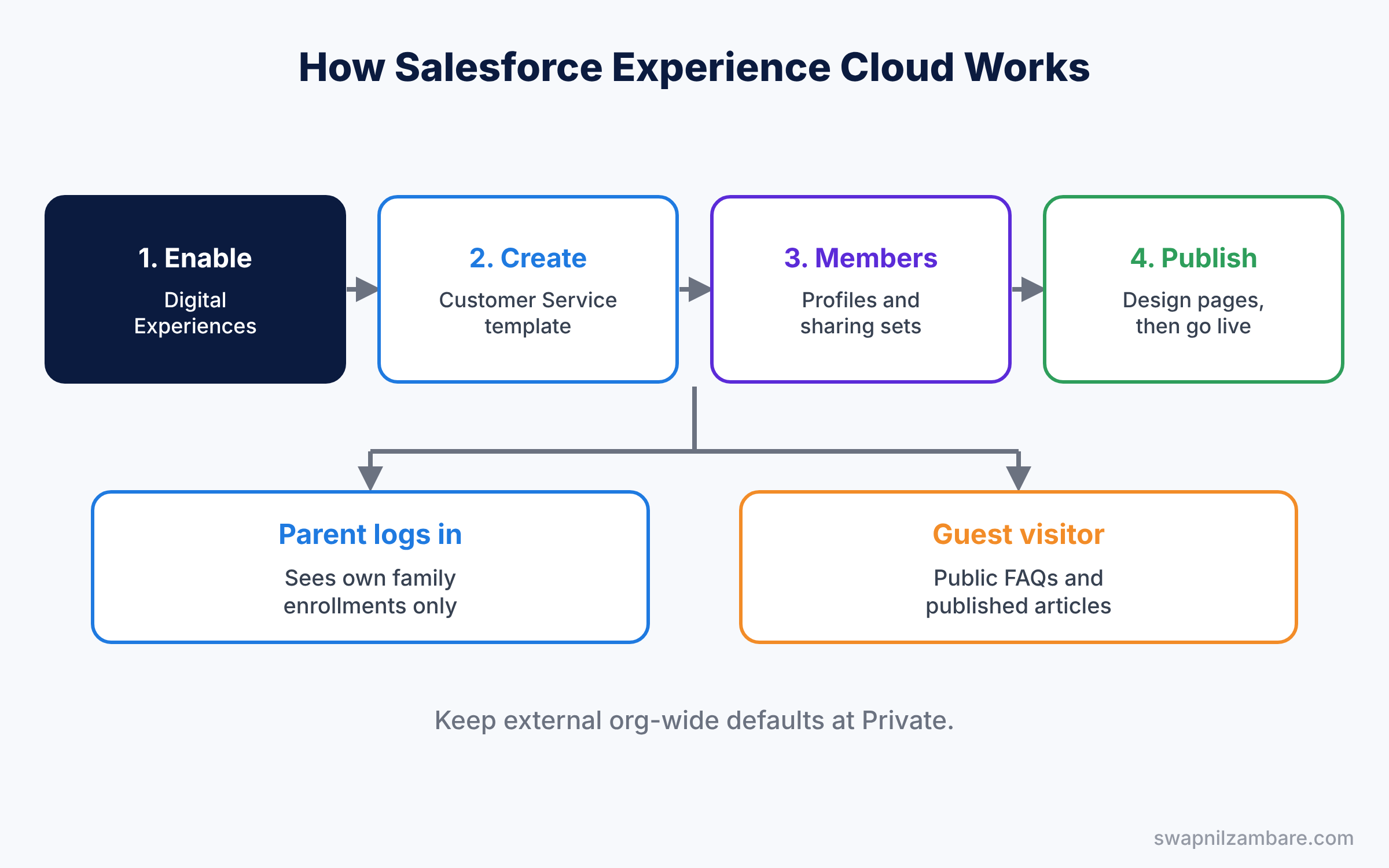
Two tools manage each site. First, Experience Builder designs the pages. Then Experience Workspaces holds settings like members, login and moderation. You switch between them from the menu at the top left of either tool.
Key Parts of Salesforce Experience Cloud
Experience Cloud templates
First, a template gives you ready pages and navigation. For example, Customer Service suits help centres with Knowledge and cases. Similarly, Partner Central suits partner selling. Build Your Own templates give a blank start for custom designs.
Members and licences
Next, members are the profiles and permission sets allowed into the site. Also, external users need a licence. Customer Community suits large numbers of customers, Customer Community Plus adds role-based sharing, and Partner Community suits partners who sell.
Sharing for external users
Then external users have their own org-wide defaults, which are often stricter than internal ones. With Customer Community licences, sharing sets give access to records linked to the user’s contact or account. For example, a parent sees student contacts that belong to their family account.
Guest users
Public pages run as a guest user, with a special guest profile. Because anyone on the internet can act as this user, Salesforce applies strict secure defaults to it. So give guests only what public pages need, such as course FAQs and published articles.
Experience Builder and Workspaces
Finally, Experience Builder lets you drag components onto pages, set a theme and preview on phones. Meanwhile, Workspaces handles members, login pages, reports and moderation.
The table below compares the main licence types.
| Licence | Best for | Sharing model |
|---|---|---|
| Customer Community | Many customers, like parents | Sharing sets |
| Customer Community Plus | Customers who need roles and reports | Roles and sharing rules |
| Partner Community | Partner schools that sell | Roles and sharing rules |
| Guest (no licence) | Public visitors | Guest user sharing only |
Experience Cloud Sites vs Internal Salesforce
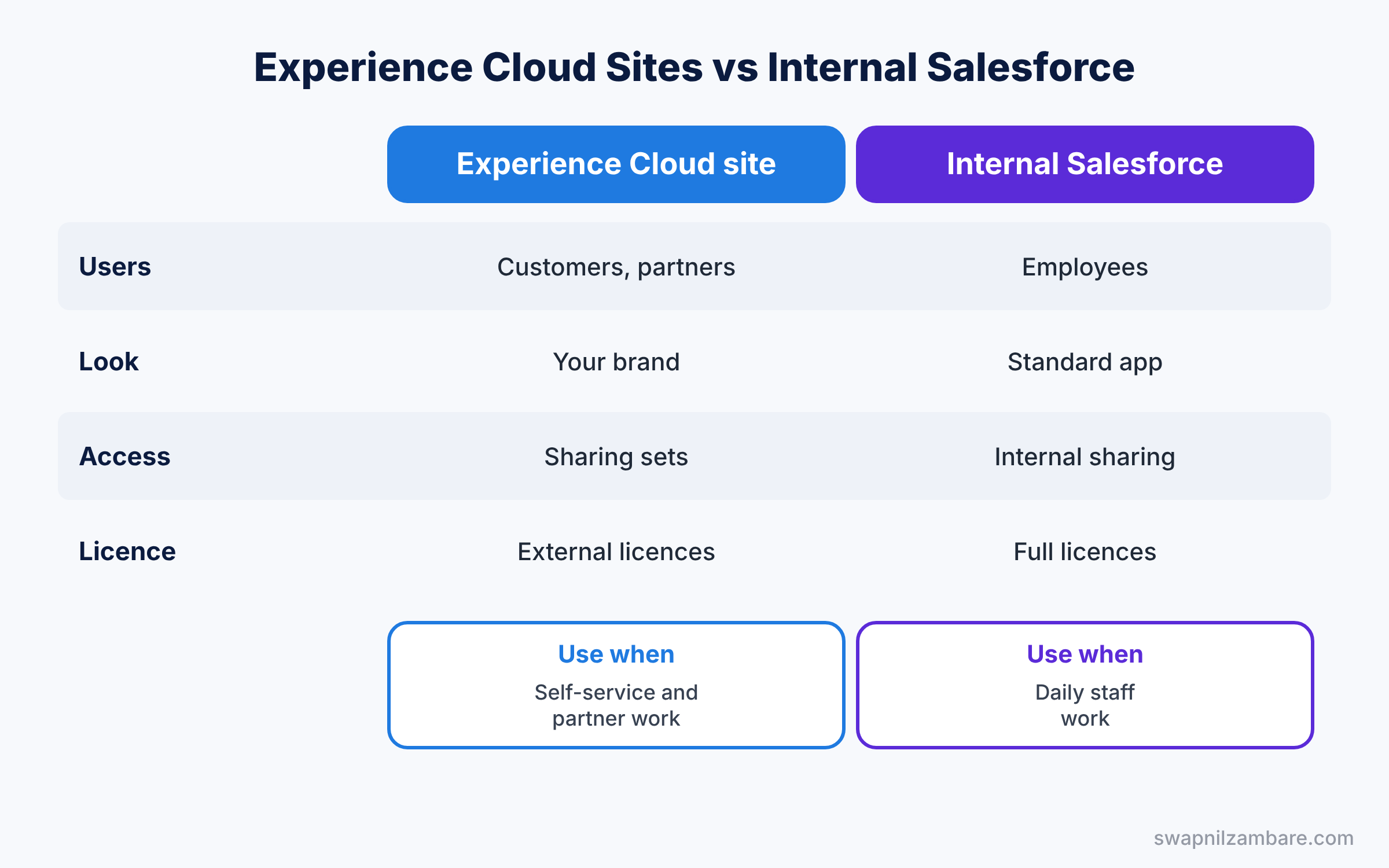
Beginners often ask why customers cannot simply log in to the normal Salesforce app. The table below compares the two.
| Feature | Experience Cloud site | Internal Salesforce |
|---|---|---|
| Users | Customers, partners, public | Employees |
| Look and feel | Your brand, your pages | Standard Lightning app |
| Access model | External org-wide defaults, sharing sets | Internal sharing model |
| Licence cost | Lower-cost external licences | Full user licences |
| Best for | Self-service and partner work | Daily staff work |
In short, give employees internal licences. Use Salesforce Experience Cloud when people outside your company need safe access to some of your data.
Hands-on Example: Salesforce Experience Cloud Parent Portal
Let’s build a basic Parent Portal in your Developer Edition org.
Step 1: Turn on digital experiences
- Go to Setup, type “Digital Experiences” in Quick Find, and open Settings.
- Tick Enable Digital Experiences, enter a domain name, and save.
Step 2: Create the site
- Open All Sites and click New.
- Choose the Customer Service template, click Get Started, and enter the values from the table below.
| Field | Value |
|---|---|
| Name | Parent Portal |
| URL | parents |
Step 3: Add members and sharing
- In Workspaces, open Administration, then Members, and add the Customer Community User profile.
- In Setup, open Digital Experiences Settings and create a sharing set for the profile.
- Give Read access to Contacts where the contact’s Account matches the user’s Account.
- Set the external org-wide default for Course to Public Read Only. Enrollments then follow, because a junction record is visible when the user can read both master records.
Step 4: Design and publish
- Open Experience Builder and add a Record List component for My Enrollments to the home page.
- Check the Knowledge article search on the help page.
- Click Publish, then open the site URL in a private browser window to see the public pages.
Step 5: Enable a parent and test
- Open a parent’s contact record and choose Enable Customer User. Then pick the Customer Community User profile, and Salesforce sends a welcome email when the site is active.
- Log in to the site as that user and check that only their family’s enrollments show.
Developers can check which external users exist with this query.
SELECT Name, Contact.Name, Contact.Account.Name, Profile.Name
FROM User
WHERE ContactId != null AND IsActive = true
ContactId is filled only for external users, so the filter shows portal users only. Run it after each go-live wave to count how many parents you have enabled.
Common Mistakes with Salesforce Experience Cloud
- Opening external sharing too wide. Keep external org-wide defaults at Private.
- Giving guests too much access. Public pages must expose only public data.
- Forgetting to publish. Builder changes stay invisible until you publish.
- Wrong licence choice. Customer Community cannot use roles, so plan sharing first.
- Testing only as an admin. Always log in as a real external user.
Best Practices for Salesforce Experience Cloud
- Start with a template. Customer Service gives a working help centre in hours.
- Use Knowledge for self-service. Good articles reduce cases.
- Brand the site. A familiar look builds trust with parents.
- Review guest access each release. Salesforce tightens guest security over time.
- Track usage. Use Workspaces dashboards to see logins and popular pages.
Practice Task
Add a “Contact Support” page with a Create Case form and a list of the parent’s open cases. Then raise a test case as a parent and check it in the internal app.
Hint: add Cases to the sharing set, where the case’s Contact matches the user’s contact.
Salesforce Experience Cloud FAQ
Can a site work without login?
Yes. Public pages run as the guest user, and you can mix public and private pages.
Can I use my own domain?
Yes. You can set up a custom domain for the site with a secure certificate.
Does Developer Edition include licences?
Developer Edition includes a few external licences for practice.
Official Resources
Quick Recap
- Salesforce Experience Cloud builds branded sites on top of your org.
- External users link to contacts and need external licences.
- Sharing sets give Customer Community users access to their own records.
- Experience Builder designs pages, and Workspaces manages settings.
- Keep guest and external access as small as possible.
What’s Next?
Your customers can now help themselves. Next, learn how to bring Salesforce records and alerts into Slack. Read Salesforce and Slack: A Guide for Admins.


