Salesforce Cases are records that track a customer’s question, problem or request until your support team solves it. A case keeps every email, call and note about one issue in one place, so any agent can pick it up. In our accounts and contacts guide, you set up the schools and parents Bright Path Tutors works with. Now you will help them when something goes wrong.
In this post, you will learn the key case fields, how a support process controls case statuses, and how Web-to-Case and Email-to-Case create cases automatically. Then you will build a simple support desk for Bright Path Tutors, where parents report problems with online classes. This is the first post in our Service Cloud series, so we start with the basics every support team needs.
What are Salesforce Cases?
A case is a support ticket. It records who needs help, what the problem is, how urgent it is and where it stands now. For example, “Parent Priya Sharma cannot join the Python online class, Priority High, Status Working”.
Cases usually link to a contact and an account. As a result, agents can see the customer’s history, past cases and active courses before they reply. When the problem is fixed, the agent closes the case.
Here is a simple analogy. Think of a repair shop that gives you a job card when you drop off your phone. The card has your name, the problem, a job number and the current status. Every technician writes on the same card. A case is that job card for your customers.
Why Salesforce Cases Matter
Support requests often arrive by email, phone and web forms at the same time. Without cases, requests sit in personal inboxes and some are never answered. Cases give the team one shared list, with clear owners and statuses.
Here are some real situations at Bright Path Tutors.
- A parent emails support because the class link does not work.
- A school fills in a web form to ask for a training certificate.
- The support manager wants to see how many cases are still open after two days.
- An agent goes on leave, and a colleague must continue her open cases.
Also, cases feed service reports. So managers can see common problems and fix the cause, not just the symptom.
How Salesforce Cases Work
Every case follows a simple life cycle. First, it is created by a web form, an email, a phone call or the customer. Next, an assignment rule or a person sets the owner, often a queue. Then an agent works the case, replies to the customer and updates the status. Finally, the agent closes the case when the customer is happy.
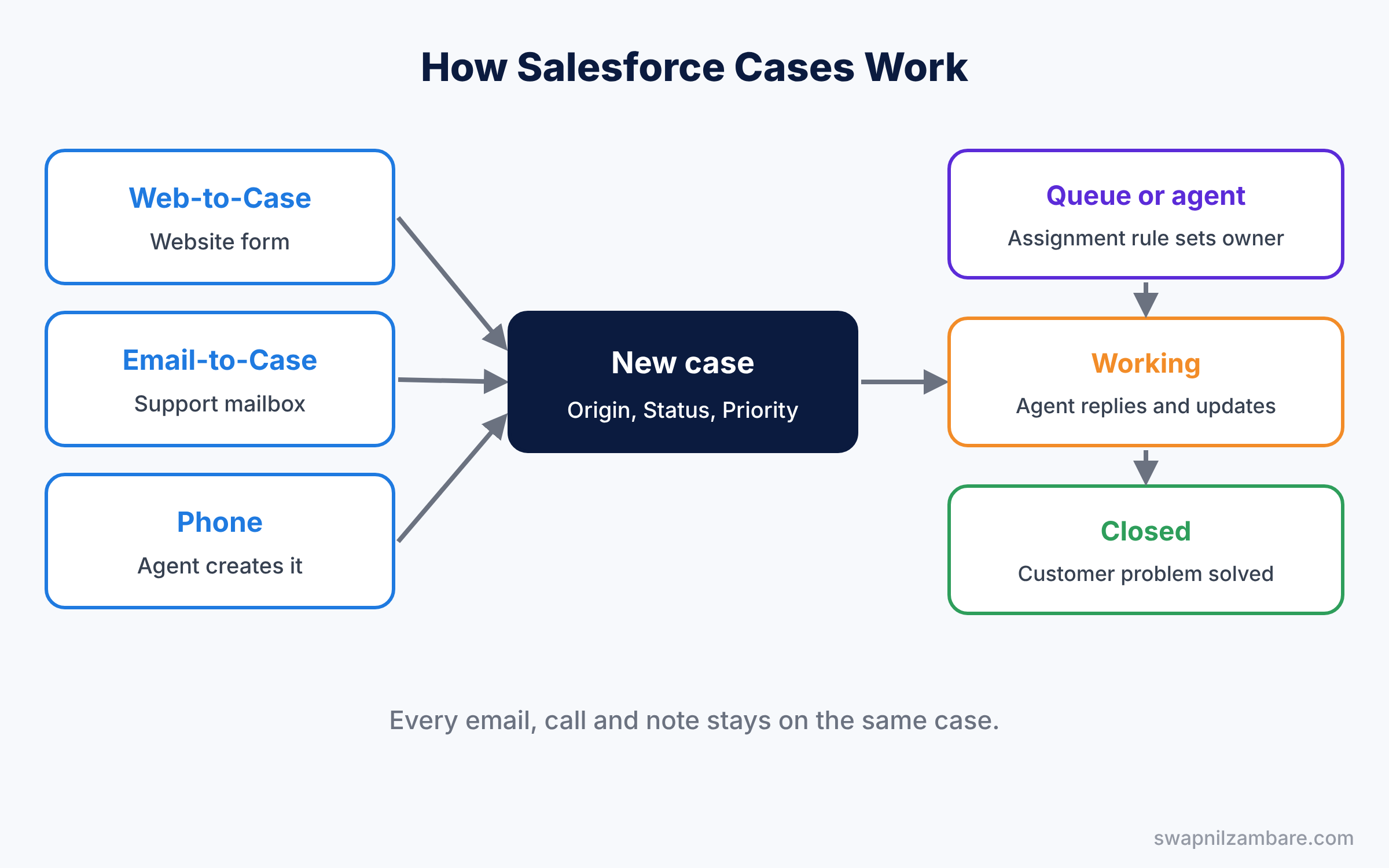
The Case Origin field records where each case came from, such as Web, Email or Phone. Meanwhile, the Status field shows where it is now. Both fields are picklists that admins can change, and reports use them a lot.
Key Parts of Salesforce Cases
Case fields
The table below lists the case fields you will use most.
| Field | What it means | Example |
|---|---|---|
| Case Number | Auto-number, unique per case | 00001024 |
| Contact Name | Person who needs help | Priya Sharma |
| Account Name | Customer organisation | Green Valley School North |
| Status | Where the case is now | New, Working, Closed |
| Priority | How urgent it is | High |
| Case Origin | Where it came from | |
| Subject and Description | Short title and full details | Cannot join online class |
Support processes for Salesforce Cases
First, a support process picks which Status values a team uses. It works like a sales process for opportunities. For instance, a technical team may need a Waiting on Customer status, while a billing team does not. You link each support process to a case record type.
Web-to-Case
Next, Web-to-Case creates cases from a form on your website. Salesforce generates the HTML, and a developer adds it to your help page. There is a daily limit on web cases, which is 5,000 per day.
Email-to-Case
Email-to-Case turns customer emails into cases. You create a routing address, such as your support mailbox, and forward its emails to an address Salesforce gives you. Then every new email becomes a case, and replies on the same thread attach to the same case.
Case comments and feed
Agents also add internal notes, emails and calls to the case feed. So the full story stays on the record. Finally, a case team can add more people, like a trainer, to one tricky case.
Salesforce Cases vs Tasks
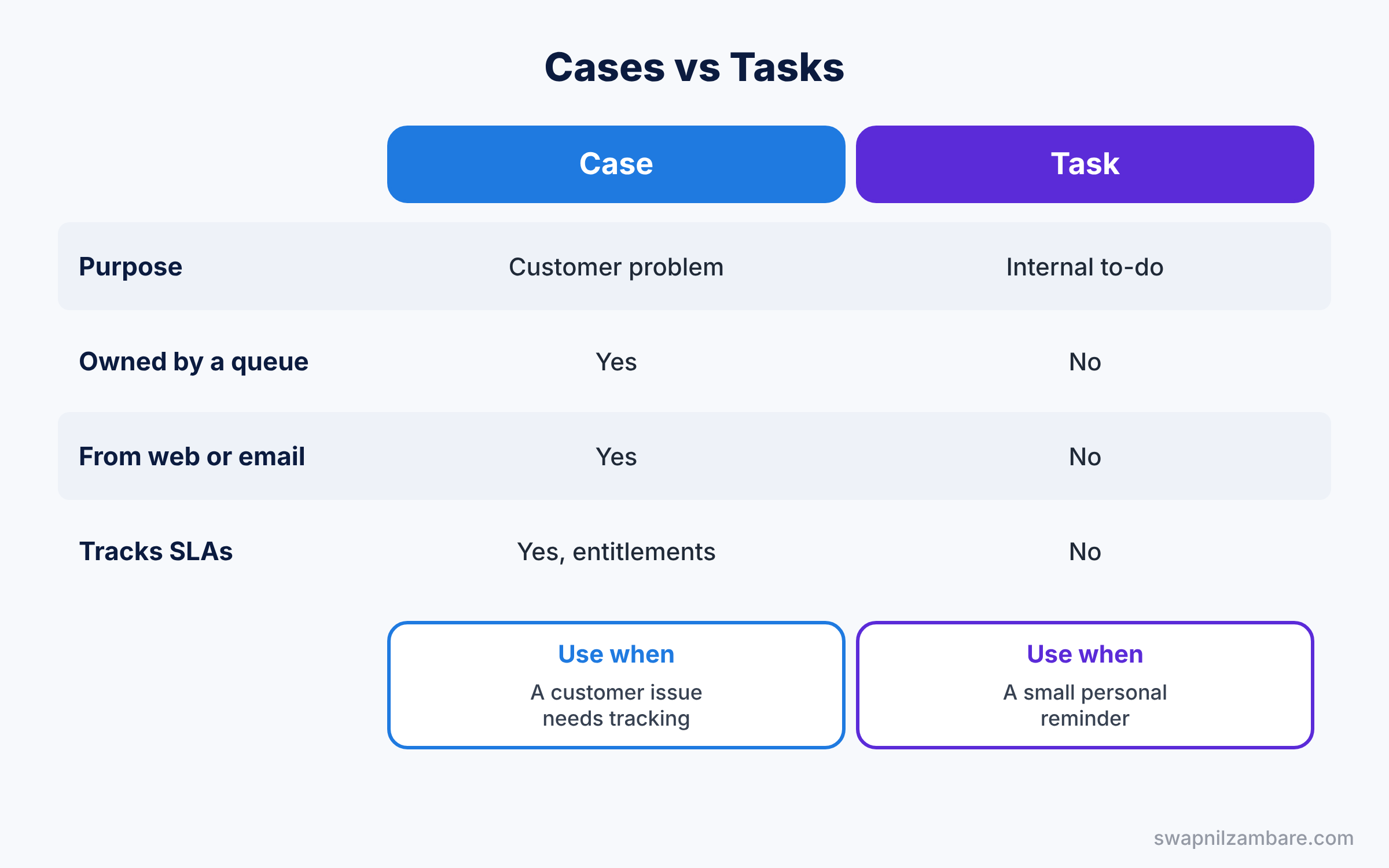
Beginners sometimes track problems as tasks. However, tasks and cases solve different needs. The table below compares them.
| Feature | Case | Task |
|---|---|---|
| Purpose | Customer problem to solve | Internal to-do item |
| Has its own status values | Yes, set by support process | Yes, simple list |
| Can be owned by a queue | Yes | No, one user only |
| Created from web or email | Yes, Web-to-Case and Email-to-Case | No |
| Tracks SLAs | Yes, with entitlements | No |
In short, use cases for customer issues that need tracking and reporting. Use tasks for small personal reminders.
Hands-on Example: Salesforce Cases for Online Class Support
Let’s build a basic support desk in your Developer Edition org. Create a queue called Support Tier 1 for cases first, as shown in our queues guide.
Step 1: Update case picklists
- Go to Setup, then Object Manager, then Case, then Fields and Relationships.
- In Case Origin, check that Web, Email and Phone exist.
- In Status, add the value Waiting on Customer. Keep New, Working and Closed.
Step 2: Create a support process and record type
- In Quick Find, type “Support Processes” and click New. Name it “Class Support” and select New, Working, Waiting on Customer and Closed.
- Then create a case record type called “Class Support” that uses this support process, and make it available to the support profile.
Step 3: Set up Web-to-Case
- In Quick Find, type “Web-to-Case” and tick Enable Web-to-Case. Set the Default Case Origin to Web and save.
- Open Web-to-Case HTML Generator, pick the fields from the table below, enter a return URL and click Generate.
| Field | Why we need it |
|---|---|
| Contact Name, Email and Phone | To find or reach the parent |
| Subject | Short title for the agent |
| Description | The full problem |
| Priority | Hidden field set to Medium |
Salesforce then shows HTML like this short version. Your real form includes your own org ID.
<form action="https://webto.salesforce.com/servlet/servlet.WebToCase?encoding=UTF-8&orgId=00DXXXXXXXXXXXX" method="POST">
  <input type="hidden" name="orgid" value="00DXXXXXXXXXXXX">
  <input type="hidden" name="retURL" value="https://example.com/support-thanks">
  <input type="hidden" name="priority" value="Medium">
  <label for="name">Contact Name</label>
  <input id="name" name="name" type="text">
  <label for="email">Email</label>
  <input id="email" name="email" type="text">
  <label for="subject">Subject</label>
  <input id="subject" name="subject" type="text">
  <label for="description">Description</label>
  <textarea name="description"></textarea>
  <input type="submit" name="submit" value="Send request">
</form>
The orgid field sends the case to your org. Also, Salesforce matches the email address to an existing contact, so the case links to the right parent.
Step 4: Set up Email-to-Case
- In Quick Find, type “Email-to-Case”, click Edit, tick Enable Email-to-Case and save.
- Click New in Routing Addresses. Enter your support email, set Case Origin to Email, Case Owner to the Support Tier 1 queue and Priority to Medium.
- Click the link in the verification email, then forward your support mailbox to the Email Services Address that Salesforce shows.
Step 5: Check open cases with SOQL
Developers can count open cases by origin and priority with this SOQL query.
SELECT Origin, Priority, COUNT(Id) total
FROM Case
WHERE IsClosed = false
GROUP BY Origin, Priority
The result might look like this.
Origin   Priority   total
Email    High       4
Email    Medium     11
Web      Medium     7
Phone    High       2
IsClosed is true for any closed status. So this query shows only work that still needs attention.
Common Mistakes with Salesforce Cases
- Forgetting to verify the routing address. Emails do not create cases until you click the verification link.
- Too many status values. Agents pick the wrong one. Five or six values are enough.
- No owner rules. Without assignment rules, new cases go to the default owner and wait.
- Closing cases without a reason. Add a Closure Reason field so reports show why cases end.
- Leaving web forms open to spam. Turn on the reCAPTCHA option when you generate the form.
Best Practices for Salesforce Cases
- Use queues for shared work. Agents pull the next case instead of waiting for one.
- Keep Subject short and clear. Lists and reports become easy to scan.
- Link every case to a contact. History then follows the customer.
- Use email templates for common replies. Our email templates guide shows how to build them.
- Review the oldest open cases daily. A list view sorted by Date/Time Opened works well.
Practice Task
Create a case list view called “Open High Priority Cases” that shows cases with Priority equal to High and Status not equal to Closed, sorted by Date/Time Opened.
Hint: add two filters and pick the columns Case Number, Subject, Contact Name and Owner.
Salesforce Cases FAQ
Can customers see their own cases?
Yes, through an Experience Cloud help site, which we cover later. Customers then see the status of their cases and can add comments.
What happens if an email reply arrives on a closed case?
Salesforce attaches the email to the case. You can use a flow to reopen the case or create a new one when that happens.
Do Salesforce Cases need Service Cloud?
Basic cases are part of most editions. Service Cloud adds tools like entitlements, Omni-Channel and the Service Console.
Official Resources
- Manage and Work with Cases (Salesforce Help)
- Email-to-Case (Salesforce Help)
- Service Basics (Trailhead)
Quick Recap
- Salesforce Cases track customer problems from creation to closing.
- A support process picks the Status values for each case record type.
- Web-to-Case creates cases from a website form.
- Email-to-Case turns support emails into cases and keeps replies on the same case.
- Case Origin and Status power most service reports.
What’s Next?
Your cases now arrive from the web and email. Next, learn how to route them, escalate them and send automatic replies. Read Salesforce Case Rules: Assignment, Escalation and Auto-Response.


