Salesforce Case Rules are three automatic tools that decide who gets a new case, what happens when a case waits too long, and which reply the customer gets straight away. They are assignment rules, escalation rules and auto-response rules. In our cases guide, you set up Web-to-Case and Email-to-Case. Now you will make sure every one of those cases reaches the right agent and never gets forgotten.
In this post, you will learn how each kind of rule works, how rule entries are checked in order, and how business hours affect escalation. Then you will build all three rules for the Bright Path Tutors support desk. You will need the India Office Hours from our company settings guide, so keep that post handy.
What are Salesforce Case Rules?
Salesforce Case Rules are settings in Setup that act on cases without any code. Assignment rules set the case owner. Escalation rules act when a case stays open too long. Auto-response rules send the customer an email the moment a case arrives.
Each kind of rule has the same shape. A rule contains rule entries, and each entry has criteria and an action. Salesforce checks the entries from top to bottom and uses the first one that matches.
Here is a simple analogy. Think of a hospital reception. The receptionist sends each patient to the right department, which is assignment. A senior nurse checks anyone waiting longer than an hour, which is escalation. Every patient also gets a token slip that says “We will call you soon”, which is the auto-response.
Why Case Rules Matter
Without rules, a person has to read every new case and pass it on by hand. That is slow, and cases arriving at night wait until someone checks. Rules work instantly, at any hour, in the same way every time.
Here are some real situations at Bright Path Tutors.
- Cases about payments should go to the billing agent, while class problems go to Support Tier 1.
- A High priority case from a school must reach the support manager if nobody touches it in four working hours.
- Every parent who emails support should get a reply saying when they can expect help.
- Cases from VIP partner schools should skip the queue and go to a senior agent.
As a result, customers get faster answers and managers get fewer complaints.
How Salesforce Case Rules Work
When a case is created, the rules run in a set order. First, the active assignment rule sets the owner to a user or a queue. Next, the active auto-response rule checks its entries and sends one email from the first match. Then the active escalation rule starts a clock, based on business hours. If the case is still open when the clock reaches a limit, Salesforce runs the escalation action.
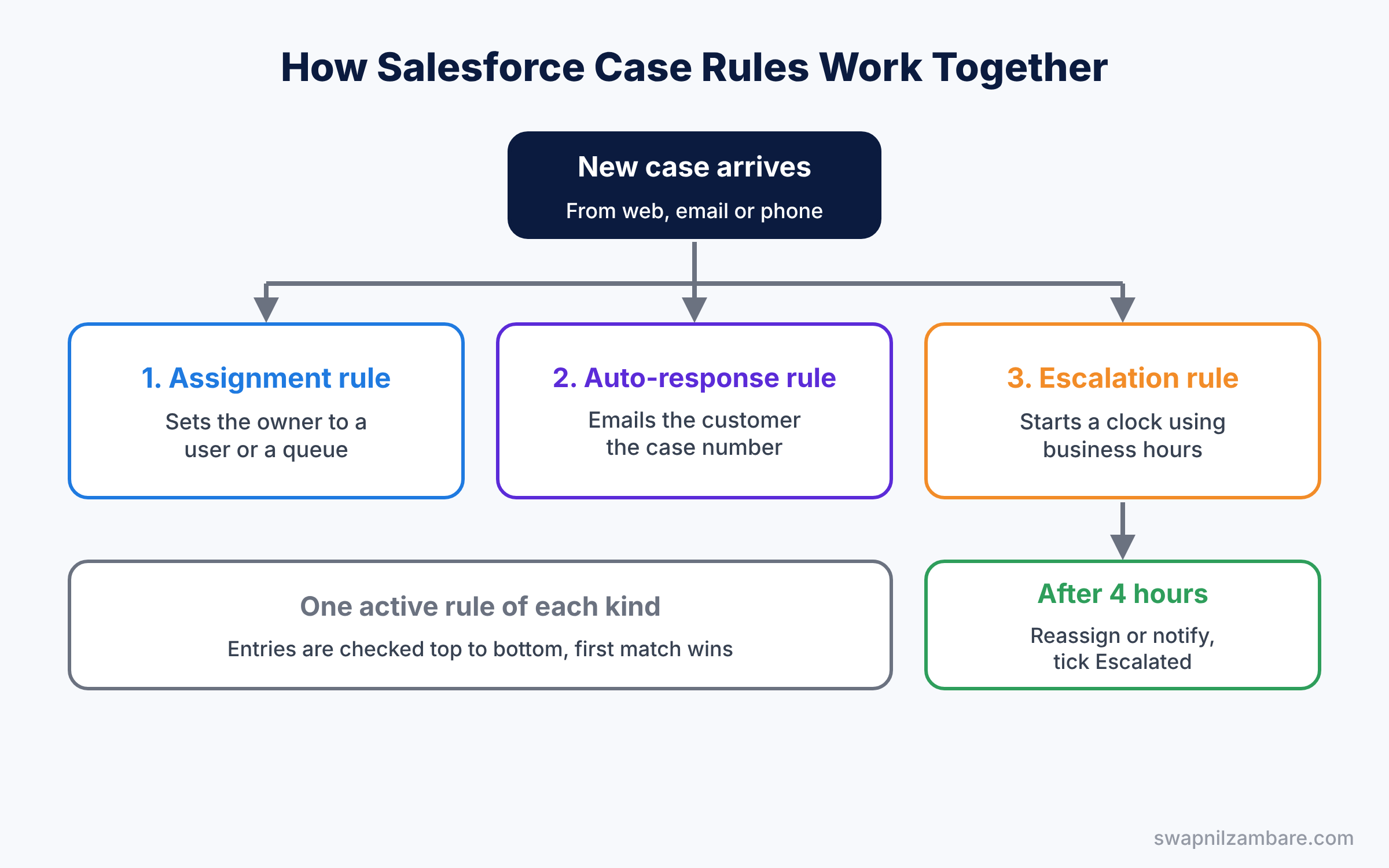
Only one rule of each kind can be active for cases at a time. However, each active rule can hold many entries. So you build one rule with ordered entries, not many separate rules.
Types of Salesforce Case Rules
Case assignment rules
First, assignment rules set the owner of new cases. Web-to-Case and Email-to-Case use the active rule automatically. For cases created by hand, the agent ticks “Assign using active assignment rule” on the edit page. You can also send an email to the new owner from a template.
Escalation rules
Next, escalation rules watch open cases over time. Each entry has criteria, business hours and one or more escalation actions. An action has an Age Over value, such as 4 hours, and can reassign the case or notify a user. Salesforce also ticks the Escalated checkbox on the case.
Auto-response rules
Then auto-response rules send an email template to the customer when a case arrives from the web or by email. Each entry picks a template, a sender name and a sender email. Only the first matching entry sends, so the customer gets one reply.
Rule entries and order
Finally, all three rule types use rule entries with a sort order. Put the most specific entries first, such as “Account is VIP”, and a general catch-all entry last. Otherwise, the general entry matches first and the specific one never runs.
The table below sums up the three rule types.
| Rule type | When it runs | What it does |
|---|---|---|
| Assignment rule | When a case is created | Sets the owner to a user or queue |
| Escalation rule | While the case stays open | Reassigns or notifies after a time limit |
| Auto-response rule | When a case comes from web or email | Sends one email to the customer |
Assignment Rules vs Escalation Rules
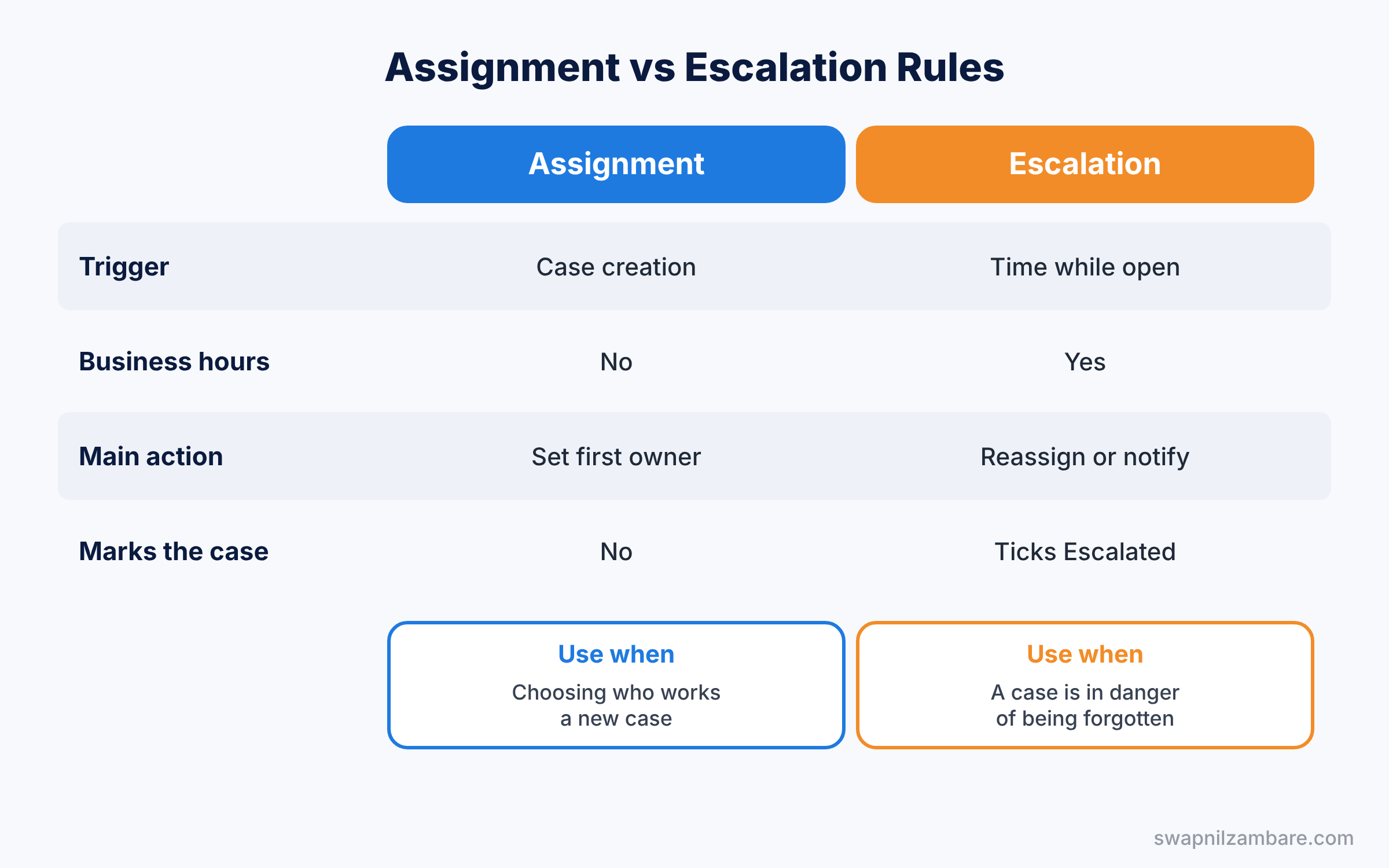
These two Salesforce Case Rules both change who works on a case, so they are easy to confuse. The table below compares them.
| Feature | Assignment rule | Escalation rule |
|---|---|---|
| Trigger | Case creation | Time passing while open |
| Uses business hours | No | Yes |
| Main action | Set the first owner | Reassign or notify later |
| Marks the case | No | Ticks Escalated |
| Typical example | Billing cases to billing queue | High cases to manager after 4 hours |
In short, assignment rules choose the first owner. Escalation rules act later, when a case is in danger of being forgotten.
Hands-on Example: Salesforce Case Rules for the Support Desk
Let’s build all three rules in your Developer Edition org. You need the Support Tier 1 queue and the Class Support record type from the cases post.
Step 1: Create the case assignment rule
- Go to Setup, type “Case Assignment Rules” in Quick Find, and click New. Name it “Bright Path Case Routing”, tick Active and save.
- Open the rule and add the entries from the table below, in this order.
| Order | Criteria | Assign to |
|---|---|---|
| 1 | Account: Type equals Partner VIP | Neha Joshi |
| 2 | Case: Type equals Billing | Billing queue |
| 3 | Case: Priority not equal to blank | Support Tier 1 queue |
Entry 3 is the catch-all, so it comes last.
Step 2: Create the escalation rule
- In Quick Find, type “Escalation Rules” and click New. Name it “High Priority Escalation”, tick Active and save.
- Add a rule entry with the criteria Case: Priority equals High.
- Choose “Use business hours specified on case” and make sure cases use India Office Hours.
- Under Escalation Actions, click New. Set Age Over to 4 hours, Auto-reassign to the support manager, and notify the case owner. Save.
Step 3: Create the auto-response rule
- Build an email template called “Case Received” with the text below, using the steps from our email templates post.
- In Quick Find, type “Case Auto-Response Rules” and click New. Name it “Bright Path Case Reply”, tick Active and save.
- Add one entry with the criteria Case: Case Origin equals Email or Web, the sender name “Bright Path Support” and the Case Received template.
Hi {!Case.SuppliedName},

Thanks for contacting Bright Path Tutors. Your case number is {!Case.CaseNumber}.
A support agent will reply within one working day.

Bright Path Support
The merge fields fill in the sender’s name and the new case number. So each parent knows their request is logged and can quote the number later.
Step 4: Test the rules
- Submit your Web-to-Case form with Priority set to High.
- Check that the new case belongs to Support Tier 1 and that the auto-reply email arrived.
- Leave the case untouched and check later that it moved to the manager and shows Escalated.
Step 5: Find escalated cases with SOQL
Developers can list escalated cases and their owners with this SOQL query.
SELECT CaseNumber, Subject, Priority, Owner.Name, CreatedDate
FROM Case
WHERE IsEscalated = true AND IsClosed = false
ORDER BY CreatedDate
IsEscalated is the API name of the Escalated checkbox. So this list is a daily to-do list for the support manager.
Common Mistakes with Salesforce Case Rules
- Putting the catch-all entry first. Every case matches it, and the other entries never run.
- Forgetting the checkbox on manual cases. Without “Assign using active assignment rule”, cases keep their creator as owner.
- Escalating with the wrong business hours. Nights and Sundays then count, and cases escalate too early.
- Sending long auto-replies. Customers only need the case number and a time frame.
- Creating a second rule instead of an entry. Only one rule of each kind is active, so the second rule does nothing.
Best Practices for Salesforce Case Rules
- Always add a catch-all entry. No case is ever left with the default owner.
- Name entries clearly in a document. Future admins understand the order quickly.
- Test with real examples in a sandbox. Our sandboxes guide explains how.
- Escalate to a queue, not a person, where possible. Work continues when one manager is on leave.
- Review rules every quarter. Teams and products change, so rules must change too.
Practice Task
Add an escalation action to the High Priority Escalation entry that notifies the case owner after 2 hours, before the 4-hour reassignment.
Hint: one rule entry can hold several escalation actions with different Age Over values.
Salesforce Case Rules FAQ
Can Flow replace Salesforce Case Rules?
Flow can set owners and send emails too. However, case rules are simpler to maintain for standard routing, and escalation rules handle business hours for you.
Can I have one assignment rule per team?
No. Only one case assignment rule is active at a time. Use several entries in that rule instead.
Do auto-response rules fire for cases created by agents?
No. They fire for cases from Web-to-Case and Email-to-Case, and for some site and API cases.
Official Resources
- Set Up Assignment Rules (Salesforce Help)
- Set Up Escalation Rules (Salesforce Help)
- Service Administration (Trailhead)
Quick Recap
- Salesforce Case Rules include assignment, escalation and auto-response rules.
- Only one rule of each kind is active, with ordered entries inside it.
- Assignment rules set the first owner when a case is created.
- Escalation rules use business hours to act on cases that wait too long.
- Auto-response rules send one email so the customer knows the case is logged.
What’s Next?
Your rules now route and escalate cases. Next, learn how to promise and track response times with service contracts. Read Salesforce Entitlements and Milestones: SLAs Made Simple.


