Salesforce Knowledge is a built-in library of help articles that agents and customers can search to solve problems quickly. Instead of writing the same answer again and again, your team writes it once as an article and shares it everywhere. In our entitlements guide, you set time targets for support. Knowledge is one of the best ways to meet those targets, because a good article can solve a case in minutes.
In this post, you will learn how articles, record types, data categories and channels work, and how an article moves from draft to published to archived. Then you will build a small help library for Bright Path Tutors, with an article about joining online classes. You will also attach that article to a case, so the parent gets the answer straight away.
What is Salesforce Knowledge?
In practice, Knowledge stores articles as records of a special object called Knowledge. Each article has a title, a summary, a URL name and your own fields, such as an Answer field with rich text. Articles also have versions, so you can update an answer without losing the old one.
Agents usually find articles from the case page. Customers can find the same articles on a help site, if you choose to publish them there. As a result, one well-written answer serves both your team and your customers.
Here is a simple analogy. Think of a school library with a catalogue. Each book is an article, and the catalogue sections are data categories. Some shelves are open to everyone, while others are only for teachers. Knowledge works the same way for your help content.
Why Knowledge Matters
Support teams answer the same questions every day, so repeated work adds up fast. For example, “How do I join my online class?” or “How do I get my certificate?”. Without a shared library, each agent writes their own reply, and the quality changes from person to person.
Here are some real situations at Bright Path Tutors.
- New agents need correct answers on their first day.
- Parents want to fix simple problems themselves, at any hour.
- The class link process changes, and every answer must change with it.
- The support manager wants to know which articles help close the most cases.
Also, Knowledge reduces the number of cases. So agents have more time for the hard problems.
How Salesforce Knowledge Works
Every article follows a simple life cycle. First, an author creates a draft article and fills in the fields. Next, a reviewer checks it and publishes it to one or more channels. Then agents and customers search and use the published version. Later, when the answer changes, the author edits it, which creates a new draft version. Finally, old articles that nobody needs are archived.
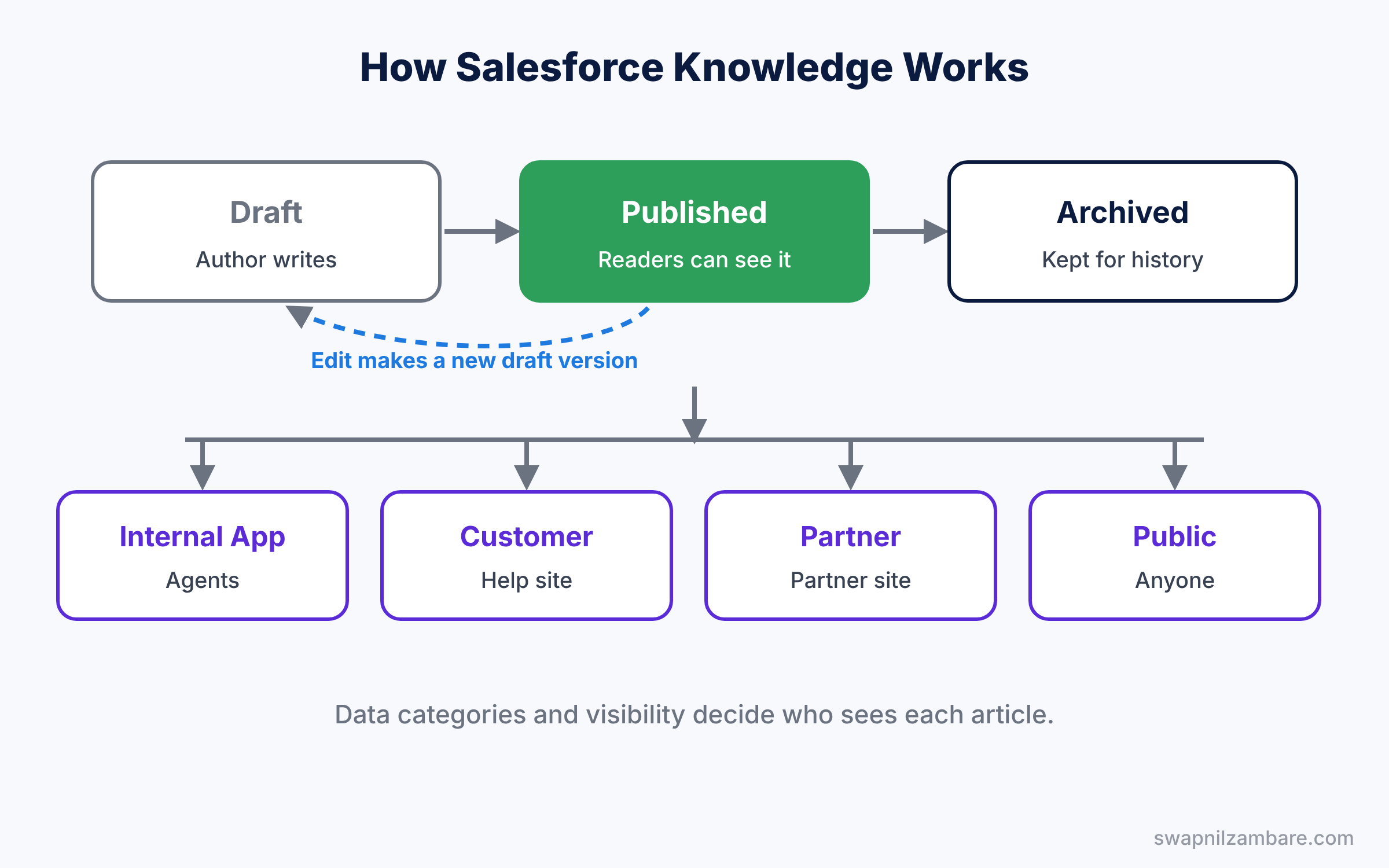
The publication status tells you where each version stands. Only one version can be published at a time. However, a published version and a new draft can exist together while the update is being written.
Key Parts of Salesforce Knowledge
Articles and record types
First, articles use record types, just like other objects. For example, an FAQ record type has Question and Answer fields, while a How To record type has Steps. This keeps articles consistent and easy to read.
Knowledge users and permissions
Next, every person who writes articles needs the Knowledge User checkbox on their user record. Then a permission set gives rights like Manage Articles, Publish Articles and Archive Articles. Readers only need Allow View Knowledge.
Data categories
Then data categories organise articles into groups, such as Classes, Payments and Certificates. They work like folders, but one article can sit in several categories. Category visibility also controls who can see which articles.
Channels
Channels decide where an article appears. The main channels are Internal App for agents, Customer for help sites, Partner for partner sites and Public Knowledge Base for anyone. An article can use one channel or several.
Article versions
Finally, each time you edit a published article, Salesforce creates a new draft version. When you publish it, the new version replaces the old one. So readers always see one clear answer, and history stays available.
The table below sums up the publication statuses.
| Status | Who sees it | Typical action |
|---|---|---|
| Draft | Authors and reviewers | Write and review the article |
| Published | Readers in the chosen channels | Use it to answer questions |
| Archived | Admins and authors only | Keep for history, hidden from search |
Salesforce Knowledge vs Files
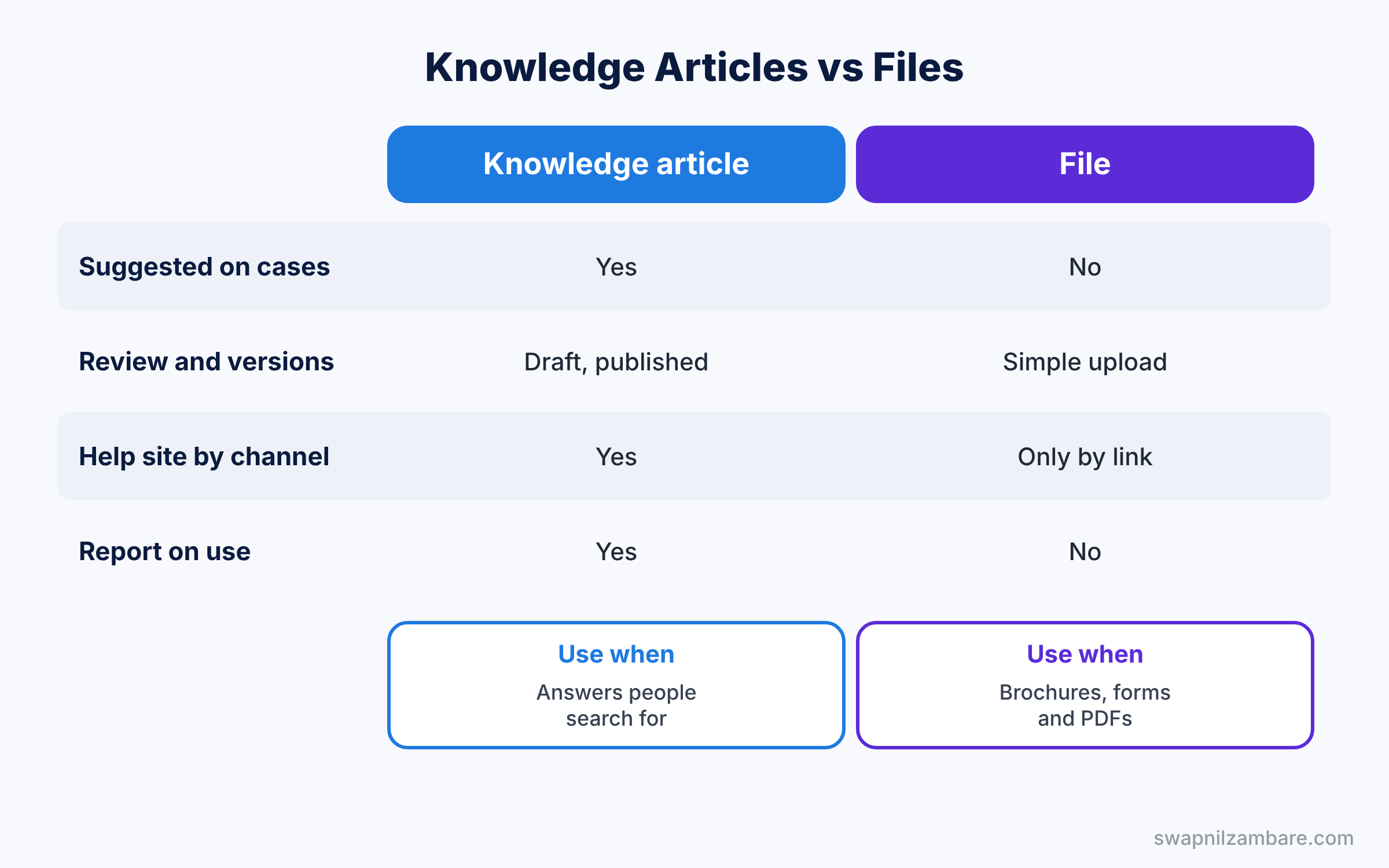
Some teams store help documents as files instead of articles. The table below compares the two options.
| Feature | Knowledge article | File in Salesforce Files |
|---|---|---|
| Searchable from the case page | Yes, suggested automatically | Only by file name |
| Versions and review steps | Yes, draft, published, archived | Simple version upload |
| Show on a help site | Yes, by channel | Only if shared by link |
| Attach to cases and report on use | Yes | No |
| Best for | Answers to common questions | Brochures, forms and PDFs |
In short, use Knowledge articles for answers that agents and customers search for. Use Files for documents that people download, as explained in our Chatter and Files guide.
Hands-on Example: Salesforce Knowledge for Class Support
Let’s build a small help library in your Developer Edition org.
Step 1: Turn on Lightning Knowledge
- On your own user record, tick Knowledge User and save.
- Go to Setup, type “Knowledge Settings” in Quick Find, and click Edit.
- Tick Enable Lightning Knowledge and save. Salesforce creates the Knowledge object.
Lightning Knowledge cannot be turned off once enabled, so try it in a sandbox before a real org.
Step 2: Add fields and a record type
- Go to Object Manager, then Knowledge, then Fields and Relationships. Create a Rich Text Area field called Answer.
- Then create a record type called FAQ and add Title, URL Name, Summary and Answer to its page layout.
- Create a permission set called “Knowledge Authors” with Manage Articles, Publish Articles and Archive Articles, and assign it to yourself.
Step 3: Create data categories
- In Quick Find, type “Data Category Setup” and create a category group called “Help Topics”. Activate it.
- Add the categories Classes, Payments and Certificates under All.
- Open Data Category Visibility for your profile or role and give access to all categories.
Step 4: Write and publish an article
- Open the Knowledge tab and click New. Choose FAQ.
- Fill in the values from the table below, assign the category Classes, and save.
- Click Publish, choose Publish now, and tick the Internal App and Customer channels.
| Field | Value |
|---|---|
| Title | How do I join my online class? |
| URL Name | join-online-class |
| Summary | Steps to join a live class from a laptop or phone |
| Answer | Open the class email, click Join, allow camera and mic |
Step 5: Attach the article to a case and check it with SOQL
On any case, open the Knowledge component, search for “join online class” and click Attach. Then email the article link to the parent from the case.
Developers can list published English articles with this SOQL query.
SELECT Title, UrlName, VersionNumber, LastPublishedDate
FROM Knowledge__kav
WHERE PublishStatus = 'Online' AND Language = 'en_US'
ORDER BY LastPublishedDate DESC
This second query shows which articles are attached to the most cases.
SELECT KnowledgeArticleId, COUNT(Id) cases
FROM CaseArticle
GROUP BY KnowledgeArticleId
ORDER BY COUNT(Id) DESC
LIMIT 10
In SOQL, published articles use the status value Online. So the first query returns only live versions, and the second shows your most useful articles.
Common Mistakes with Salesforce Knowledge
- Forgetting the Knowledge User checkbox. Without it, users cannot create articles even with the right permissions.
- Writing long articles. Readers skim, so keep one question per article and short steps.
- Skipping data category visibility. Articles then seem to disappear for some users.
- Never archiving. Old answers show up in search and confuse agents.
- Publishing to the wrong channel. Internal notes on a public site can leak private details.
Best Practices for Salesforce Knowledge
- Write titles as questions. People search the way they speak, such as “How do I reset my password?”.
- Use a simple review step. A second pair of eyes catches wrong or old steps.
- Link articles to cases. Reports then show which articles help most.
- Review top articles every quarter. Update screenshots and steps as your process changes.
- Reuse the same tone. Our email templates guide gives tips for clear, friendly wording.
Practice Task
Write a second FAQ article called “How do I download my course certificate?” in the Certificates category, publish it to Internal App only, and attach it to a test case.
Hint: you can change channels later from the article’s Edit Publication Settings action.
Salesforce Knowledge FAQ
Do I need a separate licence for Salesforce Knowledge?
Authors need the Knowledge User feature licence, which comes with Service Cloud and some other editions. Readers usually do not need it.
Can I translate articles?
Yes. Turn on multiple languages in Knowledge Settings, and translators can create a version of each article in another language.
Can customers rate articles?
Yes, on Experience Cloud sites, customers can vote on articles. Votes help you find articles that need work.
Official Resources
Quick Recap
- Salesforce Knowledge is a library of help articles for agents and customers.
- Articles move from Draft to Published to Archived, with versions for updates.
- Record types shape articles, and data categories organise them.
- Channels decide whether an article shows to agents, customers, partners or the public.
- Attaching articles to cases shows which answers help most.
What’s Next?
Your agents now have answers ready. Next, learn how to route cases to the right agent automatically and work them in one screen. Read Salesforce Omni-Channel Routing and the Service Console.


