Salesforce Omni-Channel is a routing engine that pushes each new piece of work, like a case, to the best available agent at the right moment. Agents no longer pick cases from a long queue list. Instead, the next case simply arrives when they have room for it. In our knowledge guide, you gave agents ready answers. Now you will give them a steady flow of work and one screen to handle it all.
In this post, you will learn how service channels, routing configurations, presence statuses and capacity work together, and how the Service Console helps agents work many cases at once. Then you will set up queue-based routing for the Bright Path Tutors support team. This is the last post in our Service Cloud series, so it brings cases, rules, entitlements and knowledge together.
What is Salesforce Omni-Channel?
Salesforce Omni-Channel routes work items to agents automatically. A work item can be a case, a lead, a chat or a record of a custom object. Omni-Channel looks at who is online, how busy each agent is and which work is most urgent, then pushes the work to one agent.
Agents control their availability with a presence status, such as Available for Cases or On Break. They see incoming work in the Omni-Channel widget and accept it with one click. As a result, work is shared fairly and nobody cherry-picks the easy cases.
Here is a simple analogy. Think of a taxi app. Drivers mark themselves as online, and the app sends each ride to a nearby free driver. A driver who already has a passenger does not get a new ride. Omni-Channel is that app for your support team, with cases instead of rides.
Why Omni-Channel Matters
With plain queues, agents choose which case to take next. So urgent cases can wait while agents pick quick ones, and some agents end up with far more work than others. Omni-Channel removes that choice and balances the load.
Here are some real situations at Bright Path Tutors.
- High priority cases from Gold schools must reach an agent before normal cases.
- An agent working on three cases should not get a fourth until one closes.
- The support manager wants to see who is online and how busy each agent is.
- Agents want to handle a case, its contact and its article without opening many browser tabs.
In short, Omni-Channel makes sure the right case reaches the right agent at the right time.
How Salesforce Omni-Channel Works
Routing follows a clear chain. First, a new case lands in a queue, for example through the assignment rules from our case rules guide. Next, the queue’s routing configuration sets its priority and how much capacity each case uses. Then Omni-Channel checks which queue members are online with a matching presence status and enough free capacity. Finally, it pushes the case to one agent, who accepts it in the Omni-Channel widget.
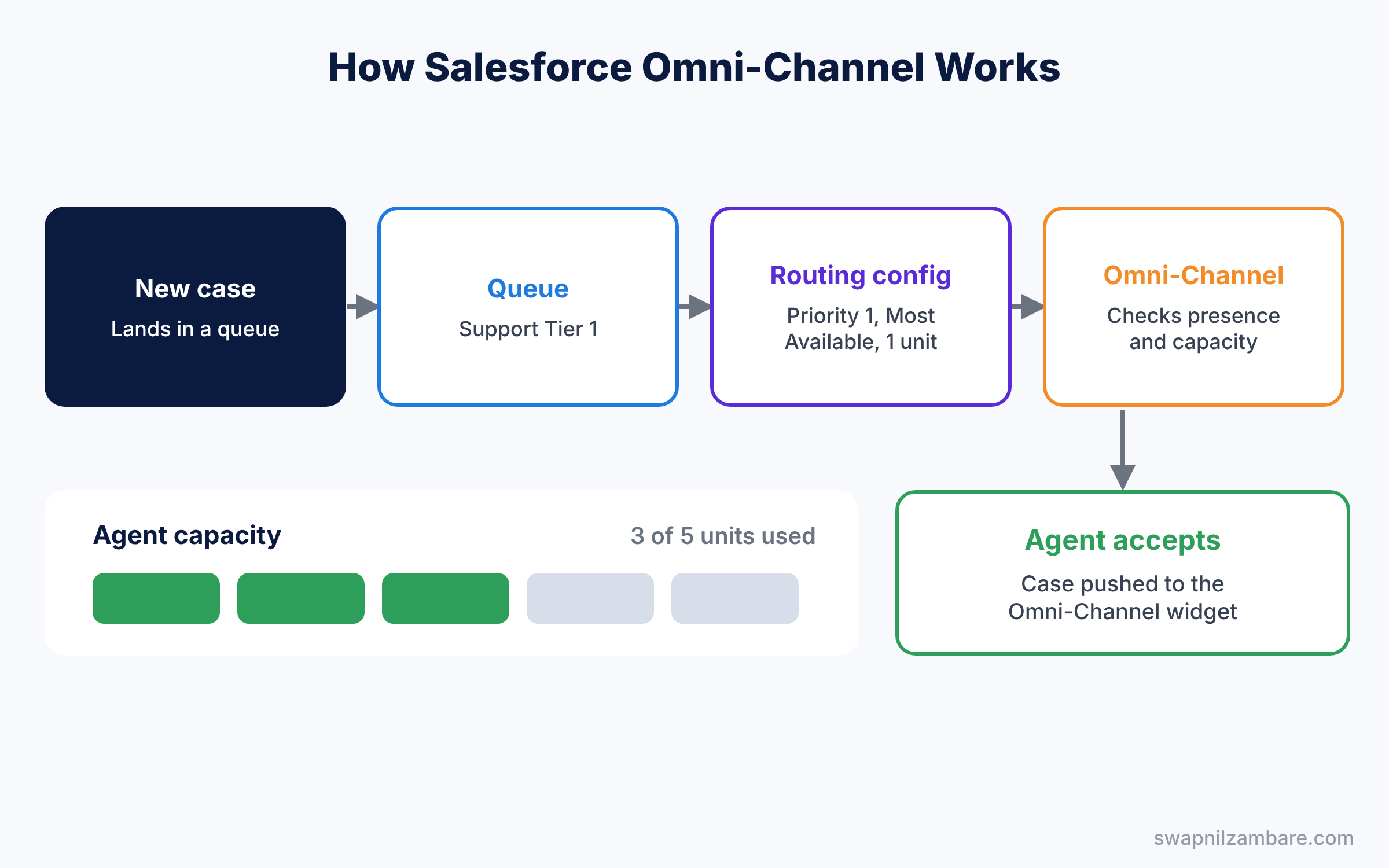
Capacity is the key idea. Each agent has a total capacity, such as 5 units, and each case uses some units, such as 1. So an agent with five open cases is full and gets no new work until one closes.
Key Parts of Salesforce Omni-Channel
Service channels
First, a service channel tells Omni-Channel which object to route, such as Case. You create one service channel per type of work. For example, a Cases channel and a Leads channel can share the same agents.
Routing configurations
Next, a routing configuration sets the rules for a queue. It holds the routing priority, the routing model and the units of capacity per work item. Least Active sends work to the agent with the fewest open items, while Most Available sends it to the agent with the most free capacity.
Presence statuses and configurations
Then presence statuses show whether an agent can take work, such as Available for Cases, Busy or On Break. A presence configuration sets each agent’s total capacity and options like automatic accept. Agents need access to presence statuses through their profile or a permission set.
Omni-Channel flows and skills
Newer orgs can also route work with an Omni-Channel flow, which gives more control. Skills-based routing goes further and matches work to agents with skills like Hindi or Python. We will look at those in an advanced post later. Also, Salesforce is moving orgs to Enhanced Omni-Channel, which keeps the same building blocks you learn here and adds better tools for supervisors.
The Service Console
Finally, the Service Console is a Lightning console app built for agents. It opens records as workspace tabs and related records as subtabs, so a case, its contact and its account stay together. A utility bar at the bottom holds tools like the Omni-Channel widget, history and macros.
The table below lists the setup items and what each one decides.
| Setup item | What it decides | Example |
|---|---|---|
| Service Channel | Which object is routed | Case |
| Routing Configuration | Priority, model and size of work | Priority 1, Most Available, 1 unit |
| Queue | Where work waits, and who can get it | Support Tier 1 |
| Presence Status | Whether an agent can take work | Available for Cases |
| Presence Configuration | Each agent’s capacity | 5 units, no automatic accept |
Omni-Channel vs Queue-Only Routing
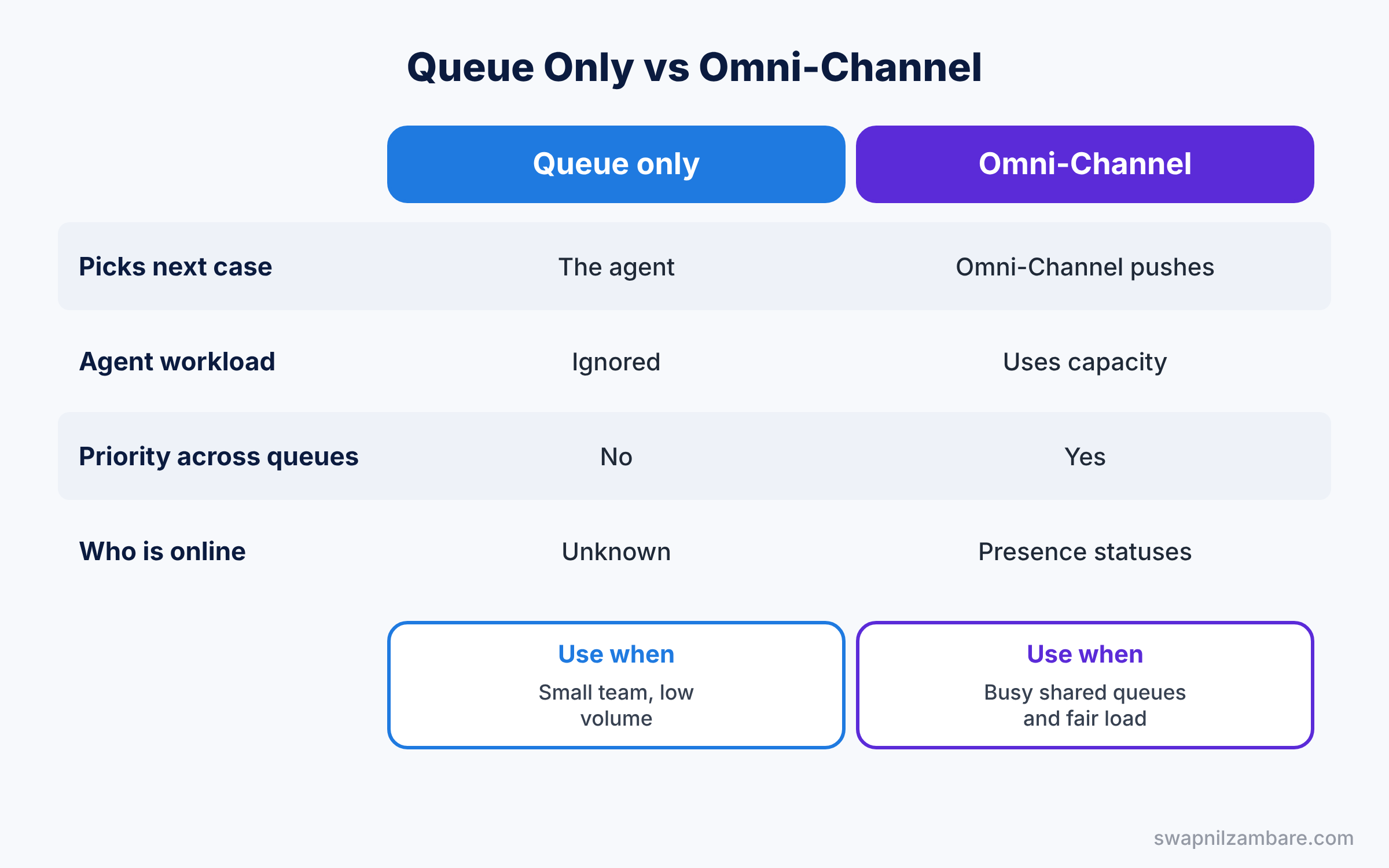
Many teams start with queues and list views, then move to Omni-Channel. The table below compares the two approaches.
| Feature | Queue and list view only | Salesforce Omni-Channel |
|---|---|---|
| Who picks the next case | The agent | Omni-Channel pushes it |
| Respects agent workload | No | Yes, through capacity |
| Respects priority across queues | No | Yes, routing priority |
| Shows who is online | No | Yes, presence statuses |
| Setup effort | Very low | Medium |
In short, queues alone suit a small team with low volume. Use Salesforce Omni-Channel when several agents share busy queues and fairness matters.
Hands-on Example: Salesforce Omni-Channel for the Support Team
Let’s set up routing for the Support Tier 1 queue in your Developer Edition org.
Step 1: Turn on Omni-Channel and create a service channel
- Go to Setup, type “Omni-Channel Settings” in Quick Find, tick Enable Omni-Channel and save.
- In Quick Find, type “Service Channels” and click New. Name it “Cases”, choose Case as the Salesforce object and save.
Step 2: Create a routing configuration and link the queue
- In Quick Find, type “Routing Configurations” and click New.
- Enter the values from the table below and save.
- Open the Support Tier 1 queue, set its Routing Configuration to Case Routing, and save.
| Field | Value |
|---|---|
| Routing Configuration Name | Case Routing |
| Routing Priority | 1 |
| Routing Model | Most Available |
| Units of Capacity | 1 |
Step 3: Set up presence
- In Quick Find, type “Presence Statuses” and create “Available for Cases” with the status option Online and the Cases channel. Also create “On Break” as Busy.
- In Presence Configurations, open the default configuration, set Capacity to 5 and assign it to your user.
- Then give your profile or a permission set access to both presence statuses.
Step 4: Build the Service Console
- In App Manager, click New Lightning App, name it “Bright Path Service Console” and choose Console navigation style.
- Add Cases, Contacts, Accounts and Knowledge as items.
- In Utility Items, add Omni-Channel and History, then assign the app to your profile.
- Open the app, set your status to Available for Cases, and create a test case in the queue. It appears in the widget within seconds.
Step 5: Monitor agents with SOQL
Developers can see who is online right now with this SOQL query.
SELECT User.Name, ServicePresenceStatus.MasterLabel, StatusStartDate
FROM UserServicePresence
WHERE IsCurrentState = true
This second query shows the work each agent has open.
SELECT User.Name, WorkItemId, Status, CapacityWeight
FROM AgentWork
WHERE Status = 'Opened'
ORDER BY User.Name
AgentWork records every item Omni-Channel pushes to an agent. So adding up CapacityWeight per user shows how full each agent is.
Common Mistakes with Salesforce Omni-Channel
- Forgetting presence status access. Agents cannot go online if their profile or permission set lacks the statuses.
- Not linking the queue to a routing configuration. Cases then sit in the queue and are never pushed.
- Capacity set too high. Agents get more cases than they can handle well.
- Using one routing priority for everything. Urgent queues should have a lower number, which means higher priority.
- No Omni-Channel utility in the app. Agents never see incoming work.
Best Practices for Salesforce Omni-Channel
- Start with one channel and one queue. Add more once the basics work.
- Set capacity with your agents. They know how many cases they can handle at once.
- Use clear presence status names. “Available for Cases” is clearer than “Online 2”.
- Use the Service Console for every agent. Tabs and subtabs keep related records together.
- Watch the queues with Omni Supervisor. Managers spot overloaded agents early, and our reports guide helps track trends.
Practice Task
Create a second queue called “Gold School Cases” with its own routing configuration at Routing Priority 1. Then change Case Routing to Routing Priority 2, so Gold cases are pushed first.
Hint: lower numbers mean higher priority in routing configurations.
Salesforce Omni-Channel FAQ
Does Salesforce Omni-Channel need Service Cloud?
Omni-Channel is part of Service Cloud. Some routing features, like skills-based routing and Omni Supervisor, may need extra setup or licences.
Can Omni-Channel route leads too?
Yes. Create a service channel for Lead and a routing configuration for a lead queue. Sales teams use this to share new leads fairly.
What happens if no agent is online?
Cases wait in the queue. As soon as an agent with a matching presence status goes online, Omni-Channel starts pushing work again.
Official Resources
Quick Recap
- Salesforce Omni-Channel pushes work to available agents automatically.
- Service channels choose the object, and routing configurations set priority and size.
- Presence statuses and capacity decide when an agent can take more work.
- The Service Console keeps cases, contacts and articles together in tabs.
- AgentWork and UserServicePresence records help you monitor the team.
What’s Next?
That completes the Service Cloud series. Next, we start the advanced admin topics. Read Salesforce Campaigns: Members, Hierarchies and Campaign Influence.


