Salesforce Translation Workbench lets you translate the labels you create, such as custom field names, picklist values and error messages, so users see Salesforce in their own language. Multi-currency does the same job for money, so each record can use its own currency. In our company settings guide, you set the default language, locale and currency. This post goes further, for orgs that work across countries.
In this post, you will learn how Translation Workbench works, what you can translate, and how to export translations for a translator. You will also learn how multiple currencies, conversion rates and dated exchange rates behave. Then you will set up Spanish for a new partner team at Bright Path Tutors, and add a second currency for overseas fees. You should know picklists from our picklists guide, because picklist values are the most common thing to translate.
What is Salesforce Translation Workbench?
Salesforce already translates its own standard labels into many languages. However, it cannot know your custom labels, like “Course” or “Fee Paid”. Translation Workbench is the Setup tool where you add translations for those custom items, one language at a time.
Each user has a Language setting on their user record. When a Spanish-speaking user opens a course, they see “Curso” instead of “Course”, if you added that translation.
Here is a simple analogy. Think of a museum with signs in English. The museum adds small cards in Spanish and French under each sign. The building and the exhibits stay the same, but visitors read in their own language. Translation Workbench adds those cards to your Salesforce org.
Why Salesforce Translation Workbench Matters
Users work faster and make fewer mistakes in their own language. Without translations, a partner team sees a mix of their language for standard fields and English for every custom field. As a result, they guess what fields mean, and data quality drops.
Here are some real situations at Bright Path Tutors.
- A new partner team in Spain sells online English courses to Spanish families.
- Their users need course levels and statuses in Spanish.
- Validation error messages must make sense to them.
- The finance team needs fees in euros for those families, with reports in rupees.
So translations and currencies make one org work well for teams in different countries.
How Salesforce Translation Workbench Works
The process has five steps. First, you enable Translation Workbench in Setup. Next, you add a language, such as Spanish, and choose who can translate it. Then translators open the Translate page and enter translations for each type of item, like field labels or picklist values. After that, you can export and import files, so outside translators can work offline. Finally, users with that language on their user record see the translated labels.
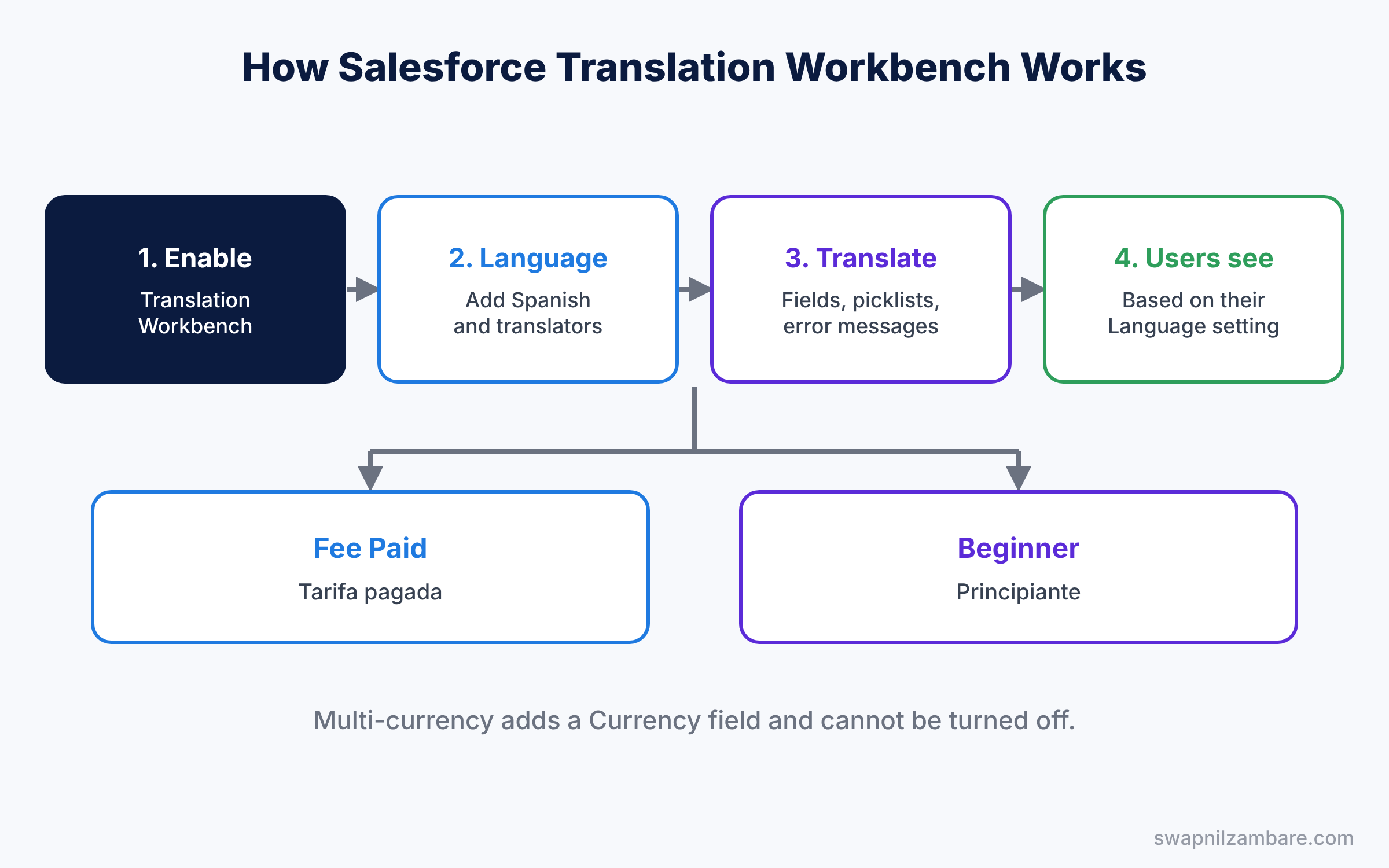
If an item has no translation, Salesforce shows the original label. So you can roll out translations step by step. For example, translate tabs and page fields in week one, then picklists and error messages in week two. Users see progress quickly, and translators are not rushed.
Key Parts of Salesforce Translation Workbench
Languages and translators
First, the Translation Language Settings page lists each language you support. For each one, you can make it active and assign translators. Translators only need access to the languages assigned to them.
The Translate page
Next, the Translate page shows a grid. You pick a language, a setup component like Picklist Value or Custom Field, and an object. Then you type the translation next to each master label.
Export and import
Then, for big jobs, you export a file of untranslated or all labels. A translator fills it in and you import it back. This keeps work out of Setup and is easier to review. There are three export types: Source, Untranslated and Bilingual. Bilingual shows the English label and the current translation side by side, which is ideal for reviews.
Multi-currency basics
Multi-currency is turned on from Company Information. Once on, every record gets a Currency field, and each user has a personal currency. For example, a rep in Madrid enters a deal in euros, while the CEO in Pune sees the same deal converted to rupees in reports. Salesforce converts amounts into the corporate currency for reports. Turning it on cannot be undone, so test in a sandbox first.
Dated exchange rates
Finally, Advanced Currency Management adds dated exchange rates. Opportunities then use the rate that was valid on their close date, instead of today’s rate. Some objects still use the static rate, so check Help for the list.
The table below shows what we will translate for the partner team.
| Setup component | Master label | Spanish translation |
|---|---|---|
| Custom Object | Course | Curso |
| Custom Field | Fee Paid | Tarifa pagada |
| Picklist Value | Beginner | Principiante |
| Validation Error Message | Fee must be at least 1,000 | La tarifa debe ser al menos 1,000 |
Translation Workbench vs Renaming Labels
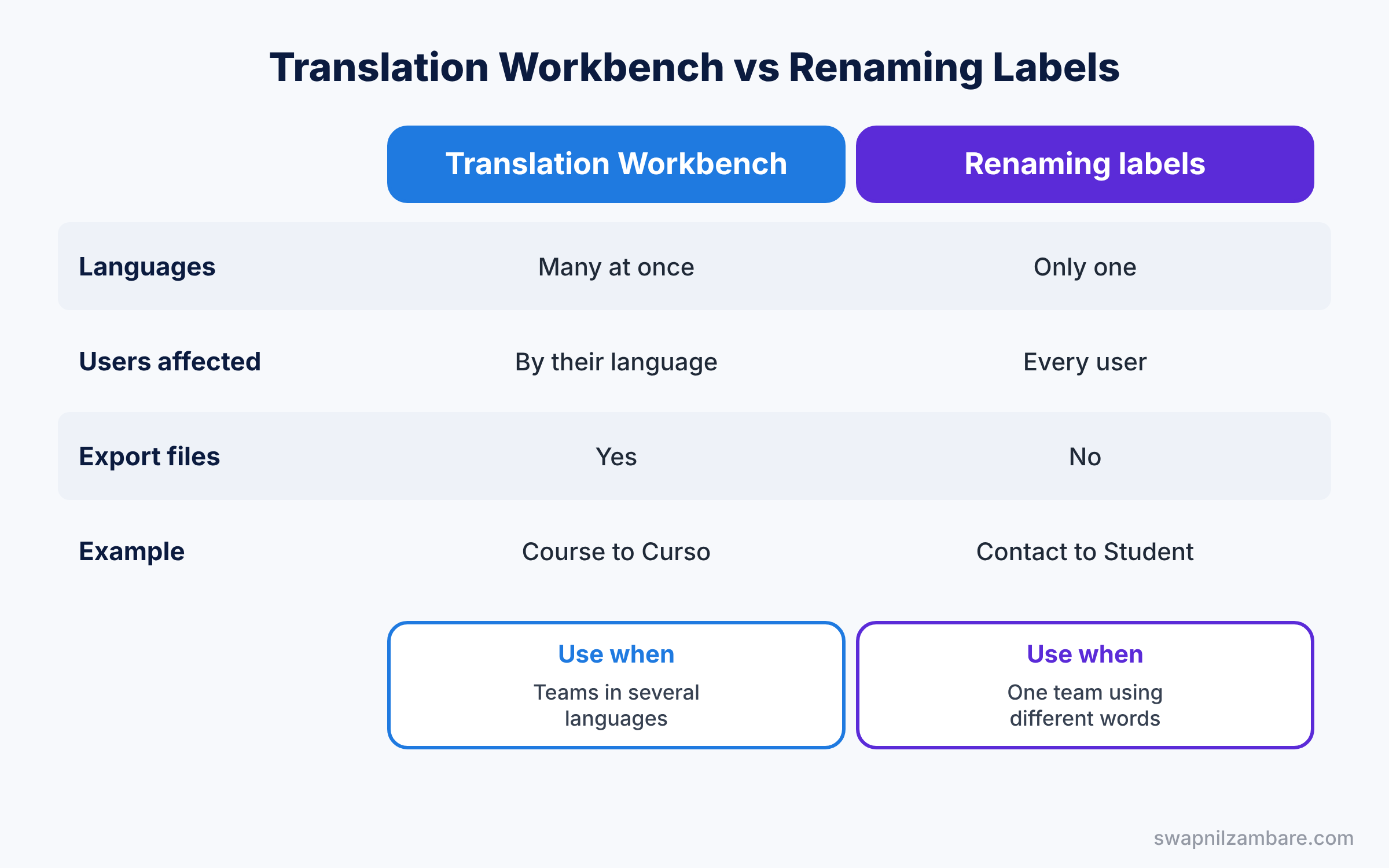
Some admins rename tabs and fields instead of translating them. The table below compares the two options.
| Feature | Translation Workbench | Renaming labels |
|---|---|---|
| Languages | Many at once | Only one |
| Users affected | Only users with that language | Every user |
| Standard labels | Salesforce already translates most | Renamed for everyone |
| Export for translators | Yes | No |
| Best for | Teams in several languages | One team using different words |
In short, rename labels when everyone should see a different word, like “Student” instead of “Contact”. Use Salesforce Translation Workbench when users need different languages.
Hands-on Example: Salesforce Translation Workbench for Spanish
Let’s set up Spanish in your Developer Edition org.
Step 1: Enable and add the language
- Go to Setup, type “Translation Language Settings” in Quick Find, and enable Translation Workbench if asked.
- Click Add, choose Spanish, tick Active, and add yourself as a translator. Save.
Step 2: Translate labels
- In Quick Find, open Translate. Choose Spanish as the language.
- Pick Setup Component Custom Field, Object Course, and type “Tarifa pagada” next to Fee Paid.
- Change the component to Picklist Value, choose Level, and enter the values from the table above.
Step 3: Test as a Spanish user
- Set a test user’s Language to Español and log in as that user.
- Open a course. The tab, field labels and picklist values now show in Spanish.
- Then try to save a course with a fee of 500. The validation error message also appears in Spanish, which proves the error translation works.
Step 4: Add a second currency
- In a sandbox, open Company Information and tick Activate Multiple Currencies. Save.
- Open Manage Currencies, click New, add EUR, and set a conversion rate, such as 0.011 per rupee.
- Create an opportunity in EUR. Reports in rupees convert it using the rate.
Step 5: Check with SOQL
Developers can see each record’s currency and the converted amount with this query.
SELECT Name, CurrencyIsoCode, Amount, convertCurrency(Amount) amountInMyCurrency
FROM Opportunity
WHERE CurrencyIsoCode = 'EUR'
convertCurrency() converts the amount into the running user’s currency. So a manager in India sees rupees, while the Madrid rep sees euros, from the same query. They can also list active currencies and rates.
SELECT IsoCode, ConversionRate, IsCorporate
FROM CurrencyType
WHERE IsActive = true
Common Mistakes with Salesforce Translation Workbench
- Turning on multi-currency in production first. It cannot be turned off, so test in a sandbox.
- Forgetting the user’s Language setting. Translations only show for users with that language.
- Translating only fields. Picklists, error messages and help text need translations too.
- Not exporting before big changes. A file keeps a backup of all translations.
- Hard-coded text in formulas. Text inside formulas does not get translated.
Best Practices for Salesforce Translation Workbench
- Use native speakers to review. Machine translations often miss business meaning.
- Translate in sandboxes and deploy. Translations are metadata, so deployment tools can move them.
- Keep a glossary. Use the same Spanish word for “Course” everywhere.
- Plan currency rates. Decide who updates rates and how often.
- Start with what users see most. Tabs, page fields and picklists come first.
Practice Task
Add French as a second language and translate the Course tab, the Level picklist and one validation error message. Then test with a French user.
Hint: use the Bilingual export to see the English and French labels side by side.
Salesforce Translation Workbench FAQ
Does Translation Workbench translate record data?
No. It translates labels and messages, not the data users type into records.
Can I translate email templates?
You create a separate email template for each language and pick one based on the recipient.
Do reports show translated labels?
Yes. Report columns and picklist values show in the viewer’s language when translations exist.
Official Resources
- Enable or Disable Translation Workbench (Salesforce Help)
- Manage Your Translations (Salesforce Help)
- Language, Locale, and Currency Settings (Salesforce Help)
Quick Recap
- Salesforce Translation Workbench translates your custom labels and messages.
- Users see translations based on the Language on their user record.
- Export and import files let outside translators work offline.
- Multi-currency adds a Currency field to records and cannot be turned off.
- Dated exchange rates keep opportunity amounts accurate over time.
What’s Next?
Your org now speaks more than one language. Next, learn how to show data from other systems in Salesforce without copying it. Read Salesforce Connect and External Objects.


