Salesforce Surveys let you build feedback forms inside Salesforce, send them to customers or employees, and store every answer next to the related records. For example, a parent gets a short survey after a support case closes, and the rating appears on the case. In our cases guide, you learned how support requests are handled. Surveys tell you how well you handled them.
In this post, you will learn how surveys, questions, invitations and responses work, which question types you can use, and how many responses come free. Then you will build a “Course Feedback” survey for Bright Path Tutors and send it automatically when a course ends. You should know record-triggered flows from our flow types guide, because flows send survey invitations at the right moment.
What are Salesforce Surveys?
It is a built-in feature for creating online surveys with a drag-and-drop builder. A survey has one or more pages of questions. People open the survey through an invitation link, answer, and submit.
Every answer is saved as data in Salesforce. So you can report on ratings, filter by course, and link answers to contacts and cases. Also, because surveys use normal records, sharing rules and field security protect the answers like any other data.
Here is a simple analogy. Think of the feedback card a restaurant gives you with the bill. You tick boxes, write a comment, and drop it in a box. The survey feature is that card, but sent by email, filled online, and stored with the rest of the customer’s history.
Why Salesforce Surveys Matter
Without feedback, teams guess what customers think. Separate survey tools also keep answers away from the records where people work every day. As a result, a teacher with poor ratings may not find out for months, because the scores sit in a spreadsheet nobody opens. Inside Salesforce, the same scores can trigger a task for the academic head on the same day.
Here are some real situations at Bright Path Tutors.
- The academic head wants a rating from parents at the end of every course.
- The support manager wants a satisfaction score after each closed case.
- HR wants a short survey for new trainers after their first month.
- Managers want to see low ratings next to the course and the teacher.
So surveys bring customer opinion into Salesforce, where teams can act on it.
How Salesforce Surveys Work
The process has five steps. First, an admin turns on Surveys in Setup. Next, the admin builds a survey in Survey Builder and activates it. Then Salesforce sends an invitation, either from a flow, by email, or as a link. After that, the person opens the link, answers the questions and submits. Finally, Salesforce stores a survey response with each answer, and teams report on the results.
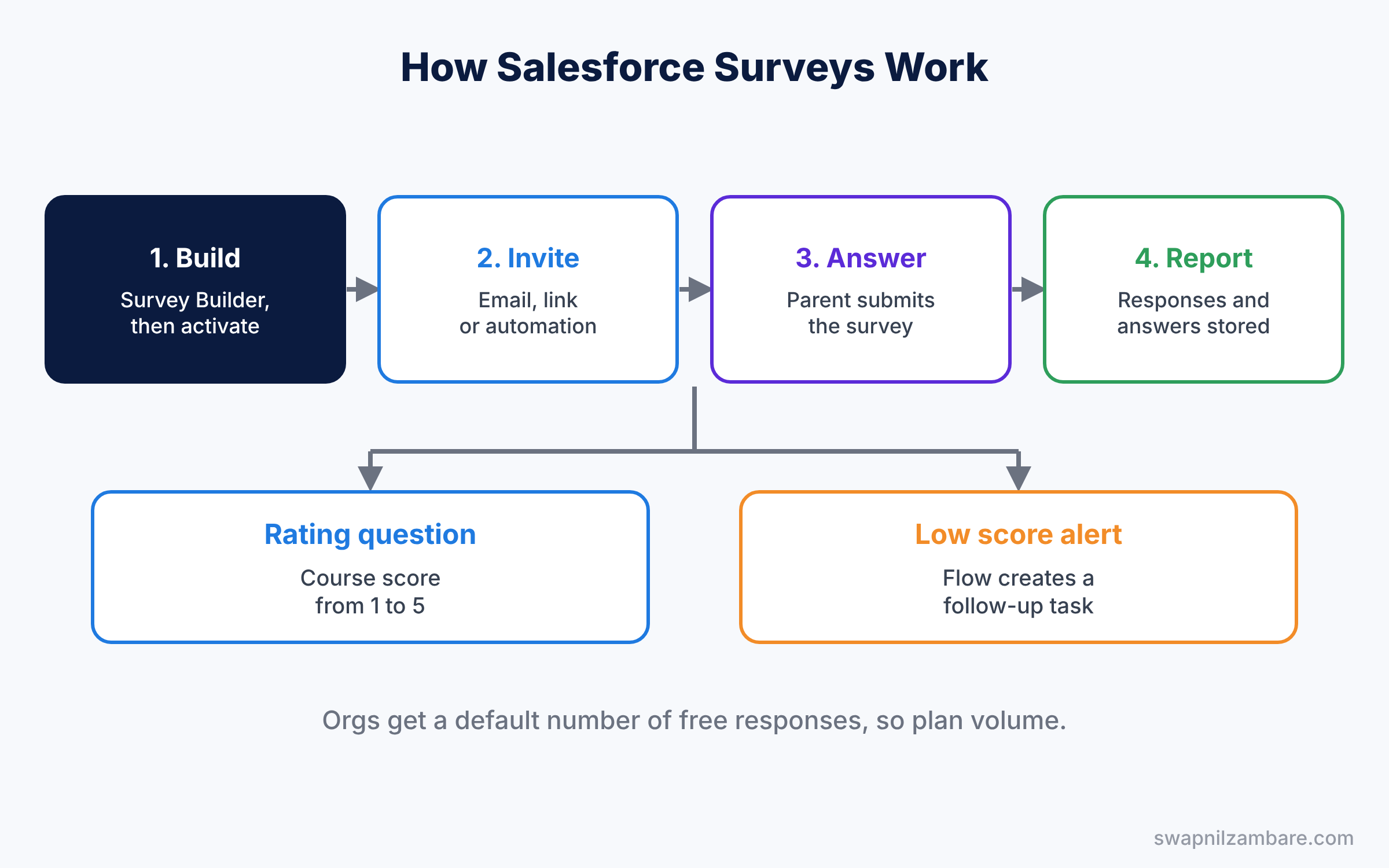
Surveys for people outside your company use an Experience Cloud site in the background. So set a default site in Survey Settings before you send surveys to parents.
Key Parts of Salesforce Surveys
Survey Builder
First, Survey Builder is a visual editor with pages, questions and a preview. You add a welcome page, question pages and a thank-you page. You can also add branching, so the next question depends on the last answer. For example, parents who give a low rating can see an extra question asking what went wrong, while happy parents skip straight to the end.
Question types
Next, you can use many question types, such as Short Text, Long Text, Multiple Choice, Picklist, Rating, Slider, Date and Net Promoter Score. For example, a Rating question asks parents to score a course from 1 to 5.
Invitations
Then each invitation is a record with a unique link. You can send invitations from a flow, attach them to a record like a case, or share a general link. Invitations linked to records make reports much more useful. For example, a rating linked to a case shows which agent handled it, so managers can coach the right person.
Responses and answers
Each submitted survey creates a survey response. Then each answer becomes a question response record. So you can report on “Average rating by course” or “Comments with a score under 3”.
Response limits
Finally, orgs get a default number of free survey responses, which Salesforce Help lists as 300. Response packs and Feedback Management editions add many more. Check your org’s usage before you plan large surveys.
The table below shows our Course Feedback survey.
| Question | Type | Example answer |
|---|---|---|
| How would you rate this course? | Rating, 1 to 5 | 4 |
| Would you recommend us to a friend? | Net Promoter Score, 0 to 10 | 9 |
| What did your child enjoy most? | Long Text | The live coding projects |
| Which course should we offer next? | Multiple Choice | Robotics |
Salesforce Surveys vs Web Forms
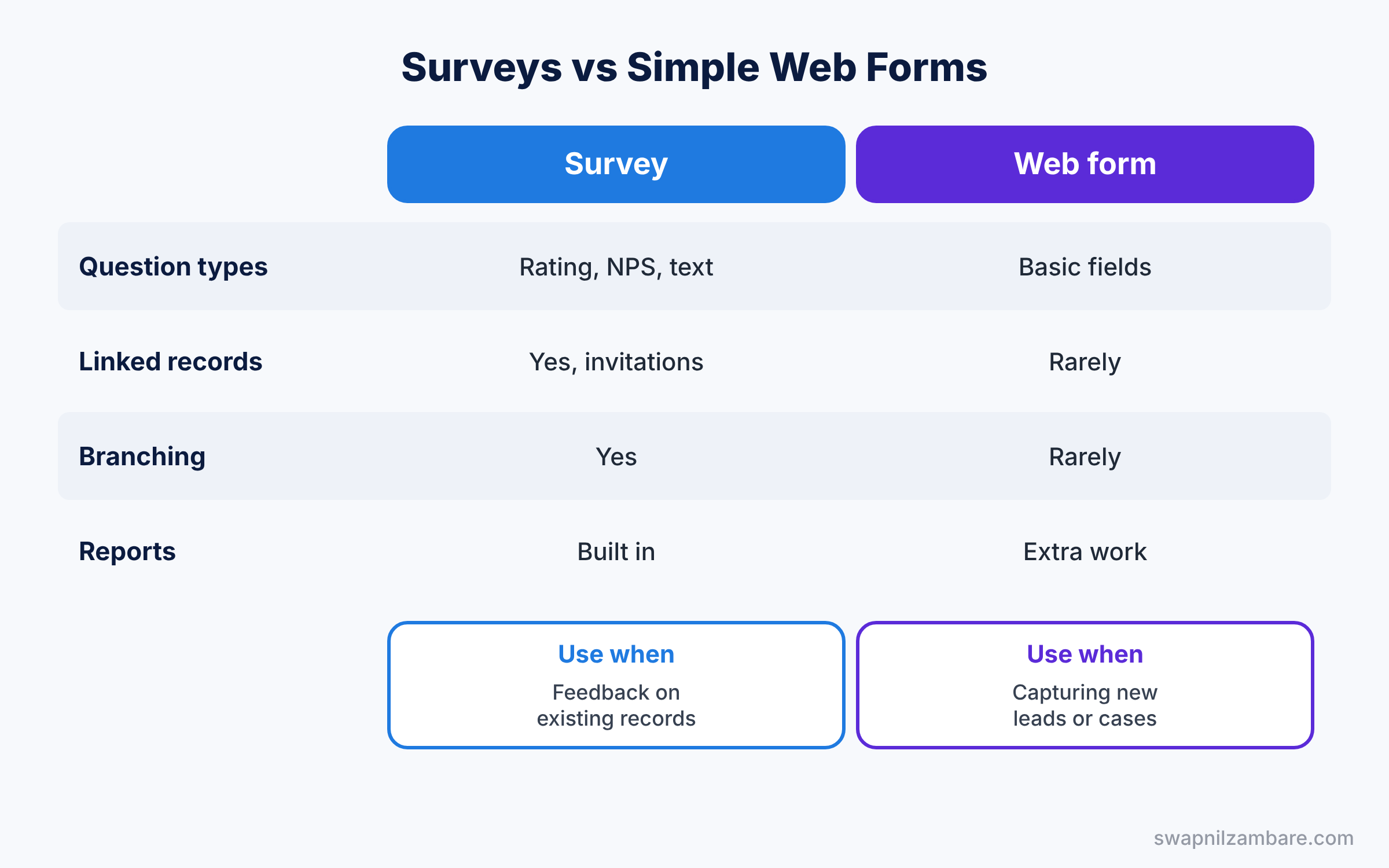
Some teams collect feedback with a simple web form instead. The table below compares the two options.
| Feature | Survey | Simple web form |
|---|---|---|
| Question types | Many, including NPS and rating | Basic fields only |
| Linked to records | Yes, through invitations | Only if built carefully |
| Branching | Yes | Rarely |
| Reports on answers | Built in | Needs extra work |
| Best for | Customer and employee feedback | Capturing new leads or cases |
In short, use web forms like Web-to-Lead to capture new people. Use Salesforce Surveys to collect feedback and link it to existing records.
Hands-on Example: Salesforce Surveys for Course Feedback
Let’s build a survey in your Developer Edition org.
Step 1: Turn on Surveys
- Go to Setup, type “Survey Settings” in Quick Find, and turn on Surveys.
- Choose a default Experience Cloud site for surveys sent to external people, such as the Parent Portal.
Step 2: Build the survey
- Open the Surveys tab from the App Launcher and click New.
- Name it “Course Feedback” and add the four questions from the table above.
- Add a thank-you message, preview the survey, and click Activate.
Step 3: Send the survey
- In Survey Builder, click Send and choose to send by email.
- Pick a test contact, such as a parent, and send the invitation.
- For automation, use survey invitation rules or a record-triggered flow on Enrollment that runs when Status changes to Completed. The menu names depend on your edition, so follow the current Help steps.
Sending one invitation by hand first is a good habit. It shows you exactly what parents will see before any automation goes live.
Step 4: Test the survey
Open the invitation email as the test parent, answer the questions, and submit. The response now appears on the Survey Responses related list. Then try it once on a phone, because many parents will open the link on mobile. Check that the rating scale and the comment box are easy to use on a small screen.
Step 5: Report on answers
Developers can check the results with these queries.
SELECT Survey.Name, Status, CompletionDateTime
FROM SurveyResponse
WHERE Survey.Name = 'Course Feedback'
ORDER BY CompletionDateTime DESC
The second query lists individual ratings for one question.
SELECT Question.Name, ResponseValue, NumberValue
FROM SurveyQuestionResponse
WHERE Question.Name = 'How would you rate this course?'
NumberValue holds numeric answers, like ratings. So an admin can build a report of average rating by course and add it to the academic dashboard.
Common Mistakes with Salesforce Surveys
- Too many questions. Long surveys get fewer answers, so keep it under five minutes.
- No default site. External people cannot open survey links without one.
- Sending without a linked record. Answers then float without context.
- Ignoring response limits. Free responses run out quickly with large lists.
- Never acting on feedback. People stop answering if nothing changes.
Best Practices for Salesforce Surveys
- Send right after the moment. Feedback is best just after a case closes or a course ends.
- Use one rating question. It makes trends easy to compare from month to month.
- Add one open comment box. Comments explain the scores.
- Alert on low scores. A flow can create a follow-up task when a rating is 1 or 2.
- Share results with teams. Dashboards turn feedback into action.
Practice Task
Build a short “Case Satisfaction” survey with one rating and one comment question. Send it from a flow when a case closes, and create a task for the case owner when the rating is under 3.
Hint: use a second record-triggered flow on Survey Response to check the rating.
Salesforce Surveys FAQ
Are surveys free?
Orgs get a default number of free responses. More responses need a response pack or a Feedback Management edition.
Can employees answer surveys too?
Yes. Internal users can answer surveys inside Salesforce without an Experience Cloud site.
Can a survey update a record?
Advanced data mapping needs Feedback Management. Without it, flows can read answers and update records.
Official Resources
Quick Recap
- Salesforce Surveys build feedback forms and store answers in Salesforce.
- Survey Builder supports ratings, NPS, text and branching.
- Invitations link each survey to a person and a record.
- Responses and answers are records you can report on.
- Free responses are limited, so plan volume early.
What’s Next?
You can now hear from parents and staff. Next, learn how to show Salesforce in more languages and currencies. Read Salesforce Translation Workbench and Multi-Currency.


