Salesforce Connect lets you see and use data that lives in another system, such as an old exam database, inside Salesforce without copying it. The data stays where it is, and Salesforce reads it live when a user opens a page or runs a search. In our data migration guide, you moved data into Salesforce. Sometimes moving is the wrong choice, and connecting is better.
In this post, you will learn what external data sources and external objects are, which adapters it uses, and how external objects relate to normal records. Then you will connect a public demo data service, the same kind of setup Bright Path Tutors would use for its old exam results system. You will also see where big objects fit, because the Platform Administrator II exam asks about all these options. Our standard vs custom objects guide is useful background.
What is Salesforce Connect?
Salesforce Connect is a feature that maps tables in an outside system to external objects in Salesforce. An external object looks like a custom object, but its API name ends in __x and it stores no data. When a user views a record, Salesforce calls the outside system and shows the result.
The link to the outside system is called an external data source. It holds the URL, the type of connection and how to sign in.
Here is a simple analogy. Think of watching a live cricket match on TV. The match happens at the stadium, not in your house. Your TV shows it live, but you do not own the stadium. The connection is the TV, the external system is the stadium, and external objects are the channels you can watch.
Why Salesforce Connect Matters
Copying data has costs. You need storage, nightly jobs and fixes when copies drift apart. For data that changes often or is very large, a live view is simpler.
Here are some real situations at Bright Path Tutors.
- Exam results live in an old system that the exam board still updates.
- Support agents need to see a student’s last exam score on the case page.
- Millions of old attendance rows would use too much Salesforce storage.
- Finance runs billing in an ERP system, and reps only need to look at invoices.
So a live connection gives users the outside data they need, without a copy to maintain.
How Salesforce Connect Works
The setup has five steps. First, you create an external data source and choose an adapter, such as OData 4.0. Next, you click Validate and Sync, and Salesforce reads the list of tables from the outside system. Then you pick the tables you want, and Salesforce creates an external object for each one. After that, you add relationships so external records appear on account or contact pages. Finally, users open tabs, related lists and searches, and Salesforce fetches the data live each time.
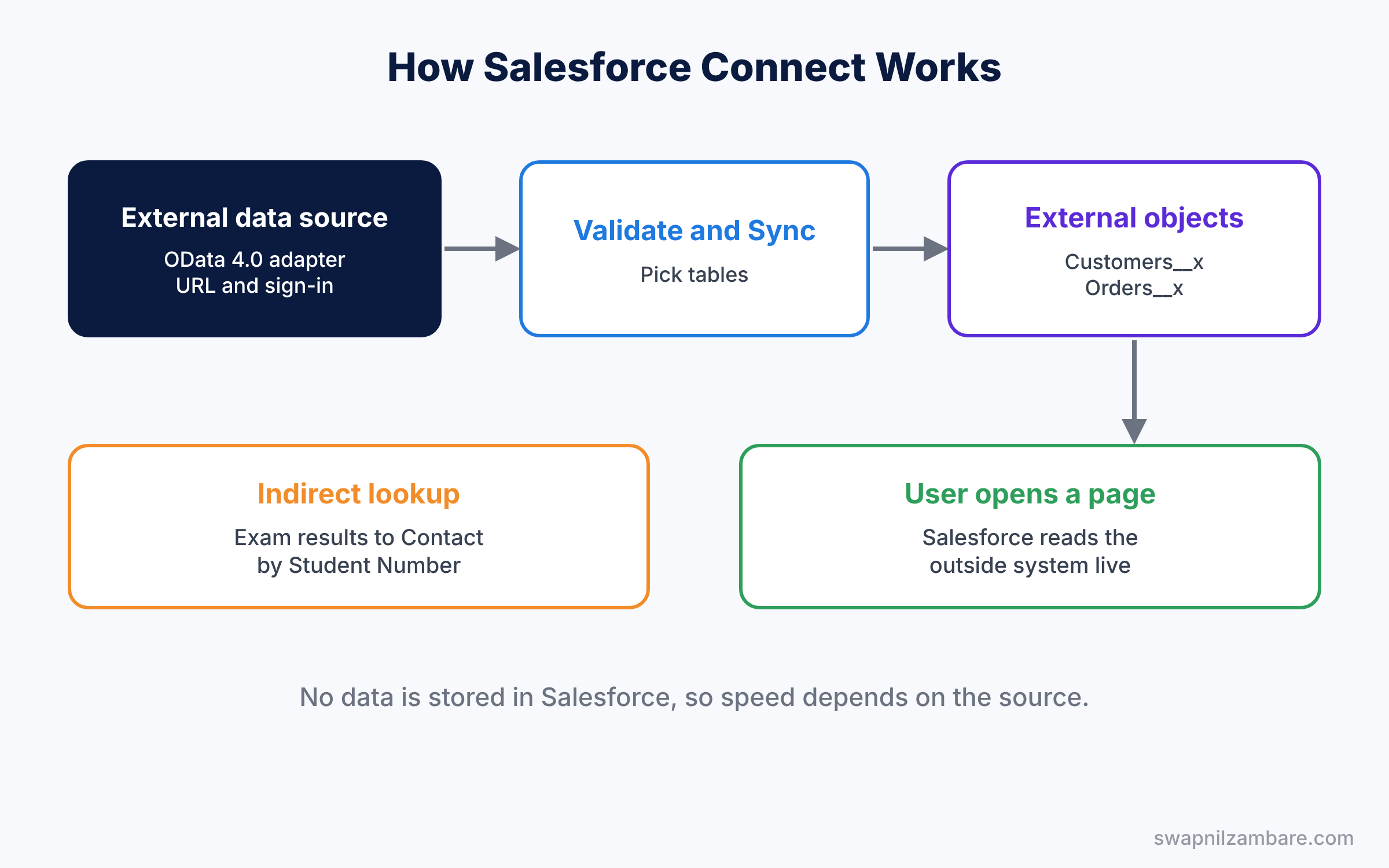
Because the data is read live, speed depends on the outside system. A slow server means a slow page. However, when the outside system is fast, users cannot tell that the data lives elsewhere.
Key Parts of Salesforce Connect
Adapters
First, the adapter decides how Salesforce talks to the outside system. The OData 2.0 and 4.0 adapters work with any OData service. The cross-org adapter connects to another Salesforce org. A custom adapter written in Apex can reach almost any web service.
External data sources
Next, the external data source stores the URL, the adapter type and the authentication. You can use a Named Principal, where everyone shares one login, or Per User, where each user signs in.
External objects
Then each external object maps to one outside table. Fields map to columns, and the External ID field holds the outside system’s key. You can add tabs, page layouts and list views like any object.
External lookups and indirect lookups
An external lookup links a child external object to a parent external object. An indirect lookup links an external object to a normal Salesforce object, using a unique External ID field on that object. For example, exam results can link to Contacts through a Student Number field.
Big objects and other options
Finally, big objects store huge amounts of data inside Salesforce, like years of attendance logs, with limited querying. Data warehouses and archive tools are other choices. Pick the one that matches how often users need the data.
The table below compares the main ways to work with outside data.
| Option | Data stored in Salesforce | Good for |
|---|---|---|
| Live connection | No, read live | Large or fast-changing outside data |
| Data import or migration | Yes, copied | Data you will own and edit in Salesforce |
| Big objects | Yes, in a special store | Huge history that is rarely changed |
| Data warehouse | No, outside | Heavy analytics across many systems |
Salesforce Connect vs Data Import
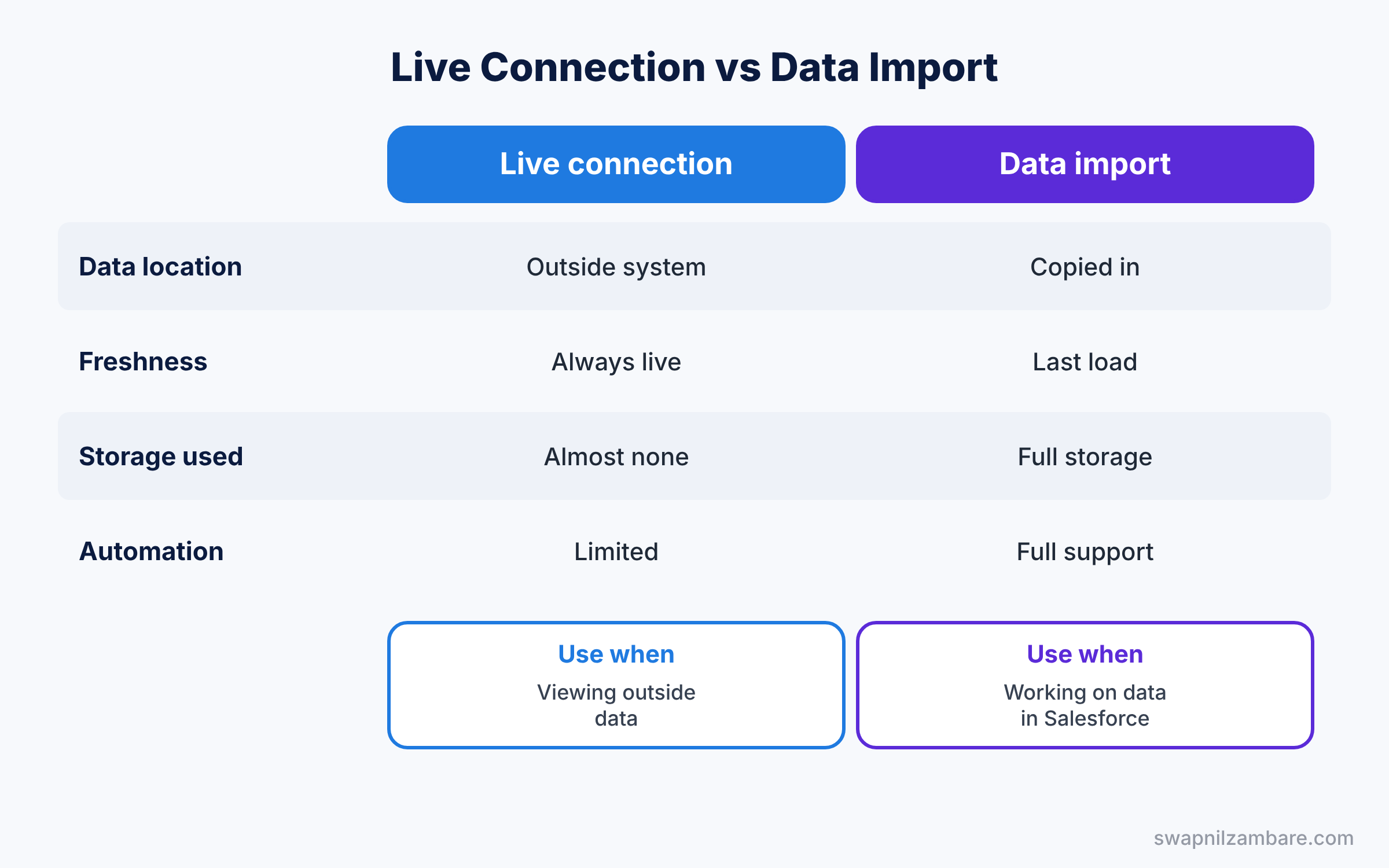
Most teams must choose between connecting and copying. So compare both options before you build.
| Feature | Live connection | Data import |
|---|---|---|
| Data location | Stays in the outside system | Copied into Salesforce |
| Freshness | Always live | As old as the last load |
| Storage used | Almost none | Full record storage |
| Reports and automation | Limited on external objects | Full support |
| Best for | Viewing outside data | Working on data in Salesforce |
In short, connect when users mainly look up outside data that changes often. Import when users must edit, report on and automate the data in Salesforce.
Hands-on Example: Salesforce Connect with a Demo OData Service
Let’s connect a public OData demo service in your Developer Edition org. It holds sample customers and orders, like the ones an old exam system would hold.
Step 1: Create the external data source
- Go to Setup, type “External Data Sources” in Quick Find, and click New External Data Source.
- Enter the values from the table below and save.
| Field | Value |
|---|---|
| External Data Source | Northwind |
| Name | Northwind |
| Type | Salesforce Connect: OData 4.0 |
| URL | https://services.odata.org/V4/Northwind/Northwind.svc/ |
| Identity Type | Anonymous |
Step 2: Validate and sync
- On the data source page, click Validate and Sync.
- Tick Customers and Orders, then click Sync. Salesforce creates Customers__x and Orders__x.
Step 3: Add a tab and view data
- Create a custom tab for Customers.
- Open the tab and choose the All list view. Each row comes live from the demo service.
Step 4: Query the external object
Developers can query external objects with normal SOQL.
SELECT ExternalId, CompanyName__c, City__c, Country__c
FROM Customers__x
WHERE Country__c = 'Germany'
LIMIT 5
The result might look like this.
ExternalId  CompanyName__c              City__c     Country__c
ALFKI       Alfreds Futterkiste         Berlin      Germany
BLAUS       Blauer See Delikatessen     Mannheim    Germany
Each query becomes a call to the outside service. So keep filters tight and use LIMIT, because large external queries are slow. Also, check the debug log after a test. It shows each external call and how long it took, which helps you spot a slow source early.
Step 5: Link to a Salesforce object
For a real exam system, add a unique External ID field “Student Number” on Contact. Then create an indirect lookup field on the exam results object that points to Contact through Student Number. Exam results then appear as a related list on each student.
Common Mistakes with Salesforce Connect
- Expecting full automation. Many flow and trigger features do not work on external objects.
- Ignoring licence needs. Production orgs need a Salesforce Connect licence, so check before you plan.
- Slow outside systems. Every page view waits for the outside server.
- Pulling too much data. Wide list views make many calls and hit limits.
- Weak security on the source. Named Principal shares one login, so limit what it can read.
Best Practices for Salesforce Connect
- Use it for reference data. Look-ups work best, heavy editing works worst.
- Keep columns few. Sync only the tables and fields users need.
- Use indirect lookups. They put outside data right on familiar record pages.
- Test speed with real volume. A demo with ten rows hides slow responses.
- Plan for outages. Tell users what to do when the outside system is down.
Practice Task
Sync the Orders table from the same demo service and create an external lookup from Orders to Customers. Then open a customer and check the related orders.
Hint: the lookup uses CustomerID on Orders and the External ID on Customers.
Salesforce Connect FAQ
Do external objects use data storage?
No. External objects hold no data in Salesforce, so they do not use record storage.
Can users edit external data?
Yes, if the adapter and the outside system allow writes and you turn on writable external objects.
Is Salesforce Connect in Developer Edition?
Yes. You can practise with it there before you buy it for production.
Official Resources
- External Data Source and External Objects Setup (Trailhead)
- Object Relationships Overview (Salesforce Help)
Quick Recap
- Salesforce Connect shows outside data in Salesforce without copying it.
- External data sources hold the URL, adapter and sign-in settings.
- External objects end in __x and read data live.
- Indirect lookups link outside records to normal Salesforce records.
- Import data instead when users must edit and automate it heavily.
What’s Next?
Your org can now reach outside data live. Next, learn how Data 360 unifies customer data from many sources into one profile. Read Salesforce Data 360 Basics for Admins.


