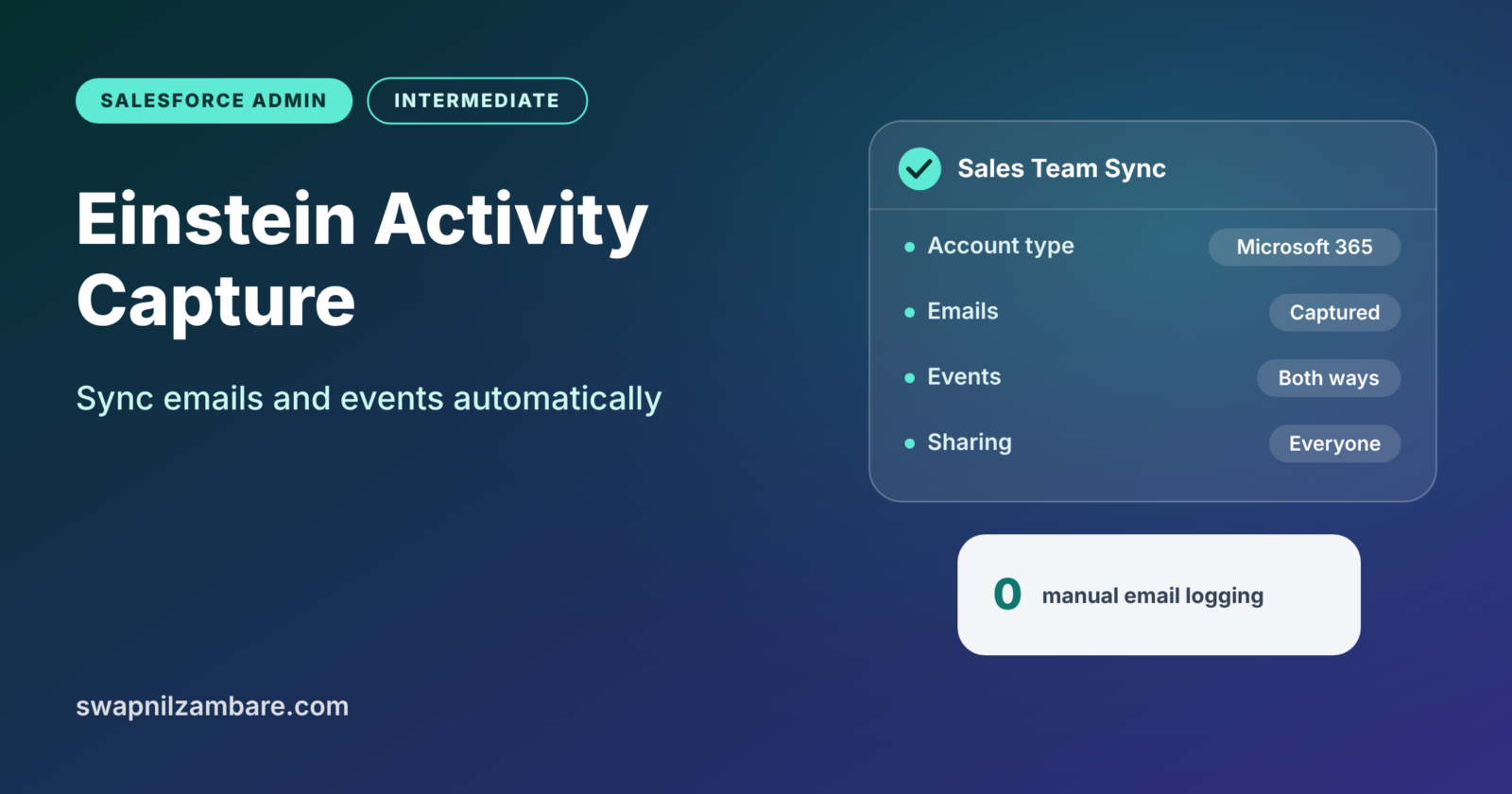
Einstein Activity Capture connects users’ email and calendar accounts to Salesforce. Then it adds their emails and meetings to related records automatically. Sales reps no longer need to log every email by hand. Managers get a fuller picture of how much work goes into each deal.
In this post, you will learn how the feature works, what it syncs and where the data lives. Then you will set it up step by step. It builds on our guide to activities, tasks, events and email integration. It also connects to organization-wide email addresses and to opportunities and sales process, where captured activities often appear.
What is Einstein Activity Capture?
Einstein Activity Capture is a Salesforce feature that syncs emails and events from Google or Microsoft accounts. It matches each email or meeting to related Salesforce records, such as contacts, leads, accounts and opportunities. Users then see these activities on the activity timeline.
Think of a personal assistant who reads your calendar and sent emails each evening. They file a copy of each item into the right client folder, so you never forget to do it. Einstein Activity Capture is that assistant for Salesforce.
Why Einstein Activity Capture Matters
Manual activity logging is one of the most skipped tasks in sales. Reps are busy, so many emails never reach Salesforce. As a result, managers cannot see real engagement on deals.
Here is how it helps at Bright Path Tutors.
- Every email Asha sends to a corporate client appears on the account timeline.
- Meetings booked in her calendar show up on the related opportunity.
- Managers see when a deal has gone quiet, because no recent emails appear.
- Contacts and events can sync both ways, so calendars stay in step.
- Reps save several minutes each day that they used to spend logging.
So the feature gives better data with less effort from users.
How Einstein Activity Capture Works
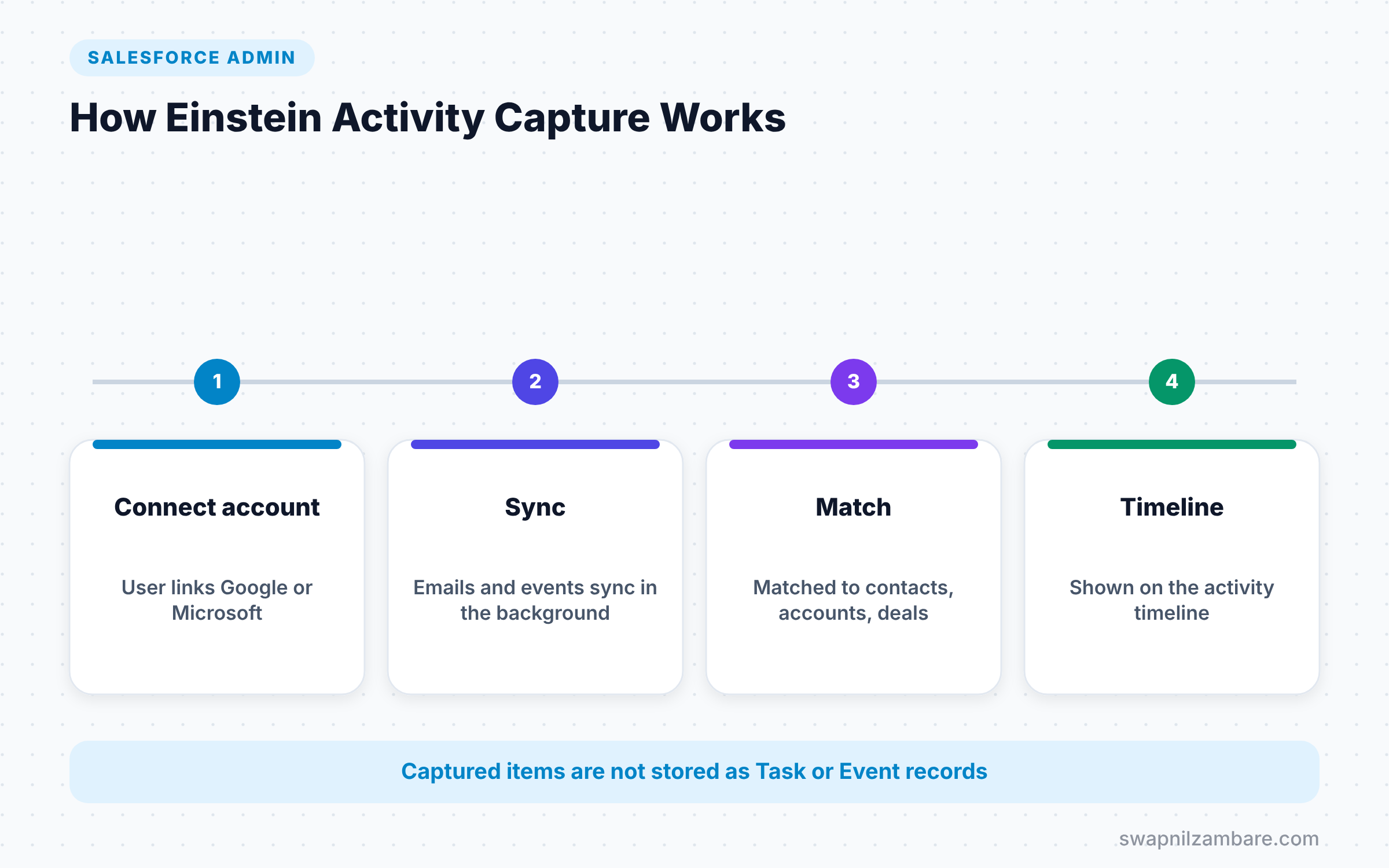
First, an admin turns on the feature and creates a configuration. Next, users connect their email and calendar accounts. Then Salesforce syncs emails and events in the background. Finally, it matches each item to records using email addresses and shows it on the activity timeline.
Where the Data Lives
This is the most important point for admins. Emails and events captured this way are not stored as normal Task and Event records. They live in a separate store linked to Salesforce. So standard activity reports do not include them. Instead, you use Activity Metrics and special dashboards to report on captured activity.
Configurations
A configuration decides what syncs for a group of users. It covers email capture, event sync and contact sync, plus the direction of each sync. You assign configurations to users or profiles.
Sharing Settings
Users can control who sees their captured emails and events. Admins set the default, such as sharing with everyone or keeping them private. Users can also exclude certain addresses, like personal contacts.
Captured Activities vs Logged Activities
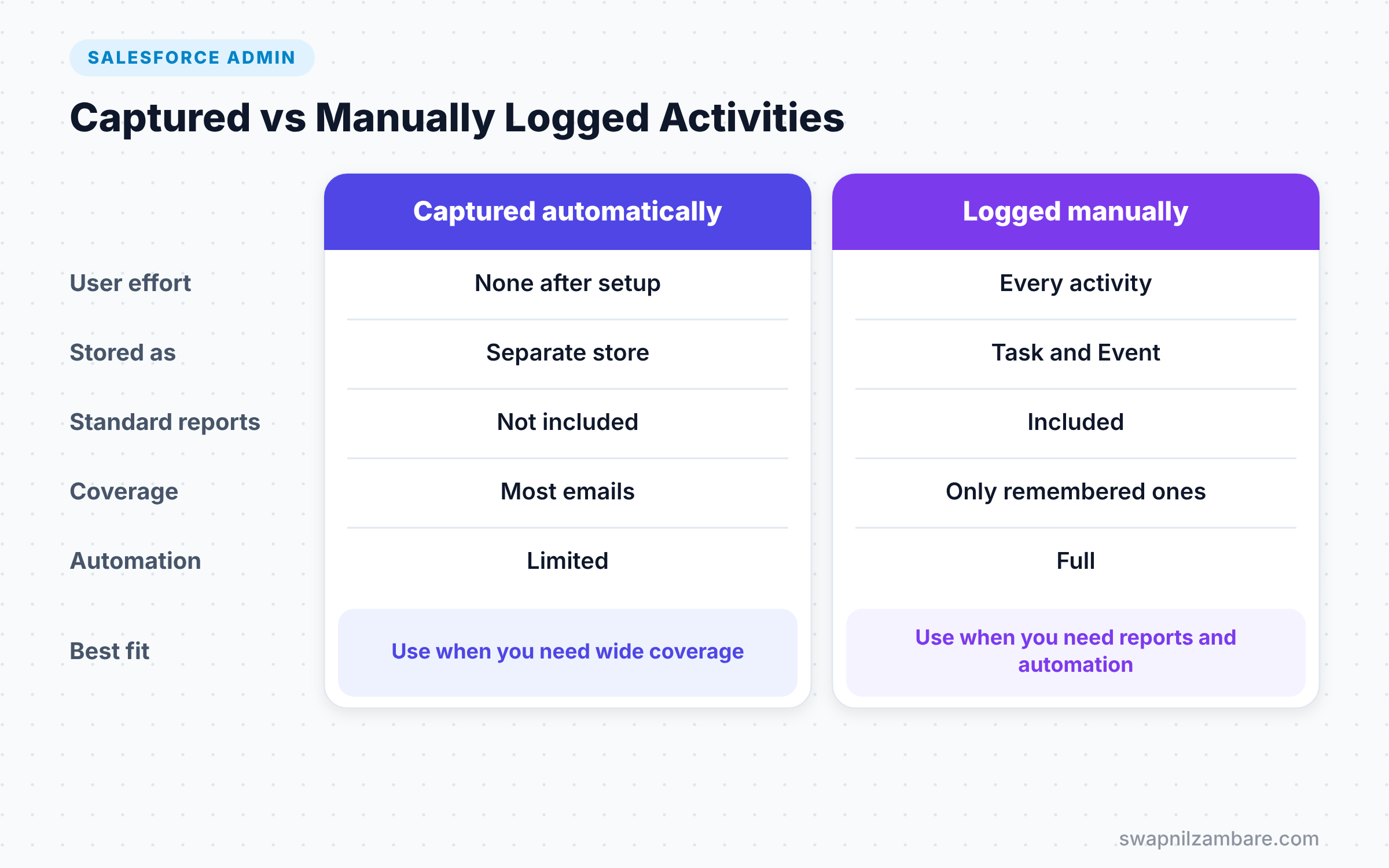
The table below compares activities captured automatically with activities users log by hand.
| Feature | Captured by Einstein Activity Capture | Logged manually |
|---|---|---|
| Effort for users | None after setup | Every email or call |
| Stored as | Separate activity store | Task and Event records |
| Standard reports | Not included | Included |
| Coverage | Most emails and meetings | Only what users remember |
| Automation triggers | Limited | Full, such as flows on Task |
When to use which depends on your needs. Use Einstein Activity Capture for wide coverage with little effort. Log activities manually when you need them in standard reports or automation.
How to Set Up Einstein Activity Capture Step by Step
Let’s turn it on for the Bright Path Tutors sales team. The company uses Microsoft 365.
Step 1: Turn On the Feature
- Go to Setup and type “Einstein Activity Capture” in Quick Find.
- Open Settings and switch the feature on.
- Next, accept the terms that appear.
Step 2: Create a Configuration
- Open the Configurations tab and click New Configuration.
- Then enter the values from the table below.
- Finally, click Save.
The table below shows the configuration settings.
| Setting | Value |
|---|---|
| Name | Sales Team Sync |
| Account type | Microsoft Exchange or Office 365 |
| Sync emails | On |
| Sync events | Both ways |
| Sync contacts | Salesforce to Microsoft |
| Assigned to | Sales User profile |
Step 3: Set Sharing Defaults
- Open the Settings tab and find Activity Sharing.
- Choose “Share with everyone” for emails, so managers can see deal activity.
- Next, add excluded addresses, such as internal colleagues and personal domains.
Step 4: Users Connect Their Accounts
- Each sales user opens their personal settings in Salesforce.
- Then they find Connected Accounts and connect their Microsoft account.
- After a short time, emails and events begin to appear on the activity timeline.
Checking Captured Activities
Open a contact that Asha emailed last week. The activity timeline shows the email with its subject and a short preview. Click it to see more details.
To measure activity, use Activity Metrics if your licence includes them. These fields show values such as last activity date and count of emails. You can then build list views and reports that find deals with no recent activity.
Privacy and Compliance
This feature copies business emails into Salesforce. So check your company’s privacy and data rules first. Use excluded addresses to keep personal emails out. Also tell users clearly what syncs and who can see it.
Some regions and industries have strict rules on email data. If in doubt, involve your legal or compliance team before you roll it out widely.
Planning a Rollout
A good rollout starts small. First, pick five to ten sales users who email clients every day. Next, turn the feature on for them only and collect feedback for two weeks. Then fix sharing settings and exclusions based on what they say.
After the pilot, add one team at a time. Also update your training material, because users will ask why some emails appear and others do not. A short FAQ page in your org’s help menu saves many support questions.
Finally, agree with managers on how they will use the data. Engagement data is helpful for coaching. However, it can upset users if it feels like surveillance, so set clear expectations.
Common Mistakes with Einstein Activity Capture
- Expecting captured emails in standard activity reports. They live in a separate store.
- Building flows that trigger on Task records for captured emails, which never fire.
- Forgetting excluded addresses, so internal or personal emails appear on records.
- Rolling out to everyone at once without a pilot group.
- Not explaining sharing settings to users, which causes privacy worries.
Best Practices for Einstein Activity Capture
- Start with a small pilot team and collect feedback.
- Set clear sharing defaults and excluded addresses before rollout.
- Use Activity Metrics to report on engagement where available.
- Keep manual logging for activities that must drive automation.
- Review your company’s data rules with compliance before you start.
Practice Task
Draw a simple plan for your own org. List which teams should use the feature, which sync options they need and which addresses to exclude. Hint: separate sales teams from support teams, because their needs differ.
Most Asked Interview Questions on Einstein Activity Capture
Questions on Einstein Activity Capture often appear in sales-focused admin interviews. They test whether you understand the data, not just the setup.
Basic Questions on Einstein Activity Capture
Q1. What is Einstein Activity Capture?
It syncs emails and events from Google or Microsoft accounts to Salesforce. It matches them to related records and shows them on the activity timeline.
Q2. What data can the feature sync?
It can capture emails, sync events and sync contacts. Each configuration decides what syncs and in which direction.
Q3. Where does Salesforce store captured emails?
In a separate activity store linked to Salesforce, not as Task or Event records. That is why standard activity reports do not show them.
Q4. What is a configuration?
A configuration is a set of sync options for a group of users. You assign it to users or profiles.
Practical Questions on Einstein Activity Capture
Q5. A manager cannot see captured emails in a report. Why?
Captured emails are not standard Task records, so standard reports exclude them. Use Activity Metrics or the special activity dashboards instead.
Q6. How do you keep personal emails out?
Add excluded addresses and domains in the settings. Users can also manage their own exclusion lists.
Q7. Can a flow trigger on a captured email?
Not like a normal Task trigger, because captured emails are not Task records. If you need automation, log those activities as Tasks instead.
Q8. How would you roll out this feature?
Start with a pilot group, set sharing and exclusions, explain privacy to users, then expand team by team.
Official Resources
Quick Recap
- Einstein Activity Capture syncs emails and events from Google or Microsoft.
- It matches items to records and shows them on the activity timeline.
- Captured data is not stored as Task or Event records.
- Configurations decide what syncs for each group of users.
- Plan sharing, exclusions and privacy before you roll it out.
What’s Next?
Capturing customer data comes with privacy duties. Next, read our guide to Salesforce consent management and privacy to handle GDPR and DPDP needs.


