Organization-Wide Email Addresses let Salesforce send emails from a shared address, such as support@brightpathtutors.com, instead of a person’s own mailbox. Customers then see your company name, and replies go to a team inbox that never leaves with an employee. Deliverability settings decide whether Salesforce sends emails at all, and how well they reach inboxes.
In this post, you will set up a shared From address and a no-reply address. Then you will choose the right deliverability level and learn the basics of SPF and DKIM. This builds on our guide to email templates and email alerts. It also connects to Web-to-Case and Email-to-Case, because support emails often use a shared address. If you use sandboxes, our post on sandboxes and change sets explains why test orgs block most email by default.
What Are Organization-Wide Email Addresses?
An organization-wide email address is a shared sender address that you register in Salesforce. Users, email alerts, flows and Apex can send emails “from” it. Each one has a display name, such as “Bright Path Support”, and an email address that you must verify.
Think of a company letterhead. Every employee can write a letter, but the letter goes out on company paper with the company address. Organization-wide addresses are the company letterhead for email.
Why Organization-Wide Email Addresses Matter
Without Organization-Wide Email Addresses, automated emails go out from whoever built the alert or ran the flow. That looks unprofessional and causes real problems.
- Replies land in one person’s inbox, so they get lost when that person is on leave.
- Customers see a random employee’s name instead of the company name.
- Support teams cannot share one public address for all case emails.
- System emails, such as password resets, need a clean no-reply sender.
- Brand trust drops when emails come from personal addresses.
At Bright Path Tutors, all enrolment emails now come from “Bright Path Admissions”. Support replies come from “Bright Path Support”. Students always know who wrote to them.
How Organization-Wide Email Addresses Work
First, an admin adds the address in Setup. Then Salesforce sends a verification email to that mailbox, and someone clicks the link. After that, the address is ready to use. Finally, users and automations choose it as the From address.
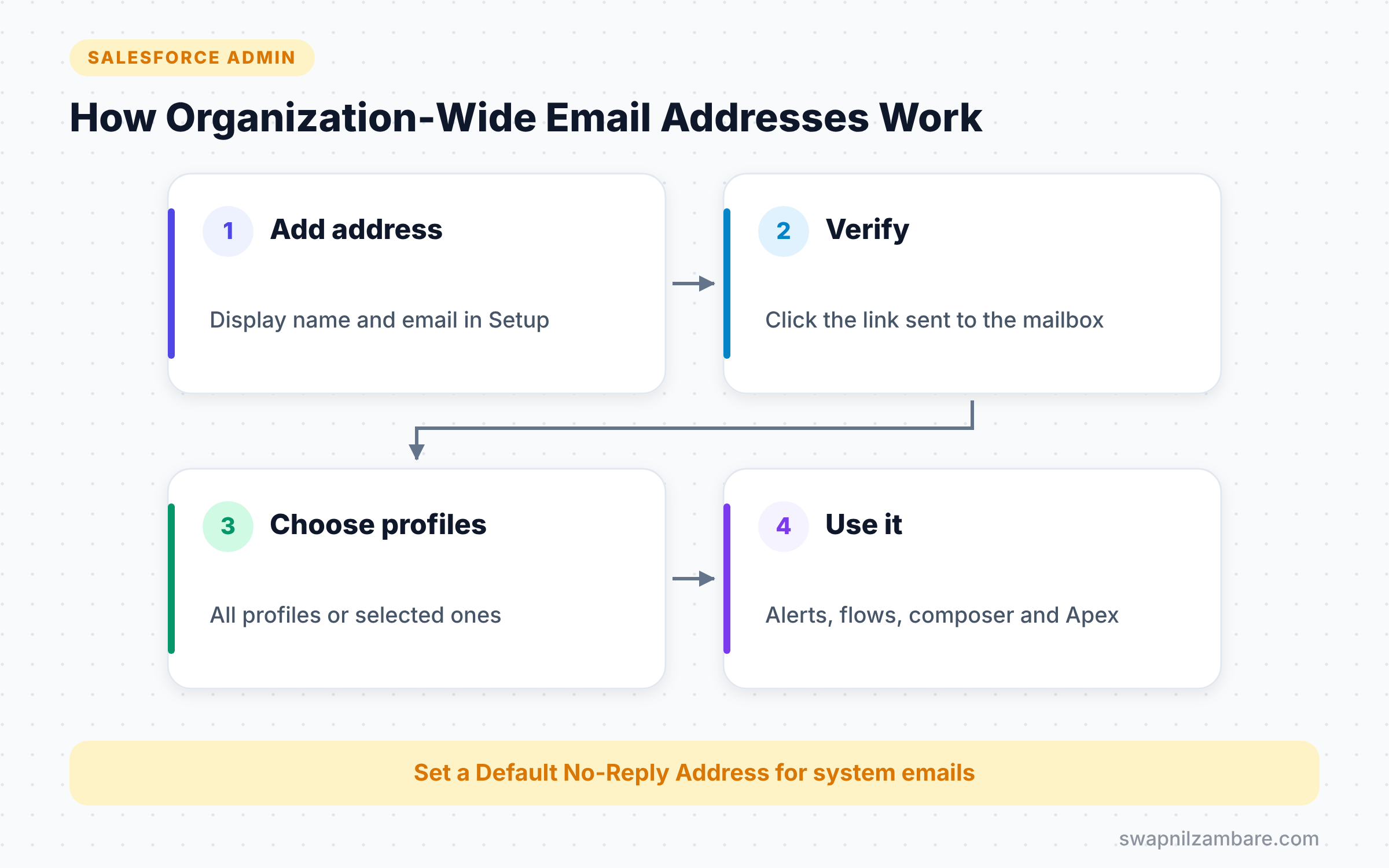
You also choose who can use each address. You can allow all profiles, or only selected profiles, such as the support team. This stops sales users from sending emails as Support by mistake.
Purpose of an Address
When you add an address, you choose its purpose. “User Selection” means users and automations can pick it as a From address. “Default No-Reply Address” means Salesforce uses it for system emails that should not get replies. Some orgs use one address for both purposes.
Where You Can Use Them
Organization-wide addresses appear in many places across Salesforce. The table below lists the main ones.
| Where | How it uses the address |
|---|---|
| Email composer on records | From dropdown for allowed users |
| Email alerts | From Email Address setting |
| Flows | Send Email action sender settings |
| Email-to-Case | Replies from the routing address |
| Apex | setOrgWideEmailAddressId on the message |
What is Email Deliverability?
Deliverability controls whether Salesforce sends emails from your org at all. You set it in Setup > Email > Deliverability. It has three levels.
No Access
Salesforce sends no outbound email at all. Production orgs rarely use this level.
System Email Only
Salesforce sends only system emails, such as password resets and user welcome emails. New sandboxes start with this setting, so test data never emails real customers.
All Email
Salesforce sends every kind of email, including alerts, flows and emails users write. Production orgs normally use this setting.
Organization-Wide Address vs User Email Address
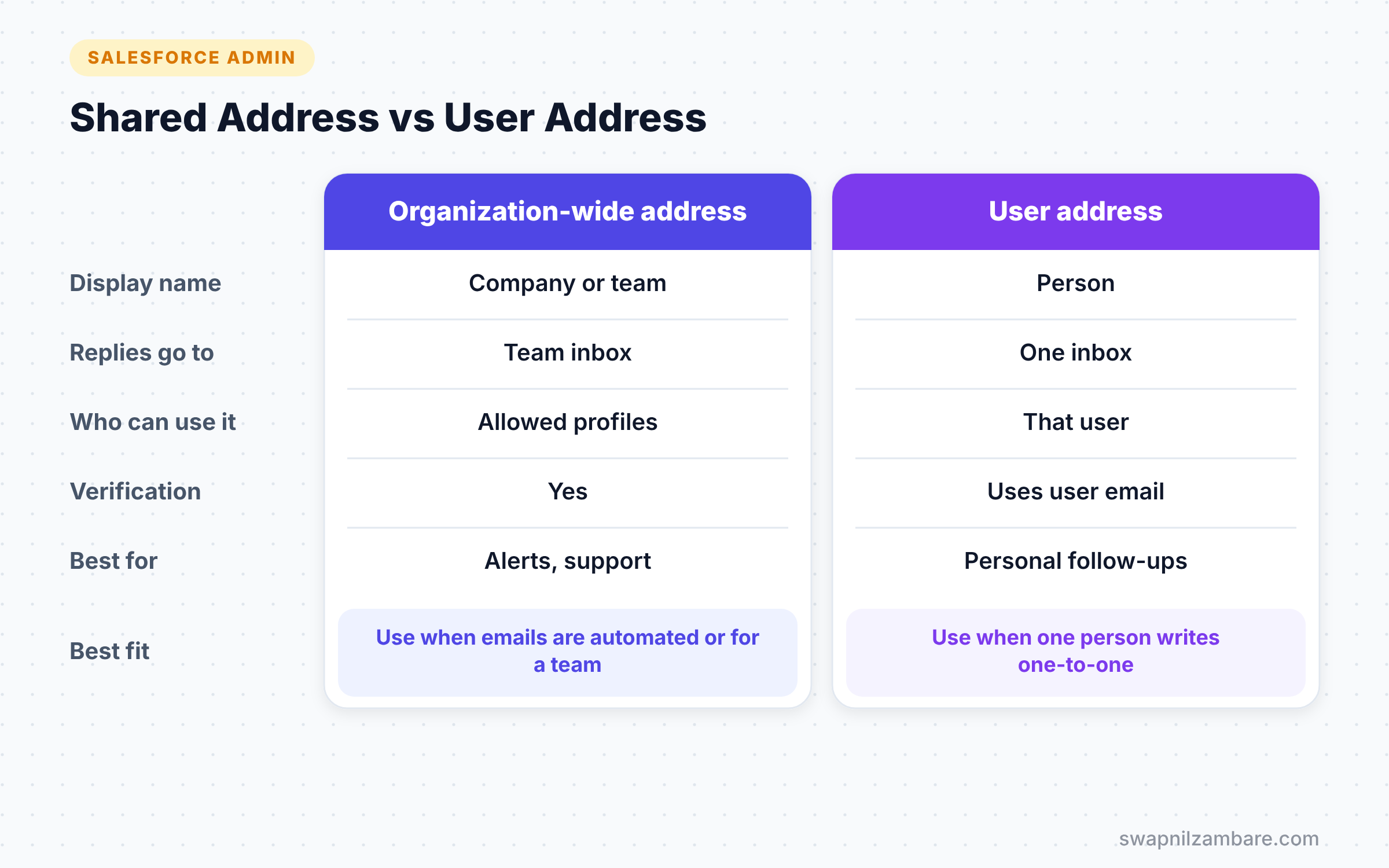
The table below compares sending from a shared address with sending from a user’s own address.
| Feature | Organization-wide address | User’s own address |
|---|---|---|
| Display name | Company or team name | Person’s name |
| Replies go to | Shared team inbox | One person’s inbox |
| Needs verification | Yes | Uses the user’s verified email |
| Who can use it | Allowed profiles only | That user only |
| Best for | Alerts, support, system emails | Personal sales follow-ups |
When to use which is fairly simple. Use an organization-wide address for automated and team emails, and a user’s own address for personal one-to-one emails.
How to Set Up Organization-Wide Email Addresses Step by Step
Let’s add Organization-Wide Email Addresses for Bright Path Tutors, starting with Support.
- Go to Setup and type “Organization-Wide Addresses” in Quick Find.
- Then click Add in the Organization-Wide Email Addresses section.
- Fill in the values from the table below.
- Next, click Save.
- Open the support mailbox and click the verification link in the email from Salesforce.
- Finally, refresh the page and check that the status shows Verified.
The table below shows the values for the support address.
| Setting | Value |
|---|---|
| Purpose | User Selection |
| Display Name | Bright Path Support |
| Email Address | support@brightpathtutors.com |
| Allowed profiles | Support Agent, Support Manager |
Set the Default No-Reply Address
- On the same page, click Add again.
- Choose the purpose “Default No-Reply Address”.
- Enter “Bright Path Tutors” as the display name and noreply@brightpathtutors.com as the address.
- Then save and verify it the same way.
From now on, system emails go out from this no-reply address.
Use the Address in an Email Alert
- Go to Setup > Process Automation > Email Alerts and open “Course Enrolment Confirmation”.
- Click Edit.
- Next, set From Email Address to “Bright Path Admissions”.
- Finally, click Save.
Every enrolment email now shows the admissions team as the sender.
Improve Delivery with SPF and DKIM
Sometimes Salesforce emails land in spam. This usually happens because the receiving server cannot confirm that Salesforce may send for your domain. Two DNS settings fix this.
SPF
SPF is a DNS record that lists which servers may send email for your domain. Your IT team adds Salesforce to it. A typical entry includes this part.
include:_spf.salesforce.comYour IT team adds it inside the existing SPF record of the domain. They should not create a second SPF record, because a domain should have only one.
DKIM
DKIM adds a digital signature to every email. Receiving servers check the signature against a key in your DNS. In Salesforce, go to Setup > Email > DKIM Keys and create a key for your domain. Then send the CNAME records it shows to your IT team. Once they publish the records, return and activate the key.
With SPF and DKIM in place, emails from Organization-Wide Email Addresses are much more likely to reach the inbox.
Common Mistakes with Organization-Wide Email Addresses
- Forgetting to click the verification link, so the address never becomes usable.
- Allowing all profiles to use a sensitive address, such as the CEO’s office.
- Setting deliverability to System Email Only in production and wondering why alerts stop.
- Turning on All Email in a sandbox with real customer emails in the data.
- Skipping SPF and DKIM, so important emails land in spam folders.
Best Practices for Organization-Wide Email Addresses
- Create one shared address per team, such as Support, Admissions and Finance.
- Set a Default No-Reply Address for system emails.
- Limit each address to the profiles that really need it.
- Ask IT to set up SPF and DKIM for every sending domain.
- Keep sandboxes on System Email Only unless you have cleaned the email data.
Practice Task
In your Developer Edition org, add an organization-wide address using your own email. Verify it, then use it as the sender of a test email alert. Hint: check the Organization-Wide Addresses page until the status changes to Verified.
Most Asked Interview Questions on Organization-Wide Email Addresses
Questions on Organization-Wide Email Addresses are very common in admin interviews, especially for support-heavy companies. Here are the ones asked most.
Basic Questions on Organization-Wide Email Addresses
Q1. What is an organization-wide email address?
It is a shared sender address registered in Salesforce. Users and automations can send emails from it, so customers see the company or team name instead of a person.
Q2. Why must you verify the address?
Verification proves you own the mailbox. Salesforce sends a link to the address, and the address only becomes usable after someone clicks it.
Q3. What is the Default No-Reply Address?
It is the address Salesforce uses as the sender for system emails, such as notifications that should not receive replies. You set it on the Organization-Wide Addresses page.
Q4. What are the three email deliverability levels?
No Access, System Email Only and All Email. Production normally uses All Email. New sandboxes start with System Email Only.
Practical Questions on Organization-Wide Email Addresses
Q5. Email alerts stopped working in a new sandbox. Why?
New sandboxes default to System Email Only. So alerts and flows do not send emails. Change deliverability to All Email if testing needs it, but first clean real customer emails from the data.
Q6. How do you stop some users from sending emails as Support?
When you add the address, do not allow all profiles. Instead, select only the support profiles that should use it.
Q7. Customers say our emails go to spam. What would you check?
First, check that SPF includes Salesforce for your domain. Then confirm that DKIM has an active key. Also check the email content for spam-like words and too many links.
Q8. Can you use an organization-wide address in Apex?
Yes. Query the address Id from the OrgWideEmailAddress object, then call setOrgWideEmailAddressId on the email message before sending.
Official Resources
- Organization-Wide Email Addresses (Salesforce Help)
- Configure Deliverability Settings (Salesforce Help)
Quick Recap
- Organization-Wide Email Addresses let Salesforce send from shared team addresses.
- Every address needs verification before you can use it.
- A Default No-Reply Address handles system emails.
- Deliverability has three levels, and new sandboxes start at System Email Only.
- SPF and DKIM help your emails reach the inbox instead of spam.
What’s Next?
Emails, files and records all use space in your org. Next, read our guide to Salesforce storage limits for data and files to keep your org healthy.


