Salesforce Conditional Formatting colours numbers in a report so problems stand out at a glance. Red for low, yellow for okay and green for great is the classic pattern. Row-level formulas are the partner feature. They add a calculated column to every row without creating a new field.
In this post, you will learn both features with simple examples from Bright Path Tutors. You will colour course fees, calculate the fee with tax on each row and count days until each course starts. If you are new to reports, start with reports and dashboards for beginners. Our post on joined reports, bucket fields and summary formulas covers the related tools. You may also want to revisit formula fields, because the formula syntax is similar.
What is Salesforce Conditional Formatting?
Salesforce Conditional Formatting changes the background colour of report values based on rules you set. For example, total fees under 50,000 turn red, between 50,000 and 100,000 turn yellow, and above 100,000 turn green. The data stays the same. Only the colours change.
Think of a traffic light on a busy road. You do not need to read a sign to know what to do. The colour tells you instantly. Conditional formatting does the same for numbers in a report.
What is a Row-Level Formula?
A row-level formula is a calculation that runs once for each row in a report. It creates a temporary column, such as “Fee with Tax” or “Days Until Start”. The column exists only in that report, so you do not need to add a field to the object.
Think of a teacher adding a “Percentage” column to a marks sheet. The original marks stay as they are. The teacher just adds one more column to help read them.
Why These Report Features Matter
Managers do not want to read every number, and Salesforce Conditional Formatting helps them skip that. They want the report to point at problems. These features help with that.
- Low-performing courses jump out in red without any extra filtering.
- A per-row tax calculation saves creating a new field just for one report.
- Days until start help trainers see which courses need attention this week.
- Leaders understand a coloured report in seconds during meetings.
- Admins avoid cluttering objects with fields used by only one report.
So Salesforce Conditional Formatting and row-level formulas make reports smarter without changing your data model.
How Salesforce Conditional Formatting Works
Salesforce Conditional Formatting works on summarised values in grouped reports, such as a sum, average or count. You pick a summary field and set up to three colour bands with two break points. Salesforce then colours each group’s value based on which band it falls into.
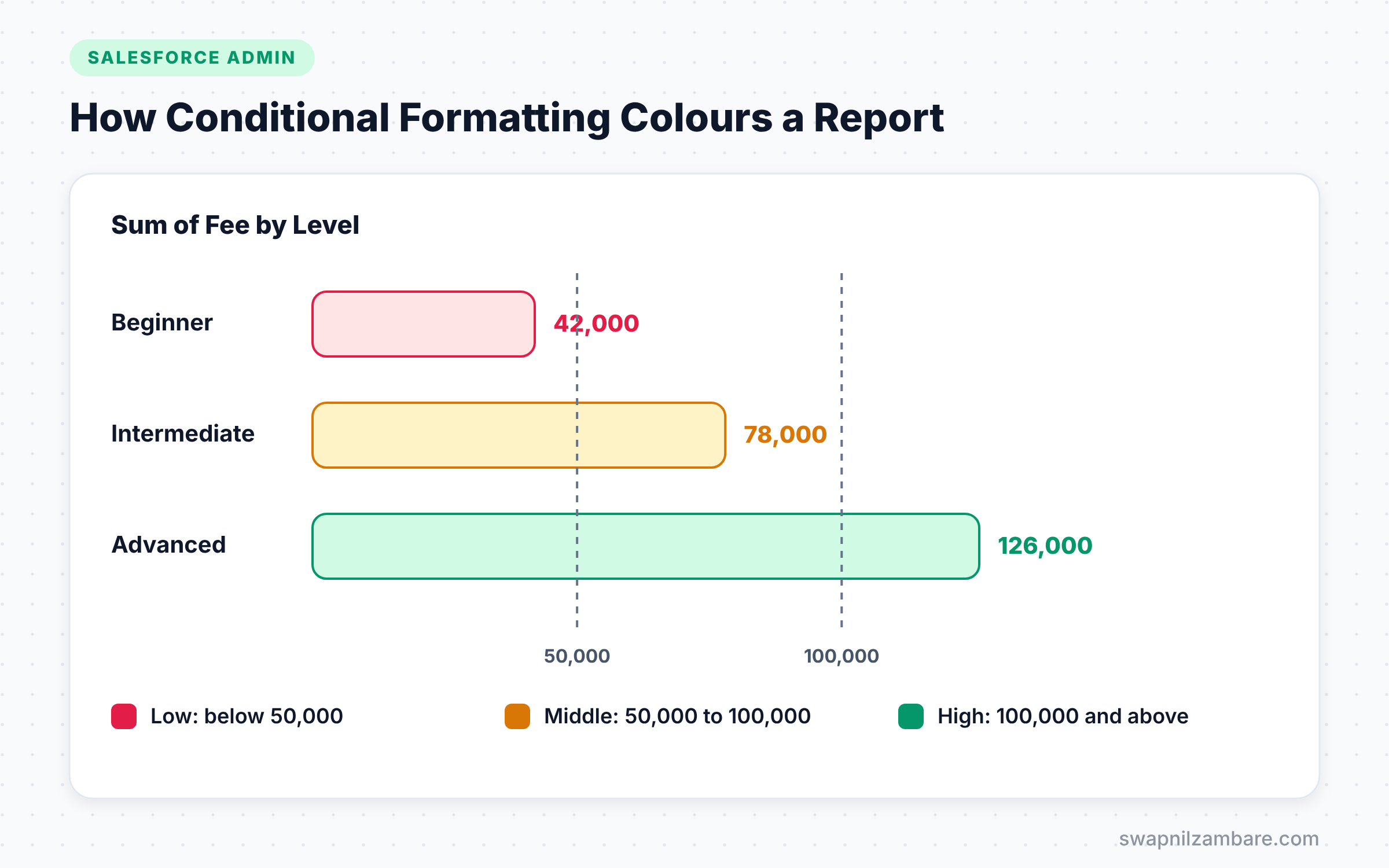
For example, a report groups courses by Level and sums Fee. You colour the Sum of Fee. Salesforce checks each level’s total and paints it red, yellow or green.
The Three Bands
Each rule has a low band, a middle band and a high band. You set two numbers as break points and a colour for each band. Values below the first break get the low colour. Then values from the first to the second break get the middle colour. Finally, values above the second break get the high colour.
How Row-Level Formulas Work
A row-level formula uses fields from the same row to calculate a new value. You write it in the report builder with a formula editor, much like a formula field. The result can be a number, currency, percent, date or text.
Each report can have one row-level formula. If you need more calculations, consider a formula field on the object, or a summary formula in a grouped report.
Row-Level Formula vs Summary Formula
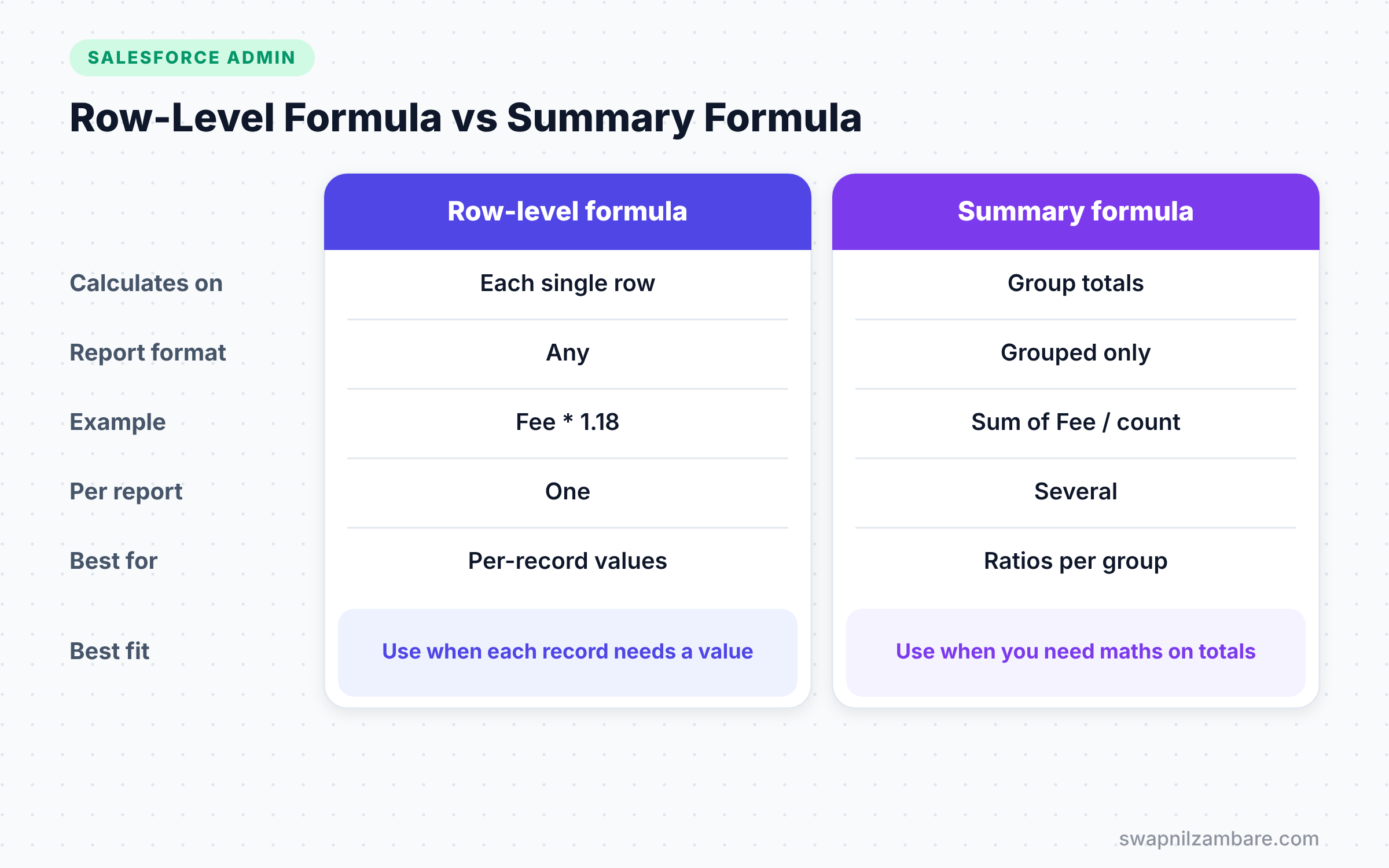
These two report formulas sound alike, but they do different jobs. The table below compares them.
| Feature | Row-level formula | Summary formula |
|---|---|---|
| Calculates on | Each single row | Group totals, such as sums and counts |
| Report format | Any, including tabular | Grouped reports only |
| Example | Fee * 1.18 for each course | Sum of Fee divided by record count |
| How many per report | One | Several |
| Can be coloured by Salesforce Conditional Formatting | Only after grouping and summarising | Yes |
| Best for | Per-record values | Ratios and averages per group |
When to use which is simple. Use a row-level formula for one value per record, and a summary formula for maths on totals.
A Real Example: Add a Row-Level Formula
Let’s build a Course report for Bright Path Tutors with a “Fee with Tax” column. The tax rate is 18%.
- Go to the Reports tab and click New Report.
- Choose the Courses report type, then click Start Report.
- In the Outline panel, add Course Name, Level, Fee and Start Date as columns.
- Next, click the arrow next to Columns and choose Add Row-Level Formula.
- Fill in the values from the table below.
- Then click Validate, and if it shows no errors, click Apply.
- Finally, save the report as “Course Fees with Tax”.
The table below shows the settings for the row-level formula.
| Setting | Value |
|---|---|
| Column Name | Fee with Tax |
| Formula Output Type | Currency |
| Decimal Points | 2 |
| Formula | Course__c.Fee__c * 1.18 |
Here is the formula on its own, so you can copy it.
Course__c.Fee__c * 1.18Every row now shows the course fee plus 18% tax. For example, a 5,000 fee shows 5,900.00 in the new column.
More Row-Level Formula Ideas
Here are two more formulas you can try. The first counts days until each course starts.
Course__c.Start_Date__c - TODAY()Set the output type to Number. A course starting in five days shows 5, and a course that started last week shows a negative number.
The second labels each course as Premium or Standard.
IF(Course__c.Fee__c > 8000, "Premium", "Standard")Set the output type to Text. Now you can group the report by this new column to compare premium and standard courses.
A Real Example: Add Salesforce Conditional Formatting
Now let’s colour the total fees by level. Salesforce Conditional Formatting needs a grouped report with a summary.
- Open the “Course Fees with Tax” report and click Edit.
- In Group Rows, add Level.
- Next, click the arrow on the Fee column, choose Summarize and tick Sum.
- Then click Conditional Formatting in the report builder toolbar and click Add Conditional Formatting Rule.
- Choose “Sum of Fee” as the field to format.
- Set the break points and colours from the table below.
- Finally, click Done and save the report.
The table below shows the colour bands for this rule.
| Band | Range | Colour |
|---|---|---|
| Low | Less than 50,000 | Red |
| Middle | 50,000 to 100,000 | Yellow |
| High | 100,000 and above | Green |
Now run the report. Each level’s total fee shows in red, yellow or green. The Sales Manager sees at once which level brings the most money.
Common Mistakes with Salesforce Conditional Formatting
- Trying to colour a plain tabular report. Group the rows and add a summary first.
- Using too many colours, which makes the report look like a rainbow and hides the message.
- Forgetting that row-level formulas allow only one per report.
- Writing the field name without the object, such as
Fee__cinstead ofCourse__c.Fee__c. - Choosing the wrong output type, such as Number for a value that should be Currency.
Best Practices for Salesforce Conditional Formatting
- Use the classic red, yellow and green pattern, because people read it instantly.
- Pick break points that match real business targets.
- Name row-level formula columns clearly, such as “Fee with Tax”.
- Move a row-level formula into a formula field if many reports need it.
- Add a short report description that explains the colours.
Practice Task
Create a report of courses grouped by Is Online. Add a row-level formula for Duration in Weeks multiplied by 5, called “Total Class Days”. Then colour the sum of Fee with your own break points. Hint: the row-level formula output type is Number.
Most Asked Interview Questions on Salesforce Conditional Formatting
Questions on Salesforce Conditional Formatting are common in admin and analyst interviews. Practise explaining them with the Bright Path Tutors examples.
Basic Questions on Salesforce Conditional Formatting
Q1. What is conditional formatting in Salesforce reports?
It changes the colour of summary values in a report based on rules. For example, totals below a target turn red. It helps users spot problems quickly.
Q2. Which reports support conditional formatting?
Grouped reports with summarised values, such as summary and matrix reports. The rule applies to a summary field, such as a sum, average or record count.
Q3. How many colour bands does a rule have?
Each rule has three bands: low, middle and high. You set two break points and a colour for each band.
Q4. What is a row-level formula?
A row-level formula calculates a value for each row in a report. It adds a temporary column, such as Fee with Tax, without creating a new field.
Practical Questions on Salesforce Conditional Formatting
Q5. How many row-level formulas can a report have?
One. If you need more calculations, use formula fields or summary formulas instead.
Q6. What is the difference between a row-level formula and a summary formula?
A row-level formula works on each single row and works in any report format. A summary formula works on group totals, so it needs a grouped report.
Q7. When would you create a formula field instead of a row-level formula?
Create a formula field when many reports, list views or pages need the same value. A row-level formula is best when only one report needs it.
Q8. A user asks for a red alert in a report when fees are low. How do you build it?
Group the report, summarise the Fee field and add a conditional formatting rule on the sum. Set a low break point that matches the target and choose red for the low band.
Official Resources
- Add Conditional Formatting to a Report (Salesforce Help)
- Evaluate Each Record with Row-Level Formulas (Salesforce Help)
- Trailhead: Reports and Dashboards for Lightning Experience
Quick Recap
- Salesforce Conditional Formatting colours summary values with three bands.
- It needs a grouped report with a summarised field.
- A row-level formula adds one calculated column for each row.
- Each report can have only one row-level formula.
- Summary formulas calculate on group totals, not single rows.
What’s Next?
Reports and alerts often go out by email, so your email setup matters. Next, read our guide to organization-wide email addresses and email deliverability.


