Salesforce Storage Limits decide how much data and how many files your org can hold. Every record, email and file uses some space. When an org gets close to its limit, admins get warnings. In the worst case, users cannot add new records or files.
In this post, you will learn the two types of storage and how Salesforce counts space. Then you will see where to check usage and how to free space safely. This builds on our guide to data management, weekly export and the Recycle Bin. It also connects to Data Loader and the Data Import Wizard, which you will use for clean-ups. Also, our post on Salesforce Connect and external objects shows one way to keep archived data outside Salesforce.
What Are Salesforce Storage Limits?
Salesforce Storage Limits cover two separate storage pools in every org. Data storage holds records, such as accounts, contacts, cases and custom object records. File storage holds attachments and files, such as PDFs, images and documents.
Each pool has its own limit, based on your edition and the number of user licences. When you buy more licences, the limits usually grow a little.
Think of a school bag with two pockets. The big pocket holds books, which are your records. The front pocket holds loose papers and photos, which are your files. If one pocket is full, you cannot squeeze more into it, even if the other pocket has space.
Why Salesforce Storage Limits Matter
Problems with Salesforce Storage Limits sneak up slowly, then hit suddenly. Here is why admins watch them closely.
- Salesforce may block new records when storage goes far over the limit.
- Extra storage costs money, often more than people expect.
- Big data volumes can slow down reports, list views and searches.
- Data loads and integrations can fill space quickly if nobody checks them.
- Good storage habits keep backups and sandboxes smaller and faster.
At Bright Path Tutors, an integration once copied every enrolment email into Salesforce. Within months, data storage jumped from 40% to 85%. A simple monthly check would have caught it much earlier.
How Salesforce Counts Storage
Salesforce does not count the real size of each record. Instead, most records count as a fixed 2 KB, no matter how many fields they fill. A few objects use different sizes, and email messages count by their actual size.
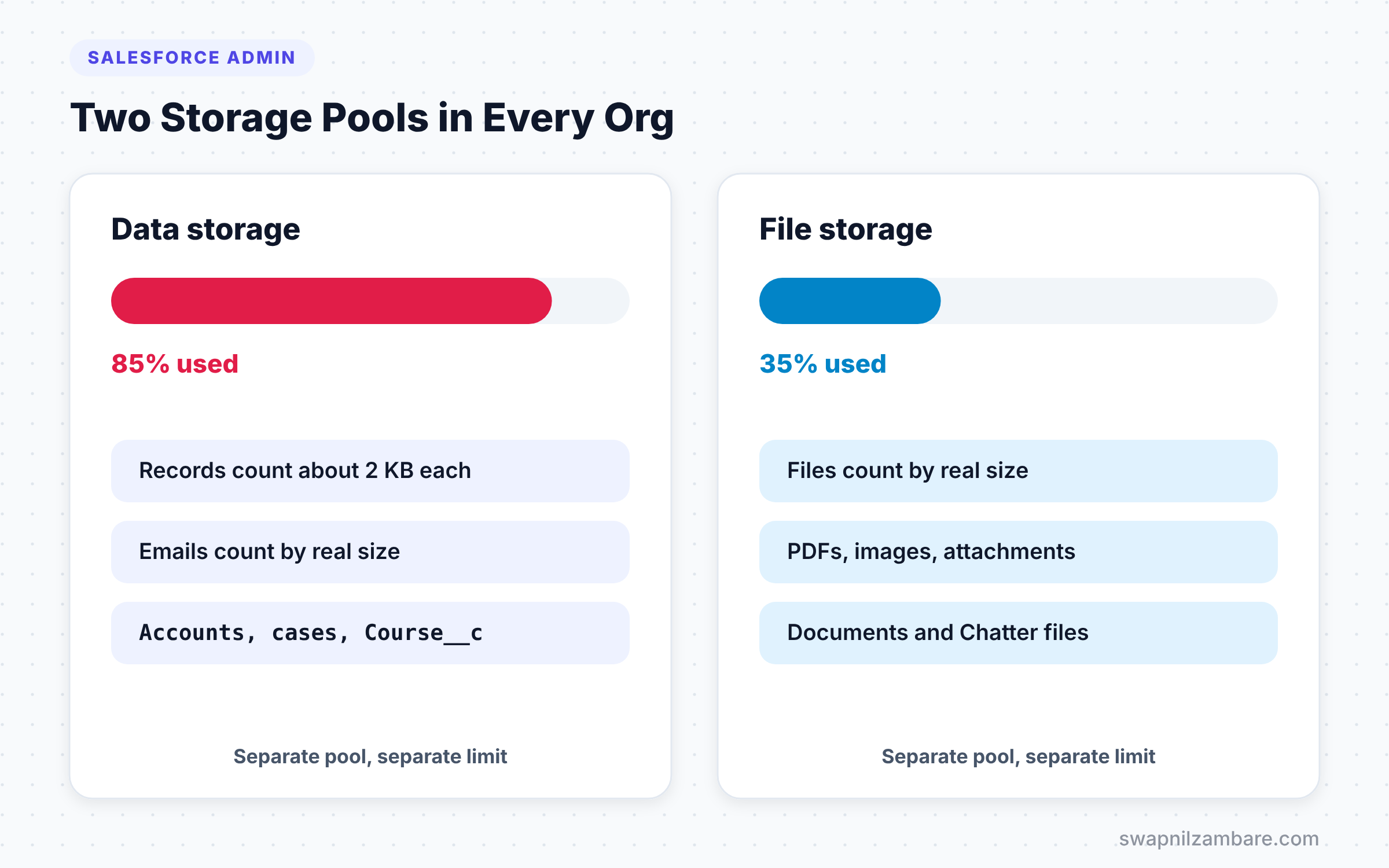
Files work differently. A file counts by its real size. So a 5 MB PDF uses 5 MB of file storage.
What Uses Data Storage
The table below shows common items and which storage pool they use.
| Item | Storage pool | How it counts |
|---|---|---|
| Account, Contact, Case | Data | About 2 KB per record |
| Custom object records, such as Course__c | Data | About 2 KB per record |
| Email messages | Data | By actual size |
| Files and attachments | File | By actual file size |
| Documents and Chatter files | File | By actual file size |
So a million course records use roughly 2 GB of data storage, even if each record has only a name. That alone can break Salesforce Storage Limits in a small org. That is why mass imports need a storage check first.
Data Storage vs File Storage
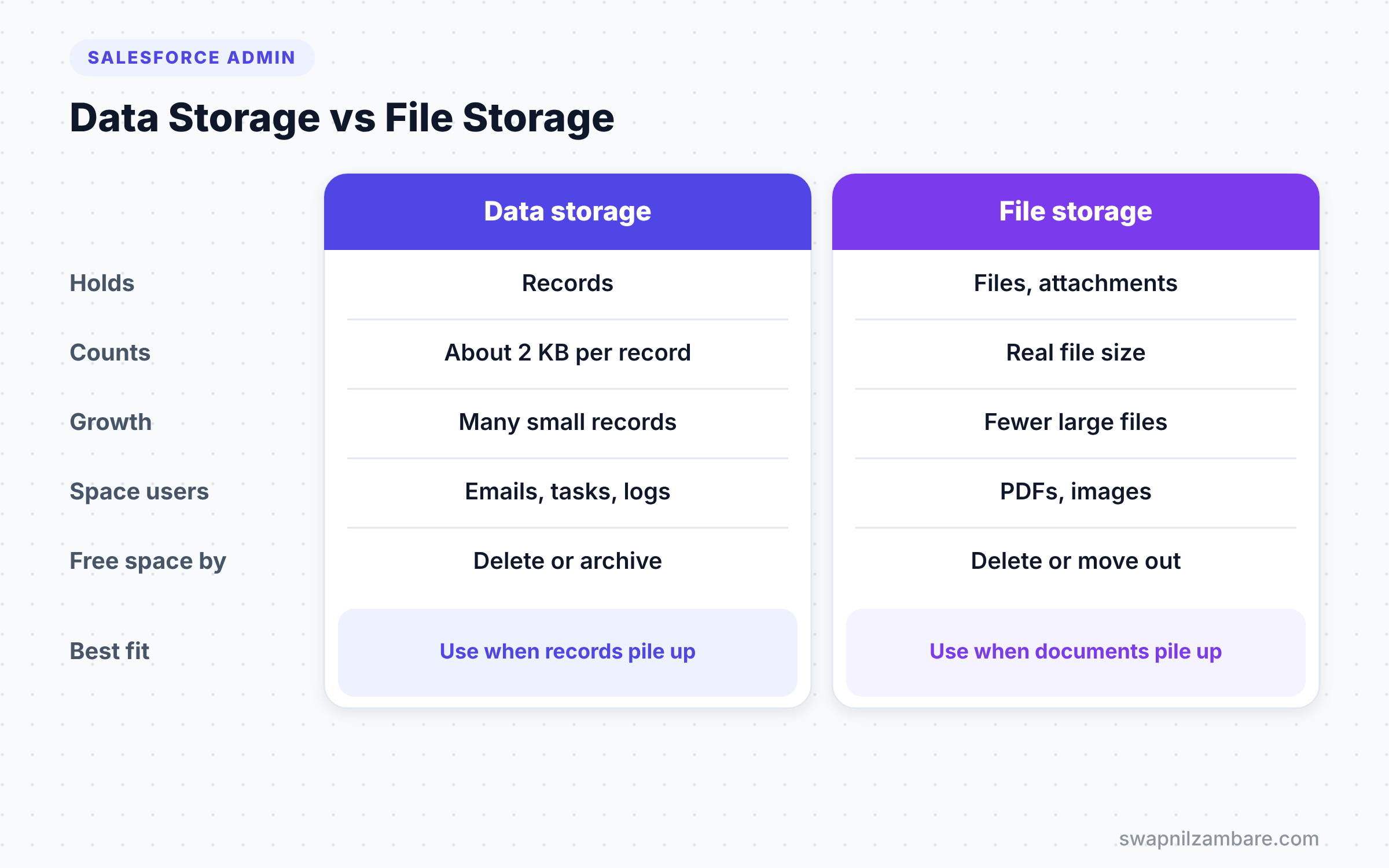
This difference comes up in almost every admin interview. The table below compares the two pools.
| Feature | Data storage | File storage |
|---|---|---|
| Holds | Records | Files and attachments |
| How it counts | Mostly 2 KB per record | Real size of each file |
| Typical growth | Many small records | Fewer, larger files |
| Common space users | Emails, tasks, logs, custom records | PDFs, images, scanned forms |
| Ways to free space | Delete or archive old records | Delete old files or move them out |
When to worry about which depends on your org. Service teams often fill data storage with emails, while document-heavy teams fill file storage with PDFs.
How to Check Salesforce Storage Limits
Salesforce shows all usage against your Salesforce Storage Limits on one page. Follow these steps.
- Go to Setup and type “Storage Usage” in Quick Find.
- Then open the Storage Usage page.
- Check the top table for Data Storage and File Storage, with Limit, Used and Percent Used.
- Next, scroll to the breakdown by record type to see which objects use the most space.
- Finally, scroll further to see which users own the most data and files.
The table below shows an example of what Bright Path Tutors might see.
| Storage type | Limit | Used | Percent used |
|---|---|---|---|
| Data Storage | 10.5 GB | 8.9 GB | 85% |
| File Storage | 60 GB | 21 GB | 35% |
Here, data storage needs attention, but file storage is fine. The breakdown then shows that Email Messages use 4.1 GB. So the clean-up should start with old emails.
How to Free Up Storage Step by Step
Let’s plan a safe clean-up for Bright Path Tutors. The goal is to remove email messages older than three years. Never delete anything before you take a backup.
Step 1: Take a Backup
- Go to Setup > Data > Data Export.
- Click Export Now, then tick the objects you plan to clean up.
- Next, click Start Export and wait for the email.
- Finally, download and store the files safely.
Step 2: Find the Records
Use a quick SOQL query in the Developer Console to count the old emails first.
SELECT COUNT()
FROM EmailMessage
WHERE CreatedDate < LAST_N_YEARS:3
This query counts emails created before the last three years. If the number is large, delete in batches, so you can stop if something goes wrong.
Step 3: Delete in Batches
- Export the old email Ids with Data Loader, using a query like the one above.
- Then review a sample with the Support Manager.
- Next, run a Data Loader Delete with the Id file.
- Finally, empty the deleted records from the Recycle Bin if your policy allows.
Step 4: Check Again
Return to the Storage Usage page the next day. Usage may take some time to update after large deletes. Then record the new percentage in your admin notes.
Other Ways to Manage Salesforce Storage Limits
Deleting is not the only way to stay inside Salesforce Storage Limits. Many companies need to keep old data for years. Here are common alternatives.
Archive Old Data
Move old records to an archive system and keep only recent data in Salesforce. Tools like Salesforce Connect can still show archived data inside Salesforce when needed.
Move Files Out
Store large files in an external system, such as SharePoint or Google Drive, and link to them. Files Connect lets users browse those files from Salesforce.
Stop Waste at the Source
Check integrations and automations that create records nobody uses. For example, a flow that logs every page visit can fill storage fast. Turning it off saves more space than any clean-up.
Buy More Storage
If the data must stay and the business needs it, buying extra storage is a valid choice. Your Salesforce account executive can share prices for your edition.
Common Mistakes with Salesforce Storage Limits
- Deleting data without a backup. Always export first.
- Checking storage only when users complain. By then it is often too late.
- Importing millions of records without checking the 2 KB rule first.
- Forgetting that emails can use far more than 2 KB each.
- Cleaning up without asking the business which data they must keep.
Best Practices for Salesforce Storage Limits
- Check the Storage Usage page every month and track the trend.
- Agree on a data retention policy with the business, such as “keep emails for three years”.
- Review new integrations for how many records they will create.
- Store large documents outside Salesforce when possible.
- Delete in small batches and keep a backup of every clean-up.
Practice Task
Open the Storage Usage page in your Developer Edition org and note the top three objects by space. Then import 100 test Course records with Data Loader and check the page again. Hint: 100 records should add roughly 200 KB of data storage.
Most Asked Interview Questions on Salesforce Storage Limits
Questions on Salesforce Storage Limits test whether you can keep an org healthy over time. These are the ones interviewers ask most.
Basic Questions on Salesforce Storage Limits
Q1. What are the two types of storage in Salesforce?
Data storage and file storage. Data storage holds records, while file storage holds files, attachments and documents.
Q2. How much data storage does one record use?
Most records count as about 2 KB each, no matter how many fields they fill. A few objects use different sizes, and email messages count by their real size.
Q3. Where do you check storage usage?
In Setup > Storage Usage. It shows the limit, the space used and the percentage for both data and file storage. It also breaks usage down by object and by user.
Q4. What decides your storage limit?
Your Salesforce edition and the number of user licences. Companies can also buy extra storage.
Practical Questions on Salesforce Storage Limits
Q5. Data storage is at 90%. What would you do?
First, check the breakdown to find the biggest objects. Next, agree on what the business can delete or archive. Then take a backup, delete in batches with Data Loader and check usage again.
Q6. What happens if an org goes over its storage limit?
Admins get warnings first. If the org stays well over the limit, Salesforce may block new records and file uploads. The block lasts until you free space or buy more storage.
Q7. Why might email messages fill storage faster than other records?
Email messages count by their actual size, not a flat 2 KB. Long emails with history and HTML can be large, especially with Email-to-Case.
Q8. How can you keep old data without using Salesforce storage?
Archive it in an external system and show it through Salesforce Connect. Also, move files to an external store with Files Connect. Big data needs can also use other Salesforce archive products.
Official Resources
- Data and File Storage Allocations (Salesforce Help)
- Monitor Your Org’s Storage (Salesforce Help)
- Trailhead: Data Management
Quick Recap
- Salesforce Storage Limits cover two pools: data storage and file storage.
- Most records count as about 2 KB, while files count by real size.
- Check usage often in Setup > Storage Usage.
- Always back up before you delete, and delete in batches.
- Archiving and moving files out are good alternatives to deleting.
What’s Next?
You have finished the beginner admin topics in this set. Coming soon: Manual Sharing and Account, Opportunity and Case Teams, the first topic in our intermediate admin list.


