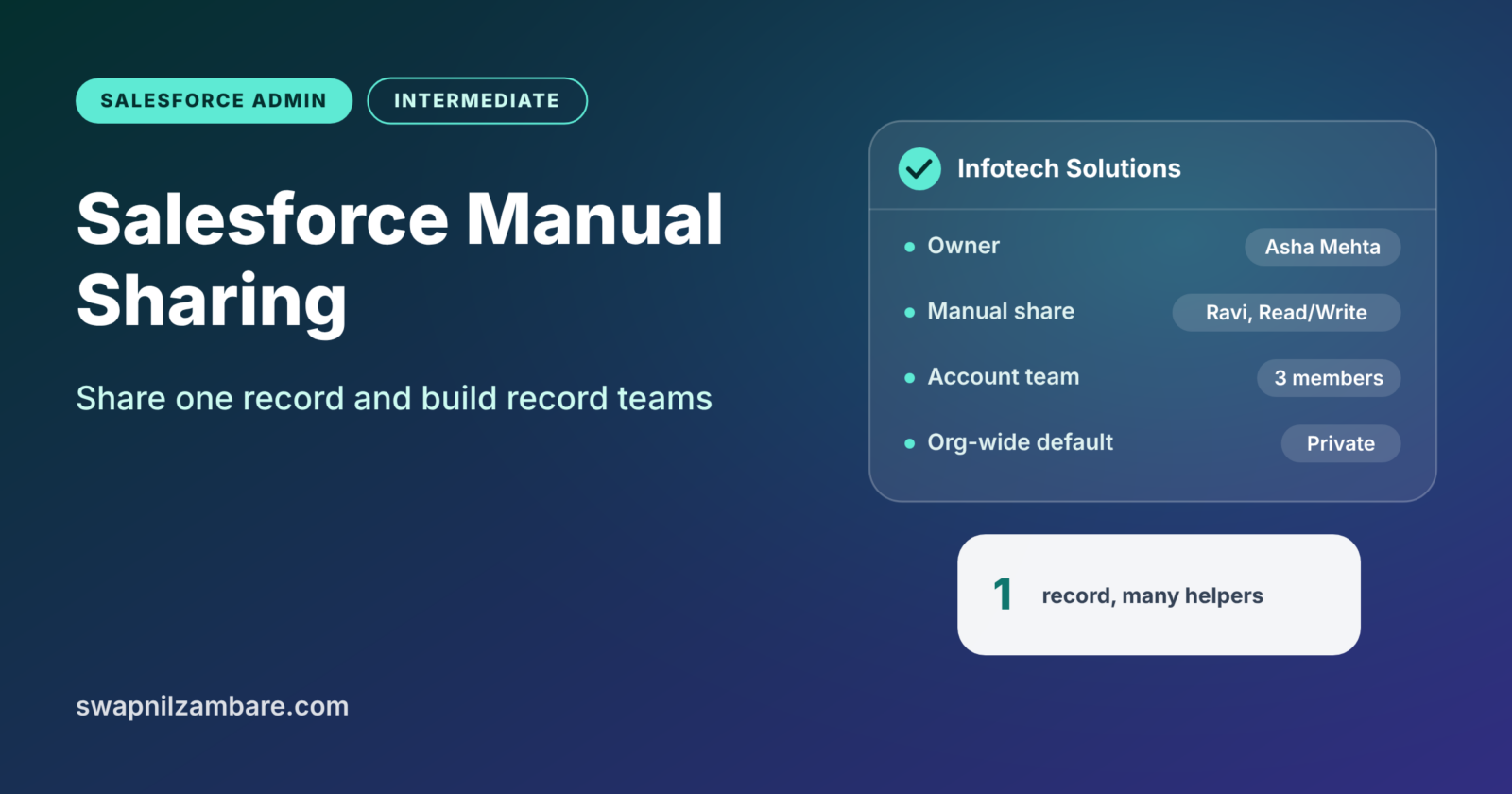
Salesforce Manual Sharing lets a record owner give access to one specific record, one person at a time. Teams take the same idea further. For example, account teams, opportunity teams and case teams let a group work on one record. Each person gets a clear role and access level.
In this post, you will learn when to use Salesforce Manual Sharing and how record teams work. Then you will set both up step by step. It builds directly on sharing rules, roles and OWD, so read that first if the terms feel new. Our guide to queues and public groups also helps, because groups often appear in sharing settings. At the end, you will find the interview questions hiring managers ask most about this topic.
What is Salesforce Manual Sharing?
With Salesforce Manual Sharing, a user clicks a Sharing button on a record. Then they grant access to another user, group or role. The access can be Read Only or Read/Write. It works on one record only, not on all records that match a rule.
Think of a locked office cupboard. Sharing rules are like giving a spare key to a whole department. Manual sharing is like handing one colleague a key for just one drawer, because they need it for one job.
Why Salesforce Manual Sharing and Teams Matter
Sharing rules work well for patterns, such as “Sales Managers see all Mumbai accounts”. However, real work often has exceptions that no rule can predict. That is where manual sharing and teams help.
- A sales rep asks a colleague from another region to help with one big deal.
- An account needs a sales rep, a support lead and a trainer working together.
- A complex case needs a product expert to view it, but only that case.
- A manager wants a new hire to see one key account during training.
So teams and manual sharing fill the gaps that broad rules leave behind.
How Salesforce Manual Sharing Works
Salesforce only needs extra sharing when the org-wide default is Private or Public Read Only. If everyone can already edit every record, there is nothing to share. So manual sharing and teams only matter in orgs with tighter defaults.
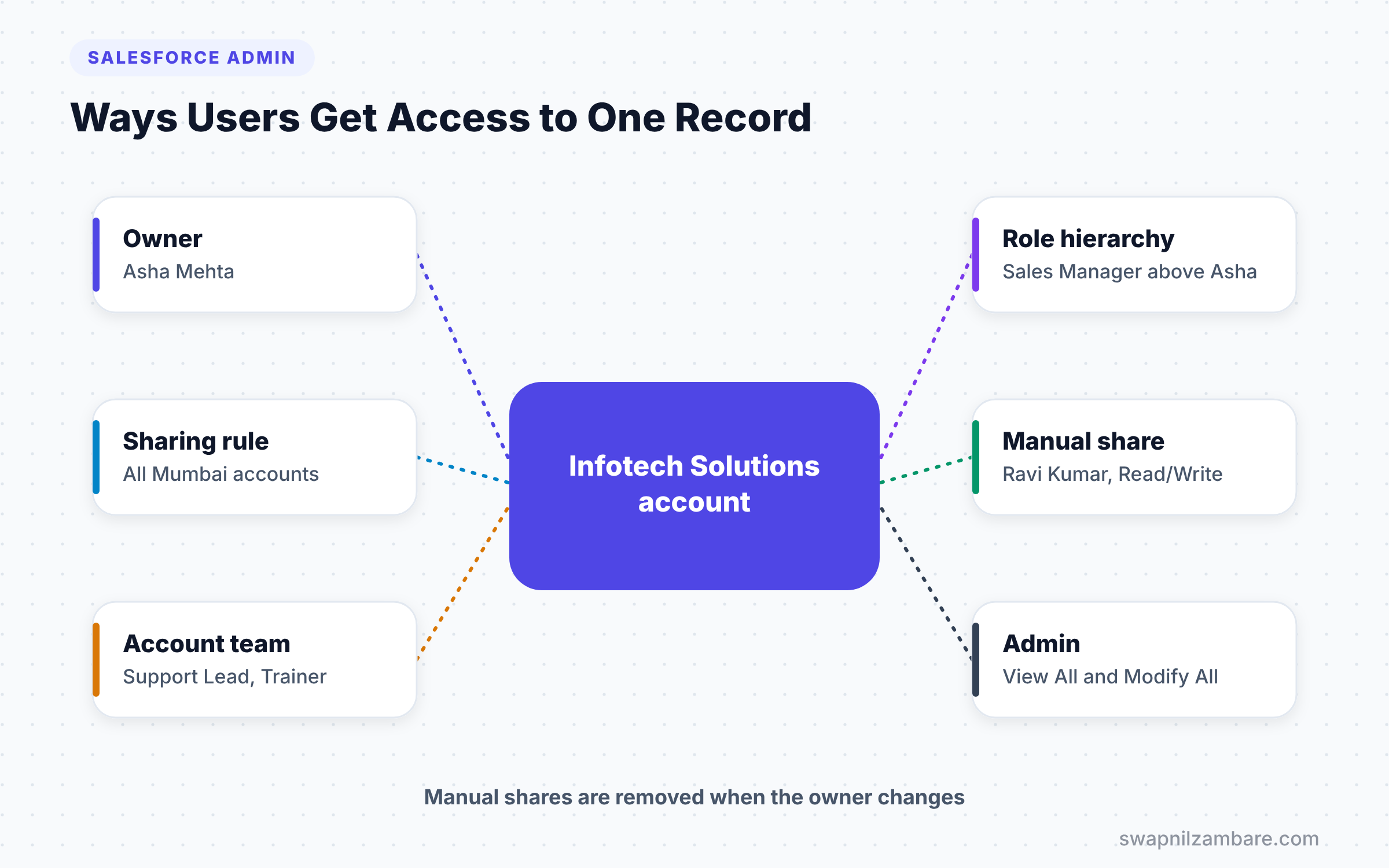
With Salesforce Manual Sharing, Salesforce adds a row to that object’s share table. For example, account shares live in the AccountShare table. Each row says who gets access and at what level. The record owner, users above the owner in the role hierarchy and admins can share a record.
Ownership Changes Remove Manual Shares
This point catches many admins. When a record changes owner, Salesforce removes the manual shares on it. So if a deal moves to a new rep, the people who had manual access may lose it.
Teams Add Roles and Defaults
Record teams work like organised manual sharing. Each team member gets a role, such as “Trainer” or “Sales Engineer”, plus an access level. Users can also save a default team, so Salesforce adds the same people to every new record they own.
Types of Record Teams
Account Teams
An account team is a group of users who work together on one account. Each member gets access to the account and can also get access to its related opportunities, cases and contacts. You turn account teams on in Setup, then add a related list to account page layouts.
Opportunity Teams
An opportunity team is a group of users who work on one deal. Each member gets Read Only or Read/Write access to the opportunity. Opportunity teams are also the base for opportunity splits, which share credit for a deal.
Case Teams
A case team is a group of people who work together on one case. Admins create case team roles, such as “Product Expert”, each with its own access level. Admins can also build predefined case teams that users add in one click.
Manual Sharing vs Sharing Rules vs Teams
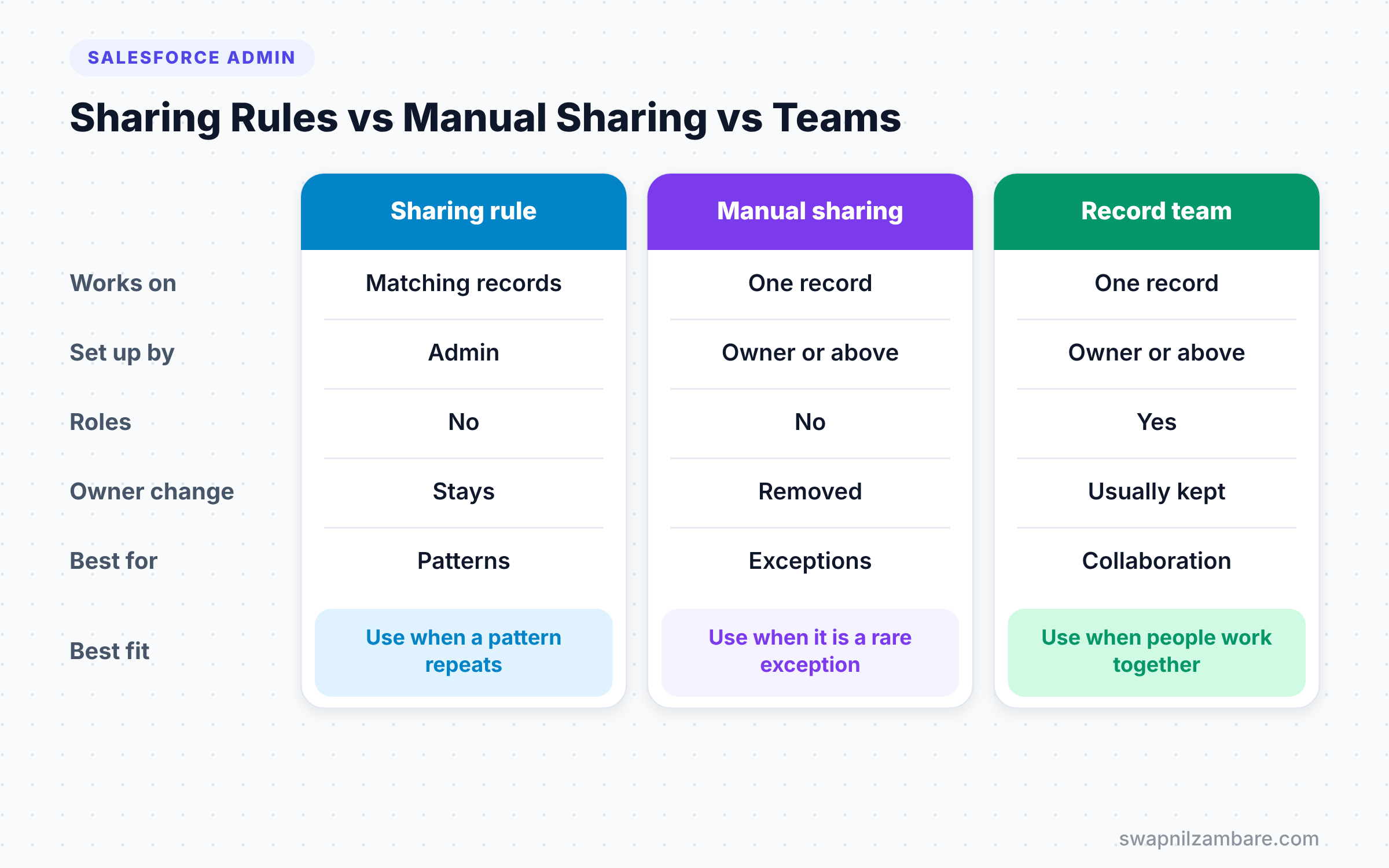
The table below compares the three ways to open up access to records.
| Feature | Sharing rule | Manual sharing | Record team |
|---|---|---|---|
| Works on | All records matching criteria | One record | One record |
| Set up by | Admin | Owner or above | Owner or above |
| Roles for members | No | No | Yes |
| Removed on owner change | No | Yes | Usually kept |
| Best for | Repeating patterns | One-off exceptions | Regular collaboration |
When to use which is simple. Use sharing rules for patterns, manual sharing for rare exceptions, and teams when people regularly work together on records.
How to Use Salesforce Manual Sharing Step by Step
Let’s try Salesforce Manual Sharing on one account at Bright Path Tutors. The account “Infotech Solutions” belongs to Asha Mehta. She wants Ravi Kumar from the Pune team to help with a renewal.
Step 1: Add the Sharing Button
- Go to Setup > Object Manager > Account > Page Layouts.
- Open the layout used by sales users.
- Next, drag the Sharing button into Mobile and Lightning Actions.
- Then click Save.
Step 2: Share the Record
- Asha opens the Infotech Solutions account.
- She clicks Sharing.
- In Search, she finds Ravi Kumar.
- Then she sets Account Access to Read/Write.
- Finally, she clicks Save.
Ravi can now edit this one account. However, he still cannot see other accounts that Asha owns, which is exactly what Salesforce Manual Sharing promises.
How to Set Up Account Teams
Now let’s add a full team to the same account. The account needs a sales owner, a support lead and a trainer.
- Go to Setup and type “Account Teams” in Quick Find.
- Click Enable Account Teams, tick the box and save.
- Next, choose which page layouts get the Account Team related list.
- Then open Team Roles and add the roles from the table below.
- Finally, save the changes.
The table below shows the team roles for Bright Path Tutors.
| Team role | Typical access |
|---|---|
| Account Manager | Read/Write on account |
| Support Lead | Read on account, Read/Write on cases |
| Trainer | Read on account and contacts |
Now on the account, click Add Team Members in the Account Team related list. Pick each user, choose a role and set the access levels. Also, each user can set a default account team in their user settings. Then new accounts get the same team automatically.
How to Set Up Opportunity and Case Teams
Opportunity Teams
- Go to Setup and type “Opportunity Team Settings” in Quick Find.
- Tick Enable Team Selling and save.
- Next, choose the opportunity page layouts that get the Opportunity Team related list.
- Then, on any opportunity, use Add Opportunity Team Members to add people with a role and access.
Case Teams
- Go to Setup and type “Case Team Roles” in Quick Find.
- Create roles such as “Product Expert” with Read/Write access and “Observer” with Read Only.
- Next, open Predefined Case Teams and build a “Senior Escalation” team.
- Then add the Case Team related list to case page layouts.
Checking Access After Salesforce Manual Sharing
Sometimes you need to know why a user can see a record. Open the record and click Sharing, then View Sharing Hierarchy, or open Sharing Settings for the record. You will see every reason the user has access, such as owner, role, sharing rule, team or manual share.
Common Mistakes with Salesforce Manual Sharing
- Using manual sharing for patterns. If you share the same kind of record every week, build a sharing rule.
- Forgetting that ownership changes remove manual shares.
- Expecting manual sharing to work when the org-wide default is already Public Read/Write.
- Giving every team member Read/Write when Read Only is enough.
- Not adding the team related list to layouts, so users cannot find the feature.
Best Practices for Salesforce Manual Sharing
- Keep the org-wide default as tight as your business allows, then open up access with rules and teams.
- Use clear team roles that match real jobs, such as Trainer or Support Lead.
- Encourage users to set default teams to save clicks.
- Review manual shares on key accounts every quarter.
- Train users on the Sharing button, so they do not ask admins for every exception.
Practice Task
In your Developer Edition org, set the Account org-wide default to Private. Then create two users, share one account with the second user manually and check what they see. Hint: log in as the second user and open the Accounts tab.
Most Asked Interview Questions on Salesforce Manual Sharing
These are the questions interviewers ask most about Salesforce Manual Sharing and record teams. Practise answering them with the Bright Path Tutors examples.
Basic Questions on Salesforce Manual Sharing
Q1. What is manual sharing in Salesforce?
It lets a record owner share one record with a user, group or role. Users above the owner in the role hierarchy and admins can do it too. The access can be Read Only or Read/Write.
Q2. When is manual sharing available?
Only when the org-wide default for that object is Private or Public Read Only. With Public Read/Write, users already have full access, so there is nothing to share.
Q3. What happens to manual shares when the owner changes?
Salesforce removes them. So people who had access through manual sharing may lose it after the record moves to a new owner.
Q4. What is an account team?
An account team is a group of users who work together on one account. Each member has a role and access levels for the account and its related records.
Practical Questions on Salesforce Manual Sharing
Q5. What is the difference between manual sharing and sharing rules?
Sharing rules apply to all records that match criteria or ownership. Salesforce Manual Sharing applies to one record at a time, and the owner or someone above them does it.
Q6. How do you enable opportunity teams?
Go to Setup > Opportunity Team Settings, enable Team Selling and add the Opportunity Team related list to page layouts. Then users can add members with roles and access.
Q7. What is a predefined case team?
It is a saved group of users with roles that support agents can add to a case in one click. It saves time for common escalations.
Q8. How do you find out why a user can see a record?
Open the record’s sharing details and view the sharing hierarchy. It shows the reason, such as owner, role, sharing rule, team or manual share.
Official Resources
- Granting Access to Records (Salesforce Help)
- Account Teams (Salesforce Help)
- Trailhead: Data Security
Quick Recap
- Salesforce Manual Sharing gives access to one record at a time.
- It only works when the org-wide default is Private or Public Read Only.
- Ownership changes remove manual shares.
- Account, opportunity and case teams add roles and access for groups of people.
- Use sharing rules for patterns and teams for regular collaboration.
What’s Next?
Some access in Salesforce happens without any rule at all. Next, read our guide to Salesforce implicit sharing and sharing sets. It shows how parent and child records share access automatically.


