Salesforce Implicit Sharing is the access Salesforce gives automatically between related records, without any rule or button. For example, if you can see a case, you can also see the account it belongs to. Sharing sets do a similar job for customer portal users in Experience Cloud.
In this post, you will learn how Salesforce Implicit Sharing works in both directions and why it exists. Then you will see how sharing sets give portal users access to their own records. This builds on sharing rules, roles and OWD and on our guide to manual sharing and record teams. If you have not built a portal yet, see Experience Cloud sites for beginners as well.
What is Salesforce Implicit Sharing?
Salesforce Implicit Sharing gives automatic access between an account and its child records. The child records are contacts, opportunities and cases. You cannot see these shares in the sharing settings. Also, you cannot turn them off, because Salesforce applies them on its own.
Here is a simple picture of how it feels. Say a hospital lets you visit a patient’s room. Then it also lets you walk through the building to reach that room. You did not get a separate pass for the building. Access to the room implies access to the building.
Why Salesforce Implicit Sharing Matters
Without Salesforce Implicit Sharing, users would see broken pages. For example, a support agent could open a case but see an empty, locked account field. As a result, work would be slow and confusing.
Here is how implicit sharing helps at Bright Path Tutors.
- A trainer who can see a case for a company also sees the company account.
- The account owner sees opportunities and cases on their accounts, based on role settings.
- Portal students see their own cases without the admin writing many sharing rules.
- Reports stay consistent, because parent records do not suddenly vanish.
In short, implicit sharing keeps related data usable while sharing stays secure.
How Salesforce Implicit Sharing Works
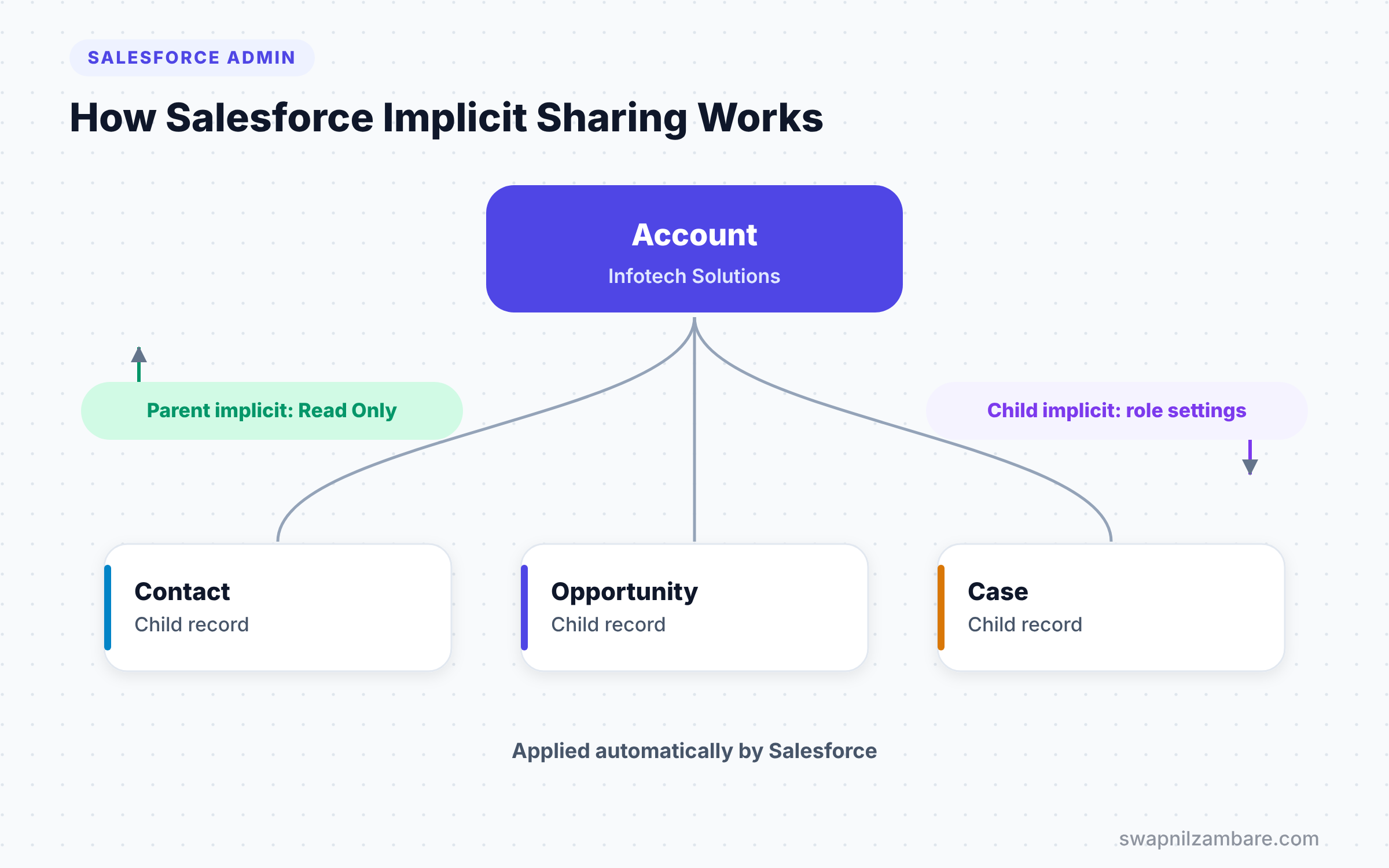
Salesforce Implicit Sharing works in two directions. Parent implicit sharing goes up from child to account. Child implicit sharing goes down from account to children.
Parent Implicit Sharing
So if a user can open a contact, opportunity or case, they get Read Only access to the parent account. In other words, they can look but not change. It lets the user see the account name and details, but not edit them.
Child Implicit Sharing
The account owner gets access to child records owned by others on that account. How much access depends on the role settings. So when you create or edit a role, you choose what its account owners can do. The choice covers opportunities, cases and contacts on their accounts.
What Implicit Sharing Does Not Cover
Salesforce Implicit Sharing only applies between accounts and their standard children. So it does not apply to custom objects. For custom objects, use master-detail relationships, which control access from the parent automatically.
What Are Sharing Sets?
Sharing sets are a feature for Experience Cloud sites with high-volume customer users. However, these users do not use roles, so normal sharing rules do not work for them. Instead, a sharing set gives each portal user access to records related to their own account or contact.
For example, a sharing set can give portal users Read/Write access to cases. It only covers cases where the case contact matches the user’s contact. Every student then sees only their own cases.
Implicit Sharing vs Sharing Sets
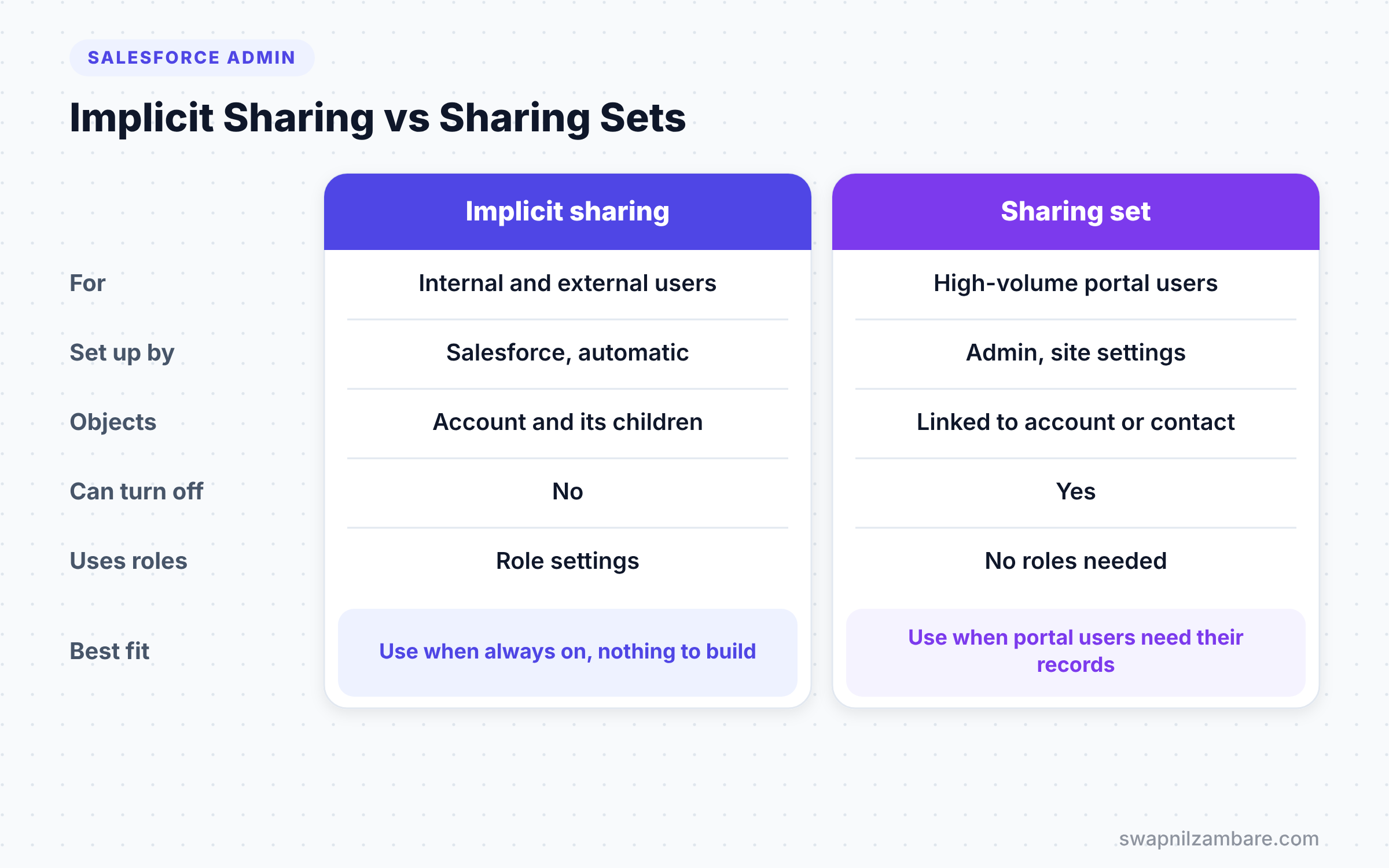
The table below compares the two features, which both work without manual effort.
| Feature | Implicit sharing | Sharing set |
|---|---|---|
| Who it is for | Internal and external users | High-volume portal users |
| Set up by | Salesforce, automatic | Admin, in site settings |
| Objects | Accounts with contacts, opportunities, cases | Objects linked to account or contact |
| Can be turned off | No | Yes, edit or delete it |
| Uses roles | Role settings affect child access | No roles needed |
When to use which is not really a choice, because implicit sharing is always on. Use sharing sets when you need portal users to see records tied to their own account or contact.
A Real Salesforce Implicit Sharing Example
Let’s see Salesforce Implicit Sharing at Bright Path Tutors. The org-wide default for Account is Private, and for Case is Private.
- Asha owns the account “Infotech Solutions”.
- A case on that account belongs to Ravi, a support agent.
- Ravi cannot see other Private accounts, but he opens his case.
- On the case, he clicks the account link and sees Infotech Solutions in read-only mode.
That read-only access is parent implicit sharing. In fact, Ravi never received a sharing rule for the account.
Now let’s set up child access for Asha.
- Go to Setup > Users > Roles and edit Asha’s role.
- Next, find the section for account owner access.
- Then set Case Access so account owners in this role can view or edit cases on their accounts.
- Then save the role.
Now Asha can see Ravi’s case, because she owns the parent account.
How to Create a Sharing Set Step by Step
Let’s give portal students access to their own course enrolment cases. The site is already set up for customer users.
- Go to Setup and type “Digital Experiences” in Quick Find, then open Settings.
- Scroll to Sharing Sets and click New.
- Enter the values from the table below.
- Next, in Available Objects, select Case and move it to Selected Objects.
- Then click Set Up next to Case and map the user’s Contact to the case’s Contact, with Read/Write access.
- Finally, click Save.
The table below shows the values for the sharing set.
| Setting | Value |
|---|---|
| Label | Student Case Access |
| Profiles | Customer Community User profile |
| Object | Case |
| User field | Contact |
| Target field | Contact |
| Access | Read/Write |
Now each student who logs in to the site sees only the cases where they are the contact.
Controlled by Parent and Master-Detail
Implicit sharing has two close cousins that also pass access from parent to child. First, the “Controlled by Parent” org-wide default means a child record follows the access of its parent. Contacts often use it, and person accounts require it.
Next, master-detail relationships on custom objects work the same way. A Course Enrolment detail record has no owner of its own. So anyone who can see the parent Course can see its enrolments.
These features are not technically Salesforce Implicit Sharing. However, they solve the same problem, so admins often explain them together in interviews.
Common Mistakes with Salesforce Implicit Sharing
- Expecting implicit sharing on custom objects. It only works for accounts and their standard children.
- Forgetting the role settings for account owners, then wondering why owners cannot see child cases.
- Using sharing rules for high-volume portal users. They need sharing sets instead.
- Assuming parent implicit sharing gives edit access. It only gives read access.
- Building complex workarounds when a master-detail relationship would handle access.
Best Practices for Salesforce Implicit Sharing
- Set role-level child access carefully when you design the role hierarchy.
- Use master-detail relationships for custom objects that should follow their parent’s access.
- Use sharing sets for customer portals, matched on account or contact.
- Test access with the “Login As” feature for internal and portal users.
- Document which access comes from implicit sharing, so new admins understand it.
Practice Task
Set Case and Account org-wide defaults to Private in a Developer Edition org. Create a case on an account owned by another user, then log in as the case owner. Hint: check whether the account link on the case opens in read-only mode.
Most Asked Interview Questions on Salesforce Implicit Sharing
These questions appear often in admin interviews, especially for roles with Experience Cloud work. Learn the ideas and use your own examples.
Basic Questions on Salesforce Implicit Sharing
Q1. What is implicit sharing?
It gives automatic access between accounts and their child records: contacts, opportunities and cases. Salesforce applies it automatically, and you cannot turn it off.
Q2. What is parent implicit sharing?
If a user can access a contact, opportunity or case, they also get Read Only access to the parent account. As a result, related records stay usable.
Q3. What is child implicit sharing?
The account owner gets access to child records owned by others on their account. The level depends on the account owner settings in the role.
Q4. Does implicit sharing work for custom objects?
No. It only works for accounts with contacts, opportunities and cases. Custom objects use master-detail relationships to inherit access.
Practical Questions on Salesforce Implicit Sharing
Q5. What is a sharing set?
A sharing set gives high-volume portal users access to records related to their own account or contact. Admins set it up in Digital Experiences settings.
Q6. Why can’t you use sharing rules for high-volume portal users?
High-volume portal users do not have roles, so role-based sharing rules cannot include them. Sharing sets solve this by matching records to the user’s account or contact.
Q7. A user can see a case but not edit the account. Why?
Parent implicit sharing only gives Read Only access to the account. To edit it, the user needs access from ownership, a sharing rule, a team or manual sharing.
Q8. Where do you set child access for account owners?
On each role in Setup > Roles. When you edit a role, you choose case, contact and opportunity access for account owners in that role.
Official Resources
- Built-in Sharing Behavior (Salesforce Help)
- Use Sharing Sets to Grant Access to Records (Salesforce Help)
- Trailhead: Data Security
Quick Recap
- Salesforce Implicit Sharing gives automatic access between accounts and their children.
- Parent implicit sharing gives Read Only access to the account.
- Child implicit sharing depends on role settings for account owners.
- It does not apply to custom objects, which use master-detail instead.
- Sharing sets give portal users access to their own records.
What’s Next?
Teams often share credit for big deals too. Next, read our guide to Salesforce opportunity splits to split revenue across team members.


