Salesforce Opportunity Splits let a sales team share credit for one deal. Say three people help close a big contract. With splits, each one gets a fair share of the revenue in reports and forecasts. Without splits, all the credit goes to the opportunity owner, which often feels unfair.
In this post, you will learn the two main split types and how to turn splits on. Then you will split a real deal step by step. Splits build on opportunity teams, so read our guide to manual sharing and record teams first. You should also know the basics of opportunities, sales process and path. If your company uses collaborative forecasting, splits can feed into forecasts too.
What Are Salesforce Opportunity Splits?
An opportunity split assigns a percentage of a deal to each team member. Salesforce then works out each person’s split amount from the deal value. For example, a 60% split on a 1,00,000 deal gives that person 60,000 of credit.
Think of a group project at school. Three students build a science model together. The teacher gives marks to each student based on how much work they did. Opportunity splits do the same for sales credit.
Why Salesforce Opportunity Splits Matter
Big deals rarely close because of one person, and Salesforce Opportunity Splits reflect that. So companies need a fair way to share credit. Here is how splits help at Bright Path Tutors.
- A sales rep, a solution consultant and a regional manager win a 20-seat corporate training deal together.
- Commission reports show each person’s share, so payouts are clear.
- Managers see who really drives revenue, not just who owns records.
- Overlay teams, such as product specialists, get credit without reducing the rep’s share.
- Forecasts can show each person’s expected revenue more accurately.
In short, splits turn teamwork into numbers that managers can trust.
How Salesforce Opportunity Splits Work
Salesforce Opportunity Splits sit on top of opportunity teams. First, you turn on Team Selling. Next, you turn on opportunity splits and choose split types. Then, on each opportunity, users add team members and give them split percentages.
When you create an opportunity, the owner starts with 100% of the revenue split. As you add others, you adjust the percentages. Salesforce calculates each split amount automatically from the opportunity Amount field.
Revenue Splits
Revenue splits share the real deal value. They must always add up to exactly 100%. So if one person gets more, someone else must get less. Use revenue splits for commission and quota credit.
Overlay Splits
Overlay splits give extra credit to supporting people. They do not need to add up to 100%. For example, a product specialist can get 50% overlay credit while the rep keeps 100% of the revenue split. Use overlay splits to measure the impact of helpers.
Custom Split Types
You can also create split types on other currency fields on the opportunity. For example, a company might split a “Services Amount” field separately from the main product amount.
Revenue Splits vs Overlay Splits
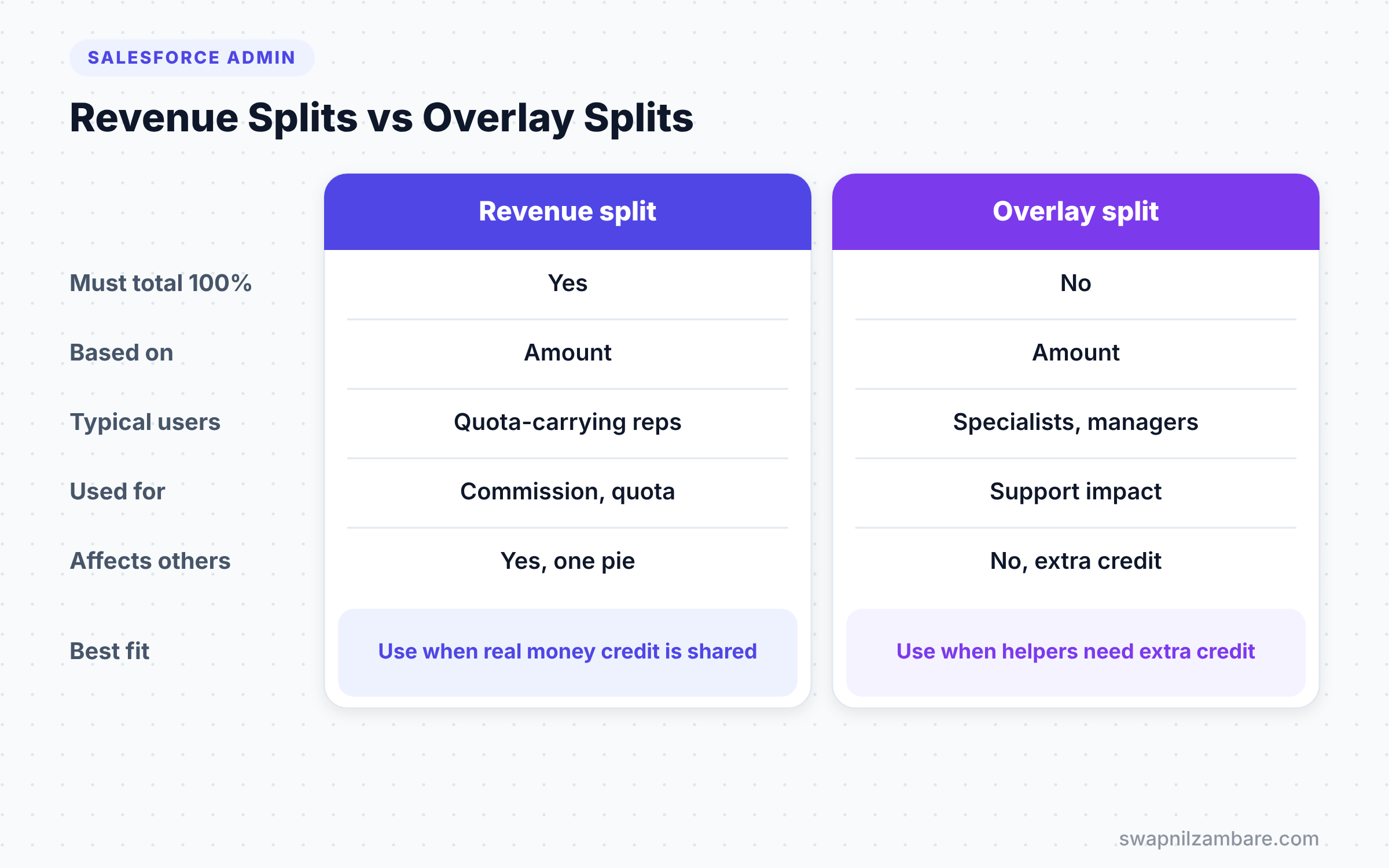
The table below compares the two standard split types.
| Feature | Revenue split | Overlay split |
|---|---|---|
| Must total 100% | Yes | No |
| Based on | Opportunity Amount | Opportunity Amount |
| Typical users | Sales reps who own quota | Specialists and managers who support |
| Used for | Commission and quota credit | Measuring support impact |
| Affects other members | Yes, shares one pie | No, adds extra credit |
When to use which depends on the goal. Use revenue splits for real money credit, and overlay splits to reward helpers without cutting anyone’s share.
How to Set Up Salesforce Opportunity Splits Step by Step
Let’s turn on Salesforce Opportunity Splits for Bright Path Tutors. You need Team Selling first.
Step 1: Enable Team Selling
- Go to Setup and type “Opportunity Team Settings” in Quick Find.
- Tick Enable Team Selling and click Save.
- Then add the Opportunity Team related list to the opportunity page layouts.
Step 2: Enable Opportunity Splits
- In Setup, type “Opportunity Splits” in Quick Find and open Settings.
- Click Set Up Opportunity Splits.
- Next, choose the Revenue and Overlay split types and make them active.
- Then choose the page layouts that get the Opportunity Splits related list.
- Finally, click Save and wait for Salesforce to finish the setup.
Setup can take a little time in large orgs, because Salesforce creates split records for existing opportunities. You will get an email when it finishes.
A Real Salesforce Opportunity Splits Example
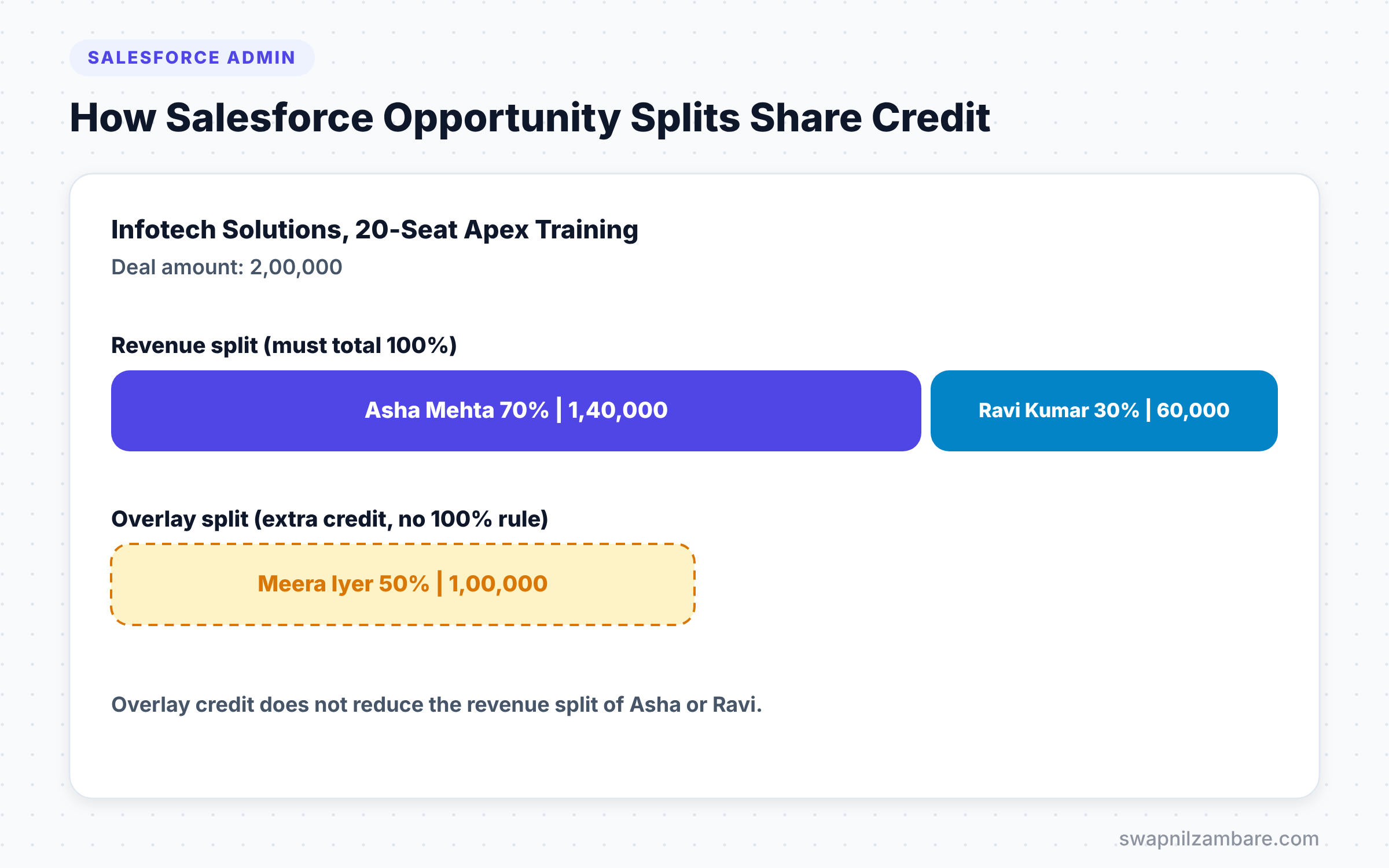
Now let’s use Salesforce Opportunity Splits on a real deal. The opportunity is “Infotech Solutions, 20-Seat Apex Training”, worth 2,00,000. Asha owns it. Ravi, a solution consultant, and Meera, a product specialist, helped.
- Open the opportunity and go to the Opportunity Team related list.
- Add Ravi as Solution Consultant and Meera as Product Specialist.
- Next, open the Opportunity Splits related list and click Edit Opportunity Splits.
- Enter the revenue splits from the table below.
- Then add an overlay split for Meera.
- Finally, click Save.
The table below shows the splits for this deal.
| Team member | Split type | Percentage | Split amount |
|---|---|---|---|
| Asha Mehta | Revenue | 70% | 1,40,000 |
| Ravi Kumar | Revenue | 30% | 60,000 |
| Meera Iyer | Overlay | 50% | 1,00,000 |
The revenue splits add up to 100%. Meera’s overlay credit is extra, so it does not reduce Asha or Ravi. If someone tries to make revenue splits total 110%, Salesforce shows an error and blocks the save.
Reporting on Salesforce Opportunity Splits
Salesforce Opportunity Splits are only useful if managers can see them. Create a report with the “Opportunities with Opportunity Splits” report type. Then group by Split Owner and sum Split Amount.
This report shows each person’s credit across all deals. You can also filter by Split Type to show only revenue or only overlay credit. Many sales managers subscribe to this report every Monday.
If you use collaborative forecasting, you can also turn on a forecast type based on opportunity revenue splits. Then each rep’s forecast includes their share of team deals, not just deals they own.
Who Can Edit Salesforce Opportunity Splits
Not everyone should change credit on a deal. By default, the opportunity owner, users above the owner in the role hierarchy and admins can edit splits. Team members with read access can see the splits but cannot change them.
So decide early who owns split decisions. Many companies let only sales managers edit splits, and they lock this down with validation rules or approval steps. That keeps commission disputes to a minimum.
Common Mistakes with Salesforce Opportunity Splits
- Trying to enable splits before Team Selling. Salesforce needs opportunity teams first.
- Deactivating a split type without thinking. Doing so deletes the split data for that type.
- Using revenue splits for helpers, which cuts the rep’s commission by mistake.
- Forgetting to add the Opportunity Splits related list to page layouts.
- Building reports on the normal Opportunities report type, which cannot show split amounts.
Best Practices for Salesforce Opportunity Splits
- Agree on split rules with sales leaders before you turn the feature on.
- Use revenue splits for quota credit and overlay splits for support credit.
- Train users to add team members before they edit splits.
- Build one standard split report and share it with sales managers.
- Review a sample of deals each month to catch odd splits early.
Practice Task
In your Developer Edition org, enable Team Selling and opportunity splits. Create an opportunity worth 50,000 and split the revenue 60 and 40 between two users. Hint: the Edit Opportunity Splits button appears only after you add team members.
Most Asked Interview Questions on Salesforce Opportunity Splits
Questions on Salesforce Opportunity Splits come up often in sales-focused admin interviews. Learn the reasoning, not just the answers.
Basic Questions on Salesforce Opportunity Splits
Q1. What are opportunity splits?
They let team members share credit for an opportunity by percentage. Salesforce calculates each person’s split amount from the deal value.
Q2. What must you enable before opportunity splits?
Team Selling, which turns on opportunity teams. Salesforce Opportunity Splits always belong to opportunity team members.
Q3. What is the difference between revenue and overlay splits?
Revenue splits must total 100% and share the real deal value. Overlay splits do not need to total 100%, so they give extra credit to helpers.
Q4. Who gets the split on a brand new opportunity?
The opportunity owner starts with 100% of the revenue split. Others get credit when you add them and change the percentages.
Practical Questions on Salesforce Opportunity Splits
Q5. A rep complains their commission dropped after a specialist joined the deal. Why?
Most likely, someone gave the specialist a revenue split, which reduces the rep’s share. An overlay split would give the specialist credit without lowering the rep’s revenue split.
Q6. Can you split fields other than Amount?
Yes. You can create custom split types on other currency fields on the opportunity, such as a services amount.
Q7. How do you report on splits?
Use the “Opportunities with Opportunity Splits” report type. Group by split owner and sum the split amount.
Q8. What happens if you deactivate a split type?
Salesforce deletes the split data for that type. So always confirm with the business and export the data first.
Official Resources
- Opportunity Splits (Salesforce Help)
- Enable Opportunity Splits (Salesforce Help)
- Trailhead: Opportunity Management
Quick Recap
- Salesforce Opportunity Splits share deal credit across team members.
- You must enable Team Selling before splits.
- Revenue splits total 100%, while overlay splits add extra credit.
- Use the “Opportunities with Opportunity Splits” report type for split reports.
- Deactivating a split type deletes its data, so plan carefully.
What’s Next?
Now let’s look at the health of your org’s security settings. Next, read our guide to Salesforce Health Check and Security Center.


