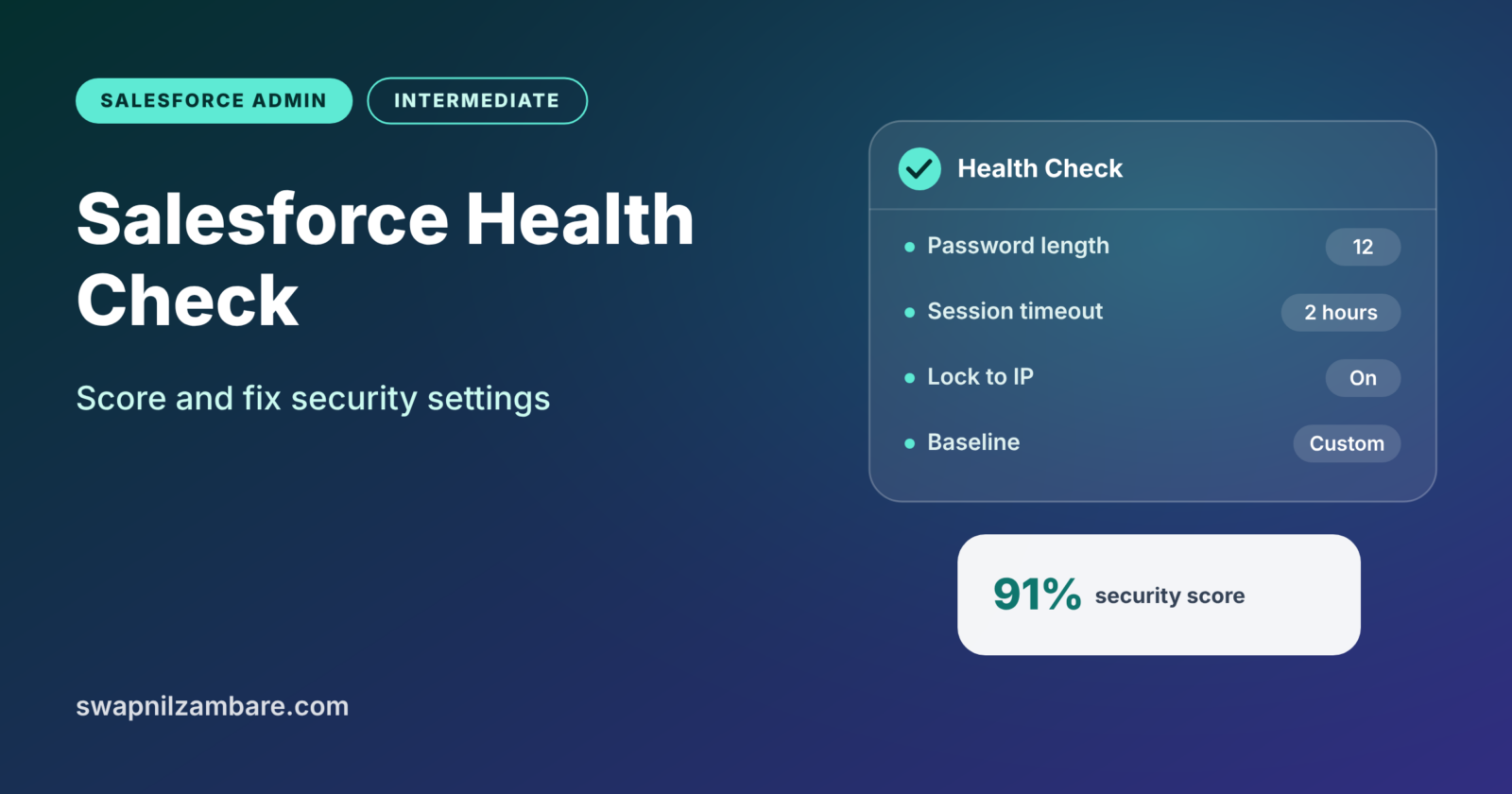
Salesforce Health Check gives your org a security score and a list of settings that need attention. In one screen, it compares your password, session and login settings against a recommended standard. It is one of the quickest security wins an admin can get.
In this post, you will learn how to read the Salesforce Health Check score and fix risky settings safely. You will also see where Security Center fits in. This builds on our guide to org security, MFA and login settings. It also connects to event monitoring and login history, which shows what is actually happening in your org. At the end, you will find the interview questions people ask most about this topic.
What is Salesforce Health Check?
Health Check is a free Setup page that scores your org’s security settings from 0% to 100%. It compares each setting to a baseline, which is a list of recommended values. Salesforce provides a standard baseline, and you can also import your own.
Think of it like a car service report. The mechanic checks the brakes, tyres and oil, then marks each one as good, fair or needs attention. Health Check does the same for your org’s security settings.
Why Salesforce Health Check Matters
Security settings are easy to forget, which is why Salesforce Health Check exists. Someone loosens a password rule for one project, and nobody changes it back. Health Check catches these quiet risks.
- It shows weak password policies, such as short or simple passwords.
- Next, it flags long session timeouts that keep users logged in for too long.
- Also, it highlights risky network and login settings.
- Auditors and security teams often ask for the score.
- Also, the Fix Risks button solves many items with one click.
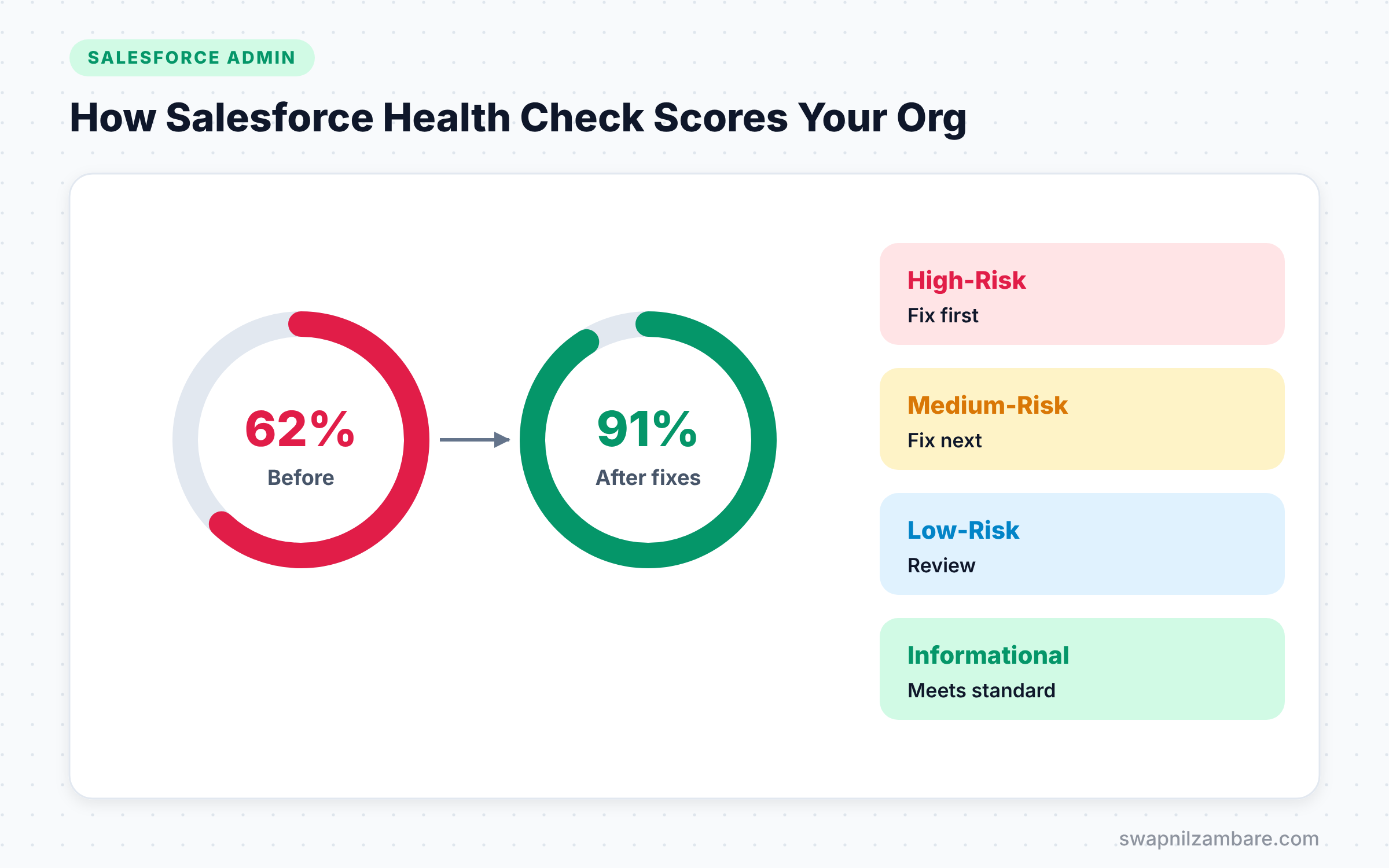
At Bright Path Tutors, the first Health Check scored 62%. After a few safe fixes, the score rose to 91% in one afternoon.
How Salesforce Health Check Works
Salesforce Health Check reads your current security settings and compares them with the baseline. Each setting gets a status. Then Salesforce combines them into one overall score.
Risk Categories
Settings appear in groups by how serious they are. High-Risk settings need attention first. Medium-Risk settings come next. Low-Risk settings matter less. Informational settings show values that meet the standard or simply need awareness.
The Baseline Standard
The Salesforce Baseline Standard is the default list of recommended values. For example, it suggests a minimum password length and a session timeout. You can also import a custom baseline file, so your company’s own security policy drives the score.
The Fix Risks Button
For many settings, Health Check offers a Fix Risks button. It updates the selected settings to match the baseline in one step. However, always check what each change does before you click it.
What is Security Center?
Security Center is a separate, paid product. It shows security settings, permissions and user activity across many orgs in one place. Large companies with several orgs use it to track their security posture over time.
So Health Check is a free, single-org tool built into every org. Security Center is a broader, multi-org product that companies buy separately.
Health Check vs Security Center
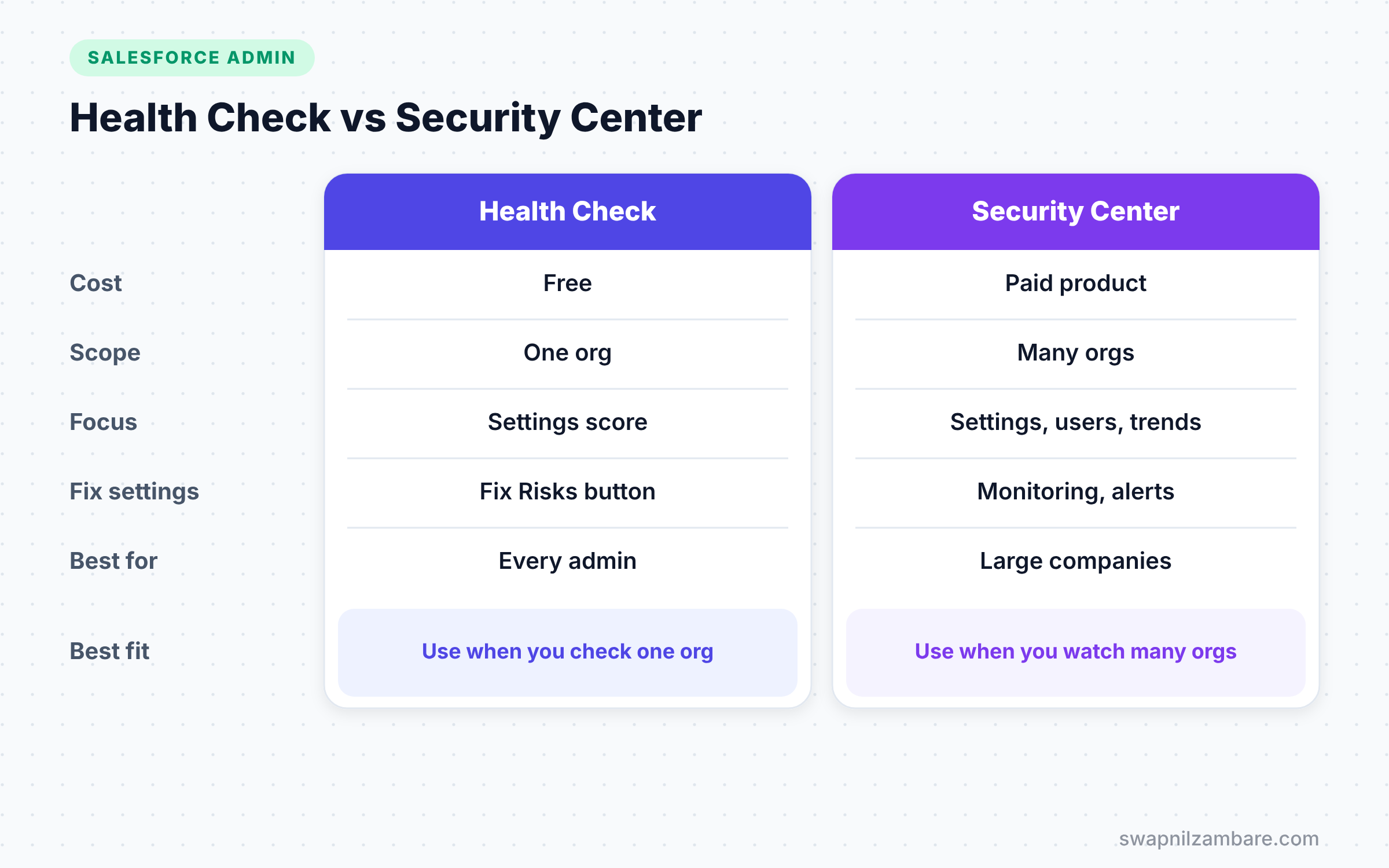
The table below compares the two tools.
| Feature | Health Check | Security Center |
|---|---|---|
| Cost | Free in every org | Paid product |
| Scope | One org | Many orgs together |
| Focus | Security settings score | Settings, permissions, users and trends |
| Fix settings | Yes, Fix Risks for many | Monitoring and alerts |
| Best for | Every admin, every org | Large companies with many orgs |
When to use which is clear. Every admin should use Health Check. Large companies with many orgs may also add Security Center.
How to Run Salesforce Health Check Step by Step
Let’s run Salesforce Health Check on the Bright Path Tutors production org.
- Go to Setup and type “Health Check” in Quick Find.
- Open the Health Check page and read the overall score at the top.
- Next, look at the High-Risk Security Settings section.
- Then review each setting’s Your Value and Standard Value columns.
- Finally, note the settings you plan to change.
The table below shows the kind of results Bright Path Tutors saw.
| Setting | Your value | Standard value | Risk |
|---|---|---|---|
| Minimum password length | 8 | 12 | High |
| Session timeout | 12 hours | 2 hours | Medium |
| Lock sessions to the IP address | Off | On | Medium |
| Password history | 3 | 5 | Low |
How to Fix Risks Safely
Changing security settings can affect every user, so plan the changes.
- Read what each setting does, using the Help link next to it.
- Then test the change in a full sandbox, if you have one.
- Next, tell users about changes that affect them, such as a longer password rule.
- Select the settings in Health Check and click Fix Risks, or change them in Session Settings and Password Policies.
- Finally, run Health Check again and record the new score.
Some changes need extra care. For example, locking sessions to IP addresses can log out users on mobile networks. So try it with a small group first.
Using a Custom Baseline
Some companies have stricter rules than the Salesforce standard. In that case, you can import a custom baseline.
- On the Health Check page, open the baseline menu and export the standard baseline.
- Then edit the exported file with your company’s values.
- Next, import the edited file and give it a clear name.
- Finally, choose your custom baseline from the menu to see the new score.
Now the score reflects your own policy, which security teams usually prefer.
Salesforce Health Check and Other Security Tools
Health Check is a great start, but it only looks at settings. It does not tell you who has too many permissions or who logged in from a strange country. So pair it with other tools.
First, review login history for failed or unusual logins. Next, check permission sets and profiles that grant “Modify All Data” or “View All Data”. Then confirm that every user logs in with MFA. Finally, look at the Setup Audit Trail for recent changes to security settings.
Together, these checks give a much fuller picture than any single score. Salesforce Health Check tells you if the doors have good locks. The other tools tell you who is walking through them.
How Often to Run Salesforce Health Check
A good rhythm is once a month and after every major Salesforce release. Releases can add new settings to the baseline, so your score may change even if you did nothing. Also run it after any big project that touched security settings.
Keep a simple record of each run, with the date, score and any changes you made. Over time, this record shows auditors and managers that security is under control.
Common Mistakes with Salesforce Health Check
- Clicking Fix Risks on everything without reading what changes.
- Chasing a 100% score while breaking real business needs, such as mobile access.
- Running Health Check once and never again.
- Forgetting sandboxes, which can hold real data and weak settings.
- Ignoring Medium-Risk items because they are not High-Risk.
Best Practices for Salesforce Health Check
- Run Health Check every month and after every major release.
- Fix High-Risk items first, then Medium-Risk.
- Use a custom baseline that matches your company’s security policy.
- Keep a simple log of score changes and the reason for each.
- Pair Health Check with MFA and login history reviews.
Practice Task
Open Health Check in your Developer Edition org and write down the score. Then raise the minimum password length in Password Policies and run Health Check again. Hint: refresh the page to see the new score.
Most Asked Interview Questions on Salesforce Health Check
Security questions are common in every admin interview. These are the ones most often asked about Salesforce Health Check.
Basic Questions on Salesforce Health Check
Q1. What is Health Check?
It is a free Setup page that scores your org’s security settings from 0% to 100%. It compares them with a baseline of recommended values.
Q2. What is the Salesforce Baseline Standard?
It is the default list of recommended security values that Health Check uses. It covers passwords, sessions, network access and more.
Q3. What are the risk categories in Health Check?
High-Risk, Medium-Risk, Low-Risk and Informational. You should fix High-Risk items first.
Q4. Can you use your own security standard?
Yes. You can export the standard baseline, edit it and import it as a custom baseline. Then the score reflects your company policy.
Practical Questions on Salesforce Health Check
Q5. What does the Fix Risks button do?
It changes the selected settings to match the baseline in one step. You should read each change first, because some can affect users.
Q6. What is the difference between Health Check and Security Center?
Health Check is free and checks one org’s settings. Security Center is a paid product that monitors security across many orgs.
Q7. Your score dropped after a release. What would you do?
Open Health Check and compare the settings with the last record you kept. Then check the Setup Audit Trail to see who changed what and when.
Q8. Why might you not fix every risk?
Some settings can block real work, such as locking sessions to IP addresses for mobile users. In those cases, you document the reason and accept the risk.
Official Resources
Quick Recap
- Salesforce Health Check scores your org’s security settings from 0% to 100%.
- It compares settings with the Salesforce Baseline Standard or a custom baseline.
- Fix High-Risk items first, and test changes before you make them.
- Security Center is a separate paid product for many orgs.
- Run Health Check regularly, not just once.
What’s Next?
Health Check covers settings, but permission sets also need regular care. Next, read our guide to Salesforce User Access Policies to automate permission assignments.


