Screen Flows from List Views let users select several records in a list and run one guided flow on all of them. For example, a trainer can tick 25 enrolments and mark them all as Completed in one step. Winter ’27 makes this much easier, because the flow receives the selected record Ids directly.
In this post, you will learn how this feature works, build a bulk update flow step by step, and add it to a list view and a related list. This builds on the Flow types guide, quick actions and the mobile app and list views, Kanban and search layouts.
What are Screen Flows from List Views?
A screen flow is a flow with screens that guide a user. Screen Flows from List Views are screen flows that start from a button on a list view or a related list. When the user selects records and clicks the button, Salesforce passes the selected Ids into the flow. The flow then works on all of them together.
Think of a teacher marking attendance. Instead of opening each student’s card one by one, she ticks all present students on one sheet and signs once. This feature gives users that same one-sheet experience.
Why Screen Flows from List Views Matter
Before this, admins needed workarounds, such as custom buttons with URLs or extra code. Users often updated records one at a time. Here is how Screen Flows from List Views help Bright Path Tutors.
- First, trainers close all enrolments at the end of a batch in one step.
- Also, support agents reassign many cases to a new queue together.
- Next, sales reps move several leads to a nurture status at once.
- The flow can ask one question, such as the completion date, and apply it to every record.
- Finally, the same rules and validations run for every record.
So users save time, and data stays consistent.
How Screen Flows from List Views Work
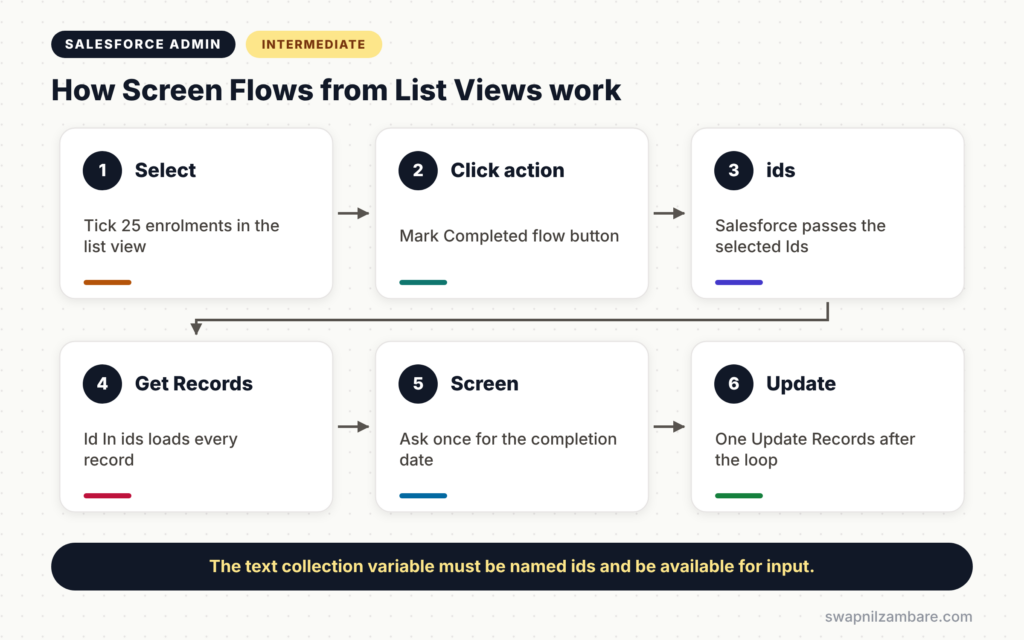
Screen Flows from List Views follow a simple path. First, the user selects records in a list view or related list. Next, they click a flow action button. Then Salesforce passes the selected Ids into a text collection variable called ids. After that, the flow gets those records, shows a screen and applies the changes. Finally, the flow updates all records in one step and shows a summary.
The ids Collection Variable
The flow needs a text collection variable named exactly “ids”, available for input. Salesforce fills it with the selected record Ids.
Getting the Records
A Get Records element uses the condition “Id In ids”. So the flow loads every selected record in one query.
Updating in Bulk
The flow changes the records in a loop and then updates them all with one Update Records element. This keeps the flow fast and within limits.
Window Size
Winter ’27 also lets you choose the size of the pop-up window for a screen flow quick action. A wider window suits screens with tables or long forms.
Screen Flows from List Views vs One-by-One Updates
The table below compares the new approach with updating records one at a time.
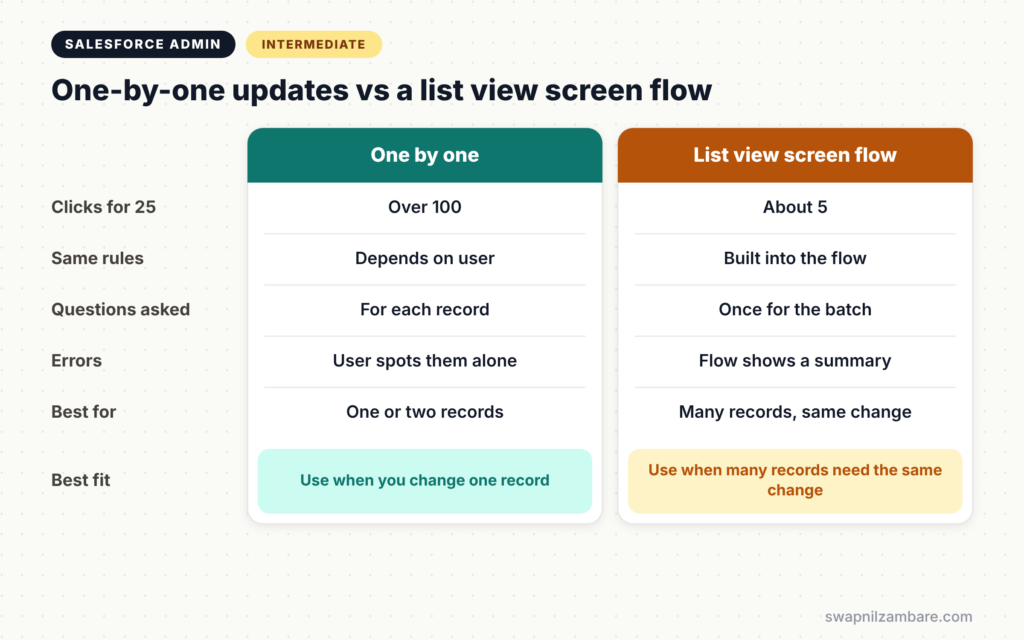
| Feature | One-by-one updates | Screen flow from a list view |
|---|---|---|
| Clicks for 25 records | Over 100 | About 5 |
| Same rules for every record | Depends on the user | Yes, built into the flow |
| Questions asked | For each record | Once for the whole batch |
| Error handling | User spots errors alone | Flow can show a summary |
| Best for | One or two records | Many records with the same change |
When to use which is easy. For one record, edit it directly. For many records with the same change, use a screen flow from the list view.
How to Build Screen Flows from List Views Step by Step
Let’s build Screen Flows from List Views for Bright Path Tutors. Trainers want to mark selected enrolments as Completed with one completion date.
Step 1: Create the Flow and the ids Variable
- Go to Setup > Flows and click New Flow.
- Choose Screen Flow.
- Next, create a variable with the settings from the table below.
The table below shows the variable settings.
| Setting | Value |
|---|---|
| API Name | ids |
| Data Type | Text |
| Allow multiple values | Checked |
| Available for input | Checked |
Step 2: Get the Selected Records
- Add a Get Records element on the Enrolment object.
- Set the condition Id In ids.
- Then store all records, not just the first one.
Step 3: Ask One Question
- Add a screen with a Date field called Completion Date.
- Next, add a display text that shows how many records were selected.
Step 4: Change and Update the Records
- Add a Loop over the records from Step 2.
- Inside the loop, use an Assignment to set Status to Completed and Completed On to the Completion Date.
- Next, add each record to a new record collection variable.
- After the loop, add one Update Records element for that collection.
Step 5: Create the Action
- Save and activate the flow.
- Next, go to Object Manager > Enrolment > Buttons, Links, and Actions > New Action.
- Choose Flow as the action type and select your flow.
- Then set the window size and save.
Step 6: Add It to the List View and Related List
- Add the action to the Enrolment list view button layout.
- Next, add it to the Enrolments related list on the Course page.
- Then select a few enrolments and click the button to test.
Handling Errors in Screen Flows from List Views
If one record fails a validation rule, the whole update can fail. So add a fault path to the Update Records element. Show a friendly screen that explains the problem. Our guide to fault paths in advanced flows shows how.
Also limit how many records users select when they run Screen Flows from List Views. Large selections may run slower, so start with batches of 50 or fewer and test.
Common Mistakes with Screen Flows from List Views
- Naming the variable anything other than ids.
- Forgetting to tick Available for input.
- Putting the Update Records element inside the loop.
- Skipping the fault path, so users see a technical error.
- Not testing with records that fail validation.
Best Practices for Screen Flows from List Views
- Show how many records are selected before the user confirms.
- Update all records with one element after the loop.
- Add a fault path and a friendly error screen.
- Choose a window size that fits your screen.
- Test with small and large selections in a sandbox.
Practice Task
Build a screen flow that moves selected leads to the “Nurture” status from a lead list view. Hint: reuse the ids variable, Get Records, Loop and one Update Records element.
Most Asked Interview Questions on Screen Flows from List Views
Questions on Screen Flows from List Views are new but common, because the feature solves a long-standing problem. Here are the ones asked most.
Basic Questions on Screen Flows from List Views
Q1. How does a flow receive the selected records?
Salesforce passes the selected record Ids into a text collection variable named ids, which must be available for input.
Q2. Where can you add the flow button?
On list views and on related lists, using a flow action.
Q3. Which flow type is used?
A screen flow, because users usually answer a question before the update.
Q4. What new option did Winter ’27 add for screen flow actions?
You can set the window size of the screen flow quick action.
Practical Questions on Screen Flows from List Views
Q5. How do you load the selected records?
Use Get Records with the condition Id In ids and store all records.
Q6. Why update records after the loop instead of inside it?
One Update Records element after the loop uses one database operation. Updating inside the loop can hit limits.
Q7. One record fails validation. What happens?
The update may fail for the batch. Add a fault path and show a clear message to the user.
Q8. When would you not use this feature?
For changes to only one record, or for very large automatic updates, where a scheduled or batch process fits better.
Official Resources
Quick Recap
- Screen Flows from List Views run one flow on many selected records.
- Selected Ids arrive in a text collection variable named ids.
- Use Get Records, a loop and one Update Records element.
- Add the action to list views and related lists, and set the window size.
- Add fault paths and test with records that fail validation.
What’s Next?
Screens can also react as users type. Next, read our guide to Reactive Screen Flows and conditional visibility.


