Reactive Screen Flows update a screen while the user types or clicks, without moving to the next screen. For example, a total price can change the moment a user enters the number of seats. Combined with conditional visibility, the screen can also show or hide fields based on the answers so far.
In this post, you will learn how reactivity works, how reactive formulas and visibility rules fit together, and how to build a smart enrolment form step by step. This builds on the Flow types guide and Screen Flows from List Views. Good formula skills from our formula fields guide will help too.
What are Reactive Screen Flows?
A screen flow shows one or more screens to a user. In older flows, values only updated when the user clicked Next. Reactive Screen Flows react straight away. When one component changes, other components on the same screen that depend on it update at once.
Think of an online shopping cart. When you change the quantity from 1 to 3, the total updates immediately. You do not need to reload the page. Reactive screens give your Salesforce forms that same behaviour.
Why Reactive Screen Flows Matter
Users expect forms to feel modern and quick. Long forms with many Next buttons feel slow and confusing. Here is how Reactive Screen Flows help Bright Path Tutors.
- First, the enrolment form shows the course fee as soon as a course is picked.
- Also, the total updates live when the number of seats changes.
- Next, company fields appear only when the buyer is a company.
- A warning appears when the total crosses a limit.
- Finally, fewer screens mean fewer mistakes and faster enrolments.
So reactive screens make flows feel like real apps.
How Reactive Screen Flows Work
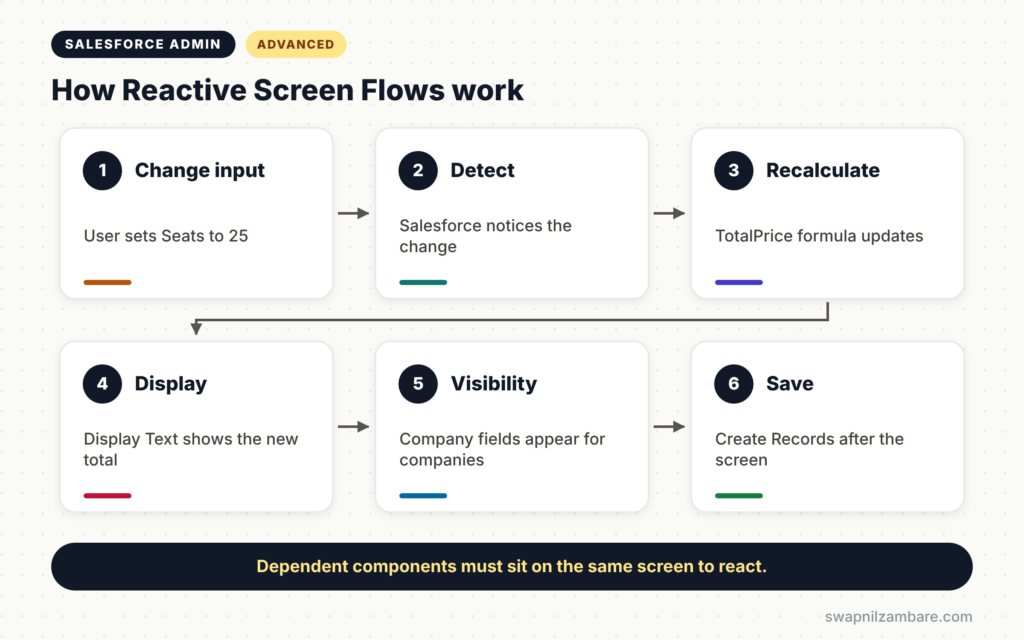
Reactive Screen Flows follow a simple chain. First, the user changes a component, such as a number field. Next, Salesforce notices the change. Then any formula or component that references that value recalculates. After that, conditional visibility rules check the new values and show or hide components. Finally, the user sees the updated screen without clicking Next.
Reactive Components
Most standard screen components can react to each other. For example, a Display Text component can show the value of a Number component from the same screen.
Reactive Formulas
A formula resource that references components on the same screen recalculates when those components change. For example, Seats multiplied by Fee gives a live total.
Conditional Visibility
Each component can have a visibility rule, such as “Show when Buyer Type equals Company”. Winter ’27 improved this further. Visibility rules now evaluate reactive formulas that reference components on the current screen correctly.
Sections and Columns
Sections let you place components side by side. So a reactive form can look tidy, with inputs on the left and live results on the right.
Classic Screens vs Reactive Screen Flows
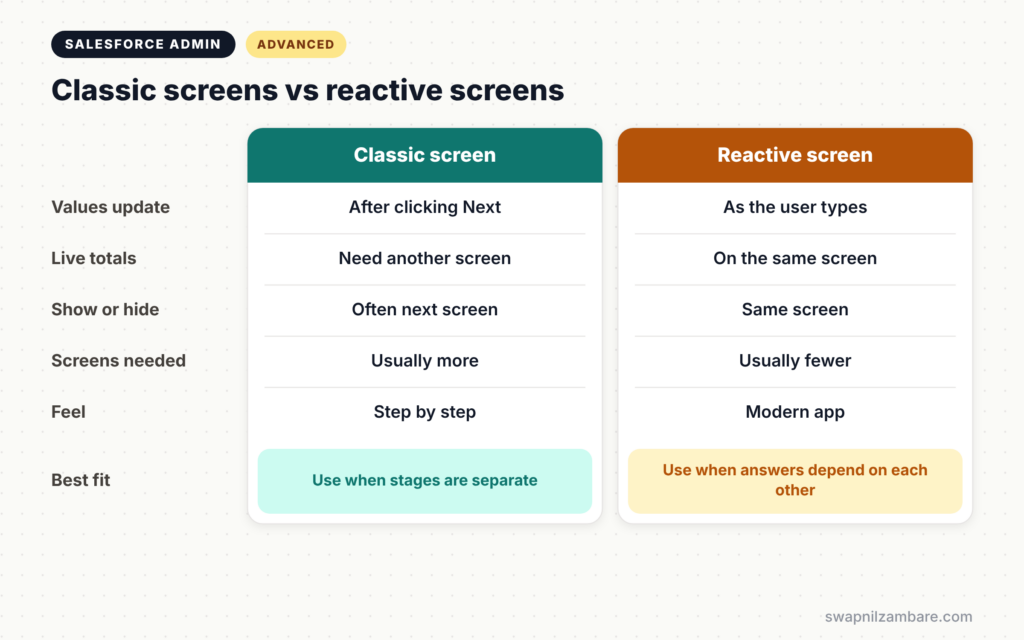
The table below compares older screens with reactive ones.
| Feature | Classic screen | Reactive screen |
|---|---|---|
| Values update | After clicking Next | As soon as the user changes them |
| Live totals | Need an extra screen | On the same screen |
| Show or hide fields | Often on the next screen | On the same screen |
| Number of screens | Usually more | Usually fewer |
| User experience | Step by step | Feels like a modern app |
When to use which depends on the task. Use classic steps for long, separate stages. Use reactive screens when answers on one screen depend on each other.
How to Build Reactive Screen Flows Step by Step
Let’s build Reactive Screen Flows for a corporate enrolment form at Bright Path Tutors. The form should show a live total and show company fields only for company buyers.
Step 1: Add the Inputs
- Create a new Screen Flow and add one screen.
- Add the components from the table below.
The table below shows the components on the screen.
| Component | API Name | Type |
|---|---|---|
| Buyer Type | BuyerType | Picklist: Individual, Company |
| Course Fee | CourseFee | Currency |
| Seats | Seats | Number |
| Company Name | CompanyName | Text |
| GST Number | GSTNumber | Text |
Step 2: Create the Reactive Formula
Create a Currency formula resource called TotalPrice with this formula.
IF(
  {!Seats} >= 20,
  {!CourseFee} * {!Seats} * 0.9,
  {!CourseFee} * {!Seats}
)
This gives a 10% discount for 20 or more seats. Because it references components on the same screen, it updates live.
Step 3: Show the Total
- Add a Display Text component next to the inputs.
- Next, write “Total price: {!TotalPrice}”.
- Then preview the flow and change Seats to see the total update.
Step 4: Add Visibility Rules
- Select Company Name and set its visibility to “BuyerType equals Company”.
- Next, do the same for GST Number.
- Then add a Display Text warning that shows when TotalPrice is greater than 500000.
Step 5: Save the Data
After the screen, add a Create Records element for the enrolment request. Use the screen values and TotalPrice. Then test with an Individual buyer and a Company buyer.
Testing Reactive Screen Flows
Test Reactive Screen Flows on every path, not just the happy one. For example, try blank seats, a fee of zero and switching the buyer type back and forth. Hidden fields can keep old values, so clear or ignore them when the buyer is Individual. Our guide to Salesforce Flow testing and debugging covers saved tests too.
Common Mistakes with Reactive Screen Flows
- Putting dependent components on different screens, so nothing reacts.
- Forgetting that hidden fields may keep values entered earlier.
- Writing formulas that fail when an input is blank.
- Adding too many components to one screen.
- Not testing on mobile, where space is smaller.
Best Practices for Reactive Screen Flows
- Keep each screen focused on one task.
- Use sections and columns to show inputs and results side by side.
- Handle blank values in formulas with BLANKVALUE or IF.
- Clear hidden field values before saving.
- Test on desktop and mobile with real users.
Practice Task
Add a “Promo Code” text field to the screen. If the code is “BRIGHT10”, reduce the total by another 10%. Hint: add the promo condition inside the TotalPrice formula.
Most Asked Interview Questions on Reactive Screen Flows
Questions on Reactive Screen Flows are common for advanced admin and Flow-heavy roles. Here are the ones asked most.
Basic Questions on Reactive Screen Flows
Q1. What is a reactive screen?
It is a flow screen where components update as soon as other components change, without clicking Next.
Q2. What is a reactive formula?
It is a formula resource that references components on the same screen and recalculates live.
Q3. What is conditional visibility?
It is a rule on a screen component that shows or hides it based on values, such as another component’s answer.
Q4. What improved in Winter ’27?
Visibility rules now evaluate reactive formulas that reference components on the current screen correctly.
Practical Questions on Reactive Screen Flows
Q5. How do you show a live total on a screen?
Create a formula resource that multiplies the inputs, then show it in a Display Text component on the same screen.
Q6. How do you show company fields only for companies?
Add a visibility rule to each company field, such as Buyer Type equals Company.
Q7. A hidden field still saves an old value. How do you fix it?
Check the buyer type before saving and set the hidden field to blank when it should not apply.
Q8. When would you still use several screens?
When the process has separate stages, such as details first and payment later, or when one screen becomes too crowded.
Official Resources
Quick Recap
- Reactive Screen Flows update components live on the same screen.
- Reactive formulas recalculate as inputs change.
- Conditional visibility shows or hides fields based on answers.
- Winter ’27 improved visibility rules with reactive formulas.
- Handle blanks and hidden values, and test on mobile.
What’s Next?
Winter ’27 brought many more Flow changes. Next, read our guide to new Flow features in Winter ’27.


