Salesforce Flow Testing is how you make sure a flow does the right thing before real users depend on it. A flow that works for one record can still fail for another. Good testing and debugging catch those problems early, when they are cheap to fix.
In this post, you will learn the Debug button, flow tests with assertions, failed flow interviews and error emails. You will also fix a real broken flow at Bright Path Tutors. This builds on the Flow Builder guide and fault paths in advanced flows. If you want to see what runs before and after your flow, our post on the order of execution helps too.
What is Salesforce Flow Testing?
Salesforce Flow Testing means checking a flow’s behaviour with sample data before and after you activate it. It has two parts. Debugging is running the flow once and watching each step. Testing is saving repeatable checks, called flow tests, that confirm the result every time.
Think of a cook trying a new recipe. Tasting while cooking is debugging. Writing down “the soup must be salty and hot” and checking it every time you cook is testing. You need both.
Why Salesforce Flow Testing Matters
Flows change data across your org, often for thousands of records. One small mistake can update the wrong field everywhere. Here is why Salesforce Flow Testing matters at Bright Path Tutors.
- First, a course fee flow once set every fee to zero because of a wrong condition.
- Also, a flow that works for admins can fail for users with fewer permissions.
- Next, a change to one flow can break another flow on the same object.
- Some errors only appear for unusual data, such as a blank start date.
- Finally, saved tests let you change flows later without fear.
So testing protects your data, your users and your reputation as an admin.
How Salesforce Flow Testing Works
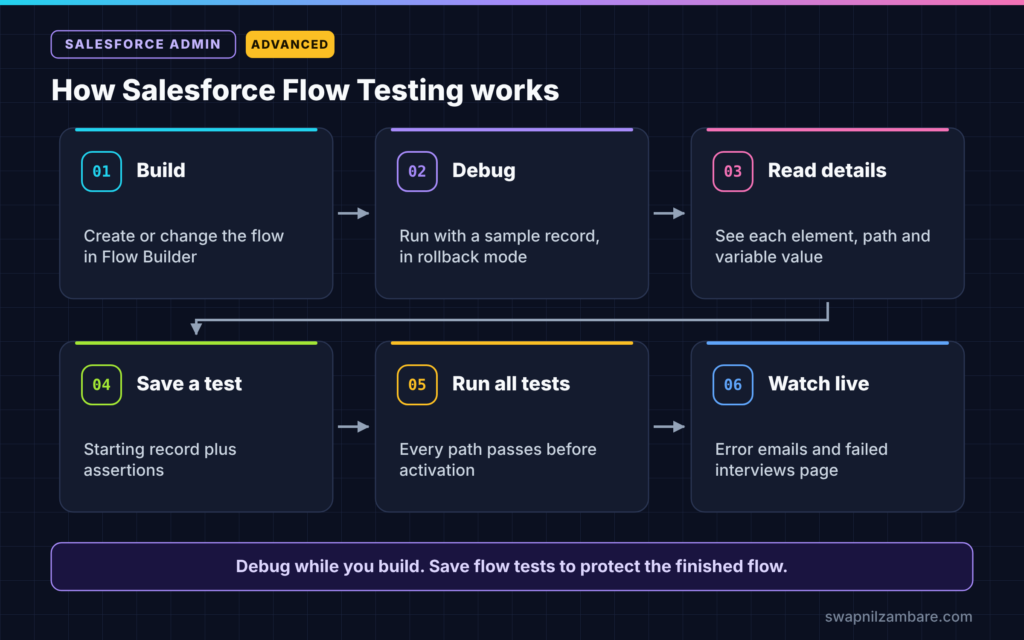
Salesforce Flow Testing follows a simple loop. First, you build or change the flow. Next, you click Debug and run it with sample input. Then you read the debug details to see which path it took. After that, you save a flow test with assertions. Finally, you run all tests before you activate the new version.
The Debug Button
Debug runs the flow from inside Flow Builder. For a record-triggered flow, you pick a record and choose whether it is created or updated. The debug panel then shows every element, every decision outcome and every variable value.
Rollback Mode
For flows that change data, you can debug in rollback mode. Salesforce runs the flow but undoes the changes at the end. So you can test safely in a sandbox with real-looking records.
Run as Another User
You can also debug a flow as a different user, if the setting is on in Process Automation Settings. This shows problems caused by profiles and permission sets, which admins often miss.
Flow Tests
A flow test saves the starting record and a list of assertions, such as “Fee must equal 15000”. You can run the test again whenever you change the flow. Flow tests are available for many record-triggered flows.
Debugging vs Flow Tests
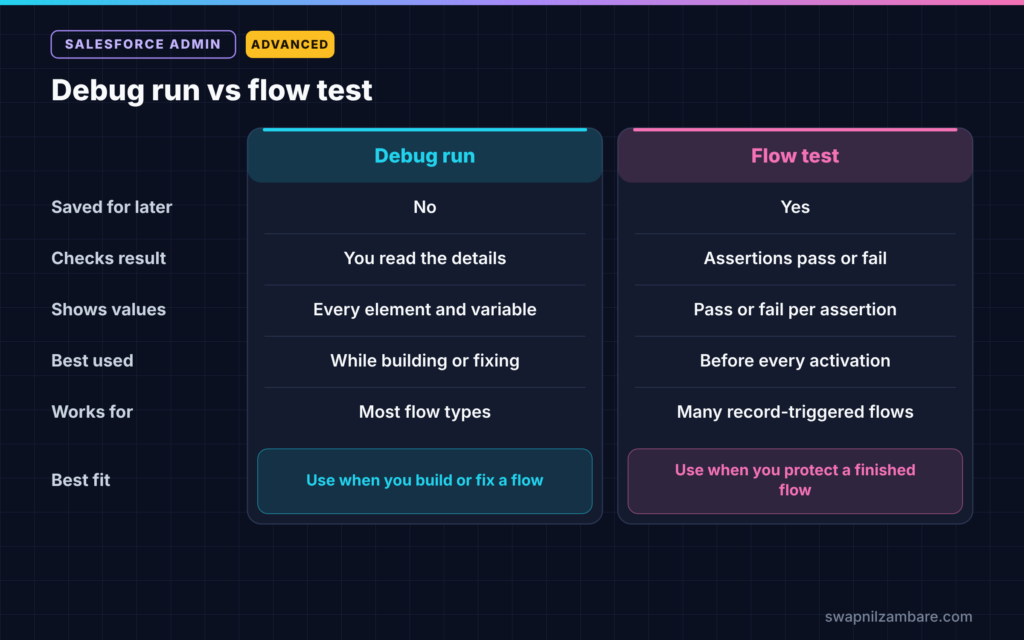
The table below compares the two parts of Salesforce Flow Testing.
| Feature | Debug run | Flow test |
|---|---|---|
| Saved for later | No | Yes |
| Checks the result automatically | No, you read the details | Yes, with assertions |
| Shows each element and value | Yes | Shows pass or fail per assertion |
| Best used | While building or fixing | Before every activation |
| Works for | Most flow types | Many record-triggered flows |
When to use which is clear. Use Debug while you build and when something breaks. Use flow tests to protect a finished flow from future mistakes.
A Real Salesforce Flow Testing Example
Let’s walk through Salesforce Flow Testing with a real problem. Bright Path Tutors has a record-triggered flow on Course. It should set Level to “Advanced” when Duration in Weeks is more than 12. However, users say some long courses still show “Beginner”.
Step 1: Reproduce the Problem
- Open the flow in Flow Builder and click Debug.
- Next, choose a course with Duration in Weeks of 16.
- Then pick “Updated” as the trigger and run it.
Step 2: Read the Debug Details
The debug panel shows that the decision took the default path. When you look closely, the condition says “Duration in Weeks greater than 12” but uses the old field Duration__c instead of Duration_in_Weeks__c. So the condition was never true.
Step 3: Fix and Debug Again
- Change the condition to use Duration_in_Weeks__c.
- Then debug again with the same course.
- Confirm that the Advanced path now runs.
Step 4: Save a Flow Test
- Click View Tests, then Create.
- Next, enter the values from the table below.
- Then save and run the test.
The table below shows the test for this flow.
| Setting | Value |
|---|---|
| Test name | Long course becomes Advanced |
| Trigger | Record updated |
| Initial record | Duration in Weeks is 16, Level is Beginner |
| Assertion | Level equals Advanced |
Step 5: Add a Second Test
Next, add a test for a 6-week course that asserts Level stays Beginner. Now the flow has tests for both paths, so future changes cannot break either one quietly.
Finding Errors in Live Flows
Even tested flows can fail in production. So set up three safety nets.
- First, in Process Automation Settings, choose who receives flow error emails.
- Next, check the Paused and Failed Flow Interviews page in Setup each week.
- Then use debug logs for hard problems, especially when Apex or other automation is involved.
Our guide to debug logs for admins explains how to read those logs step by step.
Testing with Different Users
Many flow bugs are really permission bugs. A flow running in user context cannot update a field the user cannot edit. So always debug as a normal user, such as a sales rep, before you go live.
Also check flows that run in system context. They ignore some permissions, so they can update records the user should not touch. Decide on purpose which context each flow needs.
Common Mistakes with Salesforce Flow Testing
- Testing only as an admin, so permission problems appear after go-live.
- Testing one happy path and ignoring blank or unusual values.
- Debugging in production without rollback mode.
- Not saving flow tests, so the same bug returns later.
- Ignoring flow error emails because nobody is assigned to read them.
Best Practices for Salesforce Flow Testing
- Write one flow test for each decision path.
- Debug as at least one non-admin user before activating.
- Use sandboxes and rollback mode for flows that change data.
- Assign a person to read flow error emails every day.
- Run all flow tests before activating a new version.
Practice Task
Create a record-triggered flow on Course that sets Is Online to true when the course name contains “Online”. Then save two flow tests, one for each outcome. Hint: use the Contains operator in the decision.
Most Asked Interview Questions on Salesforce Flow Testing
Questions on Salesforce Flow Testing are common, because every admin must troubleshoot flows. Here are the ones asked most.
Basic Questions on Salesforce Flow Testing
Q1. How do you debug a flow?
Open it in Flow Builder and click Debug. Choose the input or record, run it and read the debug details to see each element and value.
Q2. What is rollback mode?
It runs the flow but undoes any data changes at the end. So you can test data-changing flows safely.
Q3. What is a flow test?
It is a saved test with a starting record and assertions. You can run it again after every change to confirm the flow still works.
Q4. Where do you see failed flow interviews?
In Setup, on the Paused and Failed Flow Interviews page. Flow error emails also report failures.
Practical Questions on Salesforce Flow Testing
Q5. A flow works for you but fails for a sales rep. Why?
The rep probably lacks permission to a field or object the flow uses. Debug the flow as that user to confirm, then fix permissions or the flow’s run context.
Q6. How do you test a flow without changing data?
Debug it in rollback mode, ideally in a sandbox. The flow runs fully but Salesforce undoes the changes.
Q7. Who receives flow error emails?
You choose in Process Automation Settings. It can be the person who last changed the flow or the Apex exception email recipients.
Q8. How do you stop old bugs from coming back?
First, write a flow test for each bug you fix. Then run all tests before activating any new version.
Official Resources
- Trailhead: Automate Tests in Record-Triggered Flows
- Trailhead: Debug Flows as Another User
- Flow Builder (Salesforce Help)
Quick Recap
- Salesforce Flow Testing has two parts, debugging and saved flow tests.
- Debug shows each element, path and value in one run.
- Rollback mode and run-as-user make debugging safer and more realistic.
- Flow tests use assertions to check results every time.
- Error emails and the failed interviews page catch live problems.
What’s Next?
Tested flows can also talk to other systems. Next, read our guide to Flow HTTP Callouts and External Services.


