Flow HTTP Callouts let a flow call an outside web service and use the answer, without writing any Apex code. For example, a flow can send a pincode to an address service and get back the city and state. External Services do the same job when the outside system gives you a full API description file.
In this post, you will learn how Flow HTTP Callouts work, how they relate to External Services, and how to build one step by step. You need a good grasp of named credentials and external credentials, because every callout uses one. It also helps to know the Flow types and how Salesforce Connect and external objects bring outside data in a different way.
What are Flow HTTP Callouts?
An HTTP callout is a request that Salesforce sends to another system over the internet. The other system replies with data, usually in a format called JSON. JSON is just text arranged as names and values, such as “city”: “Pune”.
Flow HTTP Callouts are a Flow Builder action that makes this request for you. You tell it the address, the method and a sample reply. Then Flow builds the inputs and outputs automatically, so you can use the reply like any other flow variable.
Think of calling a restaurant to ask if a table is free. You dial the number, ask one question and write down the answer. Flow HTTP Callouts do the dialling and the note-taking for your flow.
Why Flow HTTP Callouts Matter
Before this feature, admins needed a developer to write Apex for even simple integrations. Now many simple ones are possible with clicks. Here is how Flow HTTP Callouts help Bright Path Tutors.
- First, the enquiry form collects only a pincode, and a callout fills in city and state.
- Also, a screen flow checks a student’s company name against a business lookup service.
- Next, a scheduled flow fetches currency rates for overseas course fees.
- Developers spend their time on harder work instead of small callouts.
- Finally, admins can see and change the logic in Flow Builder.
So callouts make Salesforce smarter without a big integration project.
How Flow HTTP Callouts Work
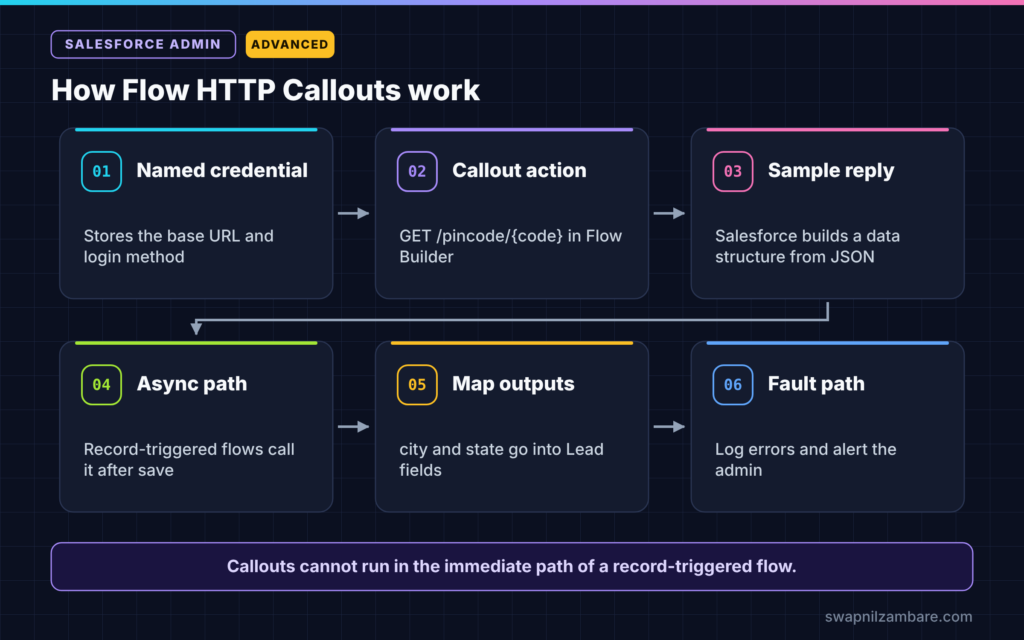
Flow HTTP Callouts follow a simple path. First, a named credential stores the outside system’s address and login details. Next, you create the callout action in Flow Builder and give it a sample reply. Then Salesforce builds a data structure from that sample. When the flow runs, it sends the request, receives the reply and maps it into variables you can use.
Named Credential
The named credential holds the base URL, such as https://api.example.com, and the login method. Flow never stores passwords. Users also need access to the external credential principal, usually through a permission set.
Sample Response
You paste a sample JSON reply into the setup screen. Salesforce reads it and creates matching fields, such as city and state. So you never write parsing code.
External Service Behind the Scenes
When you save the callout, Salesforce registers an External Service for it. That is why you will see it in the External Services page in Setup.
Flow HTTP Callouts vs External Services
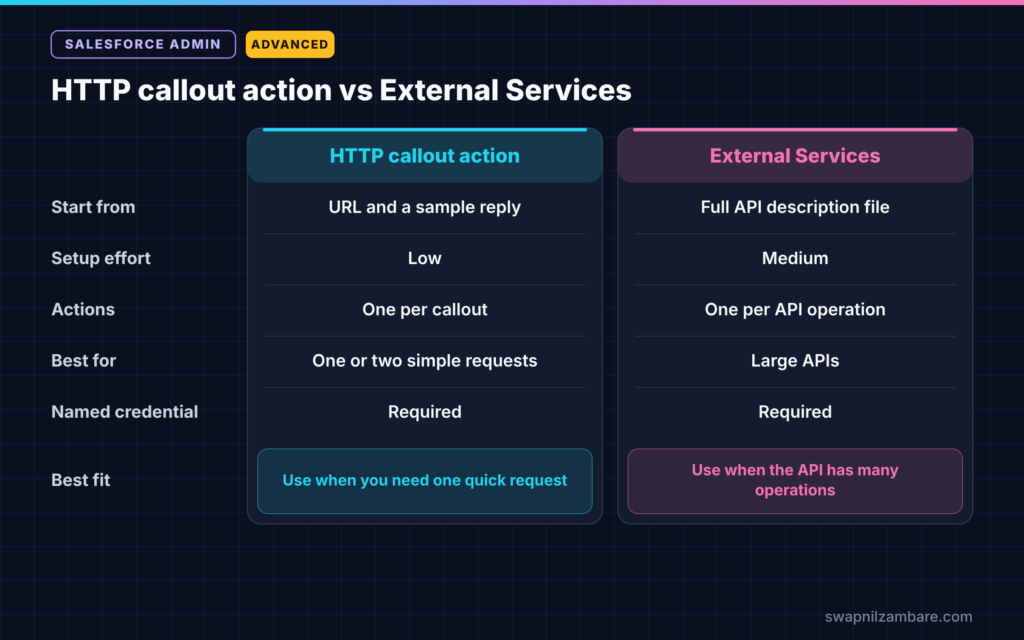
Both tools call outside APIs from Flow. The table below shows how they differ.
| Feature | HTTP callout action | External Services |
|---|---|---|
| Starting point | URL and a sample reply | Full API description file |
| Setup effort | Low | Medium |
| Number of actions | One per callout you build | Many, one per API operation |
| Best for | One or two simple requests | Large APIs with many operations |
| Needs a named credential | Yes | Yes |
When to use which is simple. Use the HTTP callout action for a quick, single request. Use External Services when the other team gives you a full API description with many operations.
How to Build Flow HTTP Callouts Step by Step
Let’s build Flow HTTP Callouts for Bright Path Tutors. When a lead enters a pincode, the flow should fill in City and State. We will use a sample address service at https://api.example.com.
Step 1: Create the Credentials
- Go to Setup > Named Credentials and create an external credential for the service.
- Next, create a named credential called Pincode_API with the base URL.
- Then add the external credential principal to a permission set and assign it to users.
Step 2: Create the Callout Action
- Open a new autolaunched flow in Flow Builder.
- Add an Action element and choose Create HTTP Callout.
- Next, give it the name “Get Pincode Details” and pick the Pincode_API named credential.
- Set the method to GET and the path to /pincode/{code}.
Step 3: Give a Sample Response
Paste a sample reply like this one, then click Review.
{
  "pincode": "411001",
  "city": "Pune",
  "state": "Maharashtra"
}
Salesforce creates a data structure with the fields pincode, city and state.
Step 4: Map the Inputs and Outputs
The table below shows the mapping for this flow.
| Item | Flow value |
|---|---|
| Input: code | Lead Postal Code |
| Output: city | Lead City |
| Output: state | Lead State |
Step 5: Call It from a Record-Triggered Flow
- Create a record-triggered flow on Lead that runs when Postal Code changes.
- Next, add an asynchronous path, because callouts cannot run in the immediate path.
- Then call the autolaunched flow from that path and update the lead with the outputs.
Step 6: Test It
- First, debug the autolaunched flow with the pincode 411001.
- Next, check the debug details for the city and state values.
- Then create a test lead and confirm the fields fill in after a few seconds.
Handling Callout Errors
Outside systems can be slow or down. So every Flow HTTP Callout needs a fault path. On failure, the flow can log the error, leave the fields blank and notify the admin. Our guide to fault paths in advanced flows shows how.
Also check the reply’s status code when your action returns it. A code in the 200 range means success. A code such as 404 means the pincode was not found, which is not a system error.
Security for Flow HTTP Callouts
Callouts send Salesforce data outside your org. So send only what the service needs, such as a pincode, never full customer records. Use named credentials so secrets stay out of flows. Then review which users can run flows that make callouts.
Common Mistakes with Flow HTTP Callouts
- Running a callout in the immediate path of a record-triggered flow.
- Forgetting to give users access to the external credential principal.
- Skipping the fault path, so users see a confusing error.
- Pasting a sample reply that does not match the real one.
- Sending more personal data than the service needs.
Best Practices for Flow HTTP Callouts
- Keep each callout in its own small autolaunched flow, so you can reuse it.
- Use asynchronous paths for callouts from record-triggered flows.
- Add fault paths and log errors in a custom object.
- Test with real replies from the service, including error replies.
- Ask a developer to review larger integrations or high volumes.
Practice Task
Build a screen flow that asks for a pincode and shows the city and state on the next screen. Use any free public test API your team approves. Hint: screen flows can call the action directly, without an asynchronous path.
Most Asked Interview Questions on Flow HTTP Callouts
Questions on Flow HTTP Callouts are common for advanced admin roles, because they show you can handle simple integrations. Here are the ones asked most.
Basic Questions on Flow HTTP Callouts
Q1. What is an HTTP callout in Flow?
It is a Flow action that sends a request to an outside web service and returns the reply as flow variables, without any Apex.
Q2. Why do callouts need a named credential?
The named credential stores the address and login details securely. So the flow never contains passwords or keys.
Q3. What is External Services?
It reads an API description file and turns each operation into a Flow action. It suits larger APIs with many operations.
Q4. What does the sample response do?
It tells Salesforce the shape of the reply. Salesforce uses it to build a data structure, so you can map the fields without code.
Practical Questions on Flow HTTP Callouts
Q5. Can you make a callout in a record-triggered flow?
Yes, but not in the immediate path. Use an asynchronous path, because callouts cannot happen while the record save is still running.
Q6. A callout works for you but fails for a user. Why?
The user may lack access to the external credential principal. Add it to a permission set and assign it.
Q7. How do you handle an outside system that is down?
First, add a fault path to the callout action. Next, log the error and notify the admin. Then let the user continue without the data.
Q8. When would you ask a developer instead?
Ask when the integration has high volume, complex logic, many objects or strict error handling needs. Apex gives more control in those cases.
Official Resources
- Named Credentials (Salesforce Help)
- Trailhead: Create HTTP Callouts with Flow Builder
- Trailhead: External Services
Quick Recap
- Flow HTTP Callouts call outside APIs from Flow without Apex.
- A named credential stores the address and login details.
- A sample reply lets Salesforce build the data structure for you.
- External Services suit larger APIs with many operations.
- Use asynchronous paths, fault paths and minimal data.
What’s Next?
Callouts bring outside data in. Generative AI can then help you use it. Next, read our guide to Salesforce Prompt Builder.


