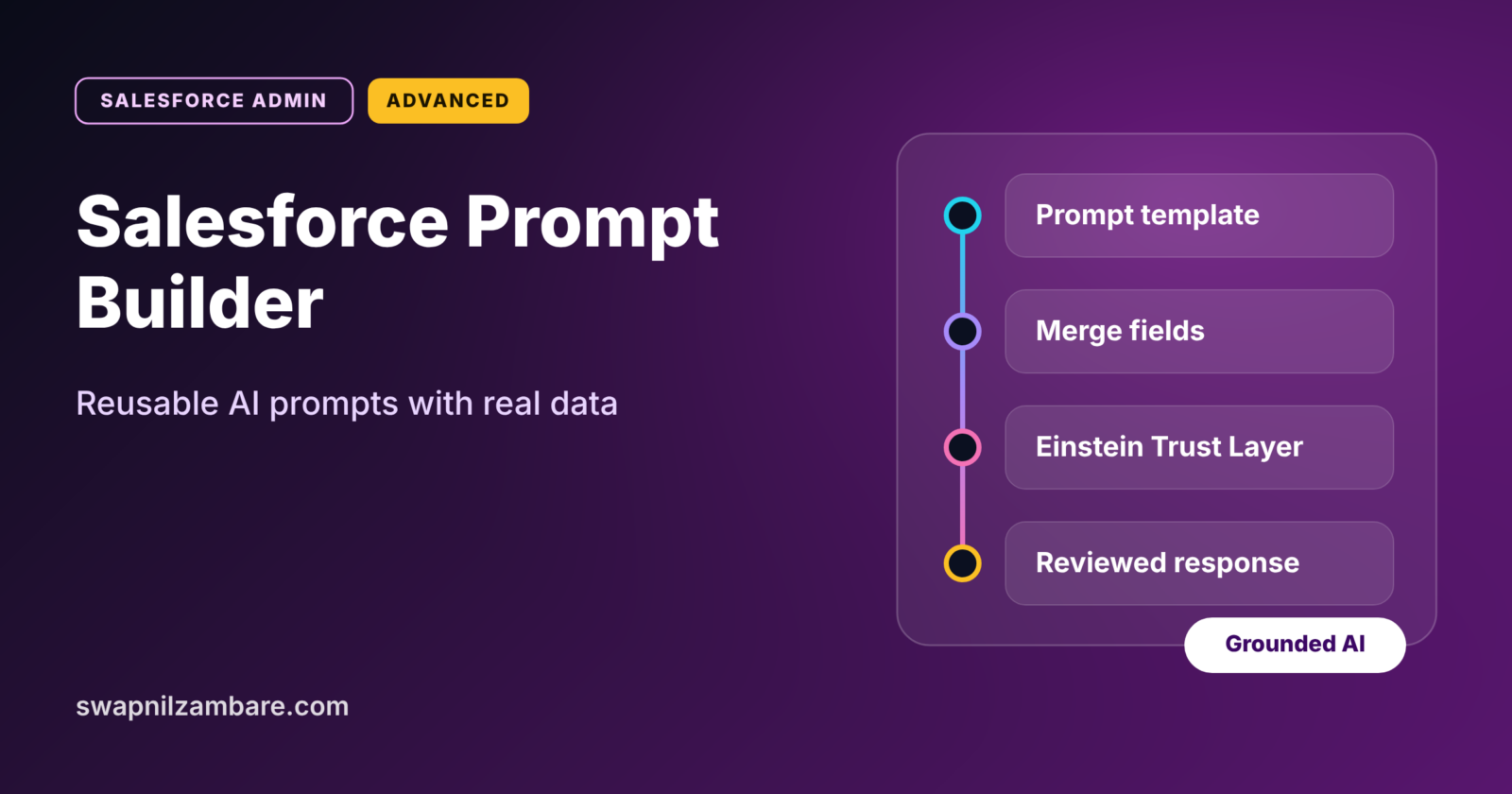
Salesforce Prompt Builder lets admins write reusable instructions for generative AI, called prompt templates, and fill them with live Salesforce data. For example, a template can write a course summary for a sales rep using the actual course fee, level and start date. Users then click one button instead of typing their own AI prompts.
In this post, you will learn what Salesforce Prompt Builder does, the main template types, how grounding works, and how to build a template step by step. It builds on Agentforce for admins, which explains the bigger AI picture. Our posts on Dynamic Forms and Data 360 basics also help, because templates often sit on record pages and use rich data.
What is Salesforce Prompt Builder?
A prompt is the instruction you give an AI model, such as “Write a friendly email about this course”. Salesforce Prompt Builder is a Setup tool where admins write these prompts once and save them as templates. Each template can include merge fields, so the prompt fills in real data every time it runs.
Think of a fill-in-the-blanks letter at a bank. The text stays the same, but the customer’s name and account details change each time. Salesforce Prompt Builder is that letter template, but for AI.
Why Salesforce Prompt Builder Matters
Users who write their own prompts get mixed results. Some prompts are vague, and some leak data they should not share. Salesforce Prompt Builder fixes both problems. Here is why it matters at Bright Path Tutors.
- First, every rep gets the same well-tested prompt, so quality stays high.
- Also, prompts use real record data, so answers match the facts.
- Next, admins control which fields the AI can see.
- Templates run through the Einstein Trust Layer, which adds data protection.
- Finally, admins can improve a template once and every user benefits.
So Prompt Builder turns AI from a toy into a reliable business tool.
How Salesforce Prompt Builder Works
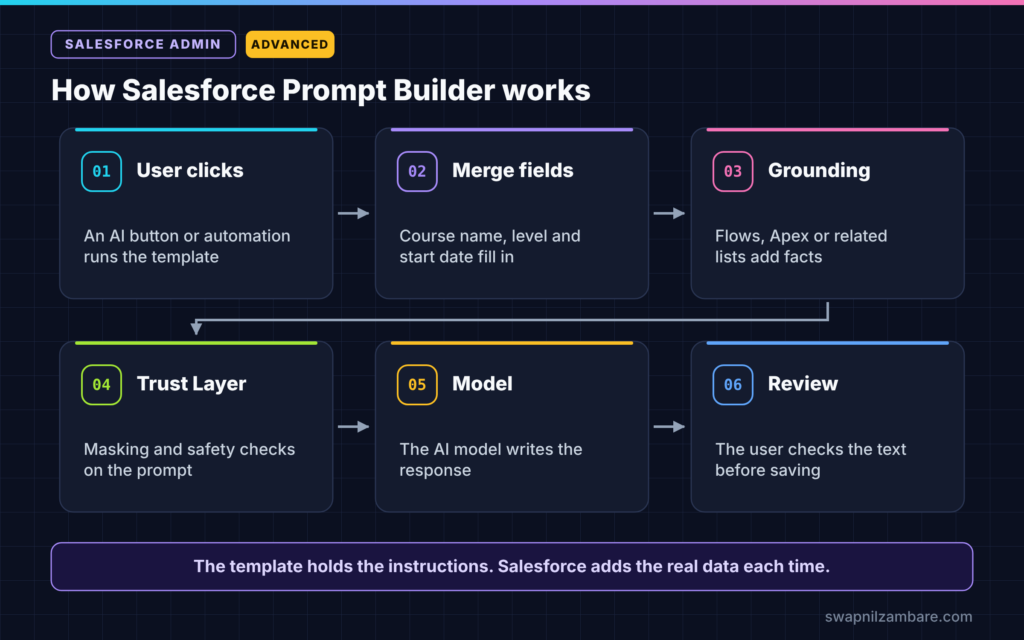
Salesforce Prompt Builder follows a clear path. First, a user clicks a button or an automation calls the template. Next, Salesforce fills the merge fields with record data. Then the prompt passes through the Einstein Trust Layer, which can mask sensitive data. After that, the AI model writes a response. Finally, the user reviews the response before saving or sending it.
Merge Fields
Merge fields pull values from the record, such as the course name or fee. You insert them from a picker in the template editor.
Grounding
Grounding means giving the AI real facts, so it does not guess. You can ground a template with record fields, related lists, flows or Apex. For example, a flow can collect a student’s last three enrolments and pass them to the prompt.
Preview
Preview lets you pick a sample record and see the filled prompt and the AI response. So you can test the template before anyone uses it.
Types of Salesforce Prompt Builder Templates
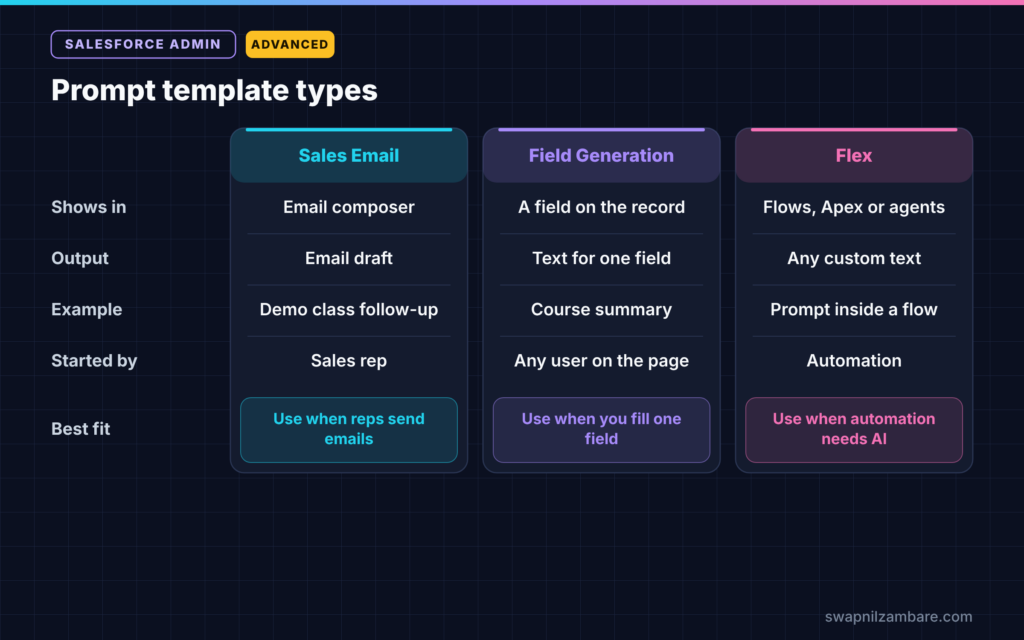
Salesforce Prompt Builder offers several template types. Each type fits a different place in the user’s work. The table below lists the common ones.
| Template type | Where users see it | Example at Bright Path Tutors |
|---|---|---|
| Sales Email | Email composer | Follow-up email after a demo class |
| Field Generation | A field on the record page | Write a course summary into a text field |
| Record Summary | Summaries in Salesforce | Short summary of a student account |
| Flex | Flows, Apex or agents | Custom prompt used inside a flow |
When to use which depends on the task. Use Sales Email for drafts, Field Generation to fill one field, and Flex when automation needs a custom prompt.
How to Build Salesforce Prompt Builder Templates Step by Step
Let’s build a Field Generation template with Salesforce Prompt Builder. Bright Path Tutors wants a short, friendly summary for each course, written into a new Summary field.
Step 1: Turn On Generative AI
- Go to Setup and search for Einstein Setup.
- Then turn on Einstein generative AI, if your edition includes it.
- Next, assign the Prompt Template Manager permission set to yourself.
Step 2: Create the Field
- Create a Long Text Area field called Course Summary on Course.
- Then add it to the course Lightning record page using Dynamic Forms.
Step 3: Create the Template
- Go to Setup > Prompt Builder and click New Prompt Template.
- Next, choose Field Generation as the type.
- Enter the values from the table below.
| Setting | Value |
|---|---|
| Template name | Course Summary Writer |
| Object | Course |
| Field | Course Summary |
| Model | Default model |
Step 4: Write the Prompt
Write the prompt in plain words and add merge fields. Here is an example.
You are a friendly course adviser at Bright Path Tutors.
Write a 3-sentence summary of this course for a new student.
Course name: {!$Input:Course__c.Name}
Level: {!$Input:Course__c.Level__c}
Duration: {!$Input:Course__c.Duration_in_Weeks__c} weeks
Mention the start date {!$Input:Course__c.Start_Date__c}.
Do not mention the fee.
Step 5: Preview and Activate
- Click Preview and pick the Apex Basics course.
- Next, read the resolved prompt and the response.
- Then adjust the wording until the summary sounds right.
- Finally, click Activate.
Step 6: Connect It to the Field
- Open the course record page in Lightning App Builder.
- Then select the Course Summary field and choose the template in its properties.
- Now users see a small AI button next to the field.
Writing Good Prompts
A good prompt in Salesforce Prompt Builder is clear and specific. Tell the AI who it is, what to write, how long it should be and what to avoid. Use simple sentences. Also give an example of good output when the style matters.
Keep the data small too. Only add the fields the AI needs. Extra fields make answers longer and can expose data for no reason.
Testing and Improving Templates
Test each template with several records, including ones with blank fields. For example, a course with no start date should not produce “starts on null”. Add instructions such as “If the start date is blank, skip it”.
Next, ask a few users to try the template for a week. Collect their feedback and then update the wording. Salesforce keeps template versions, so you can go back if a change makes results worse.
Common Mistakes with Salesforce Prompt Builder
- Writing vague prompts, such as “Write something about this course”.
- Adding every field to the prompt, including sensitive data.
- Skipping preview with records that have blank values.
- Letting users save AI text without reading it first.
- Forgetting to assign permission sets, so users cannot run templates.
Best Practices for Salesforce Prompt Builder
- Give each template one clear job.
- Ground prompts with real data instead of asking the AI to guess.
- Tell the AI what not to include, such as fees or personal details.
- Preview with at least five different records.
- Review usage and feedback, then improve the wording every month.
Practice Task
Create a Sales Email template that writes a follow-up email after a free demo class. Ground it with the contact’s first name and the course name. Hint: add a line telling the AI to keep the email under 120 words.
Most Asked Interview Questions on Salesforce Prompt Builder
Questions on Salesforce Prompt Builder are now common, because companies are adding AI to their orgs. Here are the ones asked most.
Basic Questions on Salesforce Prompt Builder
Q1. What is Prompt Builder?
It is a Setup tool for creating reusable prompt templates for generative AI. Templates use merge fields to fill in real Salesforce data.
Q2. What is grounding?
Grounding means adding real facts to the prompt, such as record fields or flow results. It helps the AI give accurate, relevant answers.
Q3. Name some prompt template types.
Sales Email, Field Generation, Record Summary and Flex are common types. Each one appears in a different place for users.
Q4. Does the AI see all my data?
No. It only sees what the template sends. The Einstein Trust Layer also adds protections such as data masking.
Practical Questions on Salesforce Prompt Builder
Q5. How do you add an AI button to a field?
Create a Field Generation template for that field. Then select the field on the Dynamic Forms record page and choose the template.
Q6. How do you use related records in a prompt?
Use a related list merge field, or ground the template with a flow or Apex that collects the related data.
Q7. A template gives wrong answers for some records. What do you do?
First, preview it with those records. Next, check for blank or unusual values. Then add clear instructions for those cases and test again.
Q8. How do you control who can run templates?
Assign the right permission sets, and only add templates to pages and apps used by the right teams.
Official Resources
Quick Recap
- Salesforce Prompt Builder creates reusable prompt templates for AI.
- Merge fields and grounding give the AI real data.
- Template types include Sales Email, Field Generation, Record Summary and Flex.
- Preview with many records before you activate.
- Keep prompts clear, specific and limited to the data needed.
What’s Next?
Prompt templates are one building block. Agents combine many of them with actions. Next, read our guide to Agentforce Agent Builder topics and actions.


