The new Flow features in Winter ’27 focus on one big idea: making flows easier to test, organise and maintain. Salesforce added a Test Mode, tags for flows, an edit history panel and a way to group elements. Several smaller changes catch mistakes before you even activate a flow.
In this post, you will learn the most useful new Flow features in plain words and use them to tidy up a real flow at Bright Path Tutors. This builds on Salesforce Flow testing and debugging, Reactive Screen Flows and Screen Flows from List Views. Some features are in beta, so try them in a sandbox first.
What are the New Flow Features in Winter ’27?
Winter ’27 is Salesforce’s release from autumn 2026. Its New Flow Features include Test Mode (beta), Flow Tags, Edit History, element groups, an unused resources filter, save-time checks and a new run context that enforces user permissions. Together they help admins build cleaner flows and find problems sooner.
Think of moving from a paper notebook to a well-organised digital folder. You can label pages, see who changed what, test your work before sharing it and quickly find unused notes. These features bring that kind of order to Flow Builder.
Why the New Flow Features Matter
Most orgs now run dozens or hundreds of flows. Without good tools, they become hard to understand and risky to change. Here is how the New Flow Features help Bright Path Tutors.
- First, the admin team tags flows by department, so finance flows are easy to find.
- Also, Test Mode saves test runs, so the same checks repeat after every change.
- Next, Edit History shows what changed between versions.
- Groups make a 60-element flow readable at a glance.
- Finally, save-time checks catch missing required fields before users hit errors.
So flows become easier to hand over, review and trust.
How the New Flow Features Work Together
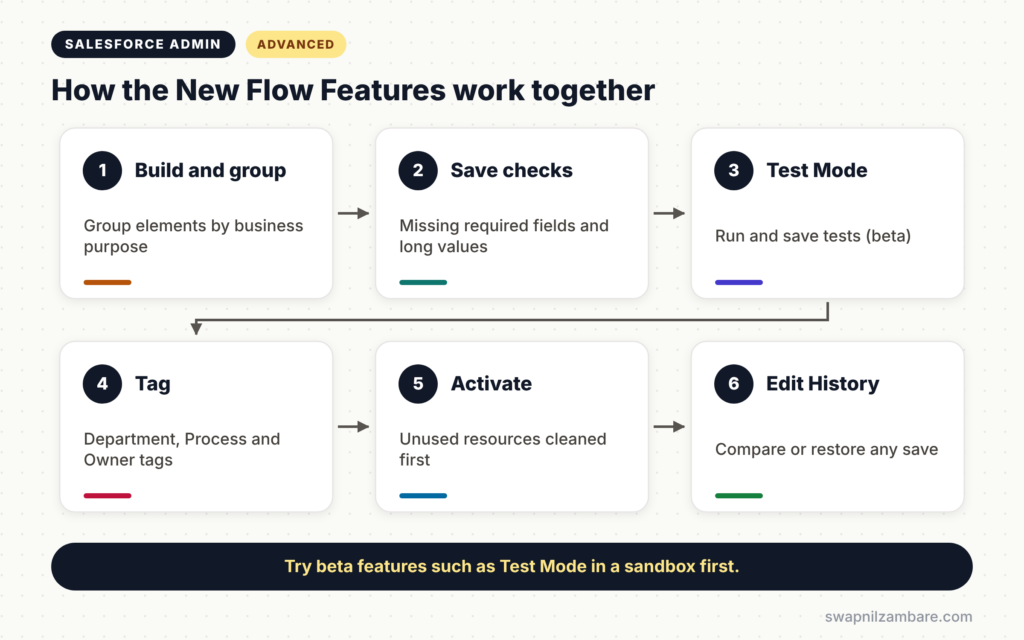
The New Flow Features fit into a simple build cycle. First, you build the flow and group related elements. Next, Flow Builder checks for missing required fields and values that are too long when you save. Then you run and save tests in Test Mode. After that, you tag the flow and activate it. Finally, Edit History records every save, so you can compare or restore versions later.
Test Mode (Beta)
Test Mode brings debugging and saved tests into one place in Flow Builder. You can save test inputs and run them again later. It replaces the separate debug and test experiences for supported flows.
Flow Tags
You can add one or more tags to a flow when you save it, or later from the Automation app. Tags sit inside tag categories, such as Department or Process. So you can filter flows quickly.
Edit History
The Edit History panel shows a timeline of saves. You can drill into changes for each element and restore an older version if needed.
Element Groups
You can select part of a flow and turn it into a group with a label and description. Groups can collapse and expand. It is not a subflow, but it makes big flows much easier to read.
Unused Resources Filter
A new filter shows resources that are no longer used or have no description. This helps you clean up old variables before a handover.
Save-Time Checks
Flow Builder now warns you when a Create Records element misses a required field. It also warns when a value may be too long for its field.
Enforce User Permissions
A new run option, “User Context-Enforces User Permissions”, makes autolaunched and screen flows always respect the running user’s access, however they start.
Old Flow Builder vs Winter ’27 Flow Builder
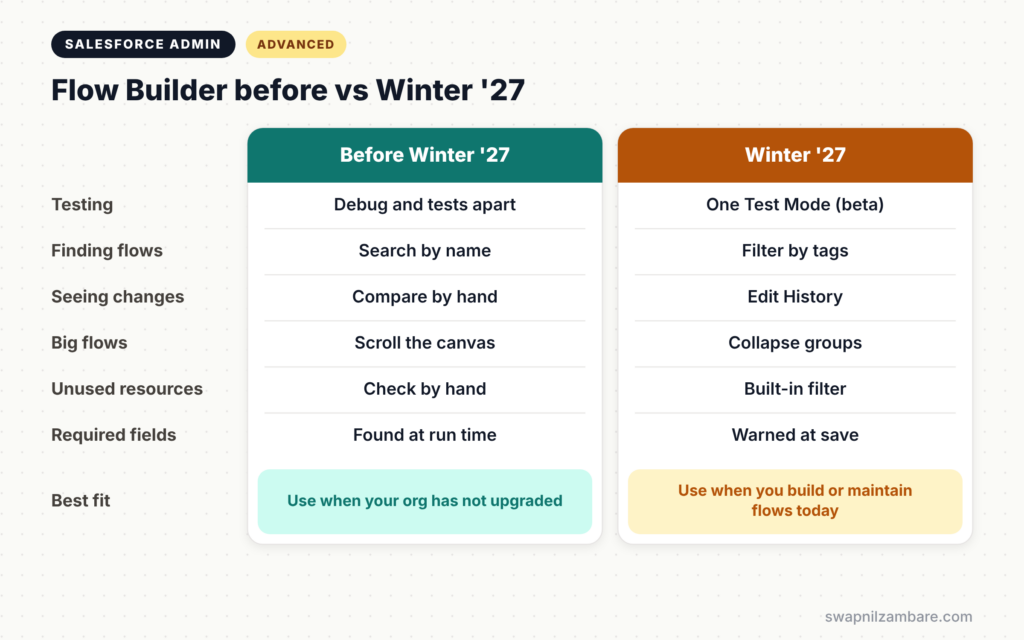
The table below compares how common tasks worked before and after Winter ’27.
| Task | Before Winter ’27 | Winter ’27 |
|---|---|---|
| Testing | Separate debug and flow tests | One Test Mode (beta) |
| Finding flows | Search by name only | Filter by tags |
| Seeing changes | Compare versions manually | Edit History timeline |
| Reading big flows | Scroll the whole canvas | Collapse element groups |
| Cleaning resources | Check each one by hand | Unused resources filter |
| Required field errors | Found at run time | Warned at save time |
When to use them is simple. Start using tags, groups and Edit History now. Try Test Mode in a sandbox while it is in beta.
How to Use the New Flow Features Step by Step
Let’s use the New Flow Features to tidy up the “Course Update” record-triggered flow at Bright Path Tutors. It has grown to 45 elements over two years.
Step 1: Group the Elements
- Open the flow in Flow Builder.
- Select the elements that handle fee changes.
- Next, create a group called “Fee Rules” with a short description.
- Then repeat for “Level Rules” and “Notifications”.
Step 2: Clean Up Resources
- Open the Toolbox and apply the unused resources filter.
- Delete variables that nothing uses.
- Then add descriptions to the ones you keep.
Step 3: Fix Save-Time Warnings
- Click Save as New Version.
- Next, read any warnings about required fields or field length.
- Then fix them, for example by adding the missing Course Name assignment.
Step 4: Add Tags
The table below shows the tags the team agreed on.
| Tag category | Tag |
|---|---|
| Department | Training |
| Process | Course Management |
| Owner | Admin Team |
Step 5: Save Tests in Test Mode
- Open Test Mode and create a test for a fee change on a started course.
- Next, save the test with its expected result.
- Then create a second test for a level change.
Step 6: Review Edit History
- Open the Edit History panel.
- Check that your changes appear with the right date and user.
- Then activate the new version.
Rolling Out the New Flow Features to Your Team
Agree on simple rules before everyone starts tagging. For example, every flow needs a Department tag and an Owner tag. Also ask builders to group any flow with more than 20 elements. These small habits help the New Flow Features keep your org tidy as it grows.
Common Mistakes with the New Flow Features
- Using Test Mode in production before trying it in a sandbox.
- Creating dozens of tags with no agreed categories.
- Treating groups like subflows, when they only organise the canvas.
- Ignoring save-time warnings.
- Deleting resources without checking the warnings first.
Best Practices for the New Flow Features
- Agree on tag categories and a short tag list first.
- Group large flows by business purpose.
- Save at least one test per decision path.
- Clean up unused resources before every handover.
- Use the user-permission run option for flows that should respect access.
Practice Task
Pick one flow in your Developer Edition org with more than ten elements. Group its elements, remove unused resources and add two tags. Hint: start with the unused resources filter to see what can go.
Most Asked Interview Questions on the New Flow Features
Interviewers like to ask about recent releases to see if you stay current. Here are the questions asked most about Winter ’27 Flow changes.
Basic Questions on the New Flow Features
Q1. What is Flow Test Mode?
It is a beta feature that combines debugging and saved tests in one place in Flow Builder, so you can repeat tests later.
Q2. What are Flow Tags?
They are labels you add to flows, grouped into tag categories. They help you find and organise flows.
Q3. What does Edit History show?
A timeline of saves, with details of changed elements and the option to restore older versions.
Q4. Is an element group the same as a subflow?
No. A group only organises the canvas. A subflow is a separate flow called from another flow.
Practical Questions on the New Flow Features
Q5. How would you organise 200 flows?
Agree on tag categories, such as Department and Owner, then tag every flow and filter by tag.
Q6. How do you make a flow respect user access every time?
Choose the run option “User Context-Enforces User Permissions” for autolaunched and screen flows.
Q7. A flow fails because of a missing required field. How does Winter ’27 help?
Flow Builder now warns about missing required fields in Create Records elements when you save.
Q8. How do you prepare a flow for handover?
Group elements, add descriptions, remove unused resources, tag the flow and save tests for each path.
Official Resources
Quick Recap
- The New Flow Features in Winter ’27 focus on testing, organising and maintaining flows.
- Test Mode (beta) combines debugging and saved tests.
- Tags, groups and the unused resources filter keep flows tidy.
- Edit History shows every save and lets you restore versions.
- Save-time checks and the new run context prevent common errors.
What’s Next?
Flows are only part of the Winter ’27 release. Next, read our guide to Salesforce Admin release highlights for Winter ’27.


