Salesforce Guest User Security is about protecting your org from people who visit a public site without logging in. Every Experience Cloud site has a guest user, and that user can see whatever you allow. If settings are too open, anyone on the internet may read data they should never see.
In this post, you will learn how guest access works and follow a clear checklist to lock it down. Salesforce Security published a warning in March 2026 about attackers targeting misconfigured guest access, so this topic matters right now. This builds on Experience Cloud sites, sharing rules, roles and OWD and field-level security.
What is Salesforce Guest User Security?
A guest user is the account Salesforce uses for anyone who visits a public site page without logging in. Each site has one guest user with its own guest user profile. Salesforce Guest User Security means giving that profile the smallest possible access, so public visitors only see what the site truly needs.
Think of a school’s front gate. Visitors can enter the reception area to read the notice board. They should never walk into the staff room or the records office. Guest user security decides where that front gate leads.
Why Salesforce Guest User Security Matters
Public sites are open to everyone, including attackers with automated tools. Also, they do not need a password to try. Here is why Salesforce Guest User Security matters at Bright Path Tutors.
- First, the public course catalogue site shows course names and dates to visitors.
- Also, the same org holds student phone numbers and payment details.
- Next, an open setting could let a visitor query contacts through an API.
- A guest might list internal staff names and profiles.
- Finally, a data leak would damage trust and could break privacy laws.
So guest settings deserve the same care as your most sensitive data.
How Salesforce Guest User Security Works
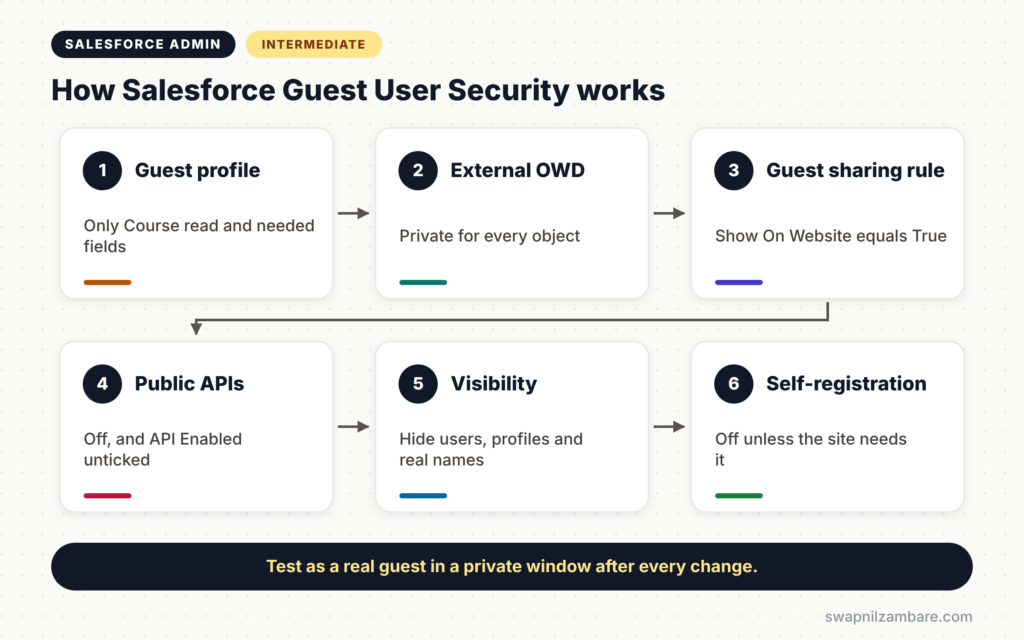
Salesforce Guest User Security works in layers. First, the guest user profile controls which objects and fields the guest can touch. Next, org-wide defaults for external access keep records private. Then sharing rules for guests open only the records the site needs. After that, site settings decide whether guests can use public APIs. Finally, visibility settings hide internal users and profiles.
The Guest User Profile
The guest user profile holds object permissions, field-level security and system permissions. Start from zero access and add only what the site needs.
External Org-Wide Defaults
First, set the default external access to Private for every object. Then guests see no records unless a guest sharing rule grants them.
Guest User Sharing Rules
A guest user sharing rule gives Read Only access to records that match criteria. For example, courses where Show On Website is true.
Public API Access
Sites have a setting that allows guest users to access public APIs. Turn it off unless you truly need it. Salesforce called this the highest-impact single change in its 2026 guidance.
Open Guest Settings vs Secure Guest Settings
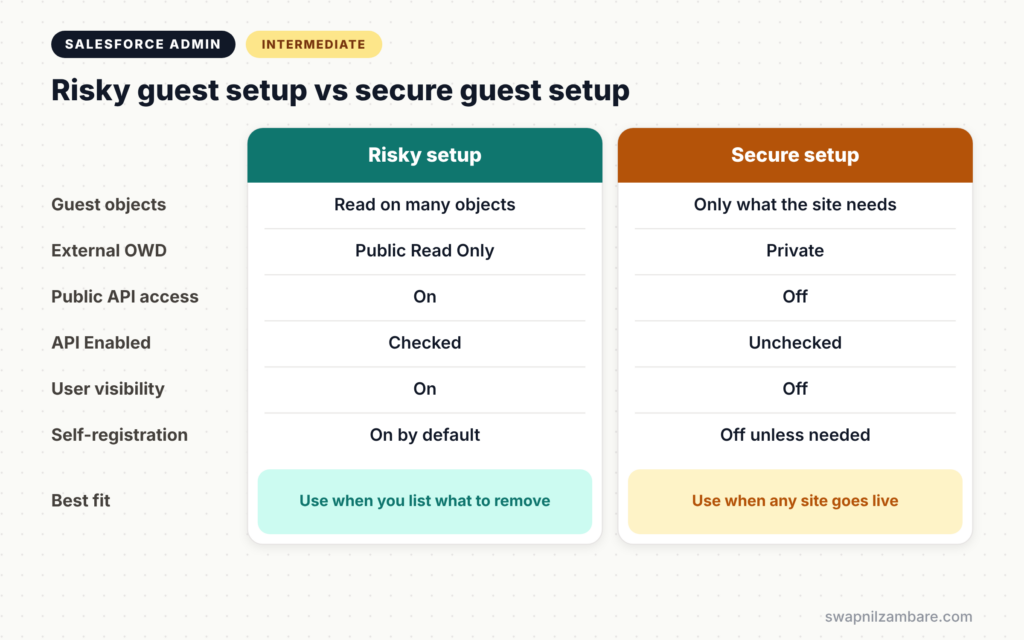
The table below compares a risky setup with a secure one.
| Setting | Risky setup | Secure setup |
|---|---|---|
| Guest profile objects | Read on many objects | Only objects the site needs |
| External OWD | Public Read Only | Private |
| Public API access | On | Off |
| API Enabled on profile | Checked | Unchecked |
| Portal and site user visibility | On | Off |
| Self-registration | On by default | Off unless needed |
When to use which is not a real choice. Always aim for the secure column, then open only what your site requires.
How to Secure Salesforce Guest User Security Step by Step
Let’s apply Salesforce Guest User Security to the Bright Path Tutors course catalogue site.
Step 1: Audit the Guest User Profile
- Go to Setup > All Sites and open Builder for your site.
- Next, open Settings > General and click the guest user profile.
- Review every object permission and remove anything not clearly needed.
- Then review field-level security on the remaining objects.
The table below shows what the catalogue site really needs.
| Object | Access | Fields |
|---|---|---|
| Course | Read | Name, Level, Start Date, Is Online |
| Contact | None | None |
| Enrolment | None | None |
Step 2: Set External Defaults to Private
- Go to Setup > Sharing Settings.
- Next, set Default External Access to Private for all objects.
- Then confirm “Secure guest user record access” is turned on.
Step 3: Add One Guest Sharing Rule
- In Sharing Settings, open Course Sharing Rules and click New.
- Choose “Guest user access, based on criteria”.
- Set the criteria to Show On Website equals True.
- Then share with the site’s guest user as Read Only.
Step 4: Turn Off Public APIs
- In the site settings, untick “Allow guest users to access public APIs”.
- Next, in the guest user profile’s system permissions, untick API Enabled.
Step 5: Hide Users and Profiles
- In Sharing Settings, untick Portal User Visibility and Site User Visibility.
- Next, go to User Management Settings and turn on Profile Filtering.
- Then, in the site’s Administration > Preferences, turn on Show Nicknames.
Step 6: Review Self-Registration
- Open Workspaces > Administration > Login & Registration.
- If the site does not need sign-ups, remove the self-registration page.
- If it does, assign the most restrictive profile and require email verification.
Testing Salesforce Guest User Security as a Guest
After you change Salesforce Guest User Security settings, open the site in a private browser window, without logging in. Check that the catalogue still works. Then try to open a contact or enrolment URL directly. You should see an error or nothing at all. Also run Health Check and review any guest-related warnings.
Enhanced Personal Information Masking
If guests can see other site members, some standard user fields may become visible. Field-level security cannot hide many standard user fields. So Salesforce recommends Enhanced Personal Information Masking, set in User Management Settings, to hide personal details such as phone and address.
Common Mistakes with Salesforce Guest User Security
- Giving the guest profile access “just in case”.
- Leaving external org-wide defaults at Public Read Only.
- Keeping public API access on when the site does not need it.
- Leaving self-registration on for a site that never needed sign-ups.
- Testing only while logged in as an admin.
Best Practices for Salesforce Guest User Security
- Start every guest profile from zero access.
- Use guest sharing rules with tight criteria.
- Turn off public APIs and API Enabled for guests.
- Hide internal users, profiles and real names.
- Review guest settings after every new site feature and every release.
Practice Task
Create a test site in your Developer Edition org. Then follow the six steps above and test as a guest in a private window. Hint: try opening a record URL for an object the guest should not see.
Most Asked Interview Questions on Salesforce Guest User Security
Questions on Salesforce Guest User Security are very common for Experience Cloud roles. Here are the ones asked most.
Basic Questions on Salesforce Guest User Security
Q1. What is a guest user?
It is the account Salesforce uses for anyone who visits a public site page without logging in. Each site has one guest user profile.
Q2. How do guest users get access to records?
Through guest user sharing rules. With private external defaults, guests see no records without such a rule.
Q3. What access level can a guest sharing rule give?
Read Only. Guests cannot be given edit access to records through sharing rules.
Q4. What is Profile Filtering?
It stops users from seeing profiles other than their own, unless they have the View All Profiles permission.
Practical Questions on Salesforce Guest User Security
Q5. A public site shows course data. How do you make it safe?
Give the guest profile read access only to Course and needed fields. Set external defaults to Private and add one criteria-based guest sharing rule.
Q6. What is the most important single guest setting to check?
Public API access for guests. Turn it off and untick API Enabled on the guest profile unless the site truly needs it.
Q7. How do you stop guests from listing internal users?
Untick Portal User Visibility and Site User Visibility, turn on Profile Filtering and enable Show Nicknames.
Q8. How do you test guest security?
Open the site in a private window without logging in. Then try to reach records and pages the guest should not see.
Official Resources
- Secure Experience Cloud Guest User Access (Salesforce Blog)
- Guest User Security Guidelines (Salesforce Developers)
Quick Recap
- Salesforce Guest User Security controls what public site visitors can see.
- Start the guest profile from zero and add only what the site needs.
- Keep external defaults Private and use tight guest sharing rules.
- Turn off public APIs and hide internal users and profiles.
- Test as a real guest after every change.
What’s Next?
Salesforce also tightens security with each release. Next, read our guide to Salesforce security release updates in Winter ’27.


