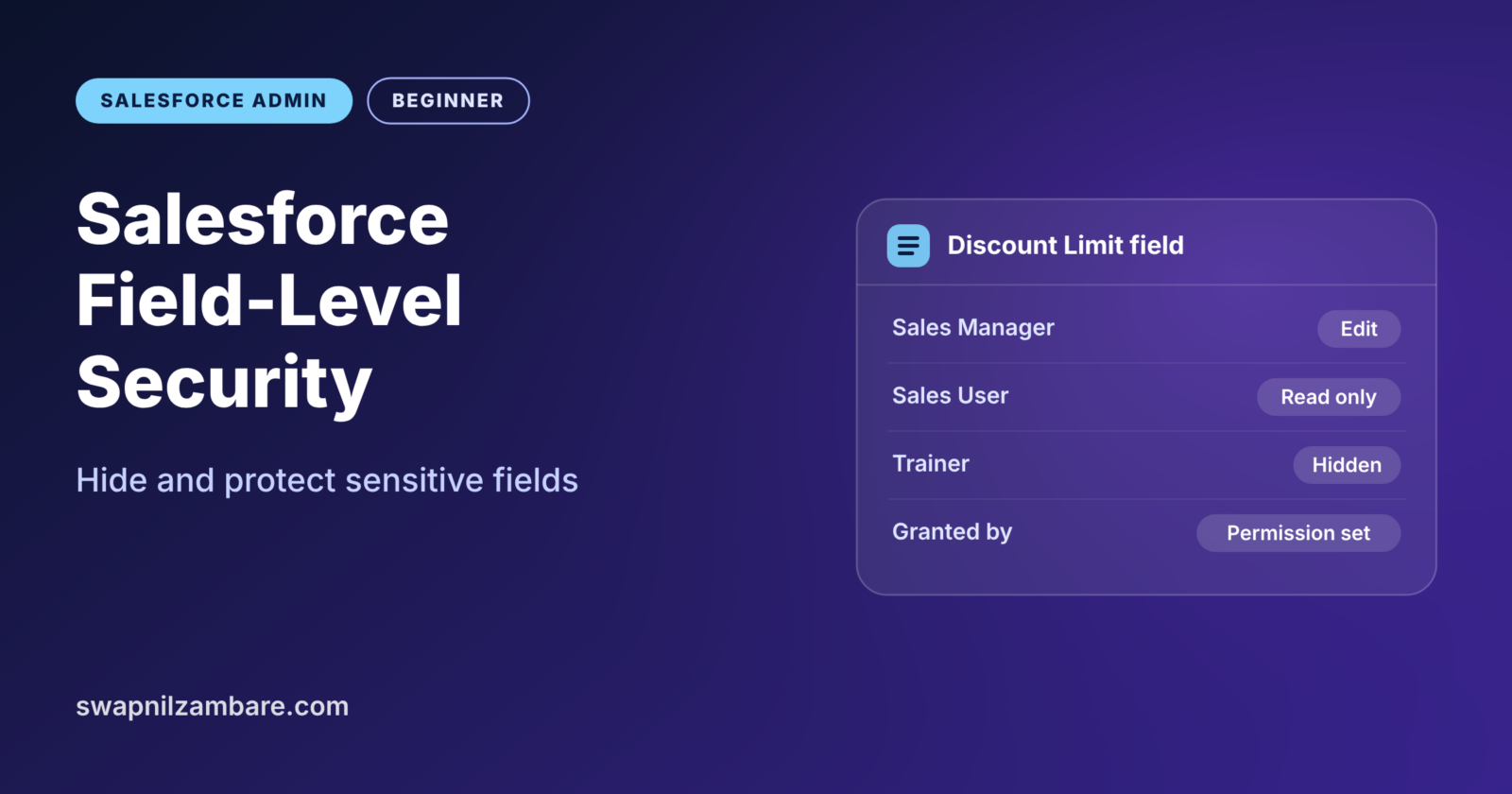
Salesforce Field-Level Security controls who can see a field and who can edit it. Admins often call it FLS. For example, everyone may see a record, but only some people may see one sensitive field on it. That field might be a salary, a discount or a bank detail.
In this post, you will learn how Salesforce Field-Level Security works and how it differs from page layouts. Then you will set it up the right way. You will also learn how to check what one user can really see. This builds on profiles and permission sets and on sharing rules, roles and OWD. The interview questions at the end come up in almost every admin interview.
What is Salesforce Field-Level Security?
Field-level security is a setting on each field that decides access for each profile and permission set. For every field, you choose whether users can see it, and whether they can edit it. If a user has no read access, the field simply disappears for them everywhere.
Think of a school report card. The student, parents and class teacher can see the marks. Only the class teacher can change them. Also, students never see the school’s internal notes about fees. Field-level security works the same way, one field at a time.
Why Salesforce Field-Level Security Matters
Records often mix public and private details, and Salesforce Field-Level Security handles that mix. Without field-level security, you would have to hide whole records just to protect one field. That would block people from work they need to do.
Here is how FLS helps at Bright Path Tutors.
- Everyone can see a Course, but only managers can see the Discount Limit field.
- Trainers can see the course fee, but they cannot change it.
- Support agents never see a student’s payment reference number.
- Reports and list views follow the same rules, so private data never leaks through a report.
- Data loads through the API also respect these rules for normal users.
In short, sharing decides which records users see. Field-level security decides which fields inside those records they see.
How Salesforce Field-Level Security Works
Salesforce checks access in layers, and Salesforce Field-Level Security is the last one. First, object permissions decide if a user can open Course records at all. Next, sharing decides which Course records they can see. Then field-level security decides which fields on those records are visible and editable.
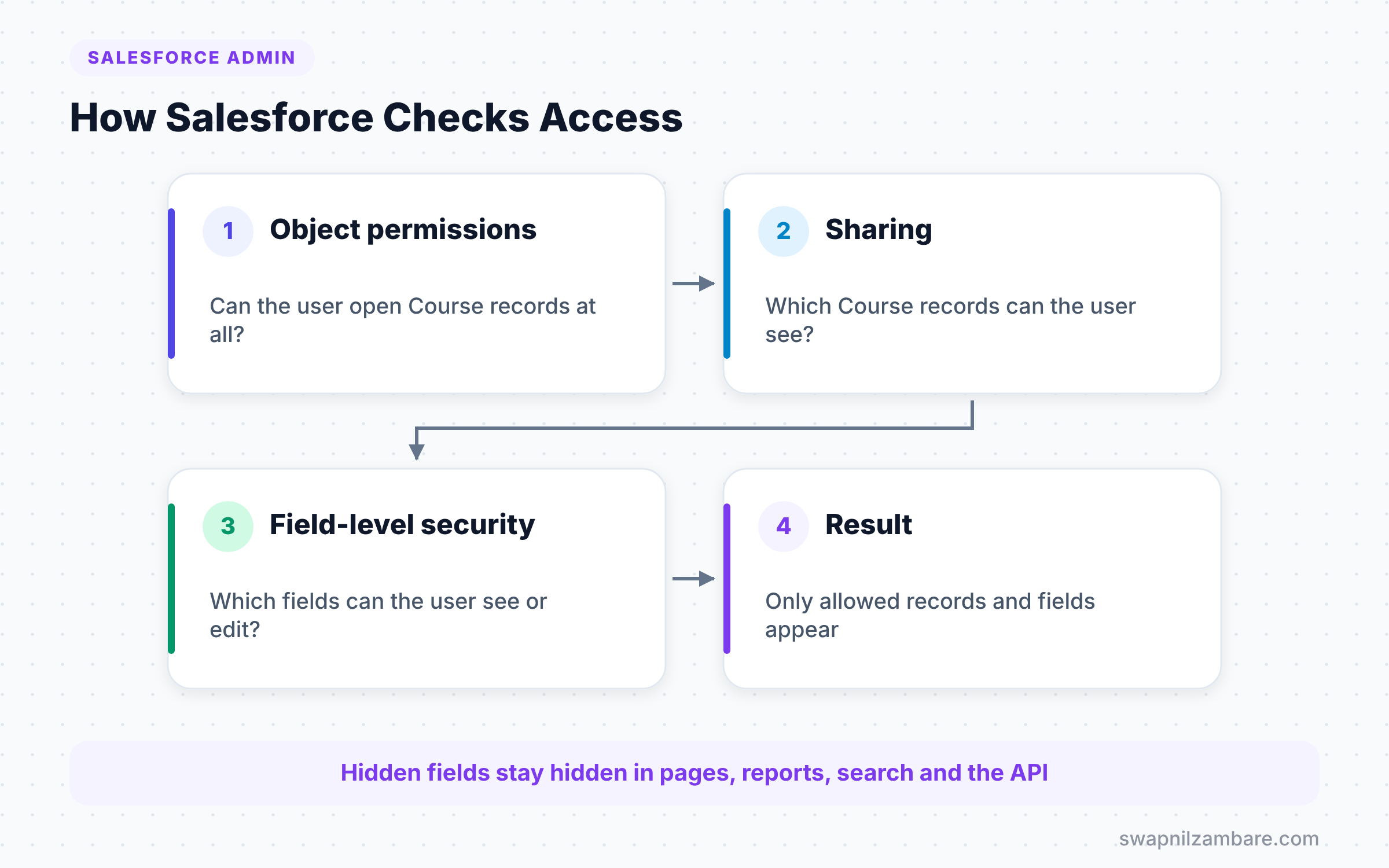
Each field has two settings per profile or permission set. “Read Access” means the user can see the field. “Edit Access” means the user can also change it. If a user gets access from several places, Salesforce uses the most generous one.
Where Field-Level Security Applies
This is what makes Salesforce Field-Level Security real security. It applies in every part of Salesforce, not just on the record page.
| Place | Respects field-level security |
|---|---|
| Record pages and layouts | Yes |
| List views and search results | Yes |
| Reports and dashboards | Yes |
| API, Data Loader and integrations | Yes, for the running user |
| Apex code in system mode | No, unless the code checks user access |
That last row matters for developers. Apex runs in system mode by default, so code must check user access itself, for example with WITH USER_MODE in SOQL.
Field-Level Security vs Page Layouts
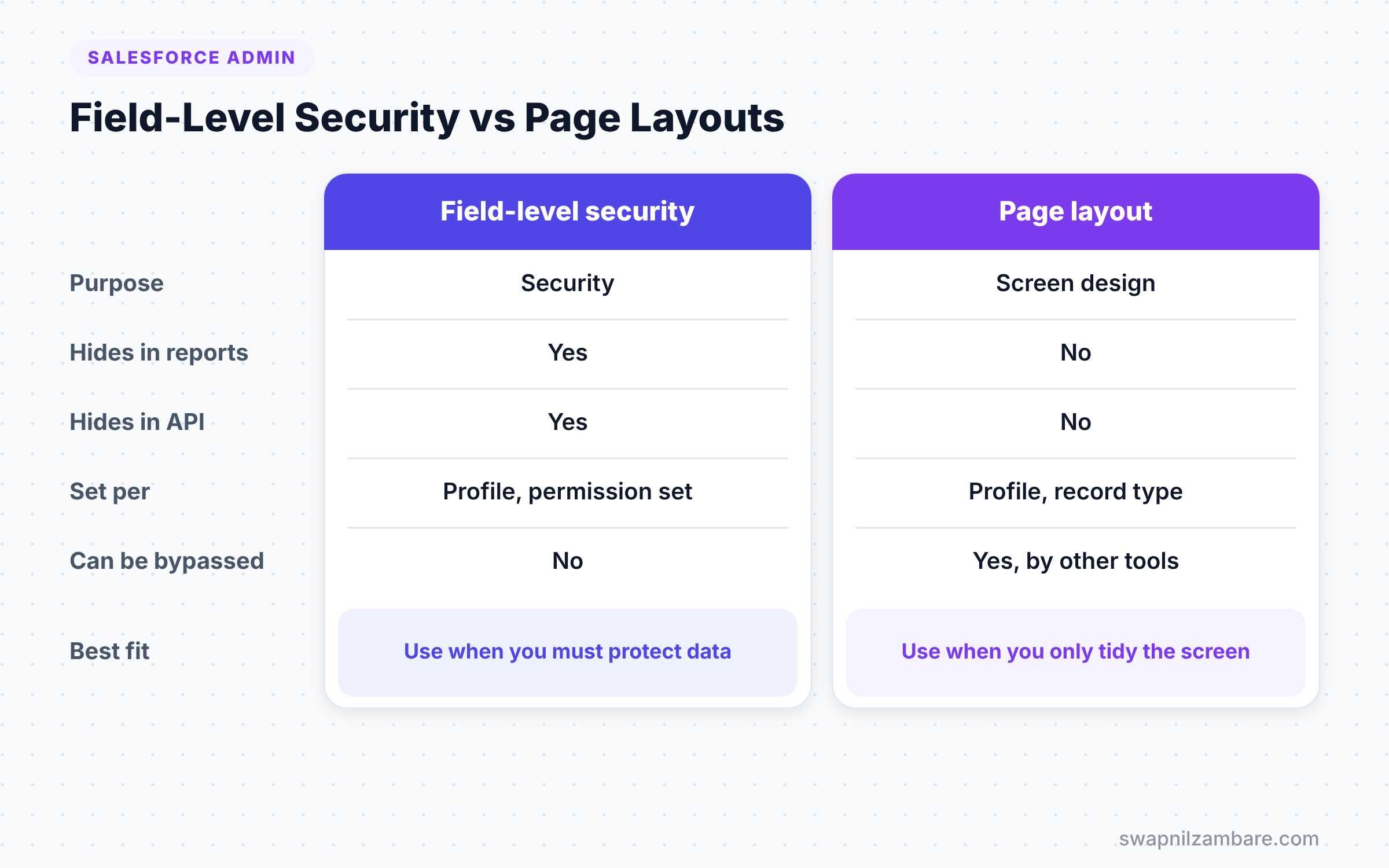
This is the most confused topic in admin interviews, so take your time here. Both can make a field read-only or hide it, but only one is real security. The table below compares them.
| Feature | Field-level security | Page layout |
|---|---|---|
| Purpose | Security | Screen design |
| Hides field in reports | Yes | No |
| Hides field in API and list views | Yes | No |
| Set per | Profile and permission set | Profile and record type |
| Read-only that users cannot bypass | Yes | No, other tools can still edit |
| Best use | Protect sensitive data | Keep pages tidy |
When to use which is clear. Use field-level security to protect data, and use page layouts only to arrange the screen.
Ways to Set Salesforce Field-Level Security
There are three common places to set Salesforce Field-Level Security. However, they all change the same underlying settings.
From the Field Itself
Go to Setup > Object Manager > Course > Fields & Relationships > Fee > Set Field-Level Security. You then see every profile in a list with Visible and Read-Only checkboxes. This view is quick when you change one field for many profiles.
From a Permission Set
Open a permission set, then Object Settings > Course > Edit. You see every Course field with Read Access and Edit Access checkboxes. This is the modern, recommended way to grant field access.
When You Create a New Field
The new field wizard includes a step called “Establish field-level security”. It lists profiles with Visible and Read-Only checkboxes. Many admins untick all profiles here, then grant access through permission sets instead.
A Real Salesforce Field-Level Security Example
Let’s use Salesforce Field-Level Security to protect a new field at Bright Path Tutors. We will create a Discount Limit field on Course that only sales managers can see and edit. Trainers should not see it at all.
Step 1: Create the Field
- Go to Setup > Object Manager > Course > Fields & Relationships > New.
- Choose Percent, then click Next.
- Enter the values from the table below, then click Next.
- On the field-level security step, untick Visible for every profile.
- Then click Next and Save.
The table below shows the values for the new field.
| Setting | Value |
|---|---|
| Field Label | Discount Limit |
| Field Name | Discount_Limit |
| Length | 3 |
| Decimal Places | 0 |
| Help Text | Highest discount a manager may give |
Step 2: Create a Permission Set
- Go to Setup > Users > Permission Sets and click New.
- Name it “Course Discount Manager”, then save.
- Next, open Object Settings > Course > Edit.
- Tick Read Access and Edit Access for Discount Limit.
- Finally, click Save.
Step 3: Assign the Permission Set
- Click Manage Assignments, then Add Assignment.
- Select the sales manager users and click Assign.
Step 4: Check the Result
Log in as a trainer, or use the “Login As” option on the user record. Then open a Course. The Discount Limit field does not appear on the page, in list views or in reports. When a sales manager opens the same Course, the field is there and editable.
Checking What One User Can See
Sometimes a user says, “I cannot see the Fee field.” Salesforce has a handy tool to check this without guessing.
- Go to Setup and type “Field Accessibility” in Quick Find.
- Then choose the Course object.
- Next, choose “View by Fields” and pick Fee.
- Finally, read the table, which shows Editable, Read-Only or Hidden for each profile and record type.
You can also click “View Field Accessibility” from the field’s own page. For a full view of one person, check the user’s profile and all their permission sets. After all, access adds up across them.
Common Mistakes with Salesforce Field-Level Security
- Hiding a field only on the page layout. Users can still see it in reports and list views.
- Giving field access through many profiles. Use permission sets, so access is easy to review.
- Forgetting new fields. Profiles you untick cannot see a new field, so users may report a “missing field”.
- Trying to hide required fields. Universally required fields must stay visible.
- Assuming Apex respects FLS. Code in system mode can still read hidden fields unless it checks access.
Best Practices for Salesforce Field-Level Security
- Grant field access through permission sets and permission set groups.
- Keep profiles light, with only the basic access every user needs.
- Review sensitive fields, such as discounts and IDs, every quarter.
- Use Field Accessibility to answer “why can’t I see it” questions quickly.
- Ask developers to use
WITH USER_MODEin queries that return data to users.
Practice Task
Create a field called Trainer Rating on Course. Make it visible and read-only for the Standard User profile, and editable only through a permission set. Hint: use the field’s Set Field-Level Security page for the profile, and the permission set for edit access.
Most Asked Interview Questions on Salesforce Field-Level Security
Field-level security is a favourite interview topic, because it tests whether you understand real data protection. Here are the questions you will hear most.
Basic Questions on Salesforce Field-Level Security
Q1. What is field-level security?
It is a setting that controls who can see and edit each field. You set it on profiles and permission sets. So if a user lacks read access, the field disappears everywhere for them.
Q2. What are the two settings in field-level security?
Read Access lets a user see the field. Edit Access lets the user change it. In the profile view, these appear as Visible and Read-Only.
Q3. Where can you set Salesforce Field-Level Security?
You can set it from the field’s Set Field-Level Security button, from a profile, or from a permission set. The new field wizard also has an FLS step.
Q4. Does field-level security apply to reports?
Yes. A hidden field does not appear in reports, list views, search results or the API for that user. This is why FLS counts as real security.
Practical Questions on Salesforce Field-Level Security
Q5. What is the difference between FLS and page layout read-only?
Field-level security is real security that applies everywhere. Page layout read-only only changes one screen. Users could still edit the field through other tools, such as inline edit on a list view or Data Loader.
Q6. A user has read-only FLS from the profile and edit access from a permission set. What wins?
The most generous access wins. So the user can edit the field. Salesforce adds access across the profile and all permission sets.
Q7. How do you check why a user cannot see a field?
Use the Field Accessibility page in Setup, or the “View Field Accessibility” button on the field. Then check the user’s profile and permission sets for read access.
Q8. Does Apex respect field-level security?
Not by default. Apex runs in system mode, so it can read fields the user cannot see. Developers enforce FLS with WITH USER_MODE in SOQL or with Security.stripInaccessible.
Official Resources
- Field-Level Security (Salesforce Help)
- Set Field Permissions in Permission Sets and Profiles (Salesforce Help)
- Trailhead: Data Security
Quick Recap
- Salesforce Field-Level Security controls who can see and edit each field.
- It applies on pages, list views, reports, search and the API.
- Page layouts only arrange the screen, so they are not security.
- Grant field access through permission sets for clean, reviewable access.
- Use Field Accessibility to check what each profile can see.
What’s Next?
With security in place, let’s make your org look and feel like your company. Next, read our guide to Salesforce themes and branding to set colours, logos and a branded login page.


