Salesforce Themes and Branding let you make Salesforce look like your own company. With a few settings, you can add your logo and set your brand colours. You can also give the login page a familiar look. Users trust a system more when it clearly belongs to their company.
In this post, you will create a custom theme, brand a Lightning app and style the login page. These are small tasks, but they make a big first impression, especially on launch day. This builds on our guides to company settings and Lightning App Manager. We also touch on My Domain, which we covered in the post on single sign-on and My Domain.
What Are Salesforce Themes and Branding?
A theme is a set of visual settings for Lightning Experience. It includes a logo, a brand colour and a page background. Branding also covers app colours and the login page, which you set in other parts of Setup.
Think of a new office. The building is the same as next door. However, your company puts its logo on the door and paints the walls in its colours. Salesforce is the building. Themes and branding are the paint and the signs.
Why Salesforce Themes and Branding Matter
Salesforce Themes and Branding are not just decoration. It has real, practical benefits for users and admins.
- Users feel at home when they see their company logo and colours.
- Different app colours help users know which app they are in.
- A branded login page helps users spot fake login pages, which reduces phishing risk.
- Sandboxes can use a different colour, so nobody confuses test and production.
- Leaders often judge a new system by its first look, so branding helps adoption.
That sandbox tip is very useful. At Bright Path Tutors, the production org uses indigo, while the sandbox uses bright orange. Nobody enters real data in the wrong org by mistake.
How Salesforce Themes and Branding Work
Salesforce Themes and Branding work in three layers. First, the org theme sets the logo, brand colour and background for everyone. Next, each Lightning app can show its own colour and logo in the navigation bar. Finally, the My Domain login page shows your logo and colours before users even log in.
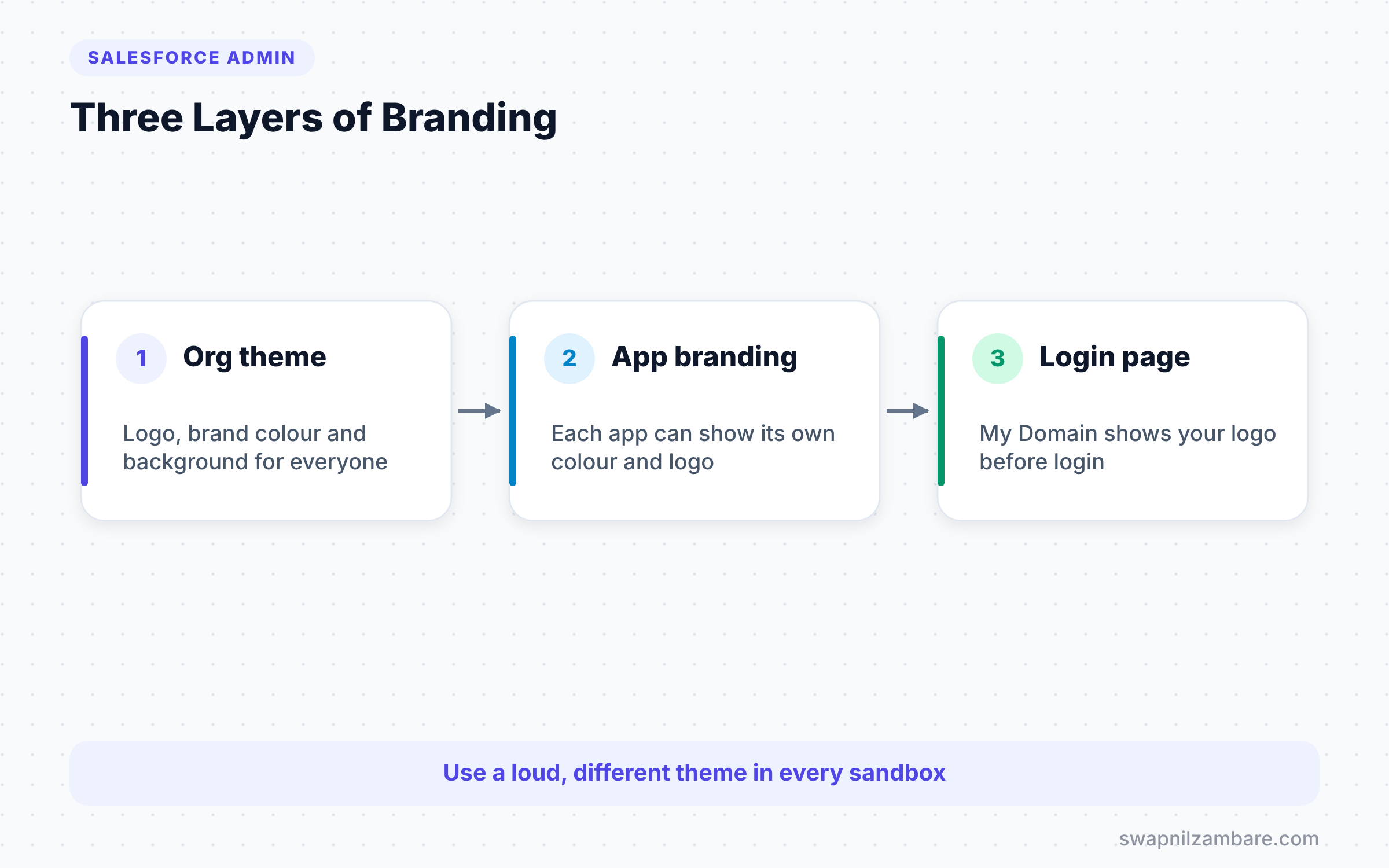
Only one org theme can be active at a time. When you activate a new theme, every user sees it after a page refresh. You do not need to deploy anything.
The Parts of a Custom Theme
Theme Name
A clear name helps you find the theme later, such as “Bright Path Brand” or “Sandbox Warning”.
Brand Image
This is your logo. It shows at the top left of every page. A wide logo with a clear or white background usually looks best.
Brand Colour
This colour shows on buttons, highlights and links. Pick a strong colour with good contrast, so text stays easy to read.
Page Background
You can choose a plain background colour or upload a background image. Keep it light and simple, so it never distracts from the data.
Header Colour Option
There is an option to use the brand colour for the global header at the top. This makes the brand much more visible. Many companies turn it on for their sandbox theme, so the warning colour is impossible to miss.
Built-in Themes vs Custom Themes
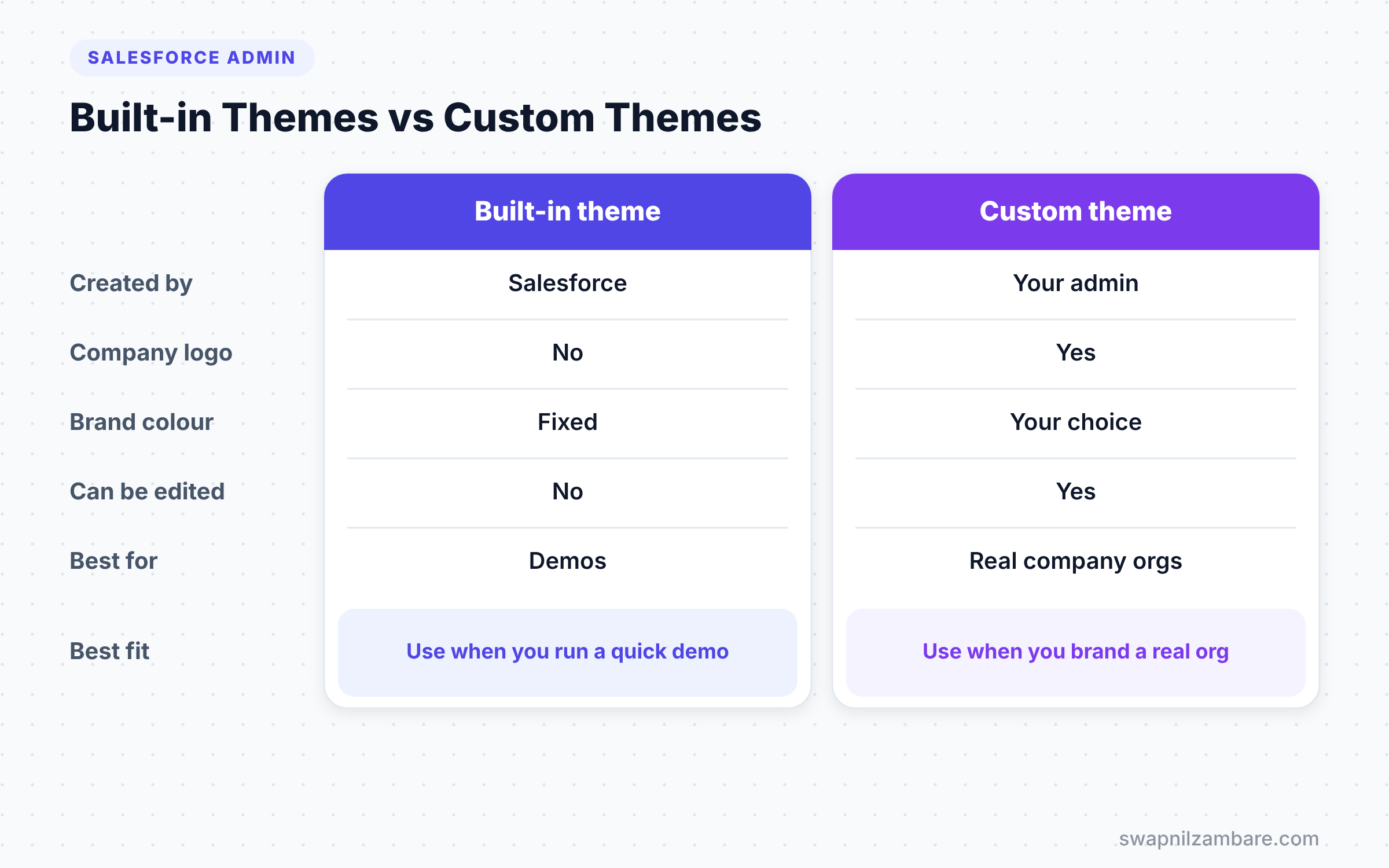
Salesforce ships a few built-in themes, and you can also create your own. The table below compares them.
| Feature | Built-in theme | Custom theme |
|---|---|---|
| Created by | Salesforce | Your admin |
| Company logo | No | Yes |
| Brand colour | Fixed | Your choice |
| Background | Set by Salesforce | Colour or image of your choice |
| Can be edited | No, only cloned | Yes |
| Best for | Quick start, demos | Real company orgs |
When to use which is simple. Use a built-in theme for demos, and create a custom theme for any real company org.
How to Create a Custom Theme Step by Step
Let’s set up Salesforce Themes and Branding for the Bright Path Tutors production org. Follow each step in order.
- Go to Setup and type “Themes and Branding” in Quick Find.
- Then click New Theme.
- Enter the values from the table below.
- Next, click Save.
- On the themes list, open the arrow menu next to your theme and click Preview.
- If it looks right, open the arrow menu again and click Activate.
The table below shows the values for the production theme.
| Setting | Value |
|---|---|
| Theme Name | Bright Path Brand |
| Brand Color | #4F46E5 |
| Brand Image | Bright Path Tutors logo, PNG |
| Page Background | #F8FAFC |
| Use brand color for global header | Unchecked |
After you activate it, refresh any page. You will see the new logo at the top left and indigo highlights on buttons.
Create a Sandbox Warning Theme
Now let’s make sure nobody confuses the sandbox with production.
- Log in to the sandbox and open Themes and Branding.
- Then create a theme called “Sandbox Warning”.
- Set Brand Color to #EA580C, a bright orange.
- Tick the option to use the brand colour for the global header.
- Finally, save and activate it.
Now the whole header in the sandbox turns orange. Users see at once that they are in a test org.
Salesforce Themes and Branding for Lightning Apps
Each Lightning app can have its own colour and logo too. This helps when users switch between apps all day.
- Go to Setup > Apps > App Manager.
- Next, open the arrow menu on the Course Sales app and click Edit.
- In App Details and Branding, set a Primary Color Hex Value and upload an image.
- Then tick the option to use the app’s image and colour instead of the org’s custom theme.
- Finally, click Save.
Now the navigation bar of that app shows its own colour. Other apps still follow the org theme.
Branding the Login Page
The login page is the first thing users see every day. So it deserves the same Salesforce Themes and Branding care, which you set through My Domain.
- Go to Setup and type “My Domain” in Quick Find.
- Next, scroll to Login Page Branding and click Edit.
- Upload your logo and choose a background colour.
- Optionally, add a Right Frame URL to show a news page beside the login form.
- Finally, click Save.
Users now see your logo and colours when they visit your My Domain URL. This also helps them notice fake login pages that do not match.
Display Density Settings
Themes cover colours, but layout density also changes how Salesforce feels. Salesforce offers two density options, Comfy and Compact. Comfy shows labels above fields with more space. Compact puts labels beside fields, so more data fits on screen.
You set the org default in Setup > Density Settings. Users can still choose their own setting from their profile menu. Many data-heavy teams prefer Compact.
Common Mistakes with Salesforce Themes and Branding
- Using a dark or busy background image that makes text hard to read.
- Uploading a tall, narrow logo that looks tiny in the header.
- Using the same theme in sandbox and production, which leads to mistakes.
- Forgetting the login page, so users still see a plain screen every morning.
- Choosing a brand colour with poor contrast for white text on buttons.
Best Practices for Salesforce Themes and Branding
- Keep the production theme calm and close to your company style guide.
- Use a loud, different colour for every sandbox.
- Preview a theme before you activate it.
- Brand the login page with the same logo and colour as the app.
- Check readability with your brand colour on buttons and links.
Practice Task
In your Developer Edition org, create a theme with your own colour and a simple logo. Then create a second theme with an orange header and switch between them. Hint: use Preview first, so you can compare without affecting other users.
Most Asked Interview Questions on Salesforce Themes and Branding
Questions on Salesforce Themes and Branding are lighter than security topics. Still, they appear in admin interviews. Interviewers often use them to see how you think about users.
Basic Questions on Salesforce Themes and Branding
Q1. What is a theme in Salesforce Lightning?
A theme is a set of visual settings for the org. It includes a brand image, a brand colour and a page background. Only one theme can be active at a time.
Q2. Where do you create a custom theme?
In Setup, under Themes and Branding. You click New Theme, set the logo and colours, then preview and activate it.
Q3. Can you edit a built-in theme?
No. Built-in themes come from Salesforce and stay fixed. However, you can create your own custom theme with your settings.
Q4. How many themes can be active at once?
Only one org theme can be active at a time. However, Lightning apps can show their own colours on top of the theme.
Practical Questions on Salesforce Themes and Branding
Q5. How do you help users tell a sandbox from production?
Create a different theme in each sandbox, such as a bright orange header. You can also change the logo to include the word “Sandbox”. Then users see at once which org they are in.
Q6. How do you brand the login page?
Use My Domain. Go to Setup > My Domain > Login Page Branding. Then upload a logo, pick a background colour and optionally set a right frame URL.
Q7. Can each app have its own colour?
Yes. In Lightning App Manager, set the app’s primary colour and image. Then choose to use the app’s image and colour instead of the org theme.
Q8. What is the difference between Comfy and Compact density?
Comfy shows field labels above values with more space. Compact shows labels beside values, so more data fits on screen. Admins set the default, and users can change it for themselves.
Official Resources
- Customize Your Lightning Experience Theme (Salesforce Help)
- Customize Your My Domain Login Page (Salesforce Help)
- Trailhead: Lightning Experience Customization
Quick Recap
- Salesforce Themes and Branding make the org look like your company.
- A custom theme sets the logo, brand colour and page background.
- Only one org theme is active at a time, but apps can have their own colours.
- Use a loud, different theme in sandboxes to avoid mistakes.
- Brand the login page through My Domain.
What’s Next?
Your org now looks great, so let’s get reports to people automatically. Next, read our guide to Salesforce report subscriptions and dashboard subscriptions.


