Lightning App Manager is the Setup page where admins create and edit Lightning apps. An app groups tabs, a brand colour and a set of handy tools. Each app is built for one team. When each team gets its own tidy app, users find what they need faster and make fewer mistakes.
In this post, you will build a full Lightning app for Bright Path Tutors, step by step. You will add navigation items, set the branding and add a utility bar with quick tools. If you have read our guide to Lightning App Builder, you already know how to design record pages. Here we focus on the app around those pages. It also helps to know profiles and permission sets, because profiles decide who can open each app.
What is Lightning App Manager?
Lightning App Manager lists every app in your org. It also gives you tools to create new apps and edit existing ones. You open it from Setup > Apps > App Manager. Each Lightning app has a name, a logo, a colour, a navigation bar and an optional utility bar.
Think of your phone’s home screen. You might keep one folder for work apps and another for travel apps. A Lightning app is like one of those folders. It groups the tabs a team uses every day, and it hides the rest.
Why Lightning App Manager Matters
Without Lightning App Manager, every user would see every tab in the org. That is confusing and slow. Apps keep the screen focused on real work.
Here is how apps help at Bright Path Tutors.
- The sales team gets a “Course Sales” app with Leads, Students, Courses and Reports.
- The support team gets a “Student Support” app with Cases, Knowledge and a console layout.
- Trainers get a small “Trainer Hub” app with Courses, Calendar and Tasks.
- Each app shows the right colour and logo, so users always know where they are.
- A utility bar gives quick tools, such as Notes or Recent Items, on every page.
How Lightning App Manager Works
When you create an app, a short wizard walks you through each part. First, you set the details and choose the navigation style. Next, you add utility items and pick navigation items. Finally, you choose which profiles can use the app. When you save, the app appears in the App Launcher for those users.
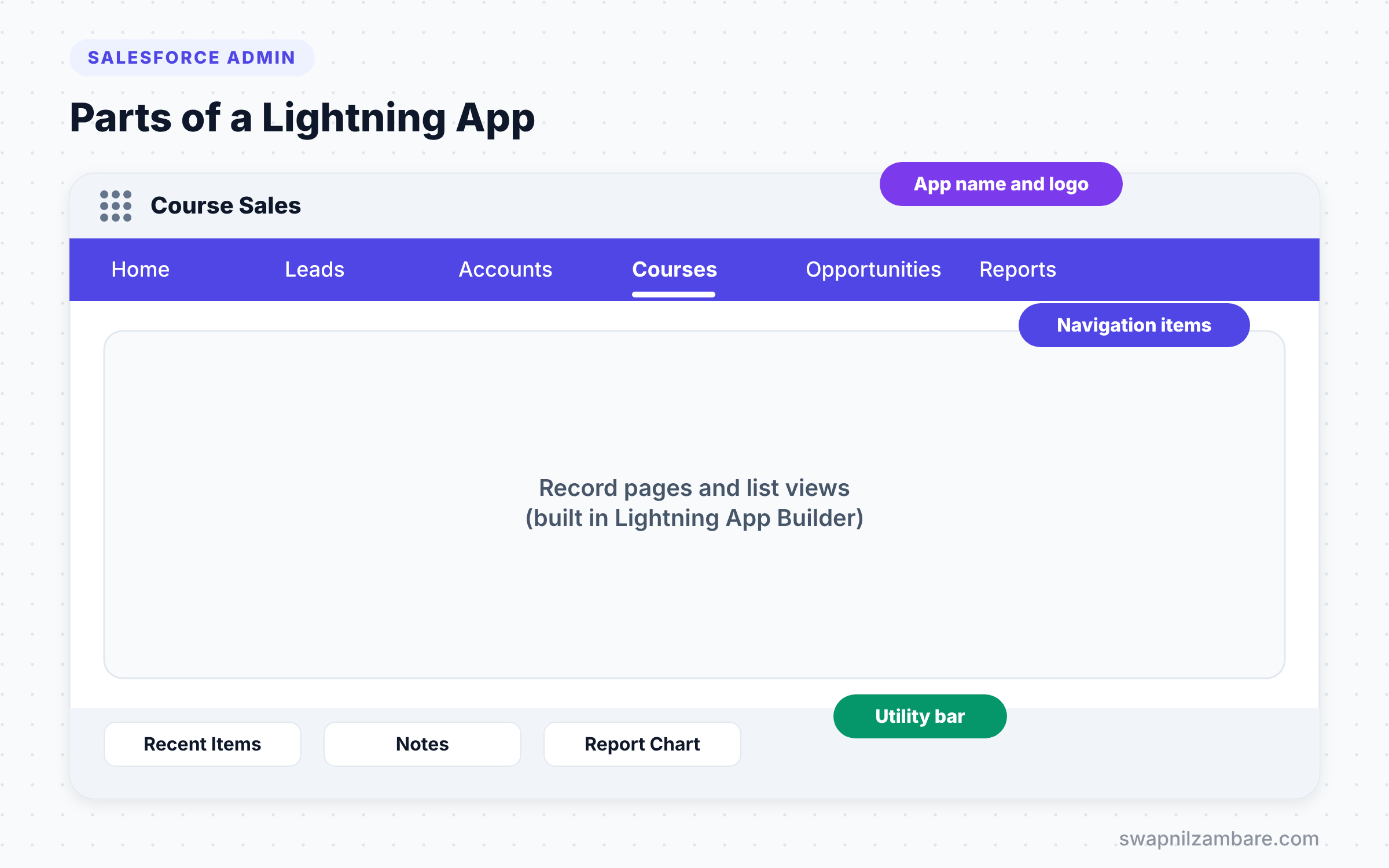
Users switch apps with the App Launcher, the grid of nine dots at the top left. Salesforce remembers the last app each user opened. So when they log in the next day, they land in the same app.
The Main Parts of a Lightning App
Every Lightning app has the same building blocks. Let’s look at each one.
App Details and Branding
This is the name, the API name, a short description, a logo image and a primary colour. The colour shows in the navigation bar, so teams can tell apps apart at a glance.
Navigation Style
You can choose standard navigation or console navigation. Standard navigation opens one record at a time, like a normal website. Console navigation opens records in tabs and subtabs, so agents can work on many records at once.
Navigation Items
Navigation items are the tabs in the top bar, such as Home, Courses, Accounts and Reports. You choose them and set their order. Users can also personalise their own bar, unless you turn that off.
Utility Bar
The utility bar is a thin footer at the bottom of the screen. It holds quick tools that open in a small panel without leaving the current page. Common utility items include Notes, Recent Items, a List View, a Flow and a Report Chart.
User Profiles
You choose which profiles can see the app. If a profile is not on the list, its users will not find the app in the App Launcher.
Standard Navigation vs Console Navigation
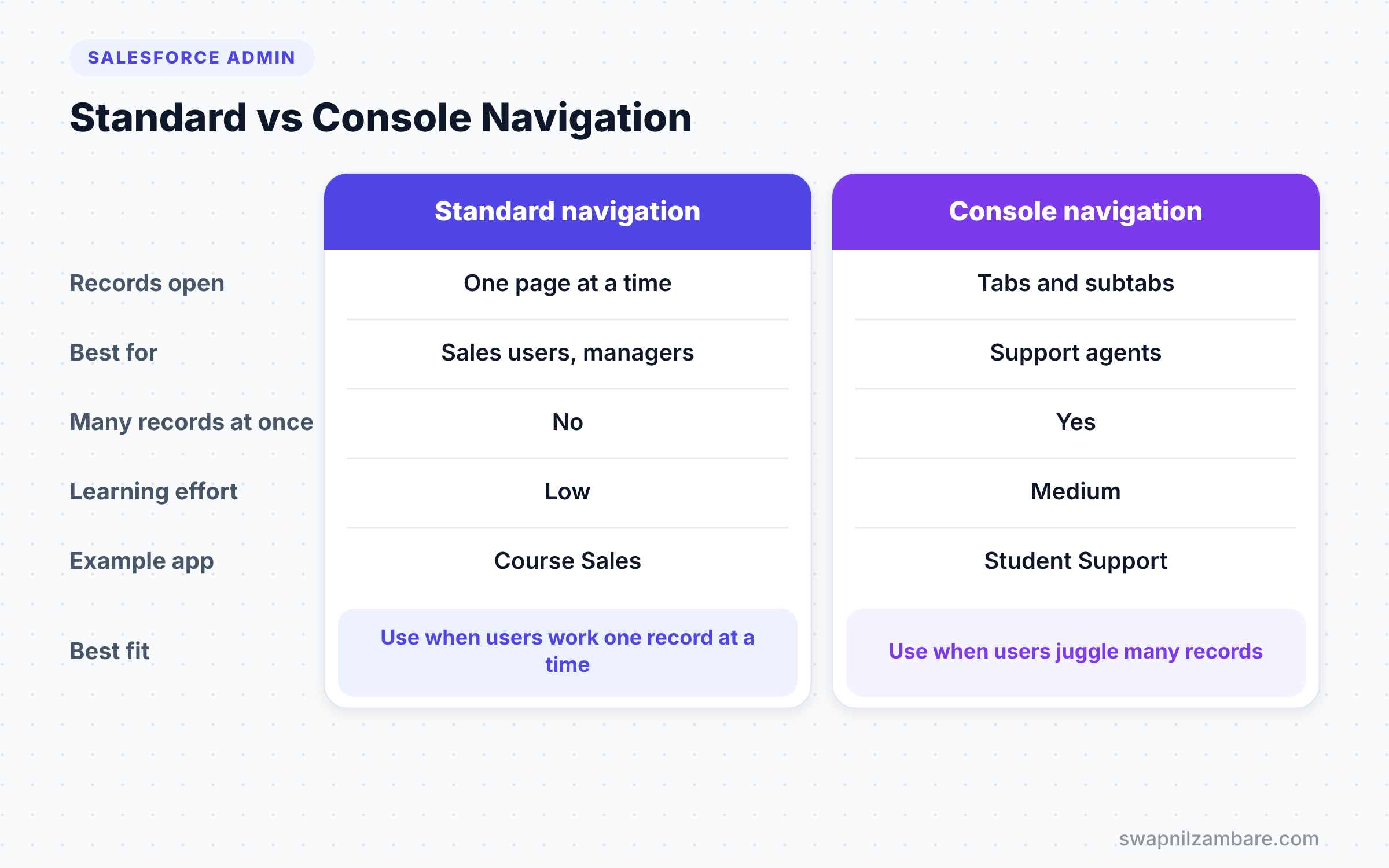
Picking the right navigation style is one of the first choices in Lightning App Manager. The table below compares the two options.
| Feature | Standard navigation | Console navigation |
|---|---|---|
| How records open | One page at a time | Workspace tabs and subtabs |
| Best for | Sales users, managers | Support agents, busy back offices |
| Many records at once | No | Yes |
| Related record context | Click back and forth | Side by side in subtabs |
| Learning effort | Low | Medium |
| Example app | Course Sales | Student Support |
When to use which is fairly simple. Use standard navigation for most teams, and use console navigation when users handle many records in quick succession.
How to Build an App in Lightning App Manager
Let’s build the “Course Sales” app for Bright Path Tutors. Follow each step in order.
Step 1: Start a New App
- Go to Setup > Apps > App Manager.
- Click New Lightning App at the top right.
Step 2: App Details and Branding
Fill in the values from the table below, then click Next.
| Field | Value |
|---|---|
| App Name | Course Sales |
| Developer Name | Course_Sales |
| Description | App for the Bright Path Tutors sales team |
| Primary Color Hex Value | #4F46E5 |
| Image | Upload a small square logo |
Step 3: App Options
- Choose Standard navigation.
- Keep Supported Form Factors as Desktop and Phone.
- Leave personalisation turned on, so users can add their own items.
- Click Next.
Step 4: Utility Items
- Click Add Utility Item and choose Recent Items.
- Add Notes, so sales users can jot down call notes.
- Add a Report Chart and point it to a “My Open Opportunities” report.
- For each item, check the label and panel size, then click Next.
Step 5: Navigation Items
- Move Home, Leads, Accounts, Courses, Opportunities, Reports and Dashboards to the Selected Items box.
- Put them in the order users work, starting with Home.
- Click Next.
Step 6: User Profiles
- Add the Sales User profile and the System Administrator profile.
- Click Save & Finish.
Now open the App Launcher, search for “Course Sales” and open it. You will see the blue bar, your tabs and the utility bar at the bottom.
Editing an App in Lightning App Manager
To change an app later, go back to Setup > Apps > App Manager. Find the app, click the small arrow at the end of its row and choose Edit. You then see the same sections as a side menu. So you can jump straight to Utility Items or Navigation Items.
Some old apps in the list show “Classic” as their type. You can upgrade them to Lightning apps from the same arrow menu. Salesforce creates a Lightning copy and keeps the Classic version for Classic users.
Personal Navigation for Users
Users can personalise the navigation bar in apps that allow it. They click the pencil icon at the right end of the bar. Then they can add items, rename them for themselves and change the order.
They can also add a temporary tab by opening any record from search. This saves clicks for work they do often. However, some teams need a fixed layout, such as during training. In that case, turn personalisation off in the app options.
Common Mistakes with Lightning App Manager
- Forgetting to add profiles. The app exists, but nobody can see it in the App Launcher.
- Adding too many navigation items. Users then scroll or miss the tabs they need.
- Using console navigation for every app. Sales users often find it heavy for simple work.
- Leaving the default grey colour. Teams cannot tell apps apart at a glance.
- Building a separate app for every tiny group, which makes the App Launcher cluttered.
Best Practices for Lightning App Manager
- Build one app per team or main process, not per person.
- Keep navigation items to the 6 to 10 tabs a team uses most.
- Use a clear colour and logo for each app.
- Add only useful utility items, such as Notes, Recent Items or a key flow.
- Review apps every release, because Salesforce adds new utility items over time.
Practice Task
Build a “Student Support” app with console navigation. Add Cases, Accounts, Knowledge and Reports as navigation items. Then add History and Notes to the utility bar. Hint: History works best in console apps, because it tracks the tabs you opened.
Most Asked Interview Questions on Lightning App Manager
These questions come up often in Salesforce Admin interviews. Read the answers, then try to explain them with your own example.
Basic Questions on Lightning App Manager
Q1. What is Lightning App Manager?
It is the Setup page where admins create and edit Lightning apps. You find it at Setup > Apps > App Manager. It lists every app in the org.
Q2. What is a Lightning app?
A Lightning app is a group of navigation items with its own name, logo, colour and utility bar. Admins build one app for each team or process, such as Sales or Support.
Q3. What is the utility bar?
The utility bar is a footer at the bottom of a Lightning app. It holds quick tools, such as Notes, Recent Items or a flow. Each tool opens in a small panel, so users never leave the page.
Q4. How do users switch between apps?
They use the App Launcher, the grid of nine dots at the top left. They can search for an app by name and open it.
Practical Questions on Lightning App Manager
Q5. What is the difference between standard and console navigation?
Standard navigation opens one record at a time. Console navigation opens records in workspace tabs and subtabs, so users can handle many records at once. Support teams often use console apps.
Q6. A user cannot see a new app. What would you check?
First, check that Lightning App Manager lists the user’s profile for that app. Next, check that the user has access to the objects behind the tabs. Finally, ask the user to search for the app in the App Launcher.
Q7. Can users change the navigation bar themselves?
Yes, as long as the app options allow personalisation. Users can add, rename and reorder items with the pencil icon. Admins can turn this off for apps that need a fixed layout.
Q8. How do you upgrade a Classic app to Lightning?
In Lightning App Manager, open the arrow menu on the Classic app’s row and choose Upgrade. Salesforce creates a Lightning copy, which you can then edit and assign to profiles.
Official Resources
- Create Lightning Apps (Salesforce Help)
- Add a Utility Bar to Lightning Apps (Salesforce Help)
- Trailhead: Lightning Experience Customization
Quick Recap
- Lightning App Manager lists every app and lets you create and edit them.
- A Lightning app groups navigation items with a name, logo and colour.
- Standard navigation suits most teams, while console navigation suits busy agents.
- The utility bar adds quick tools at the bottom of every page.
- Profiles decide who can see each app in the App Launcher.
What’s Next?
Apps decide what users see. However, licences decide which features they may use at all. Next, read our guide to Salesforce user licenses, permission set licenses and feature licenses.


