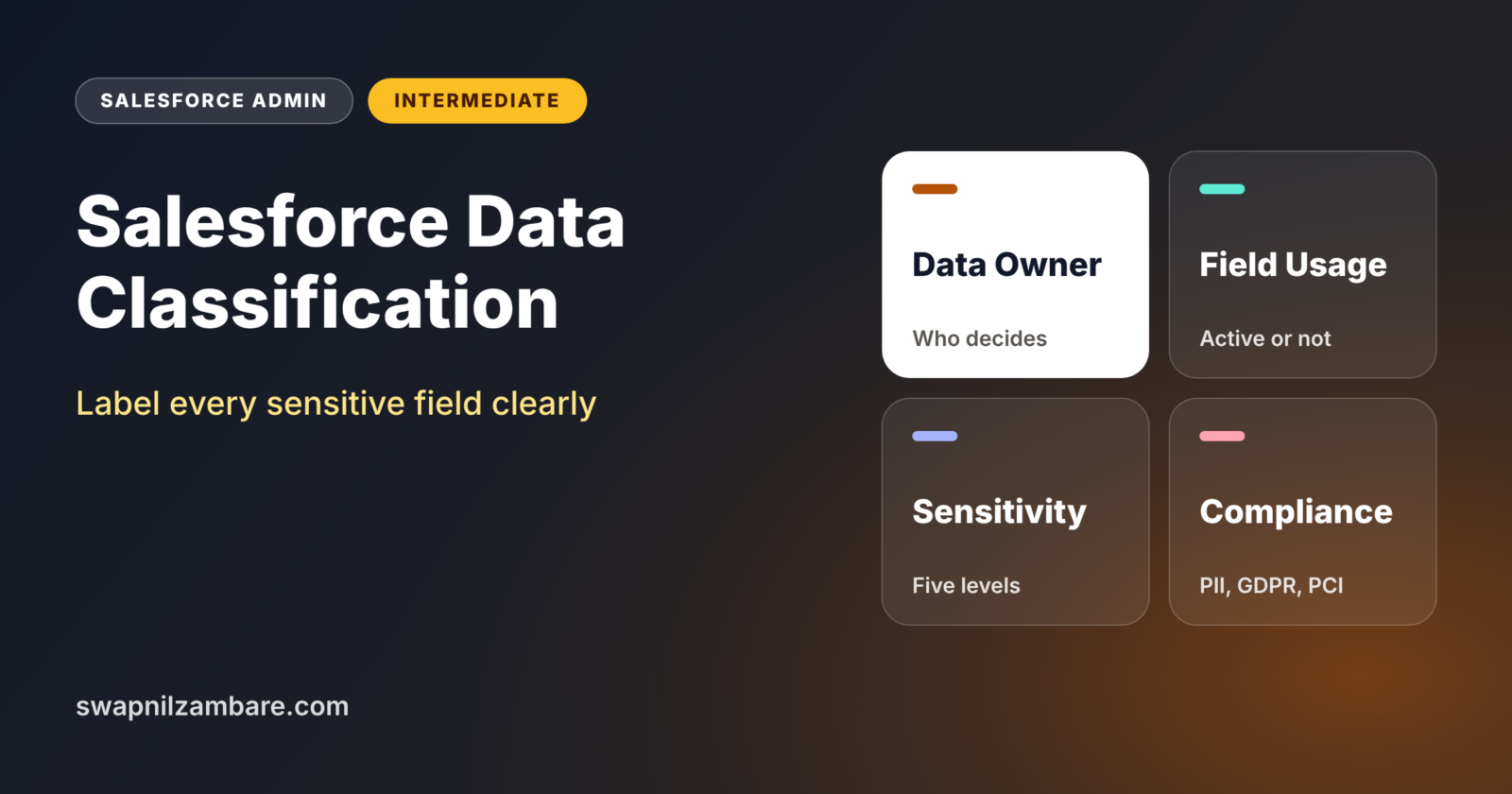
Salesforce Data Classification lets you label each field with how sensitive it is, who owns it and which privacy rules apply. For example, you can mark a student’s phone number as Confidential and PII. Once fields are labelled, security, privacy and clean-up work becomes much easier.
In this post, you will learn the four data classification fields, how to fill them in, and how to report on them with SOQL. This builds on field-level security and consent management and privacy. It also supports Platform Encryption, because you need to know which fields are sensitive before you encrypt them.
What is Salesforce Data Classification?
Salesforce Data Classification is a set of metadata fields on every field in your org. Metadata means information about your setup, not about your records. These classification fields describe each field’s owner, usage, sensitivity and compliance needs. They do not change who can see the data. Instead, they document how the data should be treated.
Think of colour-coded folders in a school office. Red folders hold medical records, yellow hold exam papers and green hold the lunch menu. Staff know at a glance how carefully to handle each folder. Salesforce Data Classification gives your fields those colour codes.
Why Salesforce Data Classification Matters
Most orgs have hundreds of fields. Without labels, nobody knows which ones hold sensitive data. Here is why Salesforce Data Classification matters at Bright Path Tutors.
- First, the privacy team must list every field with personal data for India’s DPDP Act.
- Also, the security team wants to encrypt only the most sensitive fields.
- Next, admins want to know who to ask before changing a field.
- Old, unused fields should be marked before clean-up.
- Finally, auditors ask how the company tracks sensitive data.
So classification turns a long list of fields into a clear map of risk.
How Salesforce Data Classification Works
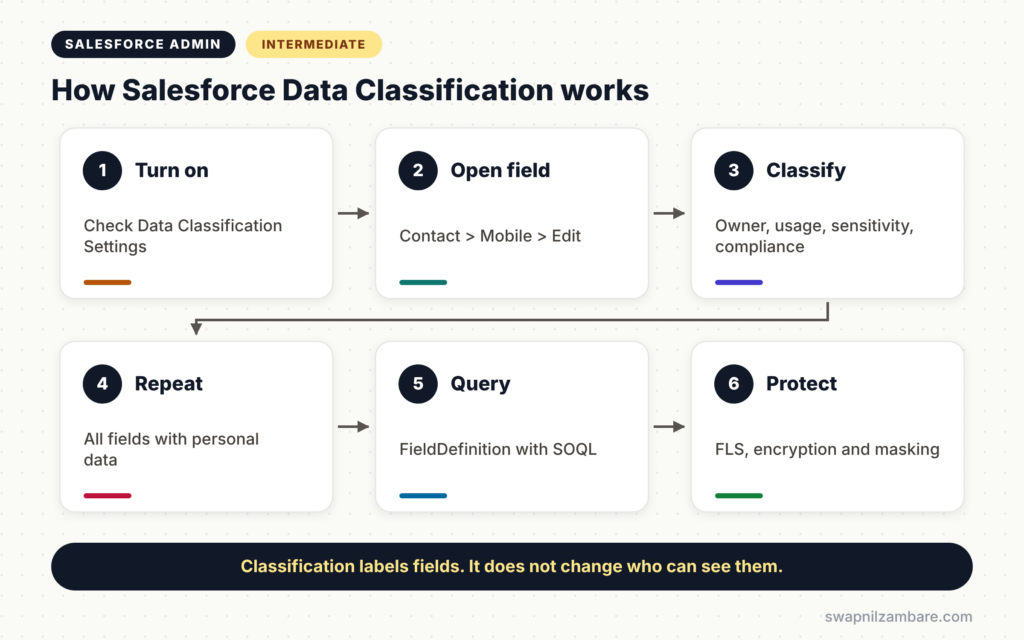
Salesforce Data Classification works at the field level. First, you make sure data classification is turned on in Setup. Next, you open a field and fill in its classification values. Then you repeat for every important field. After that, you query the values with SOQL or export them. Finally, security and privacy teams use the list to plan controls.
Data Owner
Data Owner names the person or group responsible for the field. For example, the Fee field belongs to the finance team. So admins know who to ask before a change.
Field Usage
Field Usage shows whether the field is Active, Hidden or a candidate for removal. This helps with technical debt clean-up later.
Data Sensitivity Level
This picklist shows how sensitive the data is. The default values include Public, Internal, Confidential, Restricted and Mission Critical.
Compliance Categorization
This multi-select picklist names the rules that apply, such as PII, GDPR, PCI or HIPAA. One field can have several categories.
Classification vs Field-Level Security
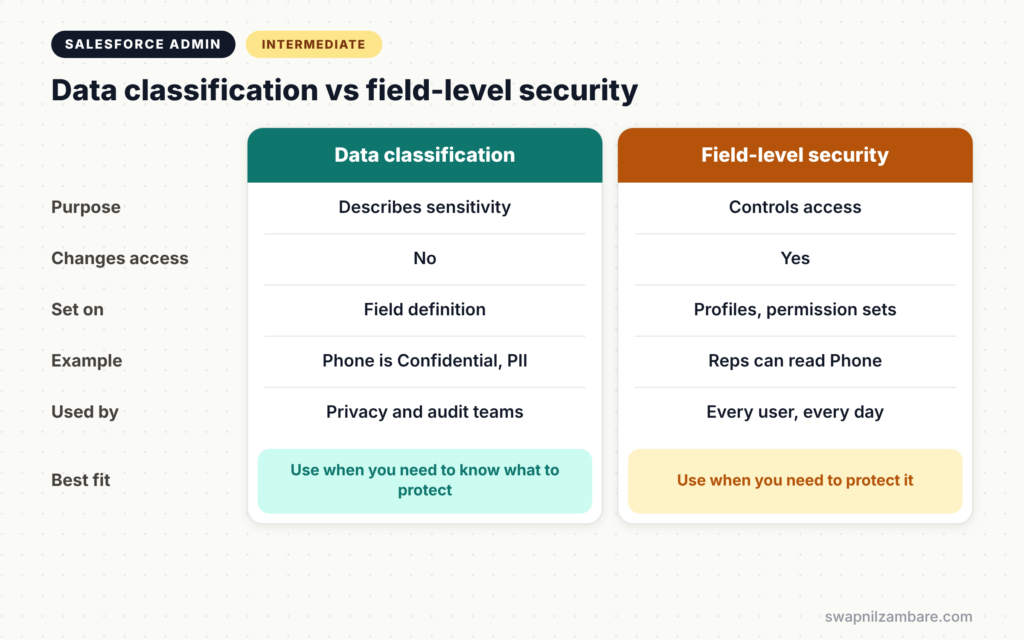
People often mix these up. The table below shows the difference.
| Feature | Data classification | Field-level security |
|---|---|---|
| Purpose | Describes how sensitive a field is | Controls who can see or edit it |
| Changes user access | No | Yes |
| Set on | Field definition | Profiles and permission sets |
| Example | Phone is Confidential, PII | Sales reps can read Phone |
| Used by | Privacy, security and audit teams | Every user, every day |
When to use which is clear: use both. Classification tells you which fields need protection. Field-level security, encryption and masking then apply that protection.
How to Set Up Salesforce Data Classification Step by Step
Let’s set up Salesforce Data Classification for the Contact object at Bright Path Tutors, where student details live.
Step 1: Check the Settings
- Go to Setup and type “Data Classification Settings” in Quick Find.
- Then make sure data classification is turned on.
- Next, review the picklist values for sensitivity level and compliance categories.
Step 2: Classify Key Fields
- Go to Object Manager > Contact > Fields & Relationships.
- Open the Mobile field and click Edit.
- Scroll to the data classification section and enter the values below.
- Then click Save, and repeat for the other fields.
The table below shows the values for key contact fields.
| Field | Data Owner | Sensitivity Level | Compliance |
|---|---|---|---|
| Mobile | Student Services | Confidential | PII |
| Student Services | Confidential | PII, GDPR | |
| Date of Birth | Student Services | Restricted | PII |
| Lead Source | Marketing | Internal | None |
Step 3: Report on Classification with SOQL
You can list classification values with a SOQL query on FieldDefinition. Run it in the Developer Console with Use Tooling API unticked.
SELECT QualifiedApiName, SecurityClassification, ComplianceGroup, BusinessStatus
FROM FieldDefinition
WHERE EntityDefinition.QualifiedApiName = 'Contact'
AND SecurityClassification != null
SecurityClassification holds the sensitivity level. ComplianceGroup holds the compliance categories, and BusinessStatus holds the field usage. So you get a quick inventory of classified fields.
Step 4: Act on the Results
- Check field-level security for every Restricted and Confidential field.
- Next, discuss encryption with the security team for Restricted fields.
- Then add masking rules for these fields in sandboxes.
Classifying Many Fields Faster
Clicking through every field takes time. So start with objects that hold personal data, such as Contact, Lead, Account and Case. Then work through custom objects. Some teams also use metadata tools or paid tools, such as Shield’s data detection features, to find sensitive values automatically. However, a person should always confirm the final labels.
Keeping Salesforce Data Classification Up to Date
Classification is not a one-time job. Add it to your field creation checklist, so every new field gets labelled on day one. Also review the list every six months with the privacy team. Our post on Data Mask for sandboxes shows how classified fields can drive masking rules.
Common Mistakes with Salesforce Data Classification
- Thinking classification hides data, when it only labels it.
- Labelling a few fields and stopping halfway.
- Leaving Data Owner blank, so nobody is responsible.
- Not adding classification to the new field checklist.
- Marking everything Restricted, which makes the labels meaningless.
Best Practices for Salesforce Data Classification
- Start with objects that hold personal data.
- Agree on what each sensitivity level means with security and legal teams.
- Fill in Data Owner for every important field.
- Export the classification list every quarter for audits.
- Use the labels to drive field-level security, encryption and masking.
Practice Task
Classify five fields on the Lead object in your Developer Edition org. Then run the FieldDefinition query for Lead and check your values appear. Hint: change the EntityDefinition filter to ‘Lead’.
Most Asked Interview Questions on Salesforce Data Classification
Questions on Salesforce Data Classification are becoming common as privacy laws grow. Here are the ones asked most.
Basic Questions on Salesforce Data Classification
Q1. What is data classification in Salesforce?
It is a set of metadata fields on each field that record its owner, usage, sensitivity level and compliance categories.
Q2. Does classification restrict access?
No. It only labels fields. Access is controlled by field-level security, sharing and other security tools.
Q3. Name the sensitivity levels.
The default values include Public, Internal, Confidential, Restricted and Mission Critical. Admins can adjust them.
Q4. What is compliance categorization?
It is a multi-select picklist that lists the rules a field falls under, such as PII, GDPR or PCI.
Practical Questions on Salesforce Data Classification
Q5. How do you list all classified fields on an object?
Query FieldDefinition with SecurityClassification and ComplianceGroup, filtered by the object’s API name.
Q6. How would you start classifying a large org?
First, focus on objects with personal data. Next, agree on level meanings with legal. Then classify fields object by object and add it to the new field checklist.
Q7. How does classification help with encryption?
It shows which fields are most sensitive, so the security team knows which ones to encrypt first.
Q8. Who should own classification?
The admin sets it up, but data owners and the privacy team should agree on the labels.
Official Resources
Quick Recap
- Salesforce Data Classification labels each field’s owner, usage, sensitivity and compliance needs.
- It documents risk but does not change access.
- Use it with field-level security, encryption and masking.
- Query FieldDefinition to build a quick inventory.
- Classify every new field as part of your checklist.
What’s Next?
Classification shows what to protect. Public sites need extra care. Next, read our guide to Salesforce Guest User Security.


