SOQL for Salesforce Admins is one of the most useful skills you can add in 2026. SOQL, the Salesforce Object Query Language, lets you ask the database a direct question, such as “Which courses have no fee?” You get the answer in seconds, without building a report.
In this post, you will learn basic SOQL in plain words and run real admin queries. You will also see when to use the Developer Console, Workbench and Salesforce Inspector. This builds on the Developer Console guide and Data Loader and the Import Wizard. It also helps with data migration and load order, where quick checks save hours.
What is SOQL for Salesforce Admins?
SOQL is a query language for reading Salesforce data. A query names the fields you want, the object to read and optional filters. SOQL only reads data. It never changes records, so it is safe to practise.
Think of a librarian’s search card. You write “Books by Ruskin Bond, published after 2000, sorted by title.” The librarian returns exactly that list. A SOQL query is that card, and Salesforce is the librarian.
Why SOQL for Salesforce Admins Matters
Reports are great for business users. However, admins often need fast, one-off answers. SOQL for Salesforce Admins gives those answers quickly. Here is how it helps at Bright Path Tutors.
- First, find courses with a blank fee before a data load.
- Also, list users who have not logged in for 90 days.
- Next, check the exact API names of fields for a Data Loader mapping.
- Count enrolments per course to spot duplicates.
- Finally, see which users have a permission set assigned.
So SOQL saves time on clean-up, audits and troubleshooting.
How SOQL for Salesforce Admins Works
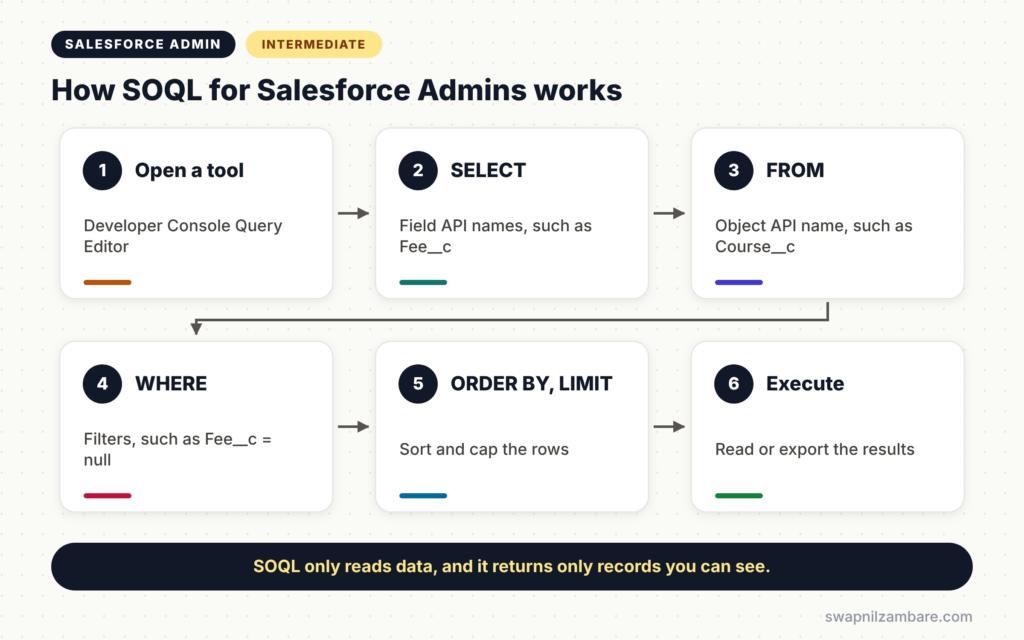
SOQL for Salesforce Admins follows a simple pattern. First, you open a query tool, such as the Developer Console. Next, you write SELECT, then the field API names. Then you write FROM and the object API name. After that, you add WHERE filters, ORDER BY and LIMIT. Finally, you run it and read or export the results.
SELECT and FROM
SELECT lists the fields, and FROM names the object. Always use API names, such as Fee__c, not labels.
WHERE
WHERE filters records, such as WHERE Level__c = ‘Beginner’. Text values go in single quotes. Numbers and dates do not.
ORDER BY and LIMIT
ORDER BY sorts results, and LIMIT caps how many rows return. Use LIMIT while testing, so you do not pull huge lists.
Relationship Fields
You can read parent fields with a dot, such as Owner.Name. So one query can show a course and the name of its owner.
Developer Console vs Workbench vs Inspector
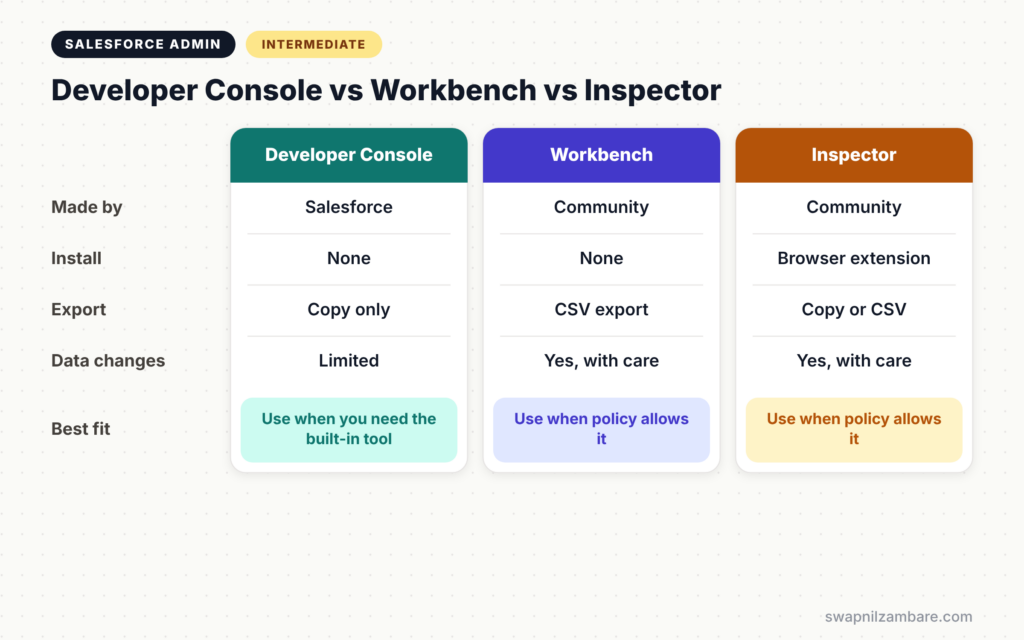
The table below compares the three popular query tools.
| Feature | Developer Console | Workbench | Salesforce Inspector |
|---|---|---|---|
| Provided by | Salesforce, built in | Community web tool | Community browser extension |
| Install needed | No | No | Yes, browser extension |
| Query editor | Yes | Yes | Yes, with autocomplete |
| Export results | Copy only | CSV export | Copy or CSV export |
| Data changes | Limited | Yes, use with care | Yes, use with care |
When to use which depends on your company rules. The Developer Console is always available. Workbench and Inspector are faster for exports, but check your security team’s policy first.
SOQL for Salesforce Admins: Real Queries Step by Step
Let’s run SOQL for Salesforce Admins at Bright Path Tutors in the Developer Console.
Step 1: Open the Query Editor
- Click the gear icon and choose Developer Console.
- Next, click the Query Editor tab at the bottom.
- Type a query and click Execute.
Step 2: Find Courses with No Fee
SELECT Id, Name, Level__c, Start_Date__c
FROM Course__c
WHERE Fee__c = null
ORDER BY Start_Date__c
LIMIT 50
This query lists courses with a blank fee, earliest start date first. Fix these before any price update.
Step 3: Find Inactive Users
SELECT Name, Username, LastLoginDate, Profile.Name
FROM User
WHERE IsActive = true AND LastLoginDate < LAST_N_DAYS:90
ORDER BY LastLoginDate
This lists active users who have not logged in for 90 days. They may need to be frozen to save licences and reduce risk. Profile.Name reads a field from the related profile.
Step 4: Count Enrolments per Course
SELECT Course__r.Name, COUNT(Id) total
FROM Enrolment__c
GROUP BY Course__r.Name
ORDER BY COUNT(Id) DESC
This groups enrolments by course and counts them. Courses with surprisingly high counts may contain duplicates.
Step 5: Check Permission Set Assignments
SELECT Assignee.Name, PermissionSet.Label
FROM PermissionSetAssignment
WHERE PermissionSet.Name = 'Finance_Team'
This shows everyone who has the Finance Team permission set. Audits like this are where SOQL for Salesforce Admins shines, because it is much faster than clicking through each user.
The table below shows the result of Step 4 for a few courses.
| Course Name | total |
|---|---|
| Apex Basics | 182 |
| LWC Basics | 96 |
| Admin Bootcamp | 240 |
Date Literals Admins Use Most
SOQL has handy date words, so you do not type exact dates. These are a big part of SOQL for Salesforce Admins. TODAY, YESTERDAY, THIS_MONTH, LAST_N_DAYS:30 and NEXT_N_DAYS:7 are the most useful. For example, WHERE CreatedDate = THIS_MONTH finds all records created this month.
Using Workbench and Inspector Safely
Many people learn SOQL for Salesforce Admins with Workbench and Salesforce Inspector. However, these are community tools, not official Salesforce products. Both connect with your Salesforce login. So install Inspector only from the official browser store, and ask your security team before using either tool in production. Also, both tools can update or delete data. Practise in a sandbox first, and double-check any update before you click.
Common Mistakes with SOQL for Salesforce Admins
- Using field labels instead of API names.
- Forgetting single quotes around text values.
- Running queries with no LIMIT on large objects.
- Updating data in Workbench without testing in a sandbox.
- Forgetting that queries only return records you can see.
Best Practices for SOQL for Salesforce Admins
- Start every new query with LIMIT 10, then remove it when it works.
- Save your favourite queries in a text file or note.
- Use relationship fields instead of exporting two objects and matching them.
- Follow your company’s rules on community tools.
- Use reports for business users and SOQL for admin checks.
Practice Task
Write a query that lists online courses starting in the next 30 days, sorted by start date. Hint: filter on Is_Online__c = true and use NEXT_N_DAYS:30.
Most Asked Interview Questions on SOQL for Salesforce Admins
Admin interviews now often include simple SOQL questions. Here are the ones asked most.
Basic Questions on SOQL for Salesforce Admins
Q1. What is SOQL?
It is the Salesforce Object Query Language. It reads records from Salesforce objects using SELECT, FROM and optional filters.
Q2. Can SOQL change data?
No. SOQL only reads data. Changes need DML, Data Loader or tools that update records.
Q3. Where can an admin run SOQL?
In the Developer Console Query Editor, Workbench, Salesforce Inspector or VS Code.
Q4. What is a date literal?
It is a word like TODAY or LAST_N_DAYS:30 that stands for a date range, so you do not type exact dates.
Practical Questions on SOQL for Salesforce Admins
Q5. How do you find users who have not logged in recently?
Query User with IsActive = true and LastLoginDate < LAST_N_DAYS:90, then review the list.
Q6. How do you read a parent field in SOQL?
Use dot notation, such as Owner.Name or Course__r.Name for a custom lookup.
Q7. How do you check who has a permission set?
Query PermissionSetAssignment and filter on PermissionSet.Name.
Q8. A query returns fewer records than expected. Why?
The running user may not have access to all records, or the filter may be wrong. Check sharing and test the filter step by step.
Official Resources
Quick Recap
- SOQL for Salesforce Admins gives quick answers without building reports.
- Queries use SELECT, FROM, WHERE, ORDER BY and LIMIT.
- Date literals and relationship fields make queries short and powerful.
- The Developer Console is built in, while Workbench and Inspector are community tools.
- Always test in a sandbox before changing data with any tool.
What’s Next?
Queries help you find sensitive data. Next, learn how to label it. Read our guide to Salesforce Data Classification and field sensitivity.


