The Salesforce Developer Console is a code tool that lives right inside your browser. You do not install anything. You open it from Setup, and within seconds you can run Apex, query records and read debug logs.
In the last few posts, we set up VS Code and the Salesforce CLI. Then we learned how to deploy and retrieve metadata. VS Code is your main workshop. The console, on the other hand, is your pocket toolkit for quick checks. If you read our admin post on debug logs, parts of this tour will feel familiar.
What is the Salesforce Developer Console?
The Salesforce Developer Console is a built-in development window for your org. It lets you create and edit Apex classes, triggers and Visualforce pages. It also lets you run code on the spot, write SOQL queries, run tests and study debug logs.
Think of it as the toolbox kept in the boot of a car. You would not rebuild an engine with it. However, it is perfect for changing a tyre or checking the oil on the road.
Why the Salesforce Developer Console Matters
Even teams that use VS Code every day still open the Salesforce Developer Console often. Here is why it stays useful.
- No setup. It works on any computer with a browser and a login.
- Anonymous Apex. You can test a few lines of code without saving a class.
- Quick queries. The Query Editor shows SOQL results in a table at once.
- Log viewer. Its log tools help you find slow steps and errors.
- Production checks. You can read logs and data in production, where you should not edit code anyway.
How to Open the Salesforce Developer Console
Log in to your Developer Edition org. Click the gear icon at the top right, then click Developer Console. A new browser window opens. If nothing appears, allow pop-ups for your Salesforce domain and try again.
The Main Areas of the Window
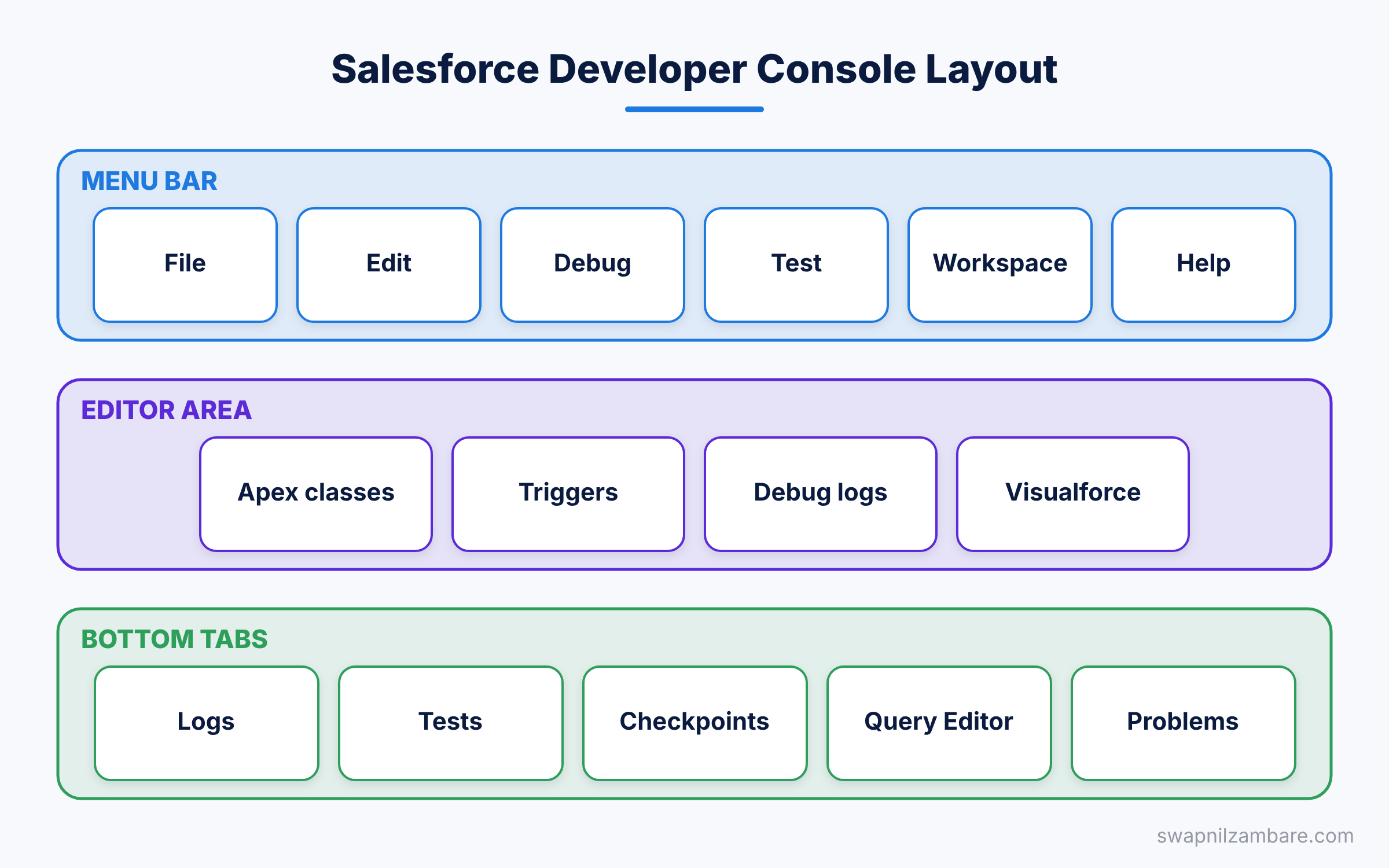
The console has a menu bar at the top and an editor area in the middle. Below that sits a row of tabs. The table below lists what each part does.
| Area | What it does |
|---|---|
| File menu | Create and open classes, triggers and pages |
| Debug menu | Run anonymous Apex and set log levels |
| Test menu | Run Apex tests and see coverage |
| Editor | Write and save code with basic hints |
| Logs tab | List debug logs from your actions |
| Query Editor tab | Run SOQL and SOSL queries |
| Problems tab | Show compile errors in your code |
Key Features of the Salesforce Developer Console
Let’s look at each main feature of the Salesforce Developer Console with a small Bright Path Tutors example.
Create an Apex Class
Go to File > New > Apex Class. Type CourseWelcome and click OK. The console opens a new class with a basic shell. Paste the code below and press Ctrl+S to save.
public class CourseWelcome {
    // Builds a short welcome line for a course name
    public static String getMessage(String courseName) {
        return 'Welcome to ' + courseName + '!';
    }
}
When you save, Salesforce compiles the class on its servers. If there is an error, it shows in the Problems tab with the line number.
Run Anonymous Apex
Anonymous Apex is code you run once without saving it. It is perfect for testing a method or fixing a few records. Go to Debug > Open Execute Anonymous Window, or press Ctrl+E.
// Try the class we just saved
String msg = CourseWelcome.getMessage('Apex Basics');
System.debug(msg);

// Count online courses
Integer total = [SELECT COUNT() FROM Course__c WHERE Is_Online__c = true];
System.debug('Online courses: ' + total);
Tick “Open Log”, then click Execute. The log opens in a new tab. Next, tick “Debug Only” at the top of the log to hide everything except your System.debug lines. You will see something like this.
USER_DEBUG [3]|DEBUG|Welcome to Apex Basics!
USER_DEBUG [7]|DEBUG|Online courses: 4
You can also select a few lines and click “Execute Highlighted”. As a result, only that part runs.
Use the Query Editor
Click the Query Editor tab at the bottom of the window. Type a SOQL query and click Execute.
SELECT Name, Fee__c, Level__c, Start_Date__c
FROM Course__c
WHERE Fee__c > 3000
ORDER BY Start_Date__c
The results appear in a grid. You can even edit a value in the grid and click Save Rows. However, be careful with this in production, because the change is real.
Tick “Use Tooling API” to query metadata instead of data. For example, SELECT Name, ApiVersion FROM ApexClass lists your Apex classes with their API versions.
Read Debug Logs
While the Salesforce Developer Console is open, every action you take in the org creates a log in the Logs tab. Double-click a log to open it. Then use Debug > View Log Panels to add useful panels.
The Execution Overview panel shows how long each part took. The Stack Tree shows which method called which. Together, they help you find slow code and the exact line of an error.
To control how much detail a log holds, go to Debug > Change Log Levels. For Apex work, set Apex Code to FINEST while you debug. Set it back to a lower level afterwards, because big logs are hard to read.
Set Checkpoints
A checkpoint captures the values of your variables at one line. Open a saved class and click in the margin next to a line number. A red dot appears. Next, run the code, then open the Checkpoints tab to inspect every variable at that moment. You can set up to five checkpoints at a time.
Run Tests
Here is a small test class for CourseWelcome. Create it with File > New > Apex Class and save it.
@isTest
private class CourseWelcomeTest {
    @isTest
    static void returnsWelcomeLine() {
        String msg = CourseWelcome.getMessage('Apex Basics');
        Assert.areEqual('Welcome to Apex Basics!', msg);
    }
}
Go to Test > New Run, select CourseWelcomeTest and click Run. The Tests tab shows a green tick if the test passes. Then check the Overall Code Coverage panel, which should show 100% for CourseWelcome.
Salesforce Developer Console vs VS Code
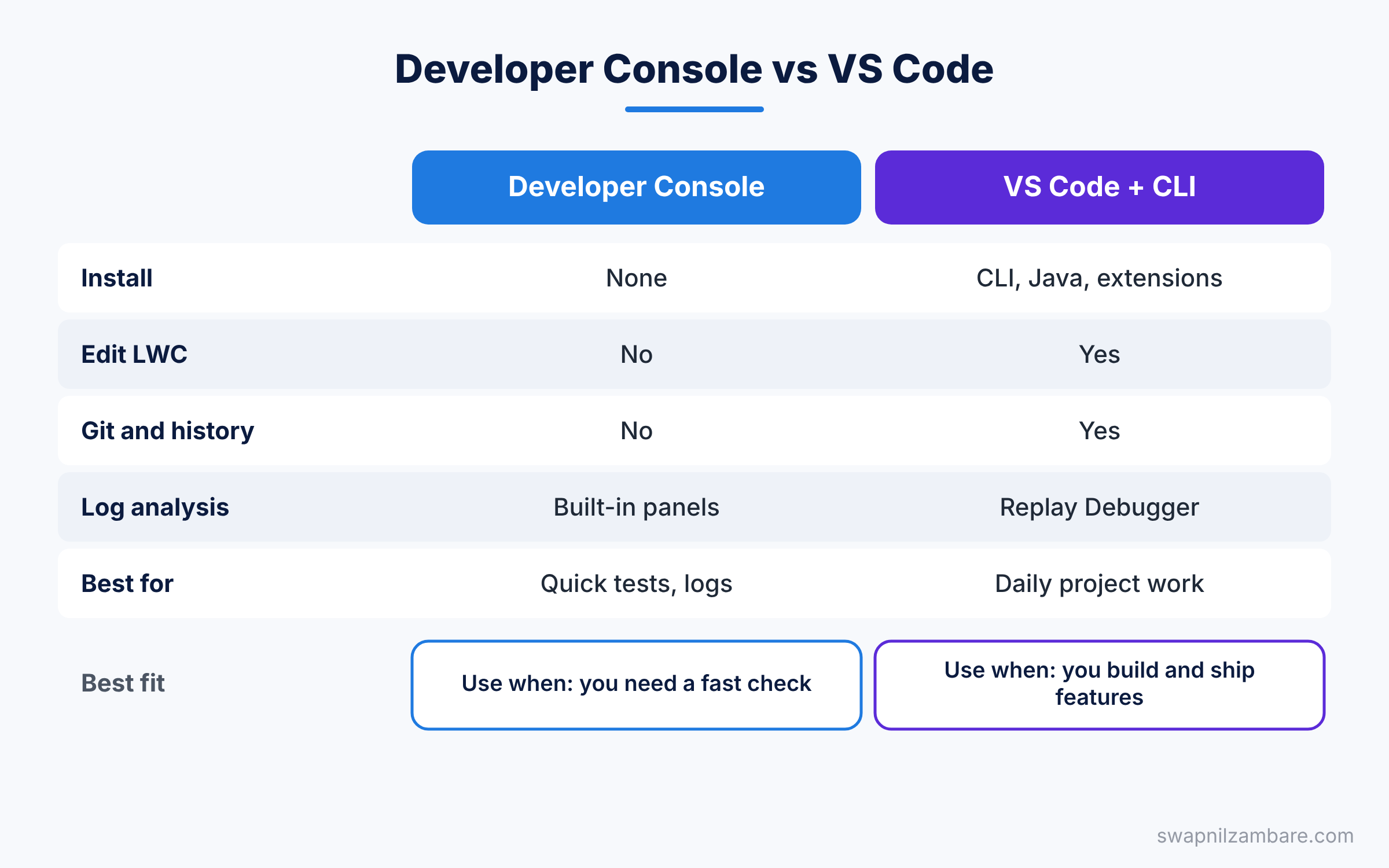
Both tools edit Apex, so when should you use each one? The table below compares them.
| Feature | Developer Console | VS Code with Salesforce CLI |
|---|---|---|
| Install | None | CLI, VS Code, Java and extensions |
| Edit LWC | No | Yes |
| Git and history | No | Yes |
| Anonymous Apex | Yes, built in | Yes, from a file |
| Log analysis | Strong built-in panels | Apex Replay Debugger |
| Works offline | No | You can edit files offline |
| Best for | Quick tests, logs, queries | Daily project work |
When to use which is simple. Build in VS Code, and use the console for fast checks, logs and data questions.
A Real Salesforce Developer Console Example
A support manager at Bright Path Tutors says some new courses save without a level. Let’s use the console to find out why.
- Open the Salesforce Developer Console and go to Debug > Change Log Levels.
- Set Apex Code to FINEST and Workflow to FINER, then close the dialog.
- In another tab, create a test Course with no level and save it.
- Back in the console, double-click the newest log in the Logs tab.
- Search the log for “Level__c” and check which trigger or flow touched it.
- Run a quick query in the Query Editor to confirm the saved value.
In our case, the log shows that the trigger only sets the level on insert, not on update. So the fix is clear, and you can make it in VS Code.
Handy Salesforce Developer Console Shortcuts
A few keyboard shortcuts make the Salesforce Developer Console much faster to use. Learn these first, and you will save clicks every day.
- Press Ctrl+E to open the Execute Anonymous window.
- Press Ctrl+S to save the file you are editing.
- Use Ctrl+O to open a saved class, trigger or page.
- Try Ctrl+Shift+O to open any resource by name, such as a static resource.
- Use Ctrl+F to search inside a file or a log.
- Press Ctrl+Space to see code suggestions while you type.
On a Mac, use the Cmd key in place of Ctrl for most of these. You can see the full list under Help > Shortcut Keys.
What the Salesforce Developer Console Cannot Do
The console is handy, but it has clear limits. Knowing them early stops you from using the wrong tool for a job.
First, it cannot edit Lightning Web Components. It only knows the older Aura components and Visualforce. Second, it has no link to Git, so it keeps no history of your changes. Third, it can feel slow in large orgs with many classes, and it sometimes needs a page refresh.
Also, it shares your browser session. If your session times out, you can lose unsaved code in the editor. So save often, and keep important code in your project files as well.
Common Mistakes with the Salesforce Developer Console
- Editing code in production. Salesforce blocks Apex edits there, so always work in a sandbox.
- Leaving logs at FINEST forever. Huge logs are slow and hide the useful lines.
- Running DML in anonymous Apex on production without a plan. The changes are real and permanent.
- Forgetting “Open Log”. Without it, you need to find the log by hand in the Logs tab.
- Using the console for big projects. It has no Git, so changes are easy to lose.
Best Practices for the Salesforce Developer Console
- Use anonymous Apex to test one method at a time, then move the code to a real class.
- Tick “Debug Only” when you read logs, so your own messages stand out.
- Clear old logs with the Delete All button, so the list stays short.
- Keep a few saved SOQL queries for common checks in a text file.
- Retrieve any class you change in the console into your project, so files stay the truth.
Practice Task
Create the CourseWelcome class and its test class in the console. Run the test and check the coverage. Then add a checkpoint on the return line and run the anonymous code again. Hint: open the Checkpoints tab after the run to see the value of courseName.
Official Resources
- Developer Console in Salesforce Help
- Trailhead: Developer Console Basics
- Anonymous Blocks in the Apex Developer Guide
Quick Recap
- The Salesforce Developer Console runs in your browser with no install.
- Use Debug > Open Execute Anonymous Window to run code once.
- The Query Editor runs SOQL and shows results in a grid.
- Log panels and checkpoints help you find errors and slow code.
- Use it for quick checks, and keep real project work in VS Code.
What’s Next?
Our last Foundations topic is source control. Read Git for Salesforce developers to learn Git and GitHub basics with a real Salesforce project.


