Salesforce CLI Setup is the first hands-on step in your developer path. Once your tools are ready, you can write Apex on your own computer. Then you can send it to any org in seconds. Without them, you are stuck typing code in a browser window.
So far in this series, we covered what Salesforce development is and how the multi-tenant platform works. In this post, we install everything you need and connect it to your free org. If you do not have an org yet, follow our Developer Edition setup guide first.
What is the Salesforce CLI?
The Salesforce CLI is a command-line tool. You type short commands in a terminal, and it talks to your Salesforce orgs for you. It can log in to orgs, create projects, deploy code, run tests and much more. The command starts with sf.
Think of it as a remote control for Salesforce. Instead of clicking through Setup screens, you type one command and the job is done.
Why Salesforce CLI Setup Matters
Modern Salesforce work happens in files on your computer, not only inside Setup. A proper setup gives you real benefits from day one.
- Speed. You deploy a class with one command or one right-click.
- Better editor. VS Code gives you colour coding, auto-complete and error hints for Apex.
- Source control. Your code lives in files, so you can track it in Git.
- Automation. The same commands run in CI/CD pipelines later.
- Industry standard. Almost every Salesforce team uses this setup, so employers expect it.
What You Need Before You Start
Your Salesforce CLI Setup uses four tools. The table below shows each one and why you need it.
| Tool | What it does | Where to get it |
|---|---|---|
| Salesforce CLI | Runs sf commands against your orgs | developer.salesforce.com/tools/salesforcecli |
| Visual Studio Code | Free code editor | code.visualstudio.com |
| Salesforce Extension Pack | Adds Salesforce features to VS Code | VS Code Extensions panel |
| Java JDK (17 or 21) | Powers Apex language features in VS Code | A trusted JDK provider |
You also need a free Developer Edition org to connect to. Git is useful too, but we cover it in its own post later.
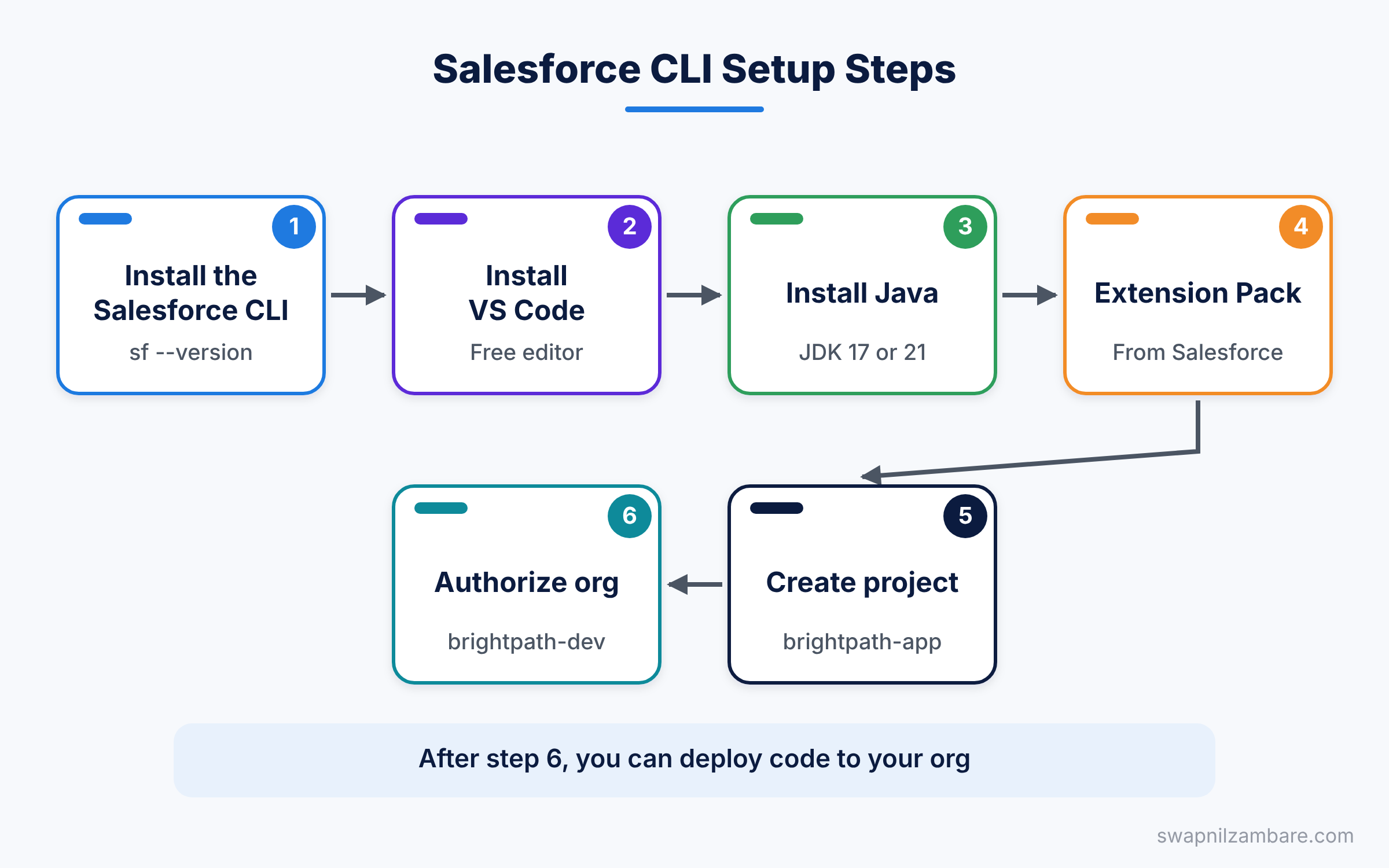
How to Do Your Salesforce CLI Setup Step by Step
Follow these steps in order. Each one takes only a few minutes on a normal internet connection.
Step 1: Install the Salesforce CLI
Go to the Salesforce CLI page on developer.salesforce.com and download the installer for your system. Windows users get an .exe file, and Mac users get a .pkg file. Run it and accept the default options.
If you already have Node.js installed, you can use npm instead.
npm install @salesforce/cli --globalNext, close your terminal and open a new one. Then check that the CLI works.
sf --versionYou should see a line similar to the one below. Your version number will be newer or different.
@salesforce/cli/2.x.x win32-x64 node-v22.x.xStep 2: Install VS Code
Download VS Code from code.visualstudio.com and install it. On Windows, tick “Add to PATH” during setup. This lets you open VS Code from the terminal with the code command.
Step 3: Install Java
The Apex features in VS Code need a Java Development Kit. Install JDK version 17 or 21 from a trusted provider. After that, VS Code usually finds it on its own.
If VS Code says it cannot find a Java runtime, open Settings. Search for “salesforcedx-vscode-apex.java.home” and paste the folder path of your JDK.
Step 4: Add the Salesforce Extension Pack
Open VS Code and press Ctrl+Shift+X to open the Extensions panel. Search for “Salesforce Extension Pack” and pick the one published by Salesforce. Then click Install.
This pack adds Apex support, LWC support, SOQL tools, the Apex Replay Debugger and many commands. There is also an “Expanded” version that adds code formatting and linting tools.
Step 5: Create Your First Project
Press Ctrl+Shift+P to open the Command Palette. Type “SFDX: Create Project” and choose the Standard template. Name it brightpath-app and pick a folder.
You can do the same thing from the terminal with one command.
sf project generate --name brightpath-app
cd brightpath-app
code .
The first line creates the project folder. Next, cd moves into it. Finally, code . opens it in VS Code.
Step 6: Connect Your Org
Now we finish the Salesforce CLI Setup by linking the project to your Developer Edition org. In the Command Palette, run “SFDX: Authorize an Org”. Pick “Production”, type the alias brightpath-dev and log in through the browser window.
Here is the matching terminal command. For a sandbox, add --instance-url https://test.salesforce.com.
sf org login web --alias brightpath-dev --set-default
sf org list
The first command opens a browser for login and sets this org as your default. The second command lists every org the CLI knows about. Your new org shows up with its alias.
Salesforce CLI Setup vs Developer Console
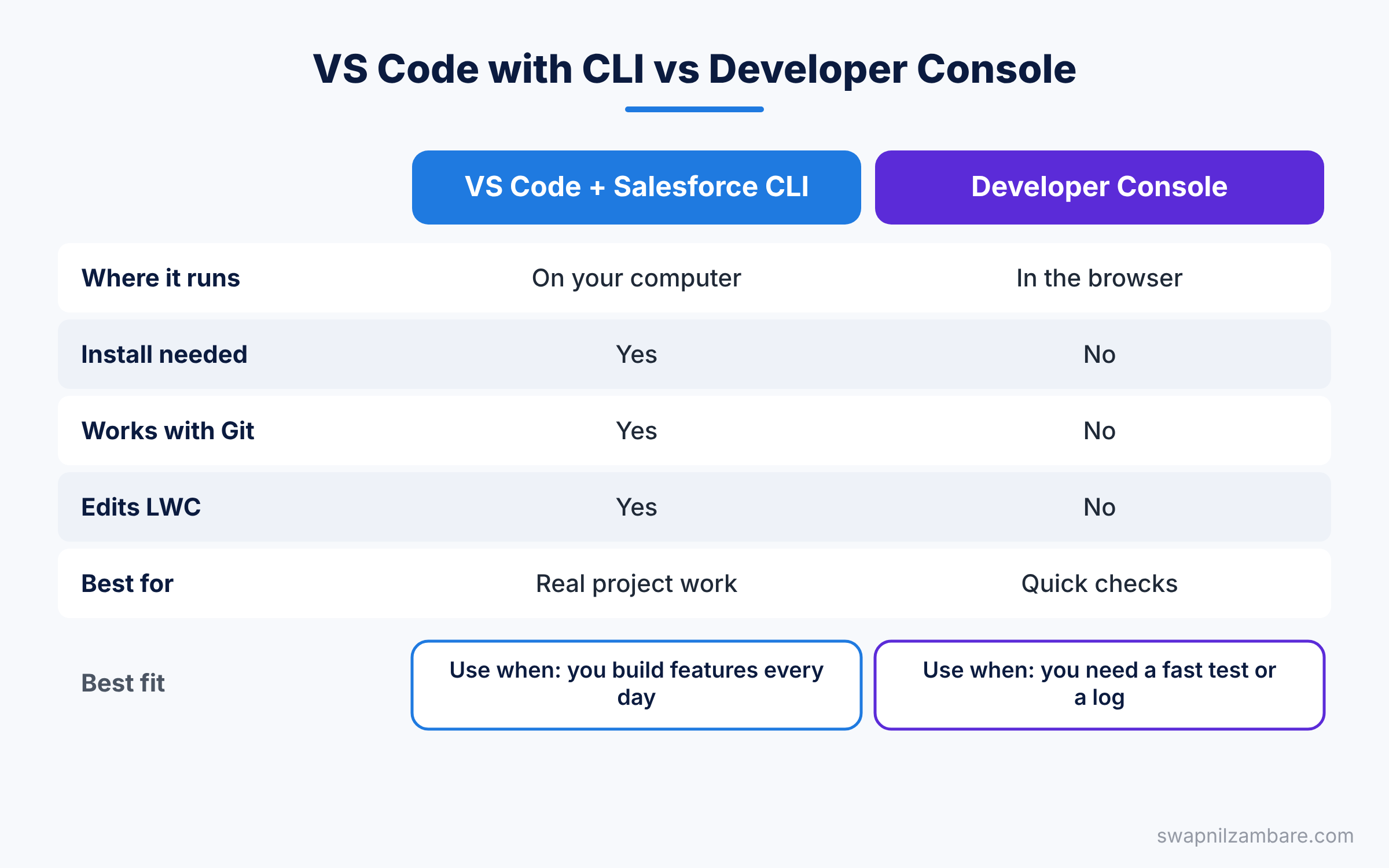
Both tools let you write Apex, so beginners often ask which to use. The table below compares them.
| Feature | VS Code with Salesforce CLI | Developer Console |
|---|---|---|
| Where it runs | On your computer | In the browser |
| Install needed | Yes | No |
| Works with Git | Yes | No |
| Edits LWC | Yes | No |
| Auto-complete and linting | Strong | Basic |
| Quick queries and logs | Good | Very handy |
| Best for | Real project work | Quick checks and small fixes |
When to use which is clear. Use VS Code with the CLI for daily work, and keep the Developer Console for quick tests and debug logs.
A Real Example: Create and Deploy a Class
Let’s test the whole Salesforce CLI Setup with a small class for Bright Path Tutors. Open the Command Palette and run “SFDX: Create Apex Class”. Name it CourseService and accept the default folder.
You can also create it from the terminal.
sf apex generate class --name CourseService --output-dir force-app/main/default/classesNow open CourseService.cls and replace its content with this code.
public with sharing class CourseService {
    // Returns all online courses, cheapest first
    public static List<Course__c> getOnlineCourses() {
        return [
            SELECT Name, Fee__c, Level__c
            FROM Course__c
            WHERE Is_Online__c = true
            ORDER BY Fee__c ASC
        ];
    }
}
The class uses with sharing, so it respects the user’s record access. The method runs one SOQL query and returns online courses, sorted by fee.
Finally, right-click the file and choose “SFDX: Deploy This Source to Org”. Or run the command below in the terminal.
sf project deploy start --source-dir force-app/main/default/classesIf the deploy works, the terminal shows a table with your class and the status “Created”. Open Setup > Apex Classes in your org, and you will see CourseService there.
Useful Commands After Salesforce CLI Setup
After your Salesforce CLI Setup, these commands come up again and again. Keep this list close while you learn.
- Open your default org in the browser with
sf org open. - See details like the username and instance URL with
sf org display. - List the main command groups with
sf help. - Update the CLI with
sf updateif you used the installer. - Remove an org from the CLI with
sf org logout --target-org brightpath-dev.
Salesforce CLI Setup for Sandboxes and Many Orgs
Real projects use more than one org. You may have a Developer Edition for practice, a sandbox for testing and a production org. The CLI handles all of them at once, so you only do this part of the Salesforce CLI Setup once per org.
Each org gets its own alias. You then pick the target org in each command with --target-org. For example, here is how you log in to a sandbox and deploy to it without changing your default org.
sf org login web --alias brightpath-uat --instance-url https://test.salesforce.com
sf project deploy start --source-dir force-app --target-org brightpath-uat
The first command logs in to the sandbox through the test login page. The second command deploys the whole force-app folder to that sandbox only. Your default org stays the same.
In VS Code, the status bar at the bottom shows your current default org. Click it to switch to another org quickly. This small habit stops you from deploying to the wrong place.
Fixing Salesforce CLI Setup Problems
Even a careful install can hit a problem or two. Most issues have quick fixes, so do not panic.
First, if sf is “not recognized”, the install folder is missing from your PATH. Restart your computer, or reinstall the CLI with the default options.
Next, if the browser login never finishes, check that pop-ups are allowed. A company proxy can also block the login. In that case, ask your IT team for the proxy settings.
Finally, if Apex files show no colour or hints, the Java setup is the usual cause. Check the Output panel in VS Code and choose “Apex Language Server” from the list. The error there often names the exact problem.
Common Mistakes with Salesforce CLI Setup
- Not restarting the terminal after install. The
sfcommand is not found until you open a new window. - Installing the wrong Java version. Use JDK 17 or 21 for the Apex language server.
- Forgetting the sandbox URL. Sandbox logins need
--instance-url https://test.salesforce.com. - Opening a single file instead of the project folder. VS Code needs the whole folder with
sfdx-project.jsonto enable Salesforce commands. - Skipping updates. Old CLI versions can fail with new Salesforce releases.
Best Practices for Salesforce CLI Setup
- Give every org a short, clear alias, such as
brightpath-devorbrightpath-uat. - Update the CLI and extensions every few weeks, because Salesforce ships changes often.
- Learn both the Command Palette and terminal commands. The terminal skills help in pipelines.
- Keep one project folder per app, so your metadata stays organised.
- Never share your login files or auth URLs, since they give full access to the org.
Practice Task
Finish all six steps and deploy the CourseService class. Then change the sort to DESC and deploy again. Hint: use sf org open and check the class in Setup to confirm your change.
Official Resources
Quick Recap
- The Salesforce CLI is a command-line tool that starts with
sf. - A full Salesforce CLI Setup needs the CLI, VS Code, Java and the Extension Pack.
sf org login webconnects the CLI to your org.sf project deploy startsends your code to the org.- Use VS Code for real work and the Developer Console for quick checks.
What’s Next?
Your tools are ready. Next, we open the project you just created and learn the Salesforce DX project structure, folder by folder.


