A Salesforce DX Project is the folder on your computer that holds all the metadata for your app. In the last post, you created one called brightpath-app during the Salesforce CLI setup. Now it is time to open it and understand what every folder and file does.
This matters because every developer task touches these files. When you know where things live, you find code faster and make fewer deployment mistakes. If the word “metadata” still feels fuzzy, read our post on multi-tenant architecture and metadata first.
What is a Salesforce DX Project?
A Salesforce DX Project is a local folder that stores your org’s metadata as plain files. It follows a fixed layout that the Salesforce CLI and VS Code understand. DX stands for Developer Experience, which is Salesforce’s name for its modern, source-driven way of working.
Here is a simple way to think about it. Your org is a finished house. The project folder is the set of building plans for that house. If you have the plans, you can build the same house again in any other org.
Why a Salesforce DX Project Matters
Before Salesforce DX, the org itself was the “truth”. Developers changed things directly in Setup, and nobody had a full history. That made teamwork hard and mistakes hard to undo.
With a Salesforce DX Project, the files become the truth. This gives you clear benefits.
- History. Every change sits in Git, so you can see who changed what and when.
- Teamwork. Many developers work on the same project and merge their changes.
- Repeatable deploys. The same files can go to a sandbox, a scratch org or production.
- Code review. Teammates review changes in a pull request before they reach users.
- Automation. Pipelines can test and deploy the files without human clicks.
How a Salesforce DX Project Is Organised
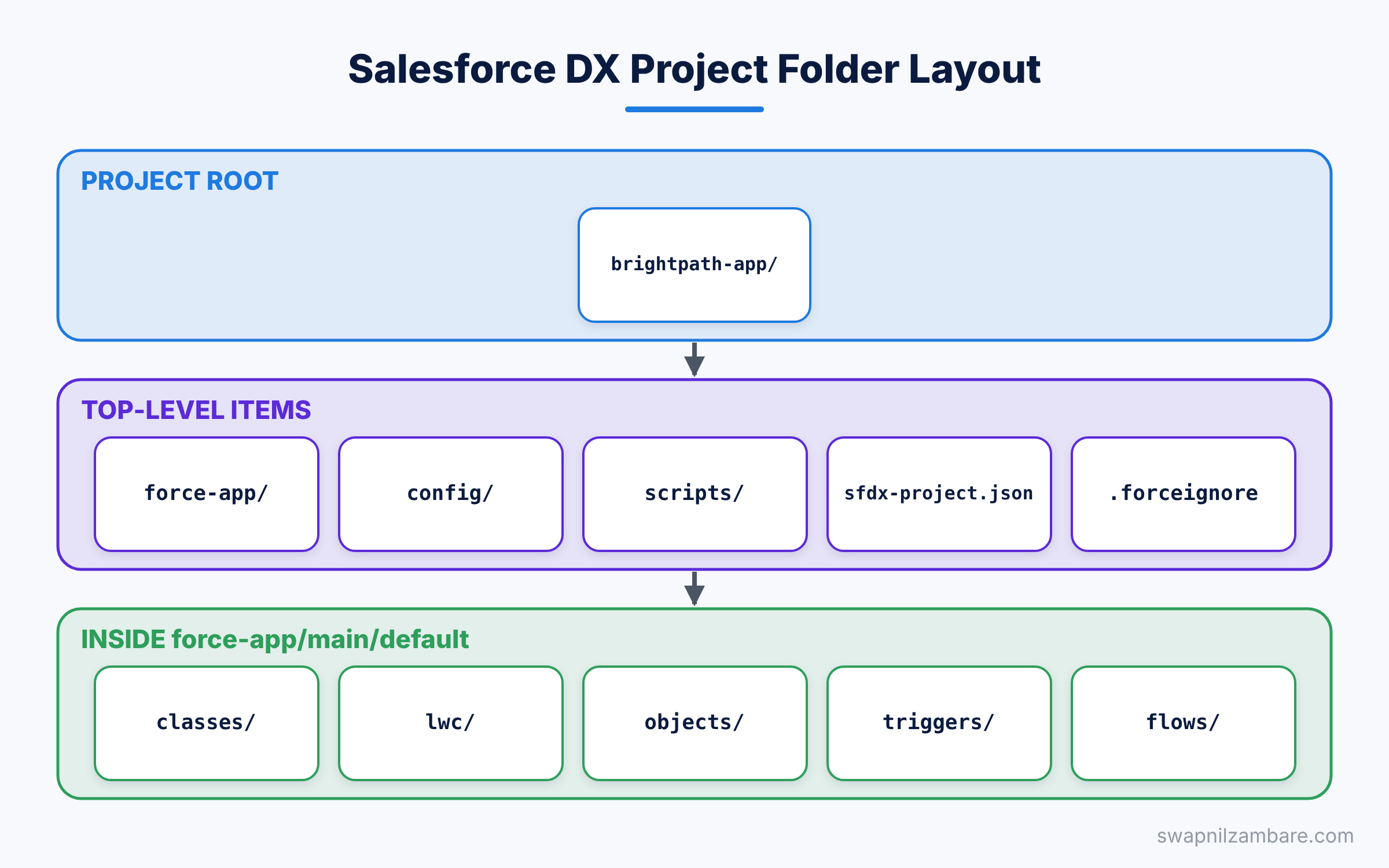
When you create a project with the Standard template, the CLI builds this folder layout for you. Here is a short version of the tree.
brightpath-app/
  .forceignore
  .gitignore
  .vscode/
  config/
    project-scratch-def.json
  force-app/
    main/
      default/
        classes/
        lwc/
        objects/
        layouts/
        flows/
        permissionsets/
        triggers/
  scripts/
    apex/
    soql/
  package.json
  README.md
  sfdx-project.json
Do not worry if your tree has a few more files. Newer templates add tool settings for formatting and testing. The core folders stay the same.
The force-app Folder
This is the heart of the project. All your metadata lives inside force-app/main/default. Each metadata type gets its own sub-folder, such as classes for Apex and lwc for Lightning Web Components.
The config Folder
This folder holds project-scratch-def.json. It describes the shape of a scratch org, such as its edition and features. We will use it in the next post on scratch orgs.
The scripts Folder
Here you will find sample files, such as scripts/apex/hello.apex and scripts/soql/account.soql. You can run them from VS Code to test anonymous Apex or a quick query.
The .forceignore File
This file tells the CLI which files to skip during deploy and retrieve. It works like .gitignore, but for Salesforce. For example, it skips Jest test folders, because Salesforce does not need them.
The .vscode Folder
This folder stores VS Code settings for the project. For example, it can recommend the Salesforce extensions to anyone who opens the folder.
The sfdx-project.json File
Every Salesforce DX Project must have this file in its root folder. VS Code looks for it to turn on Salesforce features. Here is a typical example.
{
  "packageDirectories": [
    {
      "path": "force-app",
      "default": true
    }
  ],
  "name": "brightpath-app",
  "namespace": "",
  "sfdcLoginUrl": "https://login.salesforce.com",
  "sourceApiVersion": "65.0"
}
The table below explains each key in plain words.
| Key | What it means |
|---|---|
| packageDirectories | Folders that hold your metadata |
| path | The folder name, usually force-app |
| default | The folder where new files go |
| name | Your project name |
| namespace | Empty unless you build a managed package |
| sfdcLoginUrl | The default login page for this project |
| sourceApiVersion | The API version used for deploy and retrieve |
The CLI fills in the API version when it creates the project, so yours may show a newer number. Keep it close to your org’s current version.
Source Format vs Metadata API Format
Salesforce supports two file layouts for metadata. The Salesforce CLI uses source format by default, but you will still meet the older format in real projects.
Source format splits big files into small ones. For example, each field of an object gets its own file. Metadata API format keeps a whole object in one large file. Here is how Course__c looks in source format.
force-app/main/default/objects/Course__c/
  Course__c.object-meta.xml
  fields/
    Fee__c.field-meta.xml
    Level__c.field-meta.xml
    Start_Date__c.field-meta.xml
  validationRules/
    Fee_Minimum.validationRule-meta.xml
The object file holds settings like the label and sharing model. Each field file holds one field only. As a result, two developers can change two different fields without touching the same file.
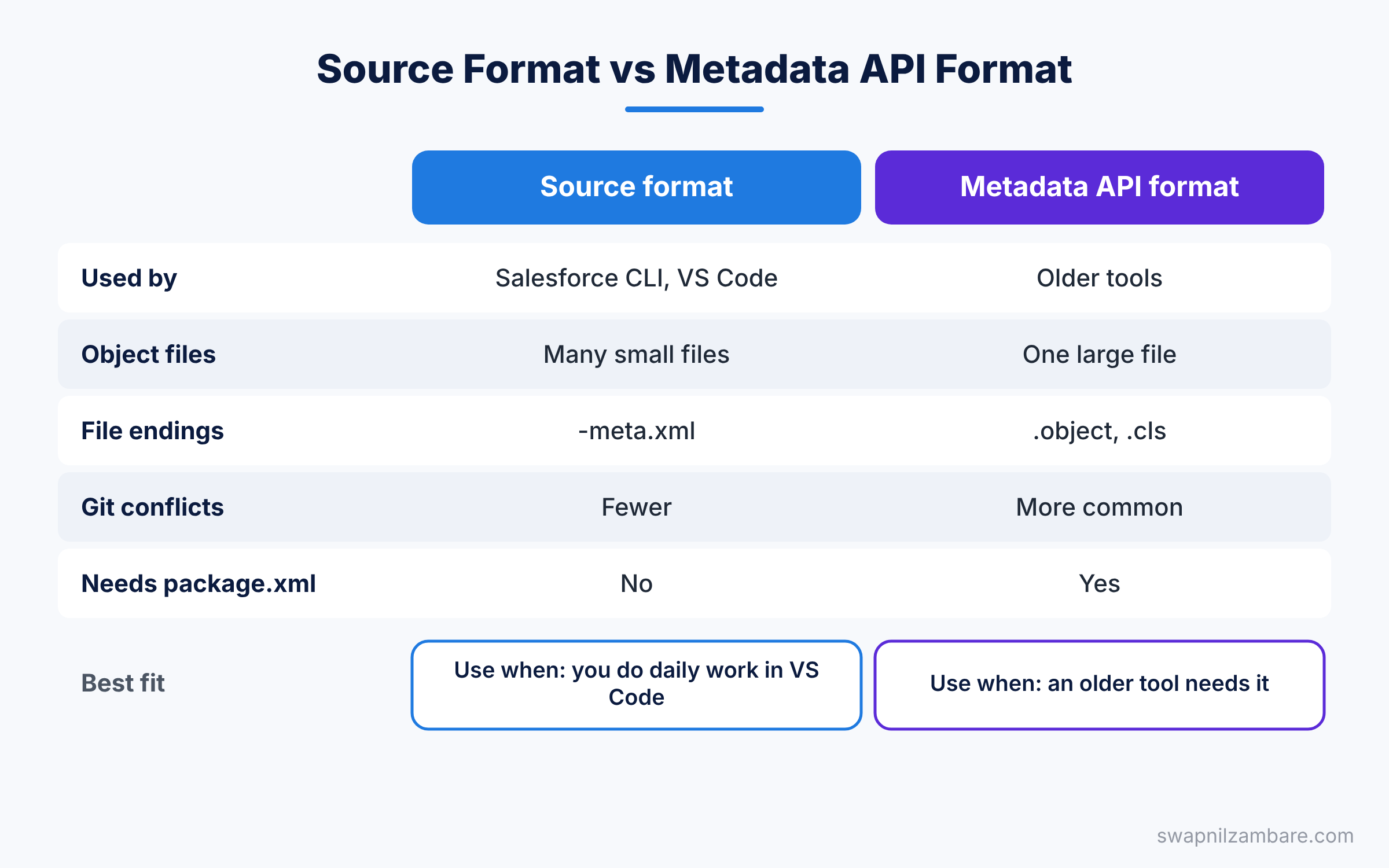
The table below compares both formats side by side.
| Feature | Source format | Metadata API format |
|---|---|---|
| Used by | Salesforce CLI, VS Code | Older tools, change set exports |
| Object files | Split into many small files | One large .object file |
| File endings | -meta.xml | .object, .cls and others |
| Merge conflicts in Git | Fewer | More common |
| Needs package.xml | No | Yes |
When to use which is easy. Use source format for daily work. Convert to Metadata API format only when an older tool needs it.
You can convert between the two formats with these commands.
sf project convert source --output-dir mdapi_output
sf project convert mdapi --root-dir mdapi_output
The first command turns source format into Metadata API format. The second command does the opposite.
A Real Salesforce DX Project Example
Let’s add a new field to Course__c using only files. This shows how metadata really works inside a Salesforce DX Project. We will add a field called Max_Students__c.
- In VS Code, open
force-app/main/default/objects/Course__c/fields. - Create a new file named
Max_Students__c.field-meta.xml. - Paste the XML below into the file and save it.
- Right-click the file and choose “SFDX: Deploy This Source to Org”.
<?xml version="1.0" encoding="UTF-8"?>
<CustomField xmlns="http://soap.sforce.com/2006/04/metadata">
    <fullName>Max_Students__c</fullName>
    <label>Max Students</label>
    <type>Number</type>
    <precision>3</precision>
    <scale>0</scale>
    <required>false</required>
    <description>Largest batch size for this course</description>
</CustomField>
The fullName is the API name. The type is Number, and precision 3 with scale 0 allows whole numbers up to 999. After the deploy, open Object Manager > Course > Fields & Relationships to see the new field. Also, give users access through a permission set, because Salesforce hides new fields by default.
How VS Code Uses the Salesforce DX Project
VS Code reads the project layout to decide what to show you. When you right-click a file inside force-app, it offers deploy and retrieve options. When you open a .cls file, the Apex language server checks your code as you type.
The Org Browser in the left sidebar also depends on the project. It lists every metadata type in your default org. You can click the cloud icon next to any item to retrieve it straight into the right folder. This is a handy way to learn the file names for each type.
Also, the status bar shows your default org for this project. Each project can point to a different org, so switching folders can switch orgs too. Always glance at it before you deploy.
Keeping Your Salesforce DX Project in Sync
Admins and developers often change the same org. For example, an admin may add a picklist value in Setup while you write Apex. If you never pull that change into your files, the next deploy may undo it.
So, make retrieving a regular habit. You can retrieve one item, a whole folder or everything listed in a manifest. Here is a quick example that pulls the Course object and one class.
sf project retrieve start --metadata CustomObject:Course__c ApexClass:CourseServiceThis command downloads the latest version of both items from your default org. Then it writes them into the right folders under force-app. If the files already exist, the CLI updates them in place.
We will cover deploy and retrieve fully in a later post in this series. For now, remember one rule. The project files should always match what is in your main development org.
Files You Should Not Commit
Some folders in a Salesforce DX Project are only for your computer. The CLI creates .sf and .sfdx to store local state, such as which org is your default. These folders can also hold details about your login, so never push them to Git.
The default .gitignore already skips them. It also skips node_modules, which can hold thousands of files from npm. Check this file once, and add any other local folders your team uses.
A good test is simple. If a file only makes sense on your laptop, keep it out of Git. However, if a teammate needs it to build the same app, commit it.
Common Mistakes with a Salesforce DX Project
- Opening a sub-folder in VS Code. Always open the root folder that contains
sfdx-project.json. - Deleting
.forceignore. Then the CLI may try to deploy files that Salesforce rejects. - Mixing both formats in one folder. Keep Metadata API files out of
force-app. - Renaming files by hand. The file name must match the API name inside the XML.
- Forgetting permissions. A new field deploys fine but stays invisible without field access.
Best Practices for a Salesforce DX Project
- Keep one project per app or team, so the structure stays clear.
- Commit the whole project to Git, except the local
.sfand.sfdxfolders. - Retrieve changes made in Setup back into the project, so files stay the truth.
- Use sub-folders under
force-apponly when a team agrees on the layout. - Keep
sourceApiVersionup to date after each major release.
Practice Task
Create the Max_Students__c field from this post and deploy it. Then add a permission set file that grants edit access to it. Hint: retrieve an existing permission set first, and copy its fieldPermissions block as a pattern.
Official Resources
- Salesforce DX Project Structure and Source Format
- Salesforce DX Project Configuration
- Trailhead: App Development with Salesforce DX
Quick Recap
- A Salesforce DX Project stores your org’s metadata as files on your computer.
- All metadata lives under
force-app/main/default. sfdx-project.jsonmarks the root of the project.- Source format splits objects into small files, which reduces merge conflicts.
- You can convert to and from Metadata API format with the CLI.
What’s Next?
Your project needs an org to deploy to. In the next post, we compare scratch orgs, sandboxes and Developer Edition orgs and show when to use each one.


