Scratch Orgs are short-lived Salesforce orgs that you create from the command line in under a minute. They sit next to two other org types every developer uses: sandboxes and Developer Edition orgs. Picking the right one for each task makes your work faster and safer.
In the earlier posts, you set up the Salesforce CLI and explored the Salesforce DX project structure. Now you need somewhere to deploy that project. We already met sandboxes in the admin post on sandboxes and change sets. This post puts all three org types side by side.
What Are the Three Org Types?
Every org type is a full copy of the Salesforce Platform. They differ in how long they live, what they contain and who owns them.
Developer Edition Org
A Developer Edition org is a free, personal org. Anyone can sign up for one. It never expires as long as you log in now and then. It has small storage and limited licences, so it is only for learning and building demos.
Sandbox
A sandbox is a copy of your company’s production org. You create it from Setup in production. It copies the metadata, and some types also copy data. Teams use sandboxes to build, test and train without touching live records.
Scratch Orgs
Scratch Orgs are empty, temporary orgs created from a Dev Hub. You describe their shape in a JSON file, then build them with one CLI command. They live for 1 to 30 days and then delete themselves.
Here is a simple way to picture all three. A Developer Edition org is your own practice kitchen at home. A sandbox is a test kitchen that copies the restaurant’s real setup. Scratch Orgs are pop-up kitchens. You set one up for a single dish and pack it away when you finish.
Why Scratch Orgs Matter
Sandboxes are great, but they carry years of old changes. So a feature might work in a sandbox only because of some old setting nobody remembers. Scratch Orgs fix this problem.
- Clean start. Each scratch org starts empty, so you see exactly what your project needs.
- Source-driven. The project files are the truth, not the org.
- Fast. You create one in about a minute, instead of waiting hours for a sandbox.
- Isolated. Each developer or feature can have its own org.
- Great for testing. Pipelines can create Scratch Orgs, run tests and delete them.
How Scratch Orgs Work
Scratch Orgs need two things: a Dev Hub and a scratch org definition file. The Dev Hub is a normal org with a special feature turned on. It tracks every scratch org you create and enforces your limits.
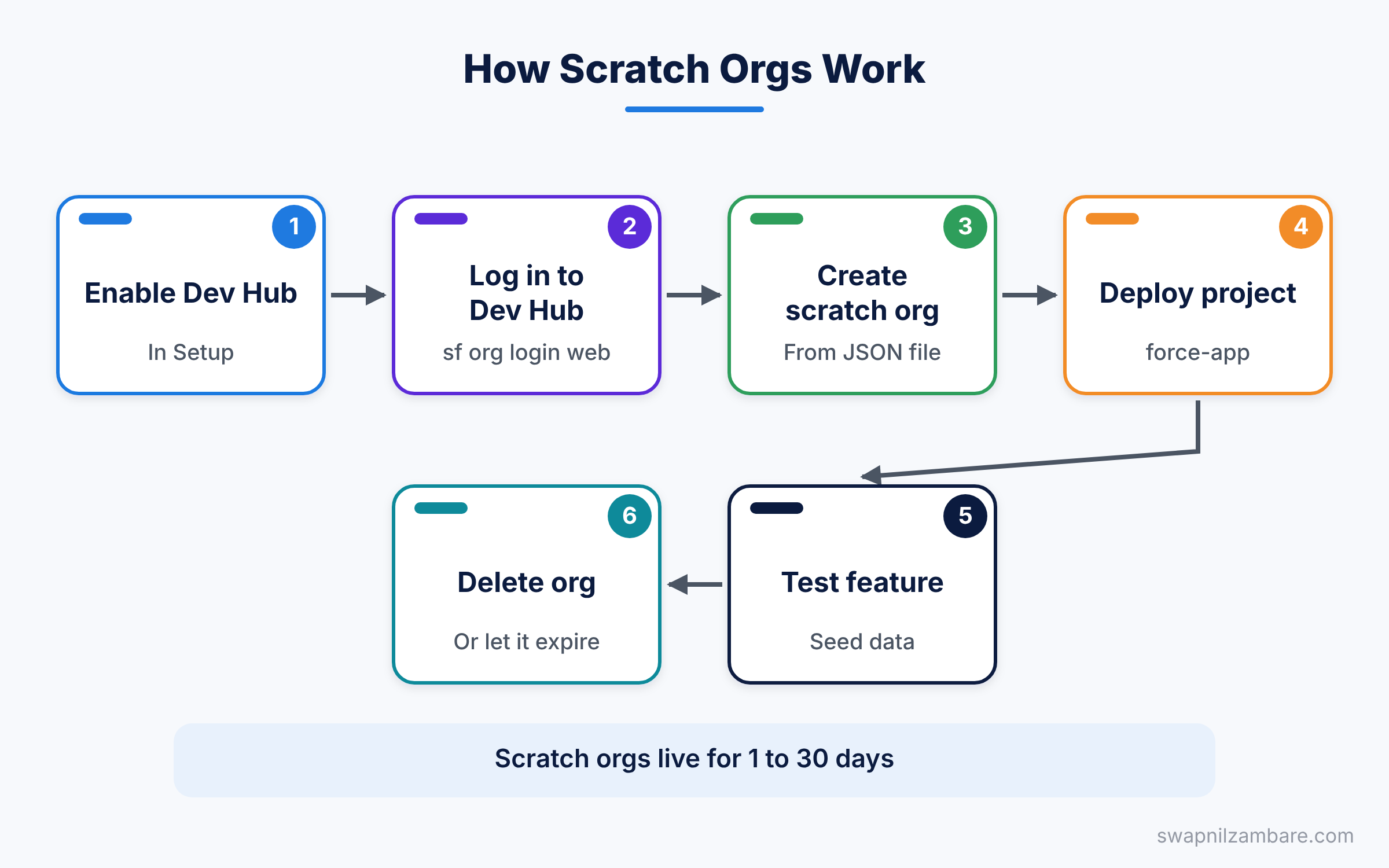
The process follows four simple steps. First, you log in to the Dev Hub with the CLI. Next, you create a scratch org from the definition file. Then you deploy your project and test it. Finally, you delete the scratch org or let it expire.
The Definition File
The file config/project-scratch-def.json describes the scratch org. Here is a simple version for Bright Path Tutors.
{
  "orgName": "Bright Path Tutors",
  "edition": "Developer",
  "features": [],
  "settings": {
    "lightningExperienceSettings": {
      "enableS1DesktopEnabled": true
    }
  }
}
The orgName key sets the company name shown in the org. Next, edition picks the type of org, such as Developer or Enterprise. Then the features list turns on extra features, and settings controls org settings, here Lightning Experience.
Comparing Scratch Orgs, Sandboxes and Developer Edition
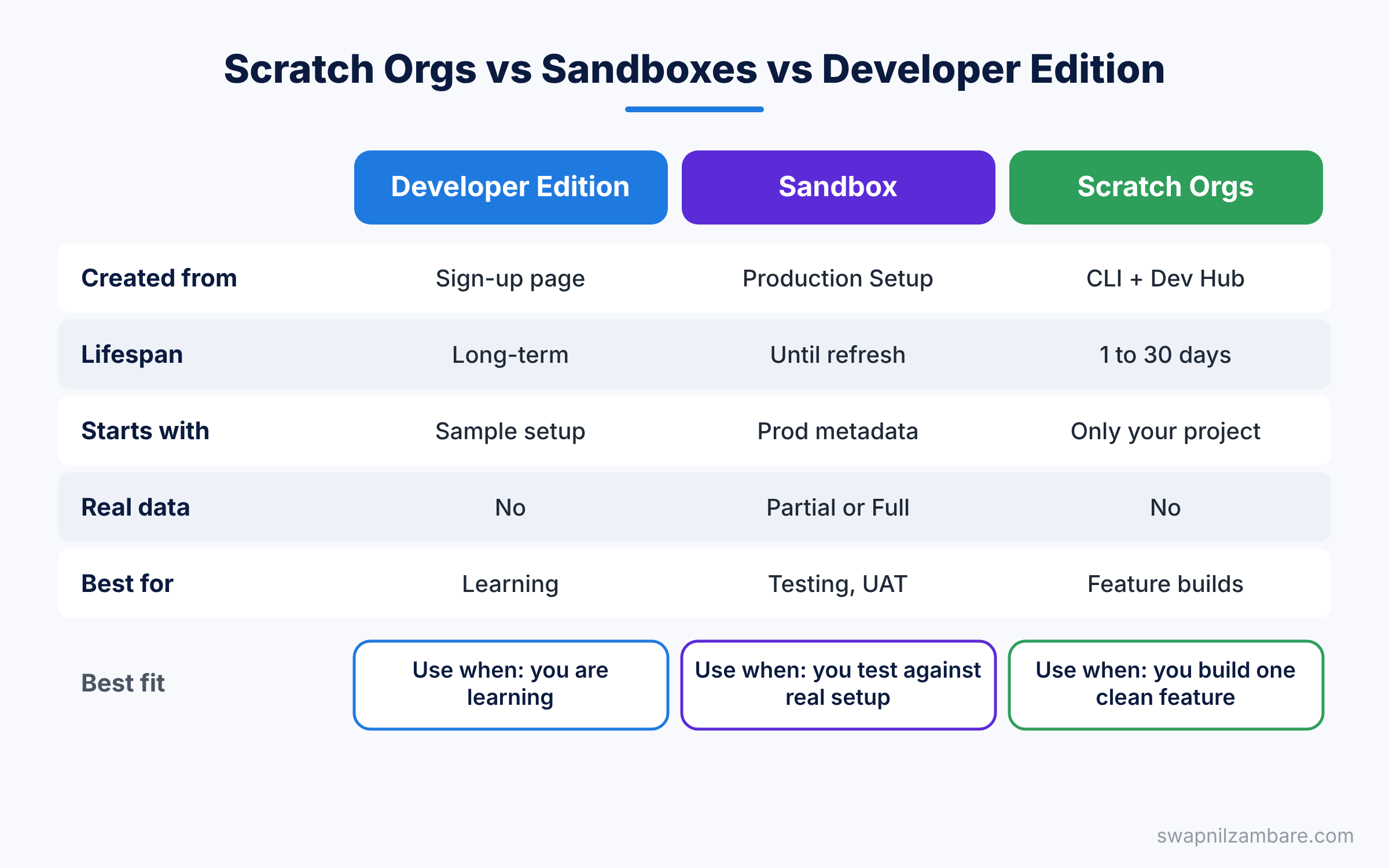
The table below compares the three org types on the points that matter most.
| Feature | Developer Edition | Sandbox | Scratch Orgs |
|---|---|---|---|
| Cost | Free | Comes with your licence | Comes with your Dev Hub |
| Created from | Sign-up page | Production Setup | Salesforce CLI and Dev Hub |
| Lifespan | Long-term | Until you refresh or delete it | 1 to 30 days |
| Starts with | Sample setup | Copy of production metadata | Only what your project deploys |
| Production data | No | Partial or Full types only | No |
| Best for | Learning, demos | Testing, UAT, training | Feature builds, automated tests |
When to use which is quite clear. Use a Developer Edition to learn, a sandbox to test against real setup, and Scratch Orgs for clean feature work.
Sandbox Types in Detail
Sandboxes come in four types. They differ in storage, data and how often you can refresh them. The table below shows the standard values.
| Sandbox type | Copies data | Data storage | Refresh interval |
|---|---|---|---|
| Developer | No, metadata only | 200 MB | 1 day |
| Developer Pro | No, metadata only | 1 GB | 1 day |
| Partial Copy | Sample, using a template | 5 GB | 5 days |
| Full | All data | Same as production | 29 days |
To create a sandbox, log in to production and go to Setup > Environments > Sandboxes. Click New Sandbox, enter a short name such as “brightdev”, and pick the type. For Partial Copy, you also choose a sandbox template that lists which objects to copy. Salesforce emails you when the sandbox is ready, which can take from minutes to many hours.
Once it is ready, you can log in with your production username plus a dot and the sandbox name. For example, asha@brightpath.com becomes asha@brightpath.com.brightdev. Use the test.salesforce.com login page for every sandbox.
Developer sandboxes suit daily build work. Partial Copy suits testing with real-looking data. Full sandboxes suit final testing and performance checks before a big release.
A Real Scratch Orgs Example
Let’s create a scratch org for the Bright Path Tutors project. You need a Developer Edition org to act as your Dev Hub.
Step 1: Turn On Dev Hub
- Log in to your Developer Edition org.
- Go to Setup and type “Dev Hub” in Quick Find.
- Click Dev Hub, then switch on “Enable Dev Hub”.
Be careful, because you cannot turn Dev Hub off again once it is on. That is fine for a practice org.
Step 2: Create and Use the Scratch Org
Open a terminal in your project folder and run these commands one by one.
sf org login web --set-default-dev-hub --alias devhub
sf org create scratch --definition-file config/project-scratch-def.json --alias course-scratch --duration-days 7 --set-default
sf project deploy start --source-dir force-app
sf org open
The first command logs in to your Dev Hub and makes it the default hub. The second creates a scratch org that lives for 7 days. Next, the deploy command pushes your whole project into it. Finally, sf org open opens the new org in your browser.
When the create command finishes, you see output similar to this.
Your scratch org is ready.
Username: test-abc123xyz@example.com
Org ID: 00D9D0000001AbC
Step 3: Clean Up
When you finish the feature, delete the org so it stops counting against your limits.
sf org delete scratch --target-org course-scratch --no-promptScratch Orgs and Sample Data
Scratch Orgs start with no business records. So your Course list will be empty after the deploy. You can load test data with a plan file or a short Apex script.
Here is a quick Apex script you can save as scripts/apex/seed.apex. Then run it with sf apex run --file scripts/apex/seed.apex.
List<Course__c> courses = new List<Course__c>{
    new Course__c(Name = 'Apex Basics', Fee__c = 4500, Level__c = 'Beginner', Is_Online__c = true),
    new Course__c(Name = 'LWC Deep Work', Fee__c = 7000, Level__c = 'Advanced', Is_Online__c = false)
};
insert courses;
System.debug('Inserted ' + courses.size() + ' courses');
This script builds a list of two courses and inserts them with one DML statement. As a result, every teammate gets the same test records in a fresh scratch org.
Choosing the Right Org for Each Stage
Most teams use all three org types together. Each one fits a different stage of the work. Here is a common path a Bright Path Tutors feature might follow, from first idea to live release.
- A developer tries a new idea in a Developer Edition org.
- Then they build the real feature in a scratch org created from the project.
- Next, they deploy it to a Developer sandbox to check it with other team changes.
- After that, testers check it in a Partial Copy sandbox with sample data.
- Business users then sign off in a Full sandbox during UAT.
- Finally, the team deploys it to production.
Smaller teams may skip a step or two. For example, a team of three might use only Scratch Orgs, one sandbox and production. The key idea stays the same, though. Each stage gets closer to the real production setup.
Scratch Orgs Limits and the Dev Hub
Your Dev Hub controls how many Scratch Orgs you can have. There are two limits: how many can be active at once, and how many you can create each day. The exact numbers depend on your Salesforce edition.
To see your current numbers, run sf org list limits --target-org devhub. Look for the rows named ActiveScratchOrgs and DailyScratchOrgs. If you hit a limit, delete old orgs you no longer need.
Also, remember that a Developer Edition Dev Hub has small limits. It is perfect for learning. However, a real team usually uses the company production org as its Dev Hub, so everyone shares one place to track Scratch Orgs.
Common Mistakes with Scratch Orgs
- Forgetting to enable Dev Hub first. The create command fails without it.
- Expecting production data. Scratch Orgs start empty, so plan your test data.
- Leaving old scratch orgs running. They count against your daily and active limits.
- Changing things only in the org. If you click in Setup, retrieve the change into your project.
- Missing features in the definition file. If your app uses a feature, add it to the JSON.
Best Practices for Scratch Orgs and Sandboxes
- Use one scratch org per feature, so changes never mix.
- Keep a seed script in the project, so test data is one command away.
- Use short durations, such as 7 days, unless you really need longer.
- Keep at least one sandbox for testing with real setup and integrations.
- Refresh sandboxes on a fixed schedule, so they stay close to production.
Practice Task
Turn on Dev Hub in your Developer Edition org. Then create a scratch org, deploy your project and run the seed script. Hint: use sf org list to see both your Dev Hub and the new scratch org.
Official Resources
- Scratch Orgs in the Salesforce DX Developer Guide
- Sandbox Types and Templates
- Trailhead: App Development with Salesforce DX
Quick Recap
- Developer Edition orgs are free and best for learning.
- Sandboxes copy production setup and are best for testing.
- Scratch Orgs are empty, temporary orgs built from a Dev Hub.
- A JSON definition file describes the shape of each scratch org.
- Use seed scripts to load the same test data every time.
What’s Next?
Now you have orgs to work with. In the next post, we learn Salesforce CLI deploy and retrieve commands to move metadata between them.


