Salesforce CLI Deploy and retrieve commands are how developers move metadata between their computer and their orgs. Deploy sends your files up to an org. Retrieve pulls changes down from an org into your files. Together, they replace most of the clicking you did with change sets.
You already ran a first deploy in our Salesforce CLI setup post. You also learned the project folder layout and the different org types. Now we will learn every common way to deploy and retrieve, including tests and safe production releases.
What is Salesforce CLI Deploy?
A Salesforce CLI Deploy takes metadata files from your project and sends them to a target org. The org checks the files, compiles any code and saves the changes. If one item fails, the whole deploy rolls back by default, so the org never ends up half-changed.
Retrieve does the opposite. It reads metadata from an org and writes it into your project as files.
Think of your project folder as a shared notebook and the org as a whiteboard in a meeting room. Deploy copies your notes onto the whiteboard. Retrieve copies the whiteboard into your notebook, so you do not lose what someone else wrote.
Why Salesforce CLI Deploy Matters
Change sets work only between connected orgs, and you build them by clicking. The CLI is faster and far more flexible.
- Any org. Deploy to scratch orgs, sandboxes, Developer Edition orgs or production.
- Repeatable. The same command gives the same result every time.
- Scriptable. Pipelines can run the exact commands you type.
- Testable. You choose which Apex tests run during the deploy.
- Fast feedback. Errors show up right in your terminal with file names and line numbers.
How Salesforce CLI Deploy and Retrieve Work
Every command needs two answers: what to move, and which org to use. You choose “what” with one of three flags. You choose “which org” with --target-org, or the CLI uses your default org.
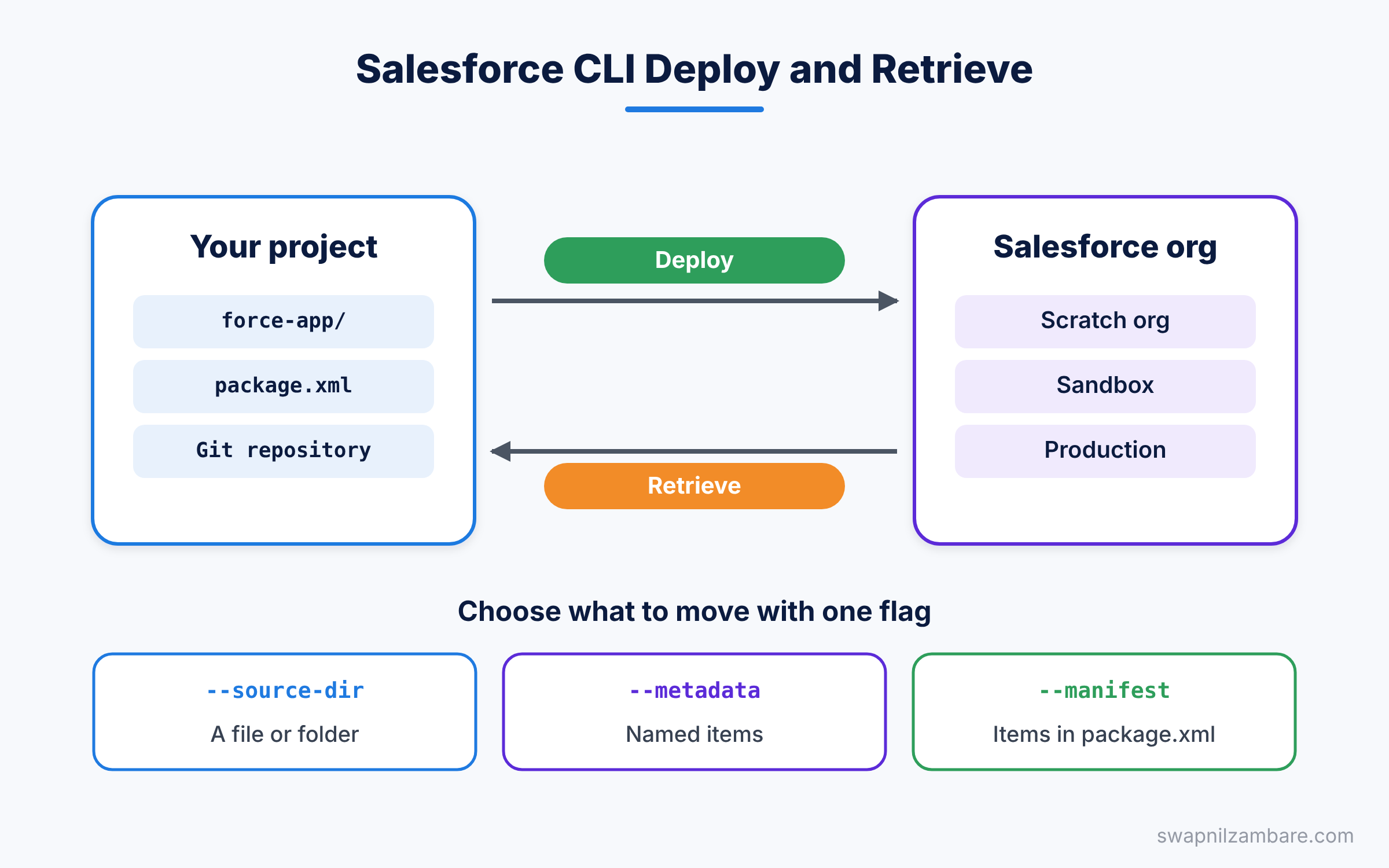
The table below shows the three ways to choose what to move.
| Flag | What it selects | Good for |
|---|---|---|
| –source-dir | A file or folder in your project | Quick deploys while building |
| –metadata | Named items, like ApexClass:CourseService | One or two exact items |
| –manifest | Everything listed in package.xml | Planned releases |
Deploy by Folder or File
This is the most common option during daily work. You point at a file or a folder, and the CLI deploys everything inside.
sf project deploy start --source-dir force-app/main/default/classes/CourseService.cls
sf project deploy start --source-dir force-app
The first command deploys one Apex class and its meta file. The second command deploys the whole project. Both use your default org.
Deploy by Metadata Name
You can also name the items directly with the type and API name. Separate several items with spaces.
sf project deploy start --metadata ApexClass:CourseService ApexTrigger:CourseTriggerThis deploys one class and one trigger, as long as their files exist in your project.
Deploy with a Manifest
A manifest is a file named package.xml. It lists every item for a release. Here is one for the Bright Path Tutors course feature.
<?xml version="1.0" encoding="UTF-8"?>
<Package xmlns="http://soap.sforce.com/2006/04/metadata">
    <types>
        <members>CourseService</members>
        <members>CourseWelcome</members>
        <name>ApexClass</name>
    </types>
    <types>
        <members>CourseTrigger</members>
        <name>ApexTrigger</name>
    </types>
    <types>
        <members>Course__c</members>
        <name>CustomObject</name>
    </types>
    <version>65.0</version>
</Package>
Each types block holds one metadata type. The members tags list the API names, and name gives the type. You can let the CLI build this file for you with sf project generate manifest --source-dir force-app.
Then deploy it with this command.
sf project deploy start --manifest manifest/package.xml --target-org brightpath-uatSalesforce CLI Deploy with Apex Tests
Production needs tested code, so every Salesforce CLI Deploy to production runs Apex tests. Salesforce requires at least 75% code coverage across your Apex before a production deploy can pass. You control which tests run with --test-level.
| Test level | What runs | Typical use |
|---|---|---|
| NoTestRun | No tests | Sandboxes and scratch orgs only |
| RunSpecifiedTests | Only the tests you list | Fast, focused production deploys |
| RunLocalTests | All tests except managed package tests | Most production deploys |
| RunAllTestsInOrg | Every test, including packages | Rare, full checks |
For example, this deploy runs only the CourseService tests.
sf project deploy start --source-dir force-app --test-level RunSpecifiedTests --tests CourseServiceTestWith RunSpecifiedTests, each class and trigger you deploy needs at least 75% coverage from the tests you list. So choose your test classes carefully.
Validate First, Then Quick Deploy
Big teams rarely deploy straight to production. Instead, they validate first. A validation runs the full deploy and the tests but saves nothing. If it passes, you can release it later with a quick deploy.
sf project deploy validate --manifest manifest/package.xml --test-level RunLocalTests --target-org production
sf project deploy quick --job-id 0Af5g00000AbCdEFGH --target-org production
The first command checks everything and prints a job ID. The second command uses that ID to release the same changes in seconds, without running the tests again. A successful validation stays ready for a quick deploy for up to 10 days.
This is perfect for release nights. You validate in the afternoon, and you quick deploy in a short evening window. Users see almost no downtime, and the team avoids last-minute surprises. If the validation fails, you still have hours to fix the problem before the window opens.
Retrieving Metadata
Retrieve uses the same three flags as deploy. Here are the most common examples.
sf project retrieve start --metadata ApexClass:CourseService
sf project retrieve start --metadata CustomObject:Course__c
sf project retrieve start --manifest manifest/package.xml
The first line pulls one class. Next, line two pulls the Course object with its fields, list views and rules. Finally, line three pulls everything in the manifest. In each case, the CLI writes the files into force-app in source format.
Deleting Metadata with Salesforce CLI Deploy
Sometimes a release must remove things, such as an old class nobody uses. Change sets cannot do this. The CLI, however, can delete metadata safely.
For one or two items, use the delete command. It removes the item from the org and from your local files.
sf project delete source --metadata ApexClass:OldCourseHelper --target-org brightpath-uatFor planned releases, use a destructive manifest instead. You create a file named destructiveChanges.xml with the same layout as package.xml. Then you add it to a Salesforce CLI Deploy with the --post-destructive-changes flag. As a result, the deploy adds the new items first and removes the old ones after.
Be careful with deletes in production. Always validate first, and keep a backup of the files in Git.
Source Tracking in Scratch Orgs
Scratch orgs and Developer sandboxes can track changes for you. Salesforce calls this feature source tracking. The CLI remembers what you deployed and spots what changed in the org since then.
So in a tracked org, you can run a Salesforce CLI Deploy with no flags at all. The CLI sends only the files you changed. In the same way, a plain sf project retrieve start pulls only what changed in Setup.
Before you move anything, you can see the list of changes with a preview.
sf project deploy preview
sf project retrieve preview
Each command prints a table of items that would move, with no changes made. This is a safe habit before every deploy or retrieve in a tracked org.
Salesforce CLI Deploy vs Change Sets
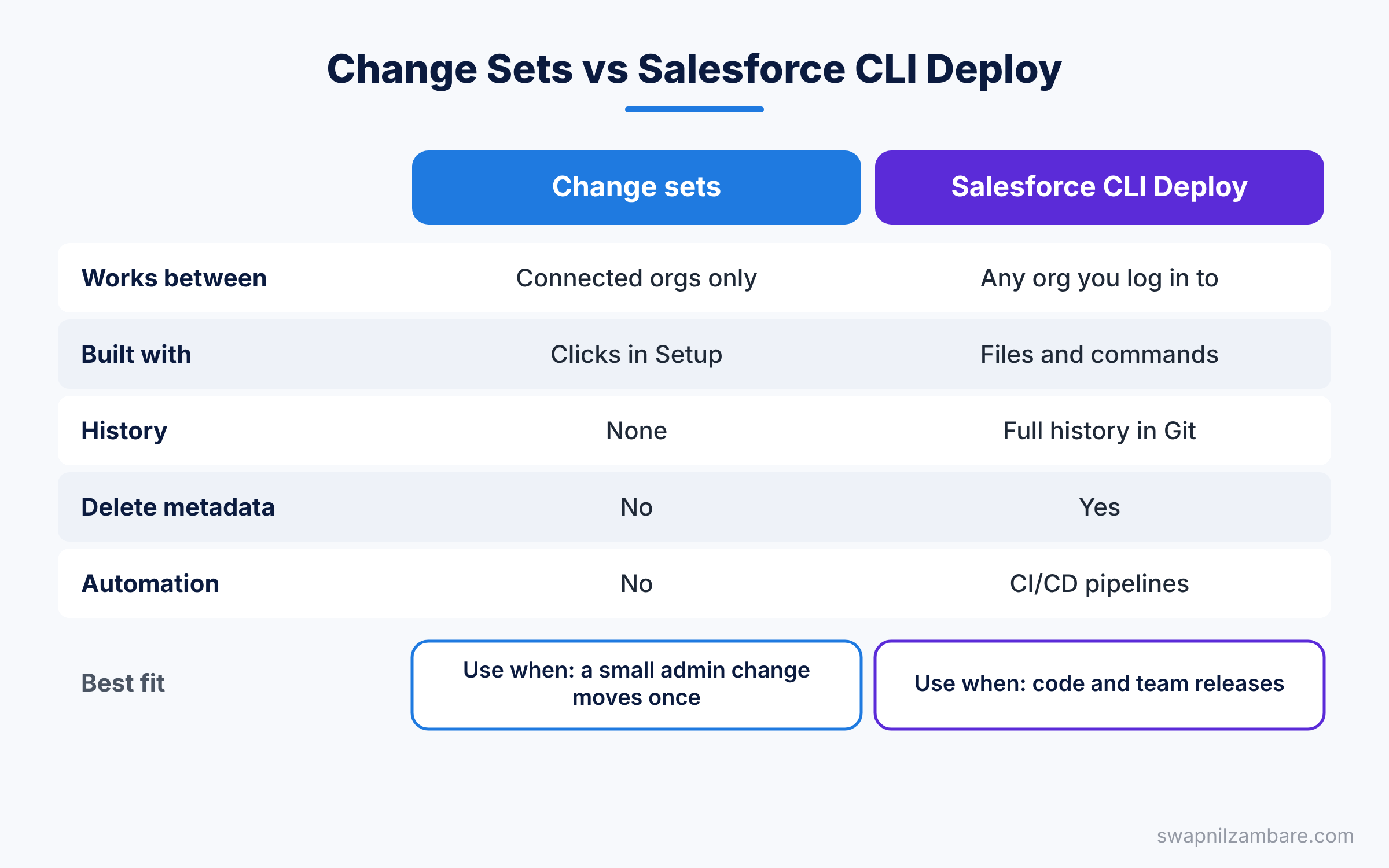
Admins often ask how the CLI compares to change sets. The table below shows the main differences.
| Feature | Change sets | Salesforce CLI Deploy |
|---|---|---|
| Works between | Connected orgs only | Any org you can log in to |
| How you build it | Clicks in Setup | Files and commands |
| Version history | None | Full history with Git |
| Delete metadata | No | Yes, with destructive changes |
| Automation | No | Yes, in CI/CD pipelines |
| Learning effort | Low | Medium |
When to use which depends on your team. Change sets are fine for small admin changes. However, for code and team projects, the CLI is the better choice.
A Real Salesforce CLI Deploy Example
Let’s run a full Salesforce CLI Deploy for the Bright Path Tutors course feature, from a sandbox to production.
- Retrieve the latest Course object from the sandbox, so your files include any admin changes.
- Run
sf project generate manifest --source-dir force-app --output-dir manifestto build package.xml. - Validate the release against production with RunLocalTests.
- Read the result and fix any failed tests or errors.
- Quick deploy with the job ID during your release window.
- Retrieve once more from production to confirm the files match.
If a Salesforce CLI Deploy fails, the terminal shows a table of errors. Each row names the item and the problem. Here is a typical example.
Component Failures [1]
Type       Name           Problem
ApexClass  CourseService  Variable does not exist: Fee (12:20)
This tells you the file, the line and the column of the problem. In this case, the code used Fee instead of Fee__c on line 12. So you fix the name and deploy again.
Common Mistakes with Salesforce CLI Deploy
- Deploying to the wrong org. Always check the target alias before you press Enter.
- Not retrieving first. You may overwrite a change an admin made in Setup.
- Forgetting tests in production. Plan your test classes before the release day.
- Leaving out dependencies. A field must exist before a class that uses it can compile.
- Using NoTestRun in production. Salesforce does not allow it when your deploy has Apex.
Best Practices for Salesforce CLI Deploy
- Validate production releases early, then quick deploy during a short window.
- Keep package.xml in Git, so every release has a clear list.
- Use RunSpecifiedTests for small releases to save time, but keep good coverage.
- Retrieve before you deploy, so your files match the latest org state.
- Add
--wait 30on long deploys, so the command waits up to 30 minutes for the result.
Practice Task
Create a package.xml with your CourseService class and Course object. Validate it against a scratch org or sandbox, then run a quick deploy with the job ID. Hint: use sf project deploy report if you lose the job ID.
Official Resources
- Salesforce CLI Command Reference: project deploy
- Deploy and Retrieve in the Salesforce DX Developer Guide
- Trailhead: Salesforce DX quick start
Quick Recap
- Deploy sends metadata files to an org, and retrieve pulls them back.
- Choose what to move with
--source-dir,--metadataor--manifest. - A Salesforce CLI Deploy to production needs tests and 75% coverage.
- Validate first, then quick deploy within 10 days.
- Retrieve before you deploy, so you never overwrite admin changes.
What’s Next?
Next, we look at a handy browser tool for quick tests and logs. Read our Salesforce Developer Console guide to learn its logs, query editor and anonymous Apex window.


