
Git for Salesforce is the skill that turns a solo coder into a real team developer. Git keeps a full history of every change in your project. GitHub stores that history online, so your whole team can share it, review it and deploy from it.
This is the last post in our Foundations level. You already have a Salesforce DX project and you know how to deploy and retrieve metadata. Now we will put that project under version control. If you have used the admin DevOps Center guide, you have already seen Git working in the background.
What is Git for Salesforce?
Git is a free version control system. It records snapshots of your files, called commits, so you can see what changed and go back if needed. GitHub is a website that hosts Git projects online and adds tools for teamwork.
Git for Salesforce simply means using Git with your Salesforce DX project. Your Apex classes, objects, flows and layouts are all files, so Git can track them like any other code.
Think of Git as the “track changes” feature in a Word document, but for a whole folder. Every saved version has a note, a date and an author. You can compare any two versions or roll back to an older one.
Why Git for Salesforce Matters
Without Git for Salesforce, the org is the only copy of your work. If someone overwrites a class, the old version is gone. Teams also step on each other’s changes without knowing it.
Git fixes these problems and adds more benefits.
- Full history. You can see every change, who made it and why.
- Safe experiments. Branches let you try ideas without breaking the main code.
- Code review. Teammates check changes in a pull request before they merge.
- Rollback. You can return to a working version in minutes.
- Automation. Pipelines can deploy from GitHub to sandboxes and production.
Key Git Terms in Plain Words
Git has its own words, and they can confuse beginners. The table below explains the main ones.
| Term | Plain meaning |
|---|---|
| Repository (repo) | A project folder tracked by Git |
| Commit | A saved snapshot with a short message |
| Branch | A separate line of work |
| Merge | Joining one branch into another |
| Remote | The online copy, for example on GitHub |
| Push | Send your commits to the remote |
| Pull | Get new commits from the remote |
| Pull request | A request to review and merge a branch |
How Git for Salesforce Works
A normal day with Git for Salesforce follows a simple loop. You create a branch, change files, deploy to your org to test, commit, push and open a pull request. After review, the branch merges into main.
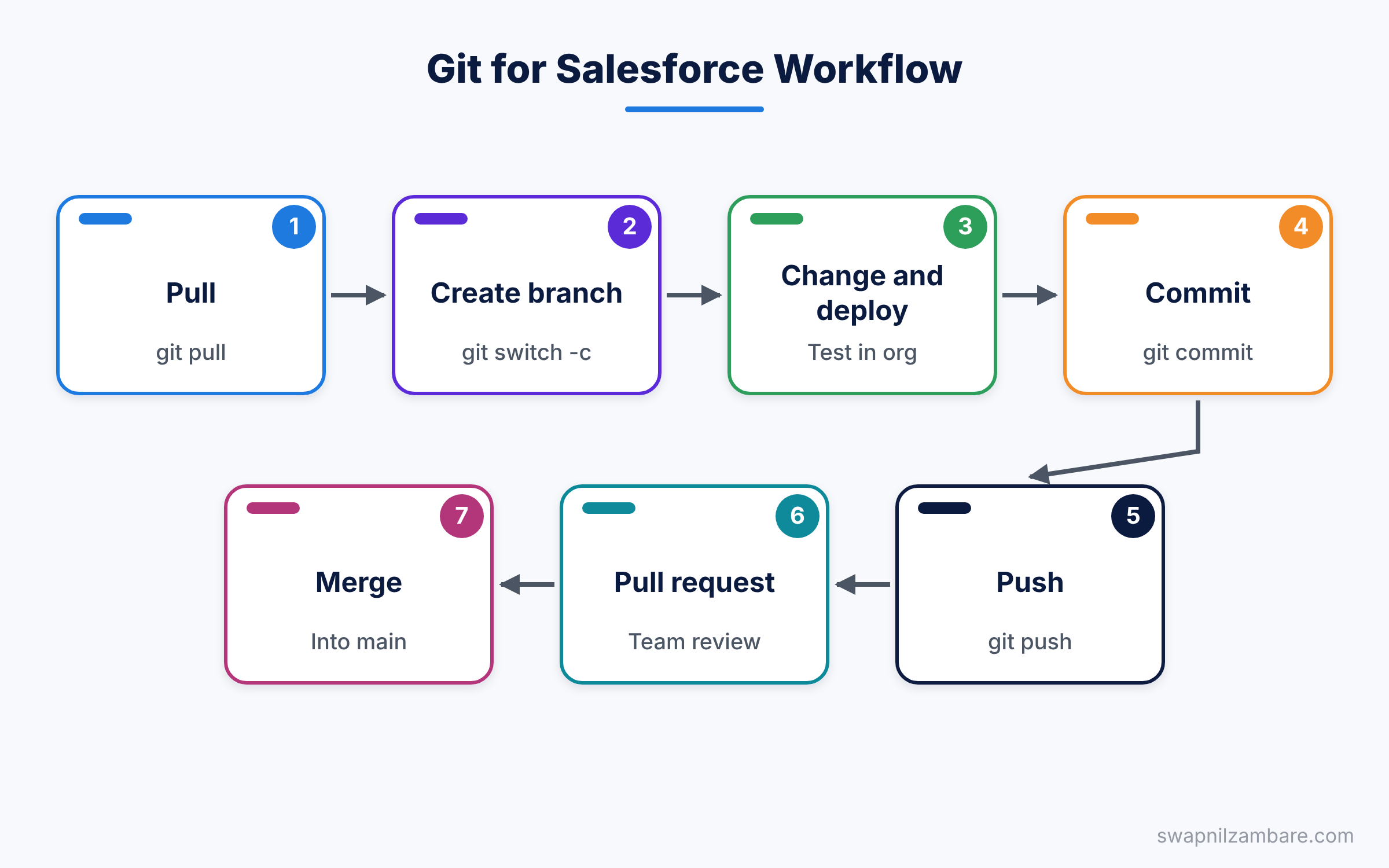
The key idea is that Git tracks files, not orgs. So if you change something in Setup, Git does not know about it. You must retrieve that change into your project first. Then Git sees the new file and you can commit it.
Setting Up Git for Salesforce
Let’s set up Git for Salesforce on the Bright Path Tutors project, step by step.
Step 1: Install Git and Set Your Name
Download Git from git-scm.com and install it with the default options. Then open a terminal and tell Git who you are. Git adds this name to every commit you make.
git --version
git config --global user.name "Asha Mehta"
git config --global user.email "asha@example.com"
The first command checks that Git works. The next two set your name and email for all projects on this computer.
Step 2: Start a Repository
Open a terminal in your brightpath-app folder and run these commands.
git init
git add .
git commit -m "Initial Salesforce DX project for Bright Path Tutors"
git branch -M main
First, git init turns the folder into a repository. Next, git add . stages every file, and git commit saves the first snapshot. Finally, git branch -M main names the main branch “main”.
The project’s .gitignore already skips local folders like .sf, .sfdx and node_modules. So those never reach your repository.
Step 3: Push to GitHub
Create a free account on github.com. Then click New repository, name it brightpath-app and leave it empty. GitHub shows you the commands to connect your local project. They look like this.
git remote add origin https://github.com/your-username/brightpath-app.git
git push -u origin main
The first line links your local repo to GitHub. Then the second line sends your commits up and sets “main” to track the online branch. On your first push, Git may open a browser window to sign in to GitHub.
Git for Salesforce vs the Org as the Source
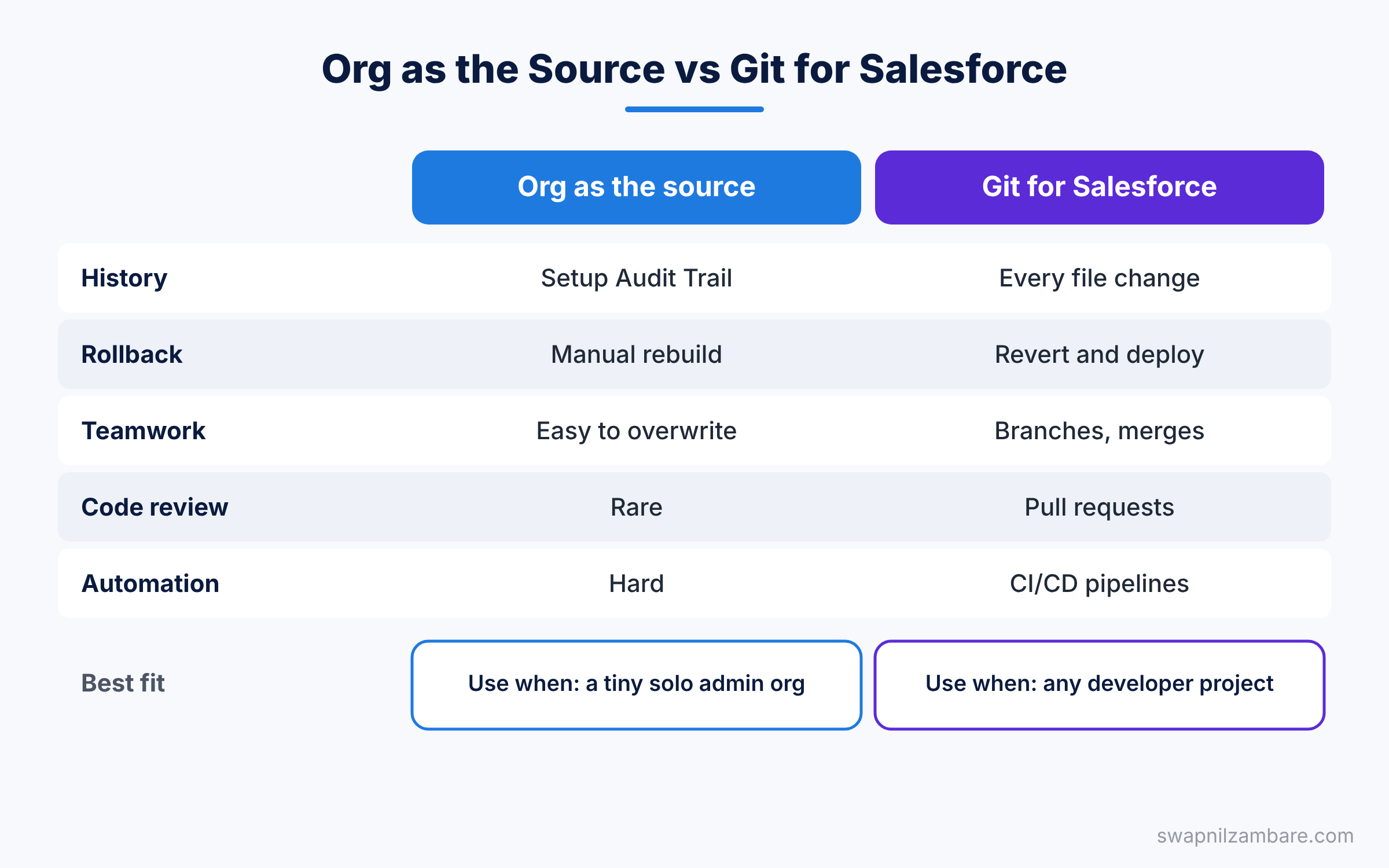
Many older teams treat the org itself as the only truth. The table below compares that with a Git-based way of working.
| Feature | Org as the source | Git for Salesforce |
|---|---|---|
| History | Setup Audit Trail only | Every file change with author and message |
| Rollback | Manual rebuild | Revert a commit and deploy again |
| Teamwork | Easy to overwrite others | Branches and merges |
| Code review | Rare | Pull requests |
| Automation | Hard | CI/CD pipelines |
| Learning effort | Low | Medium |
When to use which is clear for code. Use Git for every developer project, and keep the org in sync by retrieving often.
A Real Git for Salesforce Example
Bright Path Tutors wants the fee rule changed from 500 to 1,000. Let’s do it the Git way.
- Pull the latest code with
git pull, so you start from the newest version. - Create a branch with
git switch -c feature/fee-minimum-1000. - Change the number in
CourseTrigger.triggerand save the file. - Deploy it to your scratch org and test it by saving a course with a fee of 800.
- Commit and push the change with the commands below.
- Open a pull request on GitHub and ask a teammate to review it.
git status
git add force-app/main/default/triggers/CourseTrigger.trigger
git commit -m "Raise minimum course fee to 1000"
git push -u origin feature/fee-minimum-1000
git status lists the files you changed. git add stages only the trigger file. Then git commit saves it with a clear message, and git push sends the new branch to GitHub.
Before you commit, you can check the exact change line by line.
git diff force-app/main/default/triggers/CourseTrigger.triggerThe output shows removed lines with a minus sign and new lines with a plus sign. For example, the old line with < 500 shows as removed. The new line with < 1000 shows as added.
On GitHub, click “Compare & pull request”. Write a short summary, such as “Raises the minimum fee as requested by the Sales Manager”. Once a teammate approves it, click “Merge pull request”. The change is now part of main.
Simple Branching for Salesforce Teams
Teams use many branching models, but beginners only need a simple one. Keep a main branch that always matches production. Then create one short-lived branch for each feature or fix.
Name branches so others can read them at a glance. For example, use feature/course-waitlist for new work and fix/fee-rounding for bug fixes. Delete a branch after it merges, so the list stays tidy.
Some teams also add branches for each sandbox, such as uat for testing. You will learn these models when we cover CI/CD later in the series.
Git for Salesforce in VS Code
You do not have to type every Git command. VS Code has a built-in Source Control panel, and it works well for Git for Salesforce projects. Click the branch icon in the left sidebar, or press Ctrl+Shift+G, to open it.
The panel lists every changed file. Click a file to see a side-by-side view of the old and new versions. Then click the plus icon to stage it, type a message and click Commit. The Sync button pushes and pulls in one step.
Also, the bottom-left corner of VS Code shows your current branch. Click it to switch branches or create a new one. Many beginners find this easier than the terminal at first. Still, learn the commands too, because pipelines and teammates will use them.
Handling Merge Conflicts
Sometimes two developers change the same lines in the same file. When the second one merges, Git cannot decide which version wins. This is a merge conflict, and it is normal.
Git marks the conflict inside the file. You will see your version and the other version, split by special marker lines. Your job is to keep the right code, delete the markers and save the file. Then you commit the fixed file as usual.
Salesforce files can conflict more often than normal code, especially profiles and large layouts. This is one more reason to use source format, which splits objects into small files. Also, use permission sets instead of profiles where you can, since they are smaller and change less often. Small, frequent commits keep conflicts rare in Git for Salesforce work.
Common Mistakes with Git for Salesforce
- Forgetting to retrieve Setup changes. Git cannot track what is only in the org.
- Committing local folders like
.sfor.sfdx. They hold login details and local state. - Writing vague messages like “changes”. Say what changed and why.
- Working on main directly. Use a branch, so main stays stable.
- Making huge commits. Small commits are easier to review and roll back.
Best Practices for Git for Salesforce
- Commit small, related changes together, with a clear message.
- Pull before you start work each day, so you avoid conflicts.
- Use pull requests for every change, even in a small team.
- Retrieve from your development org before you commit, so files match the org.
- Protect the main branch on GitHub, so nobody can push to it without review.
Practice Task
Put your brightpath-app project on GitHub. Then create a branch, change the welcome message in CourseWelcome, commit and push it. Finally, open a pull request and merge it yourself. Hint: use git log --oneline to see your commit history afterwards.
Official Resources
- Trailhead: Git and GitHub Basics
- Pro Git book (free, official Git documentation)
- GitHub Docs: Get started
Quick Recap
- Git records snapshots of your project files, called commits.
- GitHub hosts your repository online for teamwork.
- Git for Salesforce tracks metadata files, not the org itself.
- Use branches and pull requests for every change.
- Retrieve Setup changes into your project before you commit.
What’s Next?
You have finished the Foundations level of our developer series. Coming soon: What is Apex? Your First Apex Class. That post starts Level 2, where you write real Apex code step by step.


