Salesforce DevOps Center is a free Salesforce tool that moves changes between orgs using work items, a Git repository and a pipeline of stages, all with clicks instead of command lines. It is the modern step after change sets. In our sandboxes and change sets guide, you deployed by building a list of components by hand. DevOps Center tracks your changes for you and keeps a history of every release.
In this post, you will learn what projects, work items, pipelines and environments are, how source tracking finds your changes, and how a change moves from a developer sandbox to production. Then you will set up a small pipeline for Bright Path Tutors and promote a new field through it. You should be comfortable with sandboxes and with the release routine from our release updates guide.
What is Salesforce DevOps Center?
DevOps Center is an app you install in your production org. It connects your Salesforce orgs to a Git repository, where every change is stored as files. A pipeline lists the orgs a change must pass through, such as Development, UAT and Production.
Each piece of work is a work item, like “Add Teacher field to Course”. You pull your changes into the work item, commit them, and then promote the work item from stage to stage. DevOps Center handles the branches and merges in Git for you.
Here is a simple analogy. Think of a parcel moving through a courier network. The parcel gets a tracking number, passes through hubs in a set order, and the app shows where it is. A work item is the parcel, the pipeline stages are the hubs, and Git is the tracking record.
Why Salesforce DevOps Center Matters
Change sets work, but they have limits. For example, you must remember every component, there is no history of who changed what, and two admins can overwrite each other’s work. As a result, releases depend on careful notes and good memory. However, a tool that tracks changes for you removes most of that risk.
Here are some real situations at Bright Path Tutors.
- Two admins change the Course page at the same time in different sandboxes.
- The team must prove to auditors what went to production and when.
- A developer joins and wants to use Git like in other projects.
- A bad release needs a clear record of exactly what changed.
So DevOps Center gives admins and developers one shared, tracked way to release changes.
How Salesforce DevOps Center Works
A change follows a clear path. First, an admin creates a work item in a DevOps Center project. Next, they make changes in their development sandbox, which has source tracking turned on. Then they open the work item, pull the tracked changes, pick the ones to keep, and commit them to Git. After that, they promote the work item to the next stage, such as UAT, where testers check it. Finally, the release manager promotes it to production.
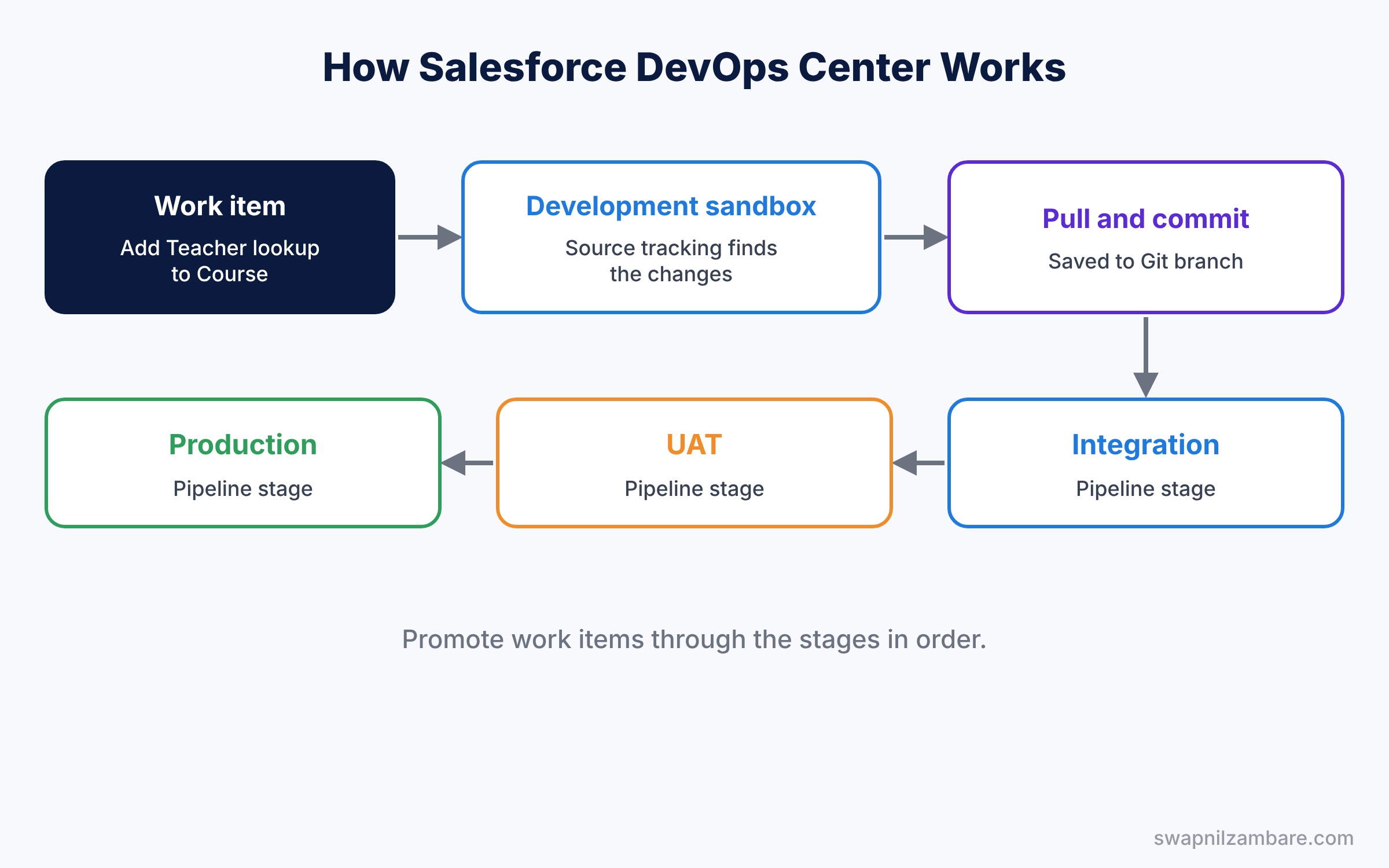
Behind the scenes, each work item has its own Git branch. Then DevOps Center creates and merges pull requests as the work item moves forward. So admins get the safety of Git without typing a single Git command.
Key Parts of Salesforce DevOps Center
Projects and work items
First, a project groups the work for one app or team, linked to one Git repository. Then work items live inside a project. Each one has a subject, a description, an assignee and a status.
Pipelines and stages
Next, a pipeline is the ordered list of stages, such as Integration, UAT and Production. Each stage connects to one org and one Git branch. Work items move through the stages in order.
Development environments and source tracking
Then a development environment is the sandbox where someone builds. It needs source tracking, which records changes made in Setup. You turn it on in production under Dev Hub settings for Developer and Developer Pro sandboxes.
Git provider
DevOps Center stores everything in a Git repository on a supported cloud provider, such as GitHub. Also, each user connects their own Git account, so history shows who made each commit.
Roles and permissions
Finally, DevOps Center uses permission sets for team members and for release managers. Release managers set up pipelines and promote to production. Team members create work items, pull changes and promote to early stages, so production stays in safe hands.
The table below shows the pipeline for Bright Path Tutors.
| Stage | Org | Git branch | Who promotes |
|---|---|---|---|
| Development | Asha’s Developer sandbox | Work item branch | Asha Mehta |
| Integration | Developer Pro sandbox | integration | Asha Mehta |
| UAT | Partial Copy sandbox | uat | Rahul Verma |
| Production | Production org | main | Release manager |
DevOps Center vs Change Sets
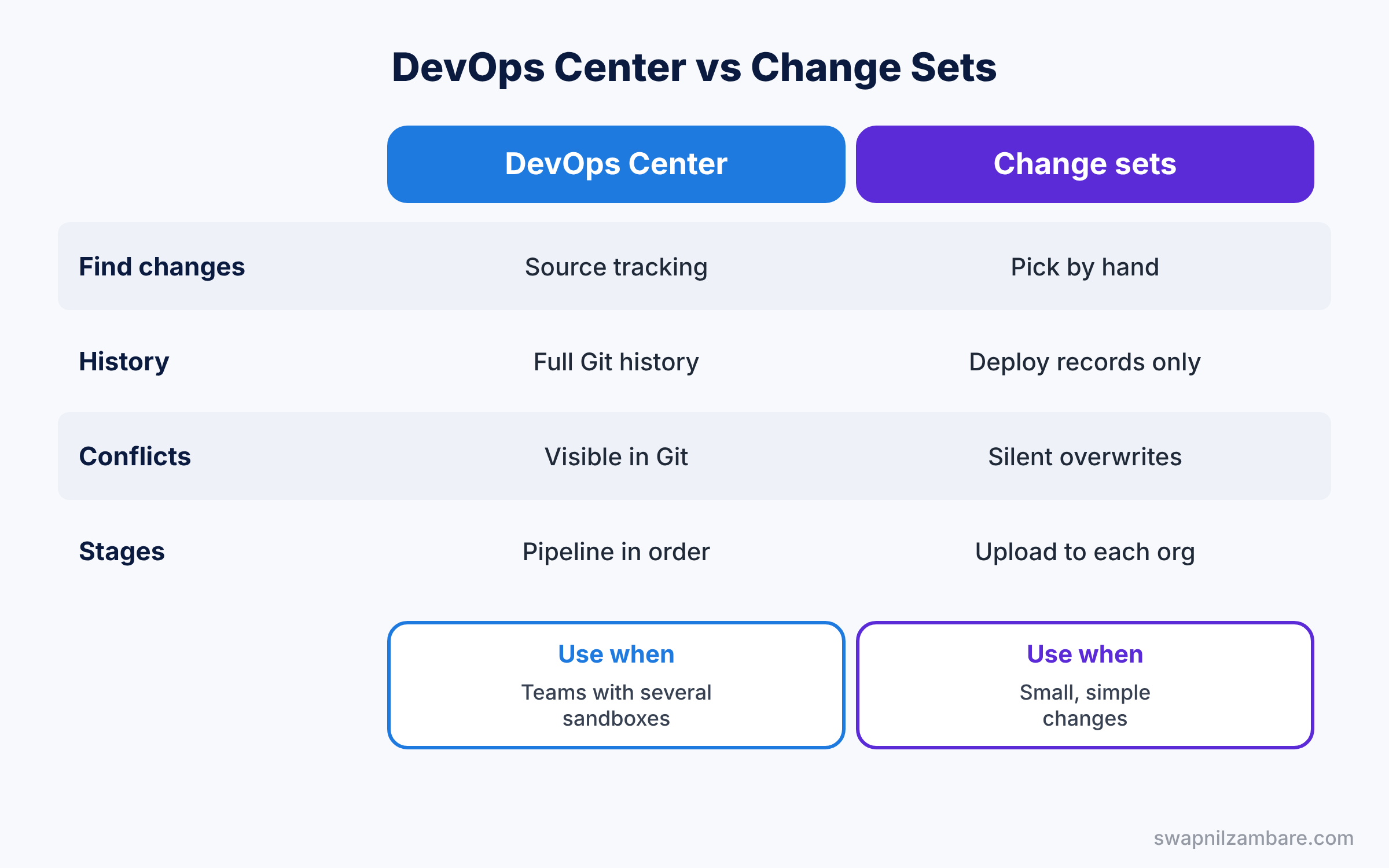
Both move metadata between orgs, so it helps to compare them. The table below shows the differences.
| Feature | DevOps Center | Change sets |
|---|---|---|
| Find changes | Source tracking lists them | Pick each component by hand |
| History | Full Git history | Only deployment records |
| Conflicts | Visible in Git | Silent overwrites |
| Moves through stages | Pipeline promotes in order | Upload to each org separately |
| Best for | Teams with several sandboxes | Small, simple changes |
In short, change sets are fine for a single admin and small updates. Use Salesforce DevOps Center when several people change the org or when you need a release history.
Hands-on Example: Salesforce DevOps Center Pipeline
Let’s set up a pipeline. You need a production org with sandboxes, such as a Trailhead Playground or a work org.
Step 1: Install DevOps Center
- In production, go to Setup, type “DevOps Center” in Quick Find, and click Enable.
- Follow the link to install the DevOps Center package, then assign the DevOps Center permission sets to the team.
- In Dev Hub settings, turn on source tracking for Developer and Developer Pro sandboxes.
Step 2: Create a project and pipeline
- Open the DevOps Center app and click New Project. Connect it to a new Git repository.
- Open Pipeline and add the stages from the table above, connecting each stage to its org.
- Add Asha’s Developer sandbox as a development environment. Then activate the pipeline.
Step 3: Create a work item and make a change
- Create a work item called “Add Teacher lookup to Course” and assign it to Asha.
- Click Proceed to create its branch, then log in to Asha’s sandbox and add the Teacher field. Also add it to the Course page layout, so the layout change is tracked too.
Step 4: Pull, commit and promote
- Back in the work item, click Pull Changes. The new field and its page layout appear.
- Tick both, write a commit message, and click Commit Changes.
- Mark the work item Ready to Promote, then promote it from Integration to UAT and later to Production.
Step 5: Check the result
After promotion, confirm the field exists in production with a SOQL query on the field definition.
SELECT QualifiedApiName, DataType, LastModifiedDate
FROM FieldDefinition
WHERE EntityDefinition.QualifiedApiName = 'Course__c'
AND QualifiedApiName = 'Teacher__c'
The Git repository also shows the commit, the author and the pull request for this work item. So anyone can trace the change later, even a year from now, when an auditor asks why the field exists.
Common Mistakes with Salesforce DevOps Center
- No source tracking. Changes do not appear when you pull, so turn it on first.
- Shared sandboxes. Two people in one development sandbox mix their changes.
- Huge work items. Small items are easier to test and promote.
- Editing production directly. It breaks the pipeline’s history, so make changes in sandboxes.
- Skipping UAT. Promote to testing before production every time.
Best Practices for Salesforce DevOps Center
- One work item, one change. Keep each item focused on a single request.
- Write clear commit messages. “Add Teacher lookup to Course” helps the next person.
- Give each builder their own sandbox. Clean environments mean clean pulls.
- Refresh sandboxes after releases. Our sandboxes guide covers the refresh steps.
- Agree on who promotes to production. A single release manager avoids surprises.
Practice Task
Create a second work item that adds a validation rule to Course, and promote both work items to UAT together. Then check the UAT org for both changes.
Hint: you can select several work items on the pipeline page and promote them in one step.
Salesforce DevOps Center FAQ
Is DevOps Center free?
Yes. DevOps Center is free to install. You need a supported Git provider account.
Do admins need to learn Git commands?
No. DevOps Center handles branches, commits and merges through clicks.
Can developers use the command line too?
Yes. Developers can work with the same Git repository using Salesforce CLI and VS Code.
Official Resources
Quick Recap
- Salesforce DevOps Center moves changes through a pipeline with clicks.
- Work items collect changes, and Git stores every commit.
- Source tracking in sandboxes finds your changes for you.
- Pipelines promote work items through stages in order.
- Use it instead of change sets when teams grow.
What’s Next?
You now have a professional release process. Next, prepare for the advanced admin exam that tests everything in this series. Read Platform Administrator II Certification Guide.


