Salesforce Release Updates are changes that Salesforce plans to turn on for every org by a set date, and admins test and enable them from one page in Setup. They arrive alongside the three seasonal releases each year: Spring, Summer and Winter. In our sandboxes guide, you learned to test changes before production. Releases are the changes Salesforce makes to your org, so the same testing habits apply.
In this post, you will learn how the release calendar works, what a sandbox preview is, how to read release notes, and how to manage the Release Updates page. Then you will build a simple release checklist for Bright Path Tutors and test an update in a sandbox. The Platform Administrator II exam also asks about pending updates that may change access, so this topic matters for your career too. Our org security guide showed one example, MFA, that started as an update.
What are Salesforce Release Updates?
Salesforce upgrades every org three times a year. Most new features arrive turned off, so you choose when to use them. Some changes, however, will be turned on for everyone, often to improve security or performance. Those are release updates.
Each release update has a title, a description, steps to test, and an enforcement date. Before that date, you can test it and turn it on early. On that date, Salesforce turns it on for you.
Here is a simple analogy. Think of your phone’s operating system. Most new apps are optional, but some security patches install on a fixed date. You get a notice, you can install early, and you check that your important apps still work. Release updates are those planned security patches for your org.
Why Salesforce Release Updates Matter
An untested update can break things quietly. For example, a flow may stop sending emails, or a guest user may lose access to a public page. Users then report problems on Monday morning, and the admin must fix them under pressure. However, the same update tested a month earlier costs only an hour of calm work.
Here are some real situations at Bright Path Tutors.
- A security update changes how guest users read records on the Parent Portal.
- A new release changes a page the support team uses every day.
- Developers need to know if an Apex change affects their code.
- The CEO wants to know which new features are worth turning on this season.
So a release routine protects daily work and helps the team use new features sooner.
How Salesforce Release Updates Work
Each release follows a similar timeline. First, Salesforce publishes the release notes a few weeks before the release. Next, sandboxes on preview instances get the new release early, which is the sandbox preview window. Then you test your important processes and any release updates in that sandbox. After that, production orgs upgrade on scheduled weekends. Finally, you turn on useful new features and enable release updates before their enforcement dates.
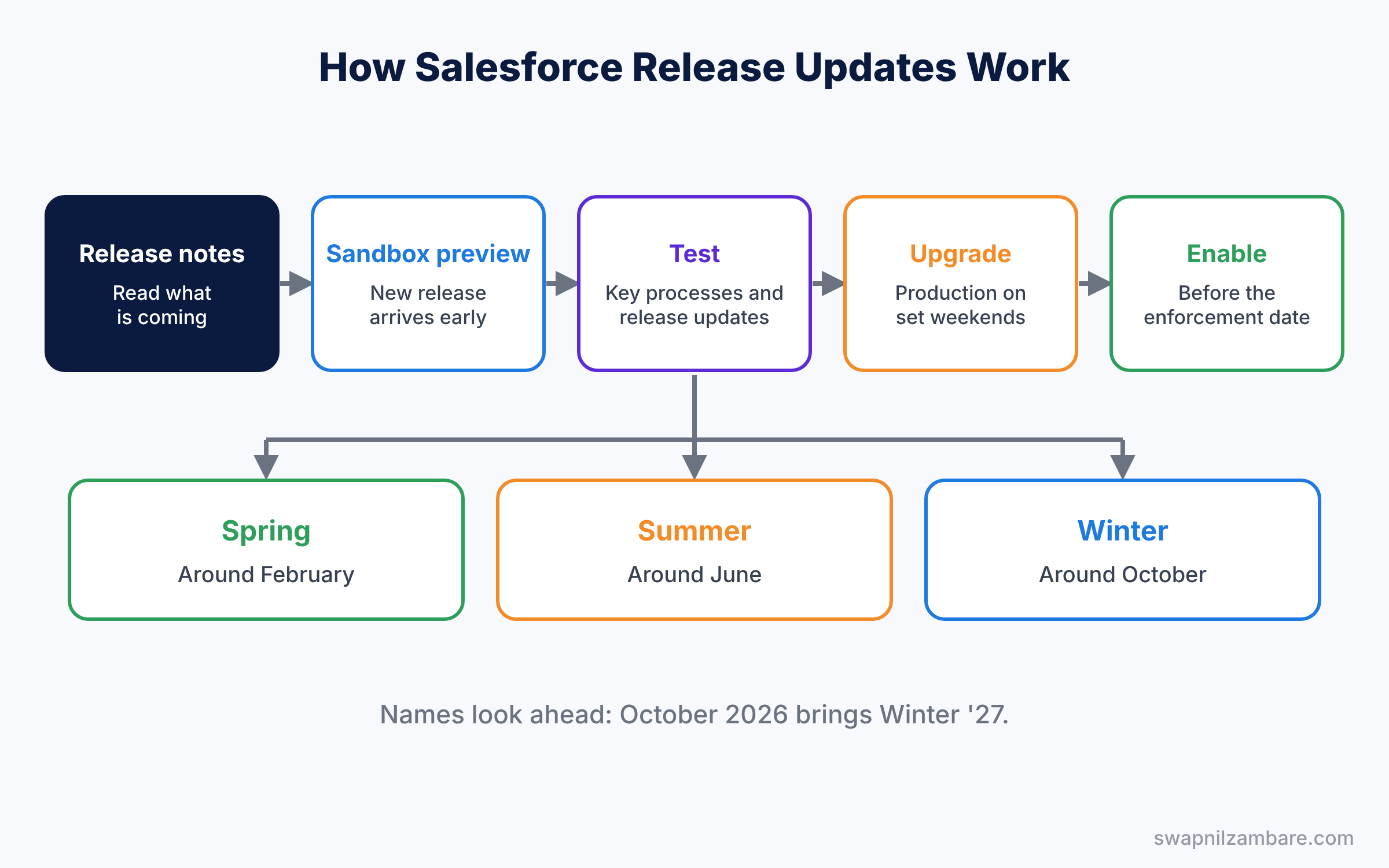
Release names look one season ahead. For example, the release that arrives in October 2026 is called Winter ’27. So when you search Help, use the release name, not the month, to find the right notes. Also, each release has a number, which you will see in Help links and API versions.
Key Parts of Salesforce Release Updates
Seasonal releases
First, the three releases are Spring, Summer and Winter. Each one adds features across Sales, Service, Flow, security and the platform. Then the release notes list everything, with filters for your edition and product. So you can skip features for products you do not own.
Sandbox preview
Next, if your sandbox sits on a preview instance during the preview window, it gets the release early. So you can test before production changes. Salesforce publishes which instances get the preview and when.
The Release Updates page
Then, in Setup, the Release Updates page groups updates as Needs Action, Due Soon, Overdue and so on. Each update has Get Started steps, and many have a test run option that you can turn on and off.
Maintenance calendar
The Trust site shows maintenance windows for your instance. Check it so you can warn users about the upgrade weekend, because the org may be read-only for a short time during maintenance.
Release readiness habits
Finally, many admins follow a checklist, join release webinars, and complete Trailhead release modules. Certified admins also complete maintenance modules to keep certifications active.
The table below shows a simple release checklist.
| When | Task | Owner |
|---|---|---|
| Notes published | Read notes for products you use | Admin |
| Sandbox preview | Test key flows, pages and integrations | Admin and developers |
| Sandbox preview | Test release updates with test runs | Admin |
| Before upgrade | Tell users what will change | Admin |
| After upgrade | Turn on chosen features, check errors | Admin |
Release Updates vs New Features
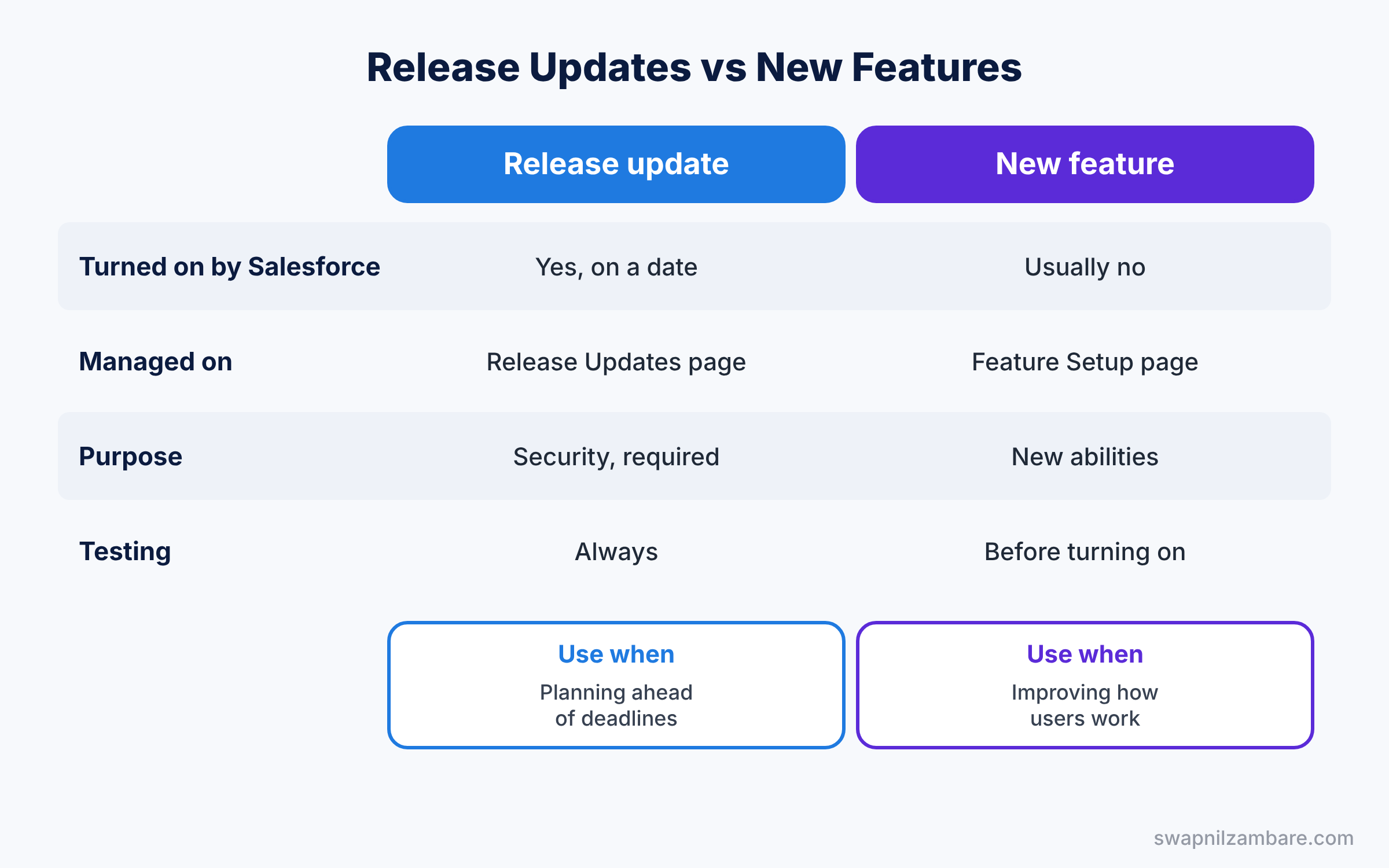
Both appear in release notes, so beginners mix them up. The table below compares them.
| Feature | Release update | New feature |
|---|---|---|
| Turned on by Salesforce | Yes, on the enforcement date | Usually no, you choose |
| Where you manage it | Release Updates page | Setup page for that feature |
| Main purpose | Security, performance, required changes | New abilities |
| Testing needed | Always | Before you turn it on |
| Best for | Planning ahead of deadlines | Improving how users work |
In short, treat Salesforce Release Updates as deadlines you must test. Treat new features as options you can adopt when ready.
Hands-on Example: Salesforce Release Updates at Bright Path Tutors
Let’s build a release routine in your Developer Edition org and a sandbox.
Step 1: Read the release notes
- Open the release notes for the current release on Salesforce Help.
- Filter by your edition and by features like Flow, Service and Security.
- Note three features that could help Bright Path Tutors.
Step 2: Check the Release Updates page
- Go to Setup, type “Release Updates” in Quick Find, and open it.
- Open each update under Needs Action and read its description and enforcement date.
- Write them in a tracking sheet with the columns from the table below.
| Update | Enforcement date | Test status | Owner |
|---|---|---|---|
| Guest user access change | Next release | Testing in sandbox | Asha Mehta |
| Flow behaviour change | In 3 months | Not started | Rahul Verma |
Step 3: Test in a sandbox
- In a sandbox, open an update and click Get Started.
- Follow its steps and turn on the test run, if the update has one.
- Test the processes it may affect, such as the Parent Portal pages and key flows.
Step 4: Enable in production
- When tests pass, enable the update in production before the enforcement date.
- Tell users what changed, even if nothing should look different.
- Then mark the update as done in your tracking sheet, with the date and the test results. This record helps in audits and when someone asks later why a behaviour changed.
Step 5: Review after the upgrade
After the upgrade weekend, check debug logs and flow error emails for new failures. Developers can also check that Apex classes use a recent API version, because some behaviour depends on it.
SELECT Name, ApiVersion, LastModifiedDate
FROM ApexClass
WHERE NamespacePrefix = null
ORDER BY ApiVersion
Classes with very old API versions are the first to review when behaviour changes. Share the list with your developers after each release.
Common Mistakes with Salesforce Release Updates
- Ignoring the page until enforcement. Updates then arrive without testing.
- Testing only in production. Use the sandbox preview window.
- Not reading release notes. Useful free features go unnoticed for years.
- No user communication. Even small changes create support tickets.
- Forgetting integrations. Outside systems may react to changes in security or APIs.
Best Practices for Salesforce Release Updates
- Keep a release calendar. Mark notes, preview and upgrade dates in advance.
- Use one tracking sheet. Every update gets an owner and a status.
- Keep a sandbox on preview. Plan sandbox refreshes so one is ready for the preview window.
- Share a short summary. A one-page “what’s new” helps users adopt features.
- Complete release learning. Trailhead release modules help you keep up.
Practice Task
Pick one release update in your org, read its steps, and write a short test plan with three test cases. Then share it with a teammate for review.
Hint: test the main business process, a guest or partner user if relevant, and one integration.
Salesforce Release Updates FAQ
Can I delay a release update?
No. You can turn it on early, but Salesforce enforces it on the published date.
Can I skip a seasonal release?
No. All orgs upgrade on Salesforce’s schedule.
Where do I find my upgrade date?
Check the maintenance calendar for your instance on the Salesforce Trust site.
Official Resources
Quick Recap
- Salesforce releases arrive three times a year: Spring, Summer and Winter.
- Salesforce Release Updates are changes enforced on a set date.
- Sandbox preview lets you test before production upgrades.
- The Release Updates page shows steps, test runs and deadlines.
- A simple checklist keeps every release calm and planned.
What’s Next?
Your org is now ready for every release. Next, learn how to move changes between orgs with Git-based pipelines in DevOps Center. Read Salesforce DevOps Center for Admins.


