Lightning Page Performance is how fast a Lightning record page loads and becomes usable, and admins can measure and improve it without code. A slow Course page costs every user a few seconds, hundreds of times a day. In our Dynamic Forms guide, you built smarter pages. In our page layouts guide, you met Lightning record pages for the first time. Now you will make those pages fast.
In this post, you will learn what Experienced Page Time is, how to use the Analyze button in Lightning App Builder, where to find page speed data, and which design choices slow pages down. You will also learn what replaced Salesforce Optimizer, which Salesforce retired for most orgs in the Winter ’26 release and for the rest in Summer ’26. Then you will speed up the Bright Path Tutors Course page step by step.
What is Lightning Page Performance?
Lightning Page Performance describes how long a Lightning page takes to load for a user. Salesforce measures it with Experienced Page Time, or EPT. EPT is the time from clicking a link until the page is ready to use.
Three things affect it: the page design, the user’s browser and computer, and the network. Admins control the first one directly. They can also check the other two with simple tools. So when a user says “Salesforce is slow”, you first find out which of the three is the real cause, before you change anything.
Here is a simple analogy. Think of a school notice board. If it holds 80 notices, students take ages to find the timetable. If it holds 10 clear notices in sections, they find it in seconds. A record page with too many components is the crowded board.
Why Lightning Page Performance Matters
Users notice slow pages and lose patience. They also start to avoid Salesforce, and data quality drops. For example, an agent may skip updating the case reason because the page takes too long to save and reload. Six seconds per page across 60 pages is six minutes a day for one agent, and hours each week for a whole team.
Here are some real situations at Bright Path Tutors.
- Support agents open 60 case pages a day, and each takes six seconds to load.
- The Course page has 9 related lists, 3 charts and 120 fields.
- Trainers in a branch office use old laptops on a slow network.
- Managers ask why Salesforce feels slower than last year.
So faster pages save real time every day and make users happier.
How Lightning Page Performance Works
Improving a page follows a simple loop. First, you measure the current EPT for the page, using the Lightning Usage app or the EPT display. Next, you open the page in Lightning App Builder and click Analyze to see warnings. Then you change the design, such as moving related lists into tabs or removing unused components. After that, you save, activate and measure again. Finally, you compare the new EPT with the old one and repeat for the next slow page.
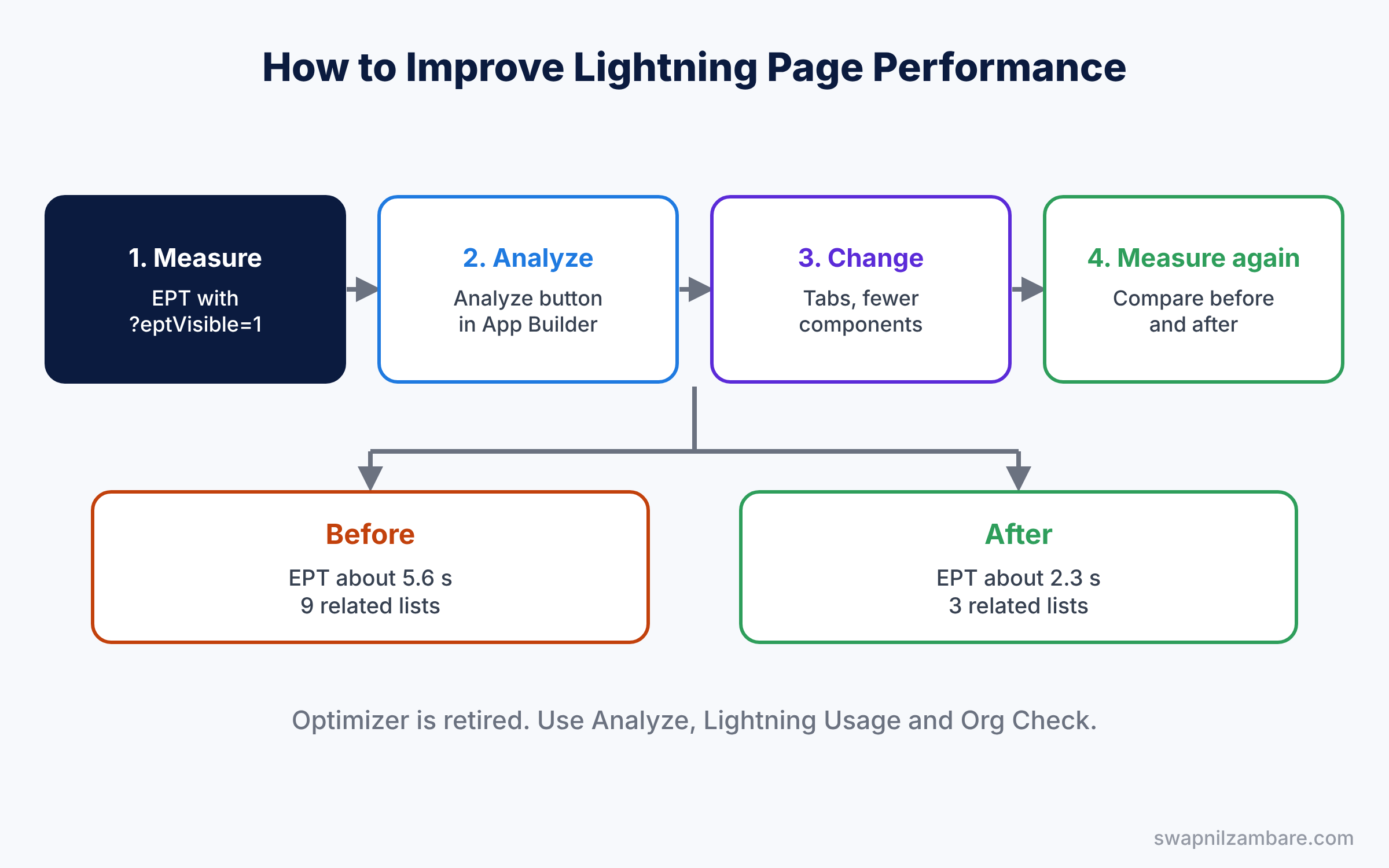
Small changes add up. Moving rarely used related lists into a second tab can cut several components from the first view.
Key Parts of Lightning Page Performance
Experienced Page Time
First, EPT is the main speed measure. Add ?eptVisible=1 to a Lightning URL, and Salesforce shows the EPT value at the top of the page. This is a quick way to test before and after a change.
The Analyze button for Lightning page performance
Next, Lightning App Builder has an Analyze button. It checks the page and lists issues, such as too many fields or components on the first tab. It also suggests fixes.
The Lightning Usage app
Then the Lightning Usage app in Setup shows page performance data across users and pages. It helps you find the slowest pages, so you fix the ones that matter most. For example, a slow page that only one manager opens each month matters less than a case page that 20 agents open all day.
Browser and network checks
The Salesforce speed test page, at your Lightning URL plus /speedtest.jsp, checks a user’s browser and network. A low score means the computer or connection is part of the problem.
After Salesforce Optimizer
Finally, Salesforce retired the Optimizer app. For org-wide reviews, admins now use tools like Health Check, the Lightning Usage app and Org Check, a free tool built by Salesforce engineers.
The table below shows common causes and fixes.
| Cause | Fix |
|---|---|
| Many related lists on the first tab | Move them to a Related tab |
| Very long field sections | Split them with Dynamic Forms and tabs |
| Heavy charts and report components | Show them only where needed |
| Many components visible at once | Use tabs and accordions |
| Slow browser or network | Run the speed test and update the browser |
Lightning Page Performance vs Page Design Habits
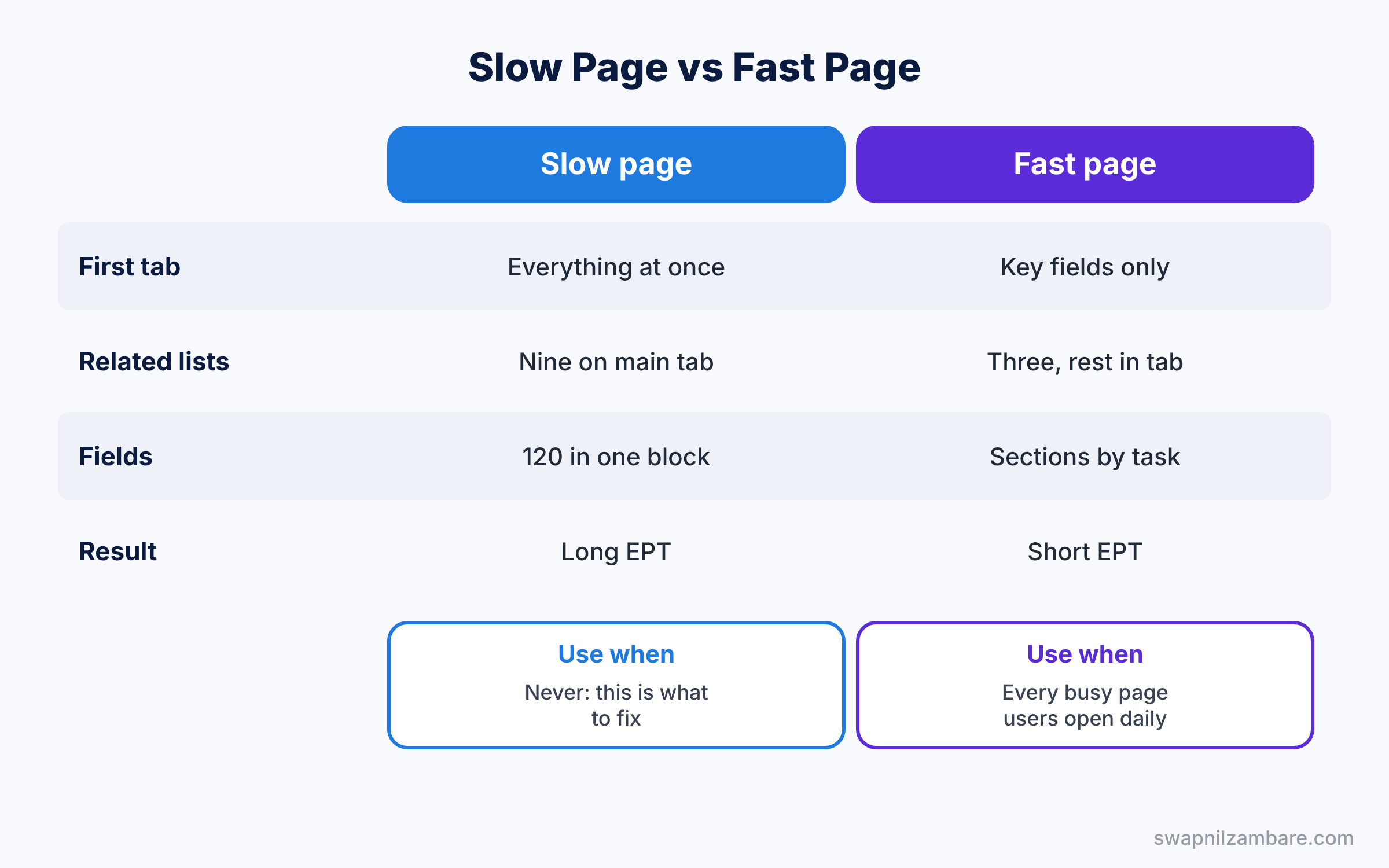
Many slow pages come from habits, not from Salesforce. The table below compares a slow design with a fast design.
| Feature | Slow page | Fast page |
|---|---|---|
| First tab content | Everything at once | Key fields and actions only |
| Related lists | Nine on the main tab | Three, others in a tab |
| Fields shown | 120 in one block | Sections by task, shown by rules |
| Charts | Several on every record | Only on pages that need them |
| Result | Long EPT, frustrated users | Short EPT, users find things fast |
In short, start every page with the minimum users need first. Then move everything else into tabs, because content in hidden tabs usually loads only when a user opens them.
Hands-on Example: Lightning Page Performance for the Course Page
Let’s speed up a page in your Developer Edition org.
Step 1: Measure the starting point
- Open a course record and add ?eptVisible=1 to the end of the URL.
- Reload three times and note the EPT values, using the table below.
| Measurement | EPT before | EPT after |
|---|---|---|
| Load 1 | 5.8 s | 2.4 s |
| Load 2 | 5.5 s | 2.2 s |
| Load 3 | 5.6 s | 2.3 s |
Step 2: Analyze the page
- Click the gear icon and choose Edit Page.
- Click Analyze and read the performance warnings.
Step 3: Change the design
- Create a Related tab and move six related lists into it, keeping Enrollments on the main tab.
- Move the fee chart to the Related tab as well.
- With Dynamic Forms, show the Online Class Details section only for online courses. Save and activate.
Step 4: Measure again
Reload the page three times with ?eptVisible=1 and note the new values. In our example, EPT drops from about 5.6 seconds to about 2.3 seconds. Share the before and after numbers with the team, because visible wins make users more open to page changes.
Step 5: Check field counts
Developers can list the fields on the Course object with this query, which helps when you plan sections.
SELECT QualifiedApiName, DataType
FROM FieldDefinition
WHERE EntityDefinition.QualifiedApiName = 'Course__c'
ORDER BY QualifiedApiName
If the list is long, review which fields users really need on the first view. Then move the rest into later tabs or remove them from the page.
Common Mistakes with Lightning Page Performance
- Testing only on a fast laptop. Test on the slowest computer your users have.
- Adding components without removing any. Pages slowly grow heavier.
- Ignoring the Analyze button. Its warnings point straight to the problem.
- Putting everything on the first tab. Tabs keep the first view light.
- Blaming Salesforce first. Check browser and network with the speed test.
Best Practices for Lightning Page Performance
- Measure before and after. Numbers prove which change helped the most.
- Fix the busiest pages first. Case and opportunity pages often matter most.
- Keep the first tab short. Show key fields and actions only.
- Review pages every release. New components creep in over time.
- Share speed tips with users. An updated browser can help as much as page changes.
Practice Task
Measure the EPT of your Case record page, click Analyze, and apply two of its suggestions. Then measure again and note the difference.
Hint: start with related lists, because they are usually the heaviest part of a page.
Lightning Page Performance FAQ
What is a good EPT?
Lower is better. Many teams aim for a few seconds on busy pages, but compare against your own starting point.
Is Salesforce Optimizer still available?
No. Salesforce retired the Optimizer app, so use the Analyze button, the Lightning Usage app, Health Check and Org Check instead.
Do tabs really help?
Yes. Components in tabs that are not open usually load only when the user clicks the tab.
Official Resources
- Salesforce Optimizer App Retirement (Salesforce Help)
- Lightning App Builder Overview (Salesforce Help)
Quick Recap
- Lightning Page Performance is measured with Experienced Page Time.
- The Analyze button in Lightning App Builder lists speed issues.
- Tabs, fewer components and Dynamic Forms keep pages light.
- The speed test checks browser and network problems.
- Optimizer is retired, so use the Analyze button, Lightning Usage app and Org Check.
What’s Next?
Your pages are now fast. Next, learn how to stay ready for Salesforce’s three releases each year. Read Salesforce Release Updates and Seasonal Releases.


