Salesforce Summary Formulas let you calculate new numbers from report totals, such as win rate, average deal size or percent of total. Historical trend reporting goes one step further. It shows how values changed over the last few months, not just what they are today.
In this post, you will build two summary formulas and a historical trend report for Bright Path Tutors. This builds on reports and dashboards for beginners and on conditional formatting and row-level formulas. Our guide to reporting snapshots covers another way to track history, so we will compare the two.
What are Salesforce Summary Formulas?
A summary formula is a calculated column that works on grouped totals in a report. In contrast, a row-level formula works on each record. Salesforce Summary Formulas work on sums, averages and counts at each group level.
Think of a class result sheet. Each student’s marks are rows. The class average and the pass rate are summary numbers. Salesforce Summary Formulas calculate those summary numbers for every group in your report.
Why Salesforce Summary Formulas Matter
Managers rarely want raw totals alone. Instead, they want ratios and comparisons. Salesforce Summary Formulas give them those numbers without exporting to Excel. Here is how they help Bright Path Tutors.
- First, the sales manager sees each rep’s win rate.
- Also, finance sees each course level’s share of total revenue.
- Next, managers compare this month’s bookings with last month’s.
- Leaders track how the pipeline changed week by week.
- Finally, dashboards show these numbers live, always up to date.
So summary formulas turn a basic report into a real management tool.
How Salesforce Summary Formulas Work
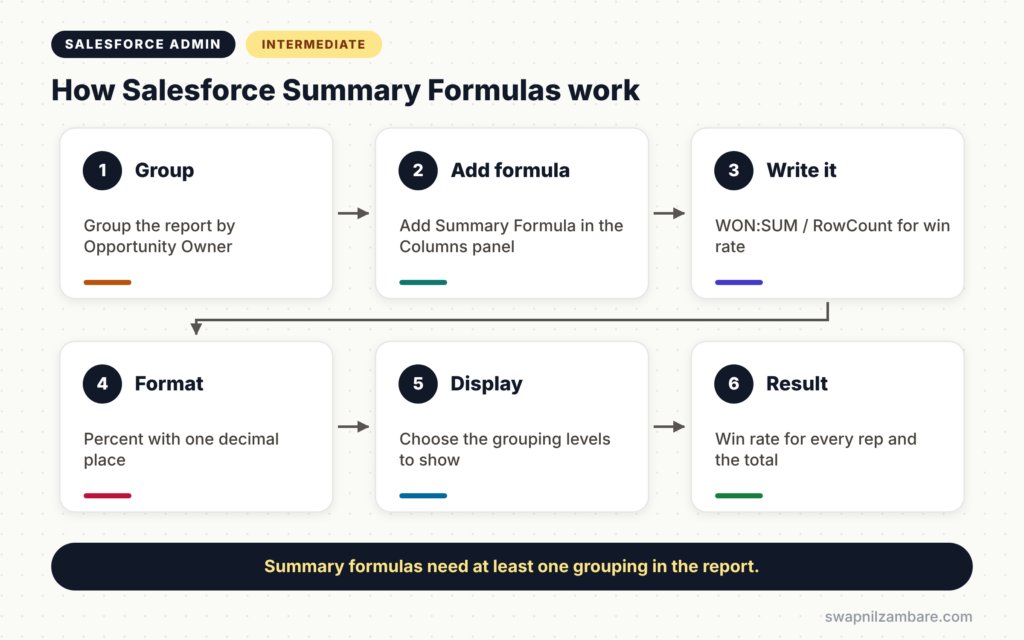
Salesforce Summary Formulas follow a simple process. First, you build a summary report with at least one grouping. Next, you add a summary formula column in the report builder. Then you write the formula using summary fields, such as AMOUNT:SUM or RowCount. After that, you choose where it shows, such as at every grouping or only the grand total. Finally, Salesforce calculates the value for each group.
Summary Fields
First, summary fields end with a summary type, such as :SUM, :AVG, :MIN or :MAX. For example, AMOUNT:SUM is the total amount in a group. RowCount is the number of records in the group.
PARENTGROUPVAL
PARENTGROUPVAL returns a value from a higher group or the grand total. So you can calculate “percent of total” for each group.
PREVGROUPVAL
PREVGROUPVAL returns the value from the previous group at the same level. It is useful for month-over-month change when you group by month.
Output Format
Also, each summary formula has a format, such as Currency, Number or Percent. Pick Percent for ratios like win rate.
Row-Level Formulas vs Summary Formulas
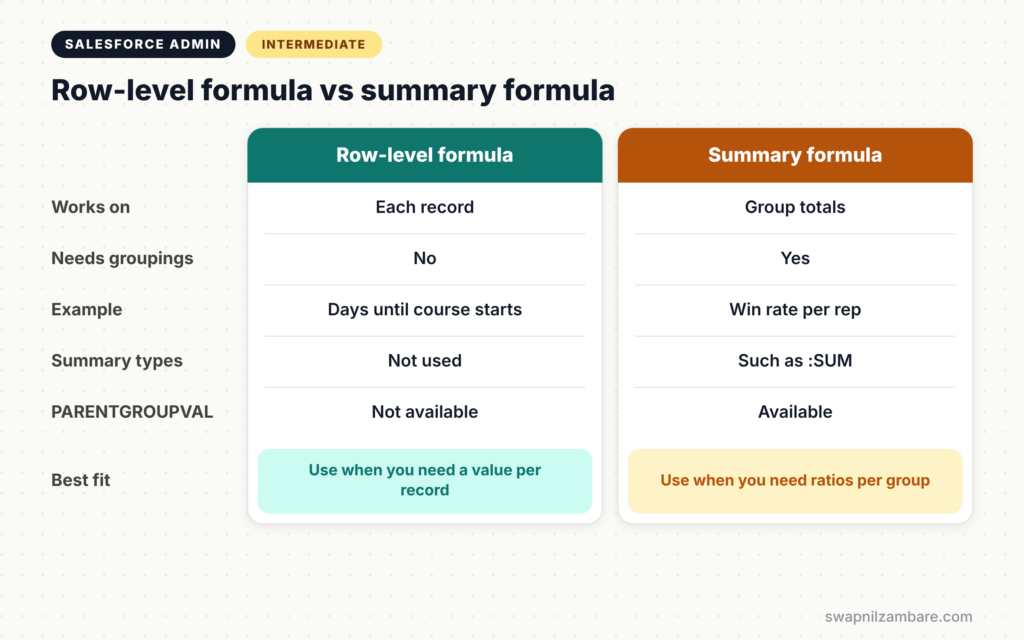
The table below compares the two formula types in reports.
| Feature | Row-level formula | Summary formula |
|---|---|---|
| Works on | Each record | Group totals |
| Needs groupings | No | Yes |
| Example | Days until course starts | Win rate per rep |
| Uses summary types | No | Yes, such as :SUM |
| Can use PARENTGROUPVAL | No | Yes |
When to use which depends on the question. Use a row-level formula for a value per record. Use a summary formula for ratios and totals per group.
How to Build Salesforce Summary Formulas Step by Step
Let’s build Salesforce Summary Formulas in an opportunity report at Bright Path Tutors. The sales manager, Ravi Kumar, wants win rate by rep and each rep’s share of revenue.
Step 1: Build the Base Report
- Go to Reports and click New Report.
- Choose the Opportunities report type.
- Then group rows by Opportunity Owner.
- Next, add a filter for Close Date in This Fiscal Year and show Closed opportunities.
Step 2: Add a Win Rate Formula
- In the Columns panel, click the arrow and choose Add Summary Formula.
- Enter the values from the table below.
- Paste the formula and click Apply.
The table below shows the settings for the two formulas.
| Setting | Win Rate | Share of Revenue |
|---|---|---|
| Format | Percent | Percent |
| Decimal points | 1 | 1 |
| Display | All summary levels | Opportunity Owner grouping |
Here is the win rate formula.
WON:SUM / RowCountWON is 1 for won deals and 0 for lost ones. So the sum of WON divided by the number of deals gives the win rate.
Step 3: Add a Share of Revenue Formula
Here is the share of revenue formula.
AMOUNT:SUM / PARENTGROUPVAL(AMOUNT:SUM, GRAND_SUMMARY)This divides each rep’s total amount by the grand total. As a result, each rep sees their percentage of all revenue.
Step 4: Add a Month-over-Month Change
Next, group a second report by Close Date (calendar month). Then add this formula with Currency format.
AMOUNT:SUM - PREVGROUPVAL(AMOUNT:SUM, CLOSE_DATE)It shows how much each month’s bookings went up or down compared with the month before.
What is Historical Trend Reporting?
Historical trend reporting stores daily snapshots of selected fields. Then reports can compare today’s values with values from earlier dates. It covers the current day and the previous few months.
For example, Ravi can see that the Amount on a big corporate deal dropped from 5,00,000 to 3,50,000 last week. A normal report only shows today’s value.
How to Turn On Historical Trend Reporting
- Go to Setup and type “Historical Trend Reporting” in Quick Find.
- Select Opportunities and tick Enable Historical Trending.
- Next, choose the fields to track, such as Amount, Stage and Close Date.
- Then click Save.
Salesforce creates a special report type, Opportunities with Historical Trending. Use it to build trend reports and charts.
Historical Trend Reporting vs Reporting Snapshots
Both features track change over time. However, historical trending is quick to set up and works for a few months of history on supported objects. Reporting snapshots copy report data into a custom object on a schedule, so you can keep history for much longer. Choose trending for recent pipeline changes, and snapshots for long-term history.
Common Mistakes with Salesforce Summary Formulas
- Adding a summary formula to a report with no groupings.
- Choosing Number format for ratios, so 0.45 shows instead of 45%.
- Dividing by a value that can be zero without a check.
- Expecting PREVGROUPVAL to work without a matching grouping.
- Forgetting that historical trending keeps only a few months of data.
Best Practices for Salesforce Summary Formulas
- Give every formula a clear name, such as “Win Rate %”.
- Use Percent format for ratios and Currency for money.
- Protect divisions with IF, such as IF(RowCount > 0, …).
- Show formulas only at the group levels that make sense.
- Add the key formulas to dashboards for daily use.
Practice Task
Build a Course report grouped by Level. Add a summary formula that shows each level’s share of total course fees. Hint: use FEE__C:SUM with PARENTGROUPVAL and GRAND_SUMMARY.
Most Asked Interview Questions on Salesforce Summary Formulas
Questions on Salesforce Summary Formulas test real reporting skills. Here are the ones asked most.
Basic Questions on Salesforce Summary Formulas
Q1. What is a summary formula?
It is a calculated column in a report that works on group totals, such as sums and counts. It needs at least one grouping.
Q2. How is it different from a row-level formula?
A row-level formula calculates a value for each record. A summary formula calculates values from group totals.
Q3. What does PARENTGROUPVAL do?
It returns a summary value from a higher grouping or the grand total. It is often used for percent of total.
Q4. What is historical trend reporting?
It stores daily values of selected fields for recent months, so reports can show how data changed over time.
Practical Questions on Salesforce Summary Formulas
Q5. How do you show win rate by rep?
Group an opportunity report by owner and add the summary formula WON:SUM / RowCount with Percent format.
Q6. How do you show month-over-month change?
Group by month and use PREVGROUPVAL with the date grouping to subtract last month’s total from this month’s.
Q7. When would you use reporting snapshots instead of historical trending?
Use snapshots when you need history for longer than a few months or for objects trending does not support.
Q8. A summary formula shows an error for some groups. Why?
It may divide by zero in groups with no records. Wrap the formula in an IF check.
Official Resources
- Add a Summary Formula Column to a Report (Salesforce Help)
- Set Up Historical Trend Reporting (Salesforce Help)
Quick Recap
- Salesforce Summary Formulas calculate values from report group totals.
- PARENTGROUPVAL gives percent of total, and PREVGROUPVAL gives change from the last group.
- Use Percent format for ratios and protect divisions.
- Historical trend reporting shows how fields changed over recent months.
- Reporting snapshots suit long-term history.
What’s Next?
Reports answer many questions, but sometimes admins need a quick query. Next, read our guide to SOQL for Salesforce Admins with Workbench and Inspector.


