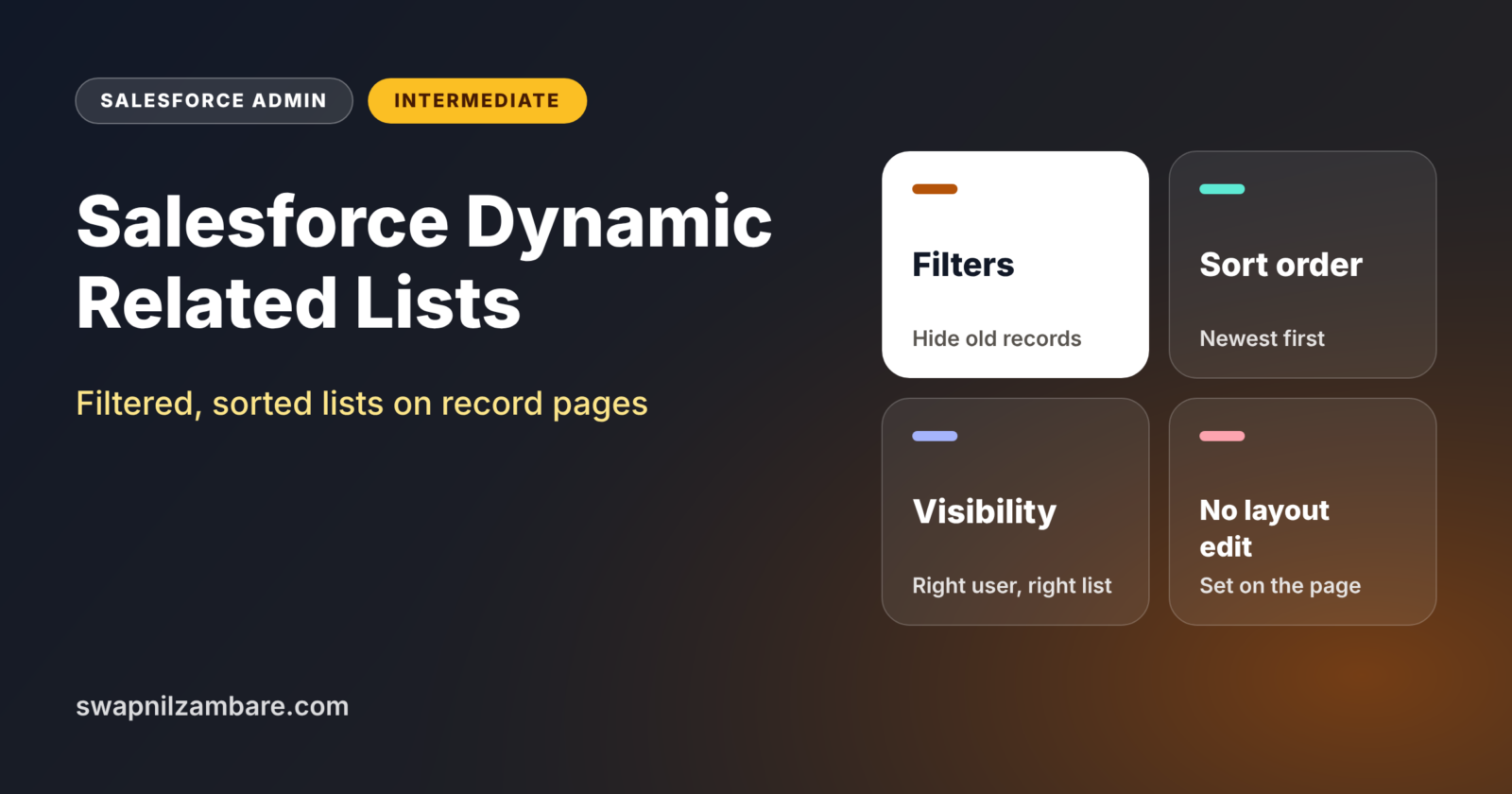
Salesforce Dynamic Related Lists let you control a related list right on the Lightning record page, without touching the page layout. You can choose the fields, add filters, set the sort order and pick the actions. So each page can show exactly the related records users need.
In this post, you will learn how Salesforce Dynamic Related Lists work, how they differ from classic related lists, and how to build one step by step. This builds on page layouts and Lightning record pages and Dynamic Forms and Dynamic Actions. If you are new to building pages, start with Lightning App Builder and custom apps.
What are Salesforce Dynamic Related Lists?
A related list shows child records on a parent record, such as Enrolments on a Course. The classic related list takes its settings from the page layout. A dynamic related list is a Lightning App Builder component instead. You set its fields, filters, sort and actions directly on the record page.
Think of a school notice board. The classic version shows every notice in the order it was pinned. The dynamic version lets the class teacher show only this week’s notices, sorted by date, with the most useful details. Salesforce Dynamic Related Lists give you that control.
Why Salesforce Dynamic Related Lists Matter
Long related lists slow users down. They scroll past old or irrelevant records to find the few that matter. Salesforce Dynamic Related Lists fix this. Here is how they help Bright Path Tutors.
- First, a course page shows only active enrolments, not cancelled ones.
- Also, trainers see the student name, status and payment status at a glance.
- Next, the newest enrolments appear at the top.
- Sales reps see a separate list of open opportunities on each account.
- Finally, admins change the list without editing the shared page layout.
So users find the right child records faster and with less scrolling.
How Salesforce Dynamic Related Lists Work
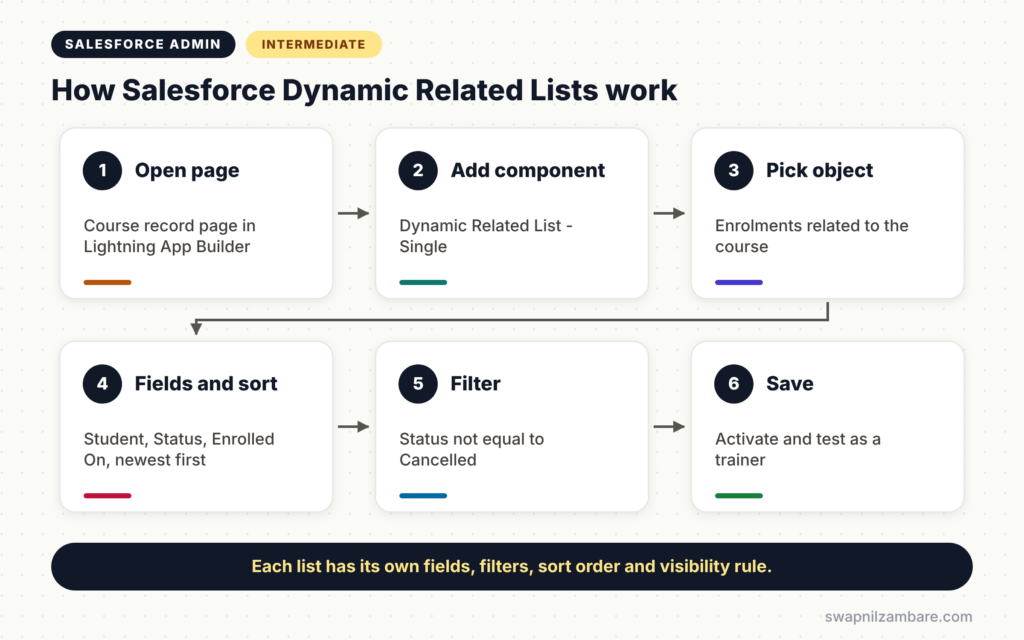
Salesforce Dynamic Related Lists live on the Lightning record page. First, you open the page in Lightning App Builder. Next, you drag the Dynamic Related List component onto the page. Then you pick the related object, such as Enrolments. After that, you choose fields, filters, sort order and actions. Finally, you save and activate the page.
Fields
You choose which columns to show, such as Student, Status and Payment Status. You no longer need to edit the related list section of the page layout.
Filters
Filters limit which child records appear. For example, Status not equal to Cancelled. This is the biggest advantage over classic related lists.
Sort Order
You choose the field and direction, such as Created Date, newest first. So the most recent records always appear at the top.
Actions and Display Type
You can pick which buttons show, such as New, and choose the display style. A list view style shows more columns, while a tile style suits narrow page regions.
Classic Related Lists vs Dynamic Related Lists
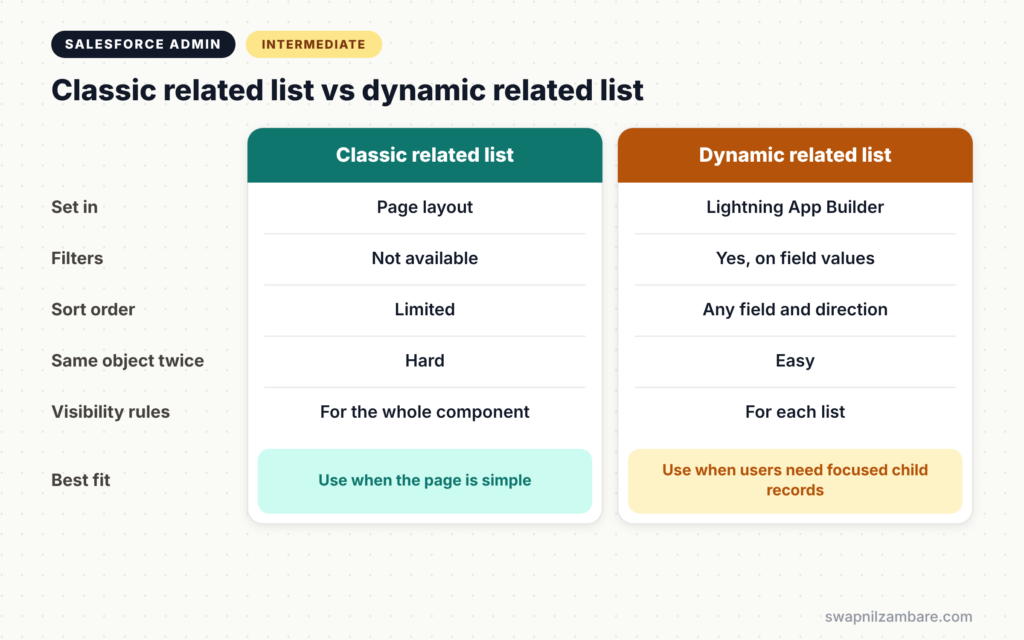
The table below compares the two approaches.
| Feature | Classic related list | Dynamic related list |
|---|---|---|
| Where you set it | Page layout | Lightning App Builder |
| Filters | Not available | Yes, on field values |
| Sort order | Limited | Choose field and direction |
| Different lists per page | Hard | Easy, add more components |
| Visibility rules | Whole related lists component | Each list separately |
| Best for | Simple orgs | Busy pages with many child records |
When to use which is easy. Classic lists are fine for simple pages. Use dynamic related lists when users need filtered or focused child records.
How to Build Salesforce Dynamic Related Lists Step by Step
Let’s build Salesforce Dynamic Related Lists for the Course record page at Bright Path Tutors. Trainers want to see only active enrolments, newest first.
Step 1: Open the Record Page
- Open any Course record.
- Click the gear icon, then Edit Page.
- The page opens in Lightning App Builder.
Step 2: Add the Component
- In the Components panel, search for “Dynamic Related List – Single”.
- Next, drag it into the Related tab or the main region.
- Then set the related list to Enrolments.
Step 3: Configure the List
The table below shows the settings for this list.
| Setting | Value |
|---|---|
| Related List Label | Active Enrolments |
| Related List Type | Enhanced List |
| Fields | Student, Status, Payment Status, Enrolled On |
| Sort By | Enrolled On, descending |
| Filter | Status not equal to Cancelled |
| Number of records | 10 |
Step 4: Add a Second List
- Drag another Dynamic Related List component below the first one.
- Next, set it to Enrolments again with the label “Cancelled Enrolments”.
- Then add the filter Status equals Cancelled.
- Finally, add a visibility rule so only managers see this list.
Step 5: Save and Test
- Click Save, then Activation if the page is new.
- Next, open a course with several enrolments.
- Then confirm cancelled enrolments appear only in the second list.
Using Visibility Rules
Each dynamic related list can have its own visibility rule. For example, show “Overdue Payments” only when the course Fee is above 20,000. Or show a list only to users with a certain permission. As a result, each user sees a cleaner page that fits their job.
You can even combine this with custom permissions. For example, show the refund list only to users with the “View Refunds” permission.
Performance Tips
Every related list on a page loads data. Too many lists slow the page down. So keep the main tab light and move extra lists to other tabs. Also show a sensible number of records, such as 10, with a View All link for the rest. Our post on Lightning page performance analysis shows how to measure page speed.
Common Mistakes with Salesforce Dynamic Related Lists
- Adding many lists to the first tab, which slows the page.
- Forgetting to remove the old related list, so users see duplicates.
- Using filters without telling users, so they think records are missing.
- Showing too many columns in a narrow page region.
- Not testing visibility rules with different users.
Best Practices for Salesforce Dynamic Related Lists
- Give each list a clear label that says what it shows, such as “Active Enrolments”.
- Use filters to hide records users rarely need.
- Sort by the date users care about most.
- Keep heavy lists on secondary tabs.
- Test the page as a trainer, a manager and a sales rep.
Practice Task
Add a dynamic related list on the Account page that shows only open opportunities, sorted by Close Date. Hint: filter on the Is Closed field equals False.
Most Asked Interview Questions on Salesforce Dynamic Related Lists
Questions on Salesforce Dynamic Related Lists often come up with Dynamic Forms questions. Here are the ones asked most.
Basic Questions on Salesforce Dynamic Related Lists
Q1. What is a dynamic related list?
It is a Lightning App Builder component that shows child records with fields, filters, sorting and actions set on the record page.
Q2. How is it different from a classic related list?
A classic related list takes its settings from the page layout and cannot filter records. A dynamic related list is set on the record page and supports filters.
Q3. Where do you configure it?
In Lightning App Builder, using the Dynamic Related List – Single component on a record page.
Q4. Can you show the same related object twice?
Yes. Add two components for the same object with different filters and labels.
Practical Questions on Salesforce Dynamic Related Lists
Q5. Users want to see only active enrolments. What do you do?
Add a dynamic related list for Enrolments with a filter that excludes cancelled records. Then sort by enrolment date.
Q6. How do you show a list only to managers?
Add a component visibility rule based on the user’s role, profile or a custom permission.
Q7. The record page is slow. What do you check?
Count the related lists on the first tab. Move some to other tabs and reduce the number of records shown.
Q8. Do dynamic related lists change the page layout?
No. They are set only on the Lightning record page, so the page layout stays the same.
Official Resources
- Create Dynamic Related Lists in Lightning App Builder (Salesforce Help)
- Trailhead: Lightning App Builder
Quick Recap
- Salesforce Dynamic Related Lists are set on the Lightning record page.
- They support chosen fields, filters, sort order and actions.
- You can show the same object several times with different filters.
- Visibility rules control who sees each list.
- Keep heavy lists off the first tab for better speed.
What’s Next?
Better pages help users act. Better reports help leaders decide. Next, read our guide to Salesforce Summary Formulas and historical trend reporting.


