Salesforce Mass Update tools let you change many records at once instead of opening them one by one. For example, you can move 300 leads to a new owner or close 50 old cases in minutes. Picking the right tool for the size of the job is the real skill.
This post builds on list views and Data Loader basics. We will use Bright Path Tutors records for every example.
What is a Salesforce Mass Update?
A Salesforce Mass Update is any change applied to many records in one action. It can update a field, change the owner, or delete records. Salesforce gives several tools for this, from simple list views to Data Loader.
Think of it like marking homework. A teacher can tick each notebook one at a time. Or she can stamp a whole pile at once. Mass tools are the stamp, so use them with care.
Why Salesforce Mass Update Tools Matter
Admins get bulk requests every week. A sales rep leaves, so their leads need a new owner. A course ends, so its enrolments need a new status. Without a Salesforce Mass Update tool, these jobs take hours.
Also, bulk changes carry risk. One wrong filter can change the wrong 5,000 records. So knowing each tool, its limits and its undo options protects your data.
How Salesforce Mass Update Tools Work
Each Salesforce Mass Update tool follows the same idea. First you select records with a filter. Then you choose the change. Finally, Salesforce saves the records, running validation rules, flows and triggers as usual.
Mass Edit from a List View
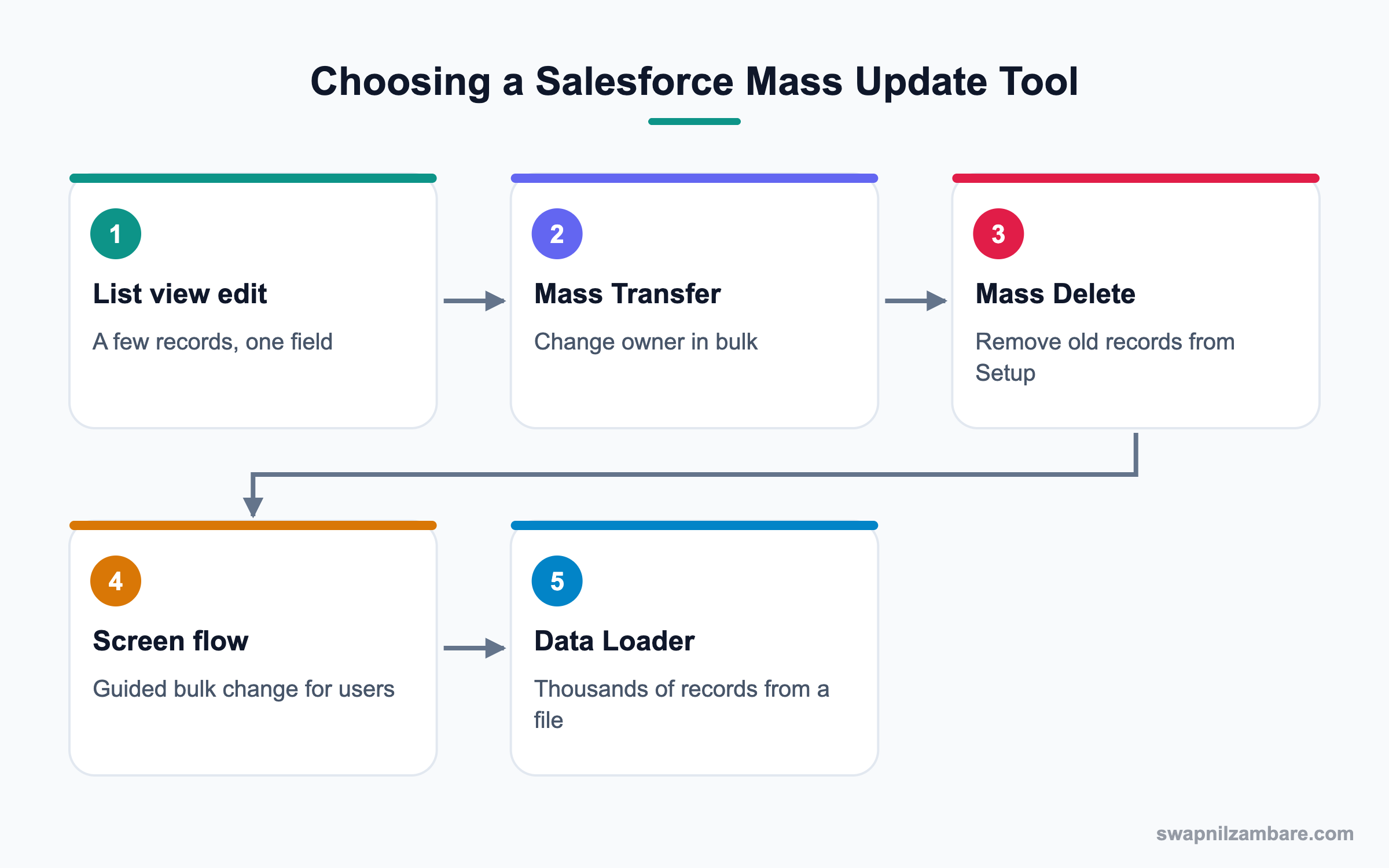
Users can select several records in a list view and edit one field for all of them. Select the checkboxes, double-click a cell, change the value and tick the option to update all selected items. This works for up to 200 records per save.
Mass Transfer Records
Mass Transfer Records in Setup changes the owner of many accounts, leads or custom object records. You set filters, pick the new owner and choose whether related items move too.
Mass Delete Records
Mass Delete Records in Setup removes records like accounts, leads, contacts, activities, cases, products and reports. You filter, review the list, select records and delete. Deleted records go to the Recycle Bin first.
Mass Update with a Screen Flow
A screen flow from a list view can update selected records with guided steps. This is good for users who need a safe button, not raw editing.
Mass Update with Data Loader
Data Loader updates thousands of records from a CSV file. You export the records with their Ids, change the columns in a spreadsheet and update them back.
Salesforce Mass Update Tools Compared
This table helps you pick a tool for each job.
| Tool | Best for | Who uses it |
|---|---|---|
| List view mass edit | One field on a few records | Users and admins |
| Mass Transfer Records | Changing owners in bulk | Admins |
| Mass Delete Records | Removing old standard records | Admins |
| Screen flow from list view | Guided change with rules | Users |
| Data Loader | Thousands of records, many fields | Admins |
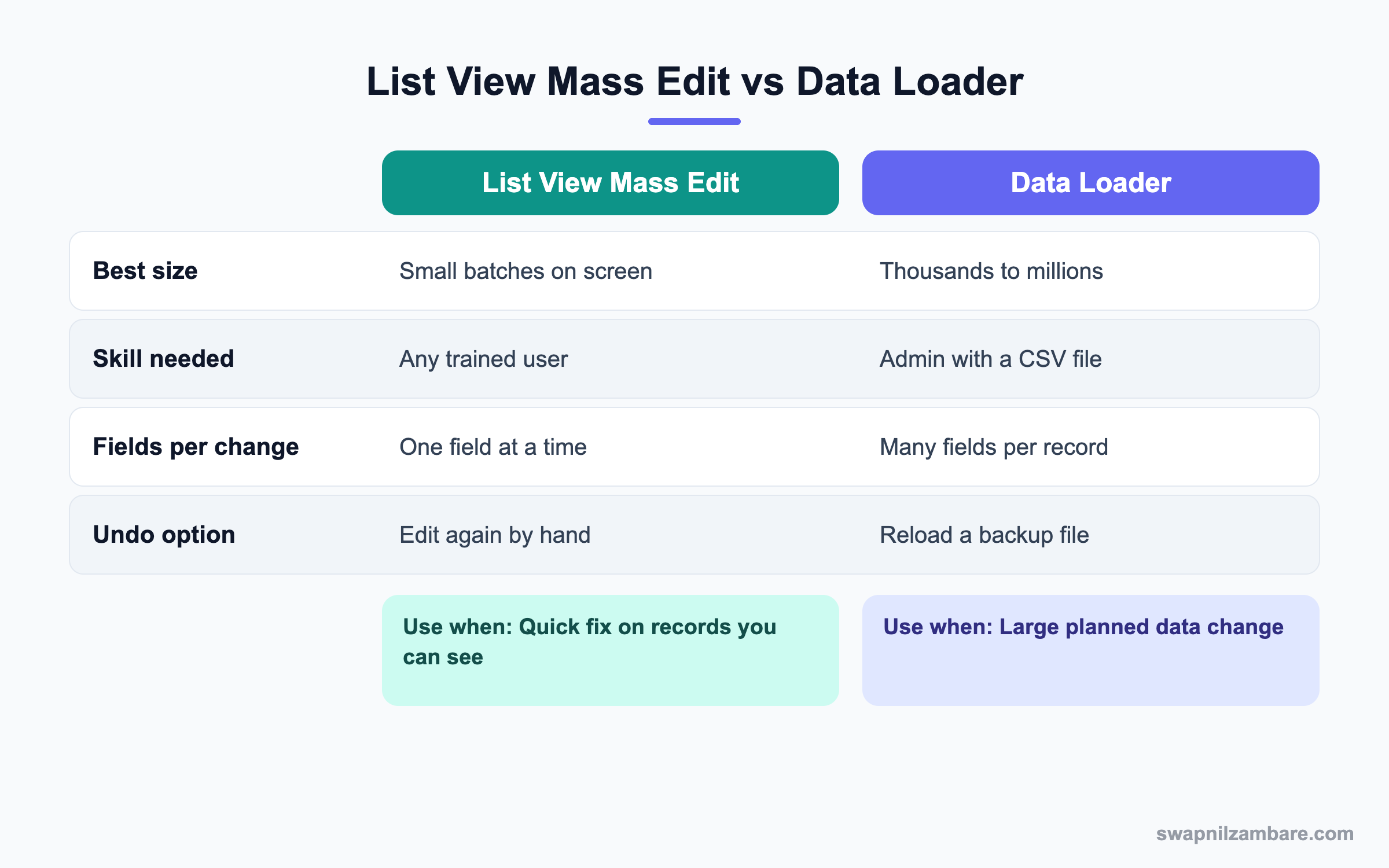
In short, use list views for small, visible fixes. Use Data Loader for big, planned changes that need a backup.
A Real Salesforce Mass Update Example
At Bright Path Tutors, the tutor Neha left the company. Her 120 leads must move to Ravi Kumar. Also, 80 cancelled course enquiries from last year must be deleted.
Step 1: Mass Transfer the Leads
- Open Setup and type “Mass Transfer Records” in Quick Find.
- Click Transfer Leads.
- Set Transfer from to Neha and Transfer to to Ravi Kumar.
- Add the filter Lead Status not equal to Converted.
- Click Find, select all and click Transfer.
Step 2: Fix One Field with List View Mass Edit
Ravi wants the lead rating set to Warm on 25 recent leads. So he opens the My Leads list view and selects them.
- Tick the 25 leads in the list view.
- Double-click the Rating cell on one of them.
- Choose Warm and tick Update 25 selected items.
- Click Apply, then Save.
Step 3: Mass Delete Old Records
- First run a report of the 80 cancelled enquiries and export it as a backup.
- Open Setup and type “Mass Delete Records” in Quick Find.
- Click Mass Delete Leads and set the filters below.
- Click Search, review the list and select the records.
- Click Delete and confirm.
| Filter field | Operator | Value |
|---|---|---|
| Lead Status | equals | Cancelled |
| Created Date | less than | 1/1/2026 |
| Lead Source | equals | Course Enquiry |
Step 4: Check with SOQL
After the changes, a quick query confirms the result. Run it in the Developer Console Query Editor.
SELECT COUNT(Id)
FROM Lead
WHERE Owner.Name = 'Neha Sharma'
AND IsConverted = false
The count should be 0, which means every open lead moved to Ravi.
Common Mistakes with Salesforce Mass Update
- Running a bulk change without a backup export first.
- Using a loose filter, like only Status, which catches too many records.
- Forgetting that flows and validation rules run for every record.
- Mass deleting records that other records still look up to.
- Not telling users before their records change owner.
Best Practices for Salesforce Mass Update
- Always export a backup before any large change.
- Test the filter in a report first, and match the record count.
- Run big Data Loader jobs out of office hours.
- Use a screen flow when users need a safe bulk button.
- Check the Recycle Bin and Setup Audit Trail after deletes.
Practice Task
In your practice org, create 10 test leads. Use list view mass edit to change their Rating to Hot. Then use Mass Delete Records to remove them. Hint: filter by a Lead Source you only used for these tests.
Most Asked Salesforce Mass Update Interview Questions
These Salesforce Mass Update questions test, above all, whether you can handle bulk data safely.
Basic Salesforce Mass Update Interview Questions
Q1: What is a Salesforce Mass Update?
It is a change applied to many records at once. Tools include list view mass edit, Mass Transfer, Mass Delete, screen flows and Data Loader.
Q2: How do you edit one field on many records from a list view?
Select the records, double-click a cell in the field, change the value and tick the option to update all selected items. Then save.
Q3: How many records can you mass edit in a list view at once?
Up to 200 records per save. So for more records, use Data Loader or a flow.
Q4: What is Mass Transfer Records?
It is a Salesforce Mass Update tool in Setup that changes the owner of many records at once. It supports accounts, leads and custom objects.
Q5: What is Mass Delete Records?
It is a Setup tool that deletes many standard records, like leads, contacts, accounts, cases and activities, using filters.
Q6: Where do deleted records go?
They go to the Recycle Bin first. Then you can restore them for 15 days, and after that they are removed.
Q7: Which tool would you use to update 50,000 records?
Data Loader, because it handles large files and runs in batches. Also take a backup first.
Intermediate Salesforce Mass Update Interview Questions
Q8: Do validation rules run during a mass update?
Yes. Validation rules, flows and triggers run for every record, so a failure can block part of the update.
Q9: Why might inline editing be unavailable in a list view?
The field may be read-only, the user may lack edit access, or the list view may not support inline edit for that field type.
Q10: How do you mass update records owned by many users?
Use Data Loader with a CSV that has record Ids and the new values. Mass Transfer is better when only the owner changes.
Q11: Can users run a Salesforce Mass Update without admin rights?
Yes, through list view mass edit or a screen flow button. They can only change records they have edit access to.
Q12: How do you undo a wrong mass update?
Reload the backup file with Data Loader. For deletes, restore from the Recycle Bin within 15 days.
Q13: What does the Transfer open activities option do in Mass Transfer?
It moves open tasks and events to the new owner as well. Otherwise those activities stay with the old owner.
Q14: How do you mass delete custom object records?
Mass Delete Records covers mainly standard objects. For custom objects, use Data Loader delete, a list view delete action or a flow.
Advanced Salesforce Mass Update Interview Questions
Q15: Scenario: a mass update hit validation errors on 300 of 5,000 records. What do you do?
Open the Data Loader error file to see each reason. Fix the data or the rule, then reload only the failed rows.
Q16: How do you protect the org from a huge accidental delete?
Limit Modify All Data and delete permissions, keep regular backups and use Salesforce Backup if available. Also review Setup Audit Trail.
Q17: What is the difference between Hard Delete and Delete in Data Loader?
Delete sends records to the Recycle Bin. Hard Delete skips it and removes them for good, so it needs a special permission.
Q18: Scenario: a rep leaves and owns 4,000 opportunities. What is your plan?
Agree on the new owners with the manager. Then export, assign owners in the file and update with Data Loader in a quiet hour.
Q19: Why might a Salesforce Mass Update be slow?
Many flows, triggers or roll-up summaries run per record. Also, sharing recalculation can take time when owners change.
Q20: How would you let managers bulk update a field safely?
Build a screen flow launched from a list view with fixed choices. Add checks in the flow, so only allowed values are saved.
Q21: When would you choose a screen flow over list view mass edit?
Choose a flow when the change needs rules or several fields. For example, closing cases also needs a reason, so a flow can ask for it first.
Q22: What should you check before a Salesforce Mass Update on owners?
First check sharing rules and territories, because ownership drives access. Then tell the old and new owners, so nobody loses track of work.
Q23: Can a Salesforce Mass Update fire emails to customers?
Yes, if a flow or alert sends emails on update. So turn off or filter such automation before a large change, then turn it back on.
Q24: How do you mass update records from a report?
Reports do not edit records directly. Instead, export the report with Ids, change the file and update it with Data Loader.
Official Resources
- Salesforce Help: Mass Delete Records
- Salesforce Help: Transfer Multiple Records
- Trailhead: Data Management
Quick Recap
- A Salesforce Mass Update changes many records in one action.
- List view mass edit is best for one field on a few records.
- Mass Transfer and Mass Delete live in Setup for owner changes and clean-up.
- Data Loader handles large jobs, but always back up first.
- Rules, flows and triggers run on every record in a bulk change.
What’s Next?
Next, we manage documents with Notes, Attachments and Content Libraries.