The Lightning Home Page is the first screen a user sees after login. If it shows the right numbers and tasks, people start their day faster. So a good Lightning Home Page is one of the easiest wins for a new admin.
In this post we build one for Bright Path Tutors using Lightning App Builder. If you are new to Setup, start with the Setup Menu tour.
What is the Lightning Home Page?
The Lightning Home Page is the landing page of a Lightning app. It is built from components, such as a dashboard, a list view, a report chart and Assistant. Admins design it in Lightning App Builder.
Think of it like the front page of a newspaper. The editor picks the most useful stories for that reader. In the same way, you pick the components each team needs most.
Why the Lightning Home Page Matters
A standard Home page shows generic items. However, a custom Lightning Home Page can show a sales manager the pipeline and a tutor their classes. As a result, users click less and find work faster.
It also drives adoption. When people see their own numbers on login, they trust the system more. That is why many admins customize the Lightning Home Page in their first month.
How the Lightning Home Page Works
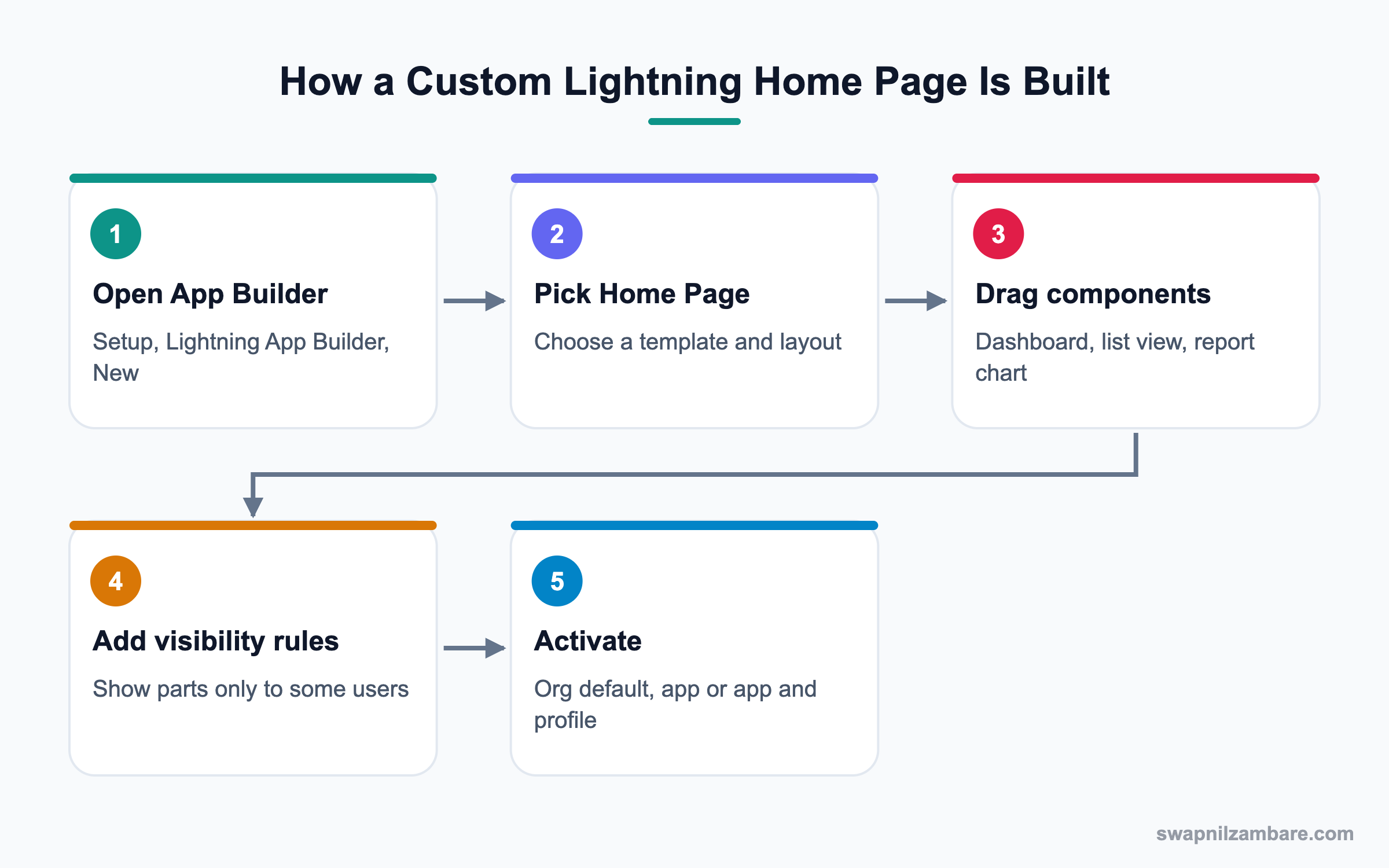
Each Home page is a Lightning page of type Home Page. You build it once, then activate it. Salesforce then decides which page each user sees by checking assignments in order.
Templates
When you create a page, you pick a template. Common choices are a header with two columns or three columns. The template decides the regions where you drop components.
Standard Components
Useful standard components include Assistant, Dashboard, Report Chart, List View, Recent Items, Rich Text and Flow. Assistant shows overdue tasks and leads that need follow-up.
Component Visibility
Each component can have a filter. For example, show the Revenue dashboard only when the user’s profile is Sales Manager. This keeps one page useful for many people.
Activation Levels
You can activate a Lightning Home Page in three ways. You can set it as the org default, as the default for an app, or for an app and profile pair. The most specific assignment wins.
Lightning Home Page Assignment Options
This table shows how each activation option works.
| Option | Who sees it | Priority |
|---|---|---|
| App and profile | Users of that app and profile | Highest |
| App default | All users of that app | Medium |
| Org default | Everyone else | Lowest |
| System default | Org with no custom page | Fallback |
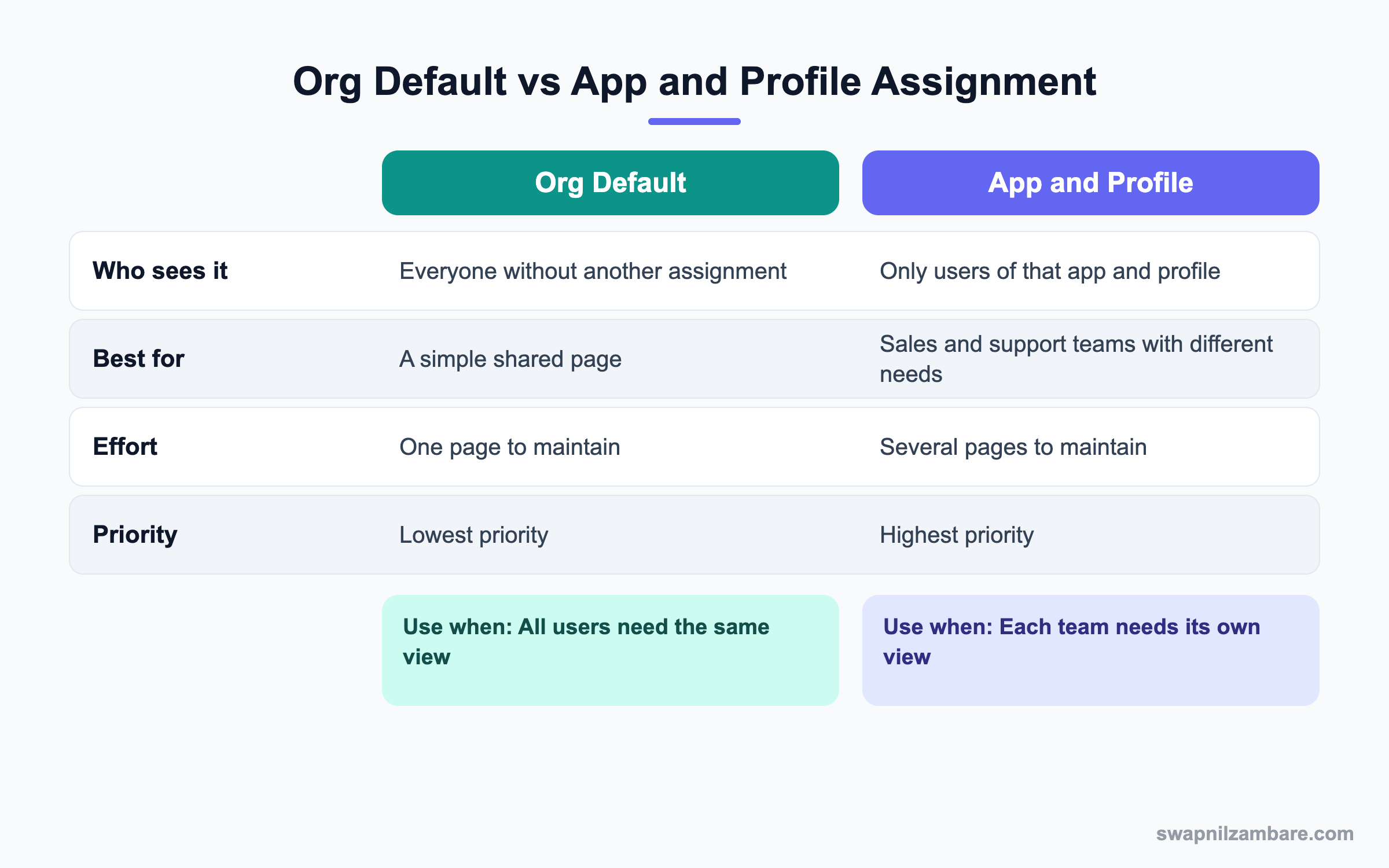
In short, use the org default for a simple page. Use app and profile assignments when teams need different views.
A Real Lightning Home Page Example
Bright Path Tutors wants a home page for the sales team. It should show this month’s enrolments, the open leads list and Assistant. Tutors should see the Upcoming Courses list instead.
Step 1: Create the Page
- Open Setup, type “Lightning App Builder” in Quick Find and click it.
- Click New, choose Home Page and click Next.
- Enter the label “Bright Path Home” and click Next.
- Choose the template Header and Right Sidebar, then click Done.
Step 2: Add Components
- Drag Dashboard into the main region and pick Enrolments This Month.
- Drag List View below it and choose Leads with filter My Open Leads.
- Drag Assistant into the right sidebar.
- Drag a second List View for Course with the view Upcoming Courses.
Step 3: Add Visibility Rules
- Click the Upcoming Courses list view component.
- Click Add Filter, choose User, then Profile, then Name.
- Set Operator to Equal and Value to Tutor, then click Done.
- Add a similar filter on the Dashboard for Sales User.
These are the component settings we used.
| Component | Region | Visible to |
|---|---|---|
| Dashboard: Enrolments This Month | Main | Sales User profile |
| List View: My Open Leads | Main | Everyone |
| Assistant | Sidebar | Everyone |
| List View: Upcoming Courses | Sidebar | Tutor profile |
Step 4: Activate the Page
- Click Save, then click Activate.
- Open the App and Profile tab and click Assign to Apps and Profiles.
- Pick the Sales app and the Sales User profile, then click Next and Save.
Now log in as a sales user to test. Then log in as a tutor and check that the course list shows instead.
Common Mistakes with the Lightning Home Page
- Adding too many components, which slows the page down.
- Forgetting to activate the page after saving it.
- Using a dashboard the user cannot open because of folder sharing.
- Building one page per profile when filters on one page would do.
- Not testing as each user type with Log in as.
Best Practices for the Lightning Home Page
- Keep it to five or six components, so the page loads fast.
- Put the most used item at the top left, where eyes land first.
- Use component visibility filters before creating many pages.
- Check dashboard access for every user group.
- Review the page every quarter, because team needs change.
Practice Task
Build a Lightning Home Page with a Rich Text component that shows a welcome note. Add a filter so only users with the System Administrator profile see it. Hint: use the User, Profile, Name filter.
Most Asked Lightning Home Page Interview Questions
These Lightning Home Page questions are common in fresher and junior admin interviews.
Basic Lightning Home Page Interview Questions
Q1: What is a Lightning Home Page?
It is the landing page users see in a Lightning app. Admins build it in Lightning App Builder using components like dashboards, list views and Assistant.
Q2: Where do you create a custom Lightning Home Page?
In Setup, open Lightning App Builder, click New and choose Home Page. Then pick a template and add components.
Q3: What is the Assistant component?
Assistant shows tasks and updates that need attention, such as overdue tasks and leads assigned today. It helps users plan their day.
Q4: Can a Home page show a dashboard?
Yes. Add the Dashboard component and pick a dashboard. Users must have access to its folder to see it.
Q5: What are the three ways to activate a Home page?
Org default, app default, or app and profile. The most specific assignment wins.
Q6: What is a template in Lightning App Builder?
A template defines the regions of the page, like one, two or three columns. You place components inside these regions.
Q7: Can you have more than one Lightning Home Page?
Yes. You can create several and assign each to different apps and profiles.
Q8: What is the Rich Text component used for?
It shows formatted text, links or images. Admins use it for welcome notes, help links or announcements.
Intermediate Lightning Home Page Interview Questions
Q9: What is component visibility?
It is a filter that shows or hides a component based on rules, such as profile, permission or device. One Lightning Home Page can then serve several teams.
Q10: If a user has both an app default and an org default page, which one shows?
The app default shows, because it is more specific than the org default. An app and profile assignment would win over both.
Q11: Why might a user see an empty dashboard component?
Usually the user lacks access to the dashboard folder or the source report folder. Check folder sharing and the running user.
Q12: How do you show a page only on desktop and not on phone?
Use the form factor setting during activation. You can also set component visibility by device.
Q13: Can you add a flow to the Home page?
Yes. Use the Flow component and pick a screen flow. This is handy for quick forms like logging a call.
Q14: How do you check how a Home page looks for another user?
Use Log in as from the user record, if login access is enabled. Then open the app and review the page.
Q15: What is the difference between a Home page and an App page?
A Home page is the landing page of an app. An App page is an extra page you add to the navigation bar for a special purpose.
Q16: Can you add custom Lightning Web Components to the Home page?
Yes. If a developer exposes the component for Home pages, it appears in App Builder for you to drag in.
Advanced Lightning Home Page Interview Questions
Q17: Scenario: the Home page loads slowly. How do you fix it?
Run Lightning Page Performance analysis in App Builder. Then remove heavy components, reduce dashboard size and move rarely used items to tabs.
Q18: Scenario: sales and service teams need different Home pages in one app. What do you do?
First try component visibility on one page. If the layouts differ a lot, create two pages and assign them by app and profile.
Q19: How do you deploy a Lightning Home Page to production?
Add the FlexiPage to a change set or a DevOps Center work item. Also deploy any dashboards, reports and custom components it uses.
Q20: How would you measure if the new Home page helps users?
Compare login and page usage before and after in the Lightning Usage app. Also ask a few users for quick feedback.
Q21: What metadata type stores a Lightning Home Page?
It is stored as a FlexiPage. Record pages and App pages also use the FlexiPage type.
Q22: Can users personalize their own Lightning Home Page?
Not the layout itself. Users can change list view filters and pin items, but the page design comes from the admin.
Q23: How do you show a different Home page in the Salesforce mobile app?
Activate a page for the Phone form factor, or set component visibility by device. Mobile users then see a lighter version.
Q24: What happens if you delete an active Home page?
Salesforce blocks it while it is assigned. You must remove the activation first, then delete the page.
Official Resources
- Trailhead: Lightning App Builder
- Salesforce Help: Custom Home Pages in Lightning Experience
- Trailhead: Lightning Experience Customization
Quick Recap
- The Lightning Home Page is the first screen users see in an app.
- You build it in Lightning App Builder from components.
- Component visibility lets one page serve many teams.
- App and profile assignments beat app defaults and the org default.
- Keep pages light and test them as each type of user.
What’s Next?
Next, we clean up address data with State and Country Picklists. They stop typos like “Mumbai” in the state field.