State and Country Picklists replace free-text state and country fields with clean dropdown lists. Without them, users type “Maharashtra”, “MH” and “Maharastra” for the same state. As a result, reports split one state into three groups.
This post builds on picklist basics and data quality rules. We will turn on the feature for Bright Path Tutors step by step.
What are State and Country Picklists?
State and Country Picklists are a Setup feature that turns the State and Country parts of standard address fields into picklists. Users choose from a list instead of typing. Each value also has a standard ISO code, like IN for India.
Think of an online shop checkout. You never pick a city that does not exist there. You never type your country there, because you choose it from a list. State and Country Picklists bring the same idea to Salesforce.
Why State and Country Picklists Matter
Clean address data helps every team. Sales can report leads by state, service can route cases by region, and marketing can target campaigns. However, all of this breaks when the same state is spelled five ways.
State and Country Picklists also make integrations safer. Other systems receive standard codes, not random text. So both reporting and data quality improve on day one. Even assignment rules work better, because they match exact values.
How State and Country Picklists Work
The feature works on standard address fields. These include the billing and shipping address on Account, the mailing address on Contact and the address on Lead. Custom text fields are not converted.
Each picklist has two parts. The label is what users see, like Maharashtra. The integration value is the code stored for systems, like MH.
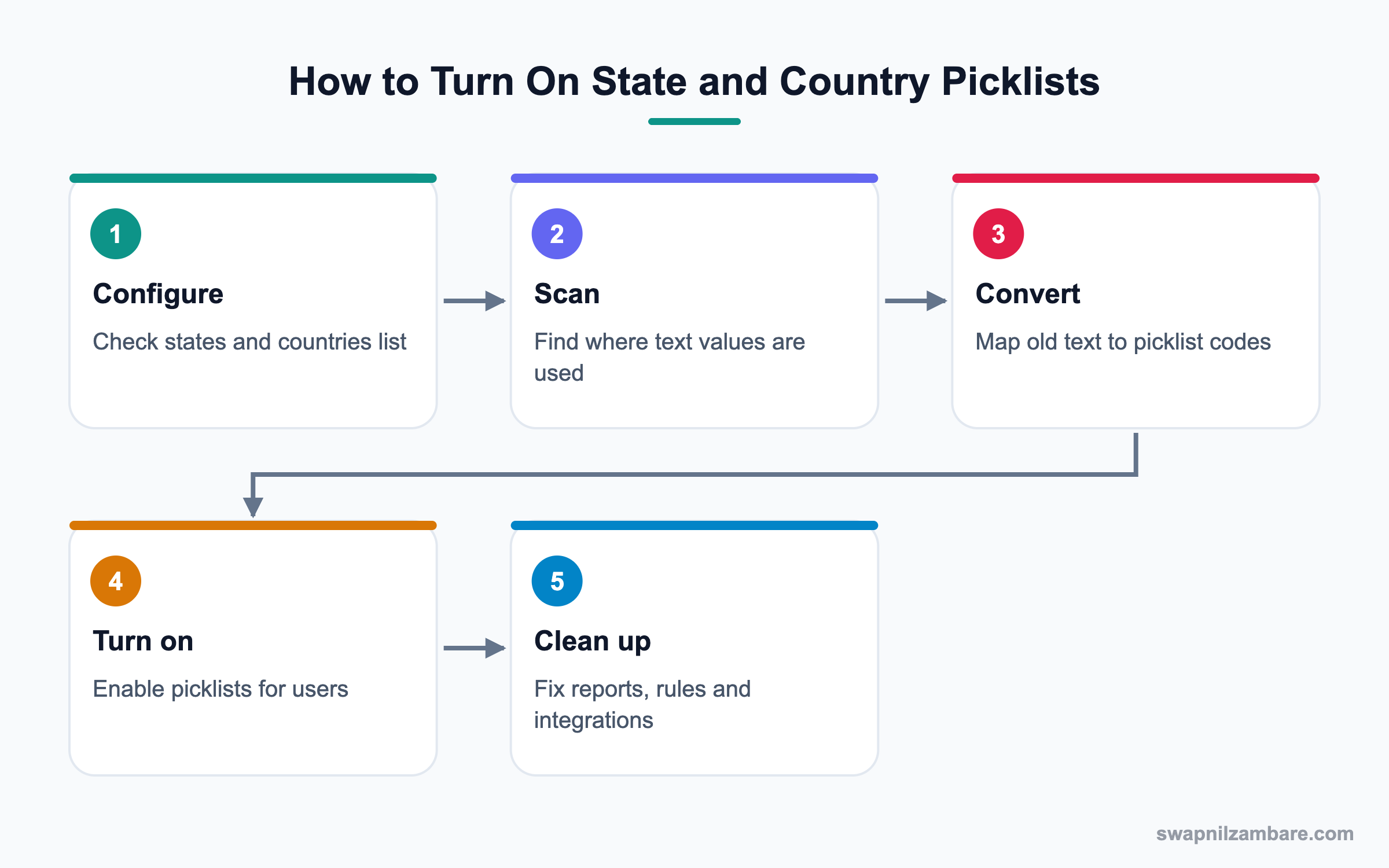
Configure States and Countries
Salesforce gives you a ready list of countries and their states. You can set a default country, hide countries you never use and change labels.
Scan Your Data
The scan finds every place where state and country text values appear. This includes records, list views, reports, workflow rules and validation rules.
Convert Existing Values
The convert step maps old text to the new values. For example, you map “MH”, “Maharastra” and “Maharashtra” to the single value Maharashtra.
Turn On the Picklists
Finally, you enable the picklists for users. After this, the address fields on pages show dropdowns instead of text boxes.
Key Settings in State and Country Picklists
This table shows the main settings you will meet.
| Setting | What it does | Example |
|---|---|---|
| Active | Value is available in the data | India is Active |
| Visible | Users can pick it in the dropdown | India is Visible |
| Integration Value | Code stored for systems | IN |
| Default Country | Pre-filled for new records | India |
| Label | Text users see | Maharashtra |
Text Fields vs State and Country Picklists
This table compares the old text fields with the new picklists.
| Feature | Text fields | State and Country Picklists |
|---|---|---|
| Data entry | Free typing | Pick from list |
| Spelling errors | Common | Not possible |
| Report grouping | Many messy groups | One group per state |
| Integration | Any text | Standard ISO codes |
| Dependent states | Not available | States filter by country |
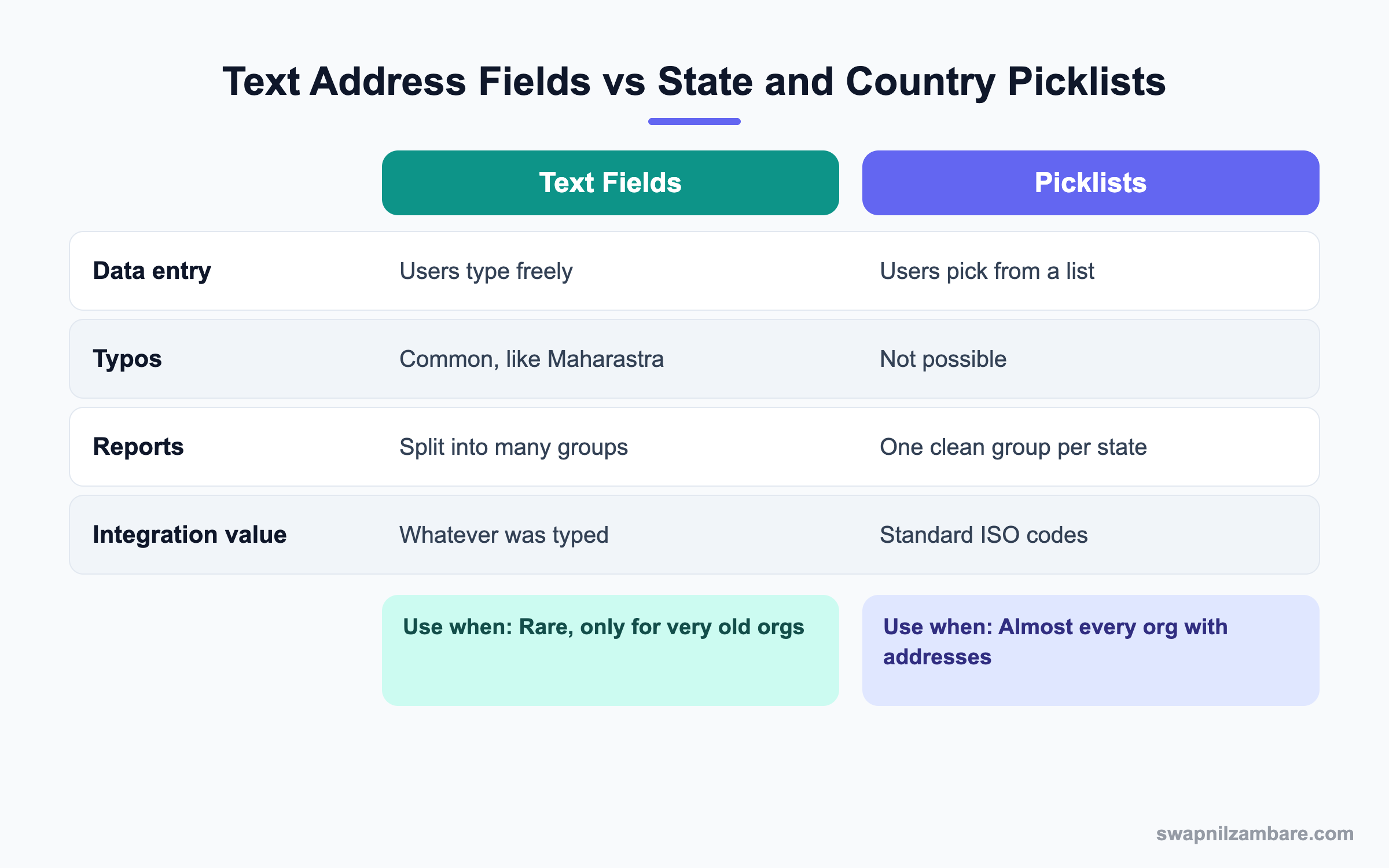
In short, picklists win in almost every case. Keep text fields only if a rare integration cannot handle codes yet.
A Real State and Country Picklists Example
Before you start, plan a quiet time for the change. The convert step updates many records, so avoid the busy month end.
Bright Path Tutors has 2,000 student leads from India. The State field has 40 spellings for 12 states. Let’s fix it.
Step 1: Configure the List
- Open Setup and type “State and Country/Territory Picklists” in Quick Find.
- Click Configure States and Countries.
- Set Default Country to India and keep India Active and Visible.
- Click India, then check that Maharashtra, Karnataka and Delhi are Active and Visible.
Step 2: Scan and Convert
- Go back and click Scan for State and Country/Territory Data.
- Open the report it emails and review the values found.
- Click Convert Identified Data, choose Countries, then States.
- Map each spelling to the right state and click Save for Data Conversion.
These are some mappings we used.
| Old text value | New picklist value |
|---|---|
| MH | Maharashtra |
| Maharastra | Maharashtra |
| Bangalore Karnataka | Karnataka |
| New Delhi | Delhi |
| KA | Karnataka |
Step 3: Turn On and Check
- Click Enable Picklists for Address Fields and confirm.
- Open a lead and check that State is now a dropdown.
- Run a Leads by State report and confirm one group per state.
You can also check values with a quick SOQL query. The StateCode and CountryCode fields hold the integration values.
SELECT Name, State, StateCode, Country, CountryCode
FROM Lead
WHERE CountryCode = 'IN'
LIMIT 5
Common Mistakes with State and Country Picklists
- Turning on the picklists before converting old values, which leaves blanks.
- Forgetting validation rules that check the old text value.
- Hiding a country that existing records still use.
- Not telling integration teams that codes like MH are now sent.
- Skipping the scan in a sandbox first.
Best Practices for State and Country Picklists
- Always run the full process in a full sandbox first.
- Back up address data with a weekly data export before converting.
- Hide countries you never serve, so the list stays short.
- Update formulas to use StateCode where possible, because codes do not change.
- Tell users about the change a week before you turn it on.
Practice Task
In your Developer Edition org, set the default country to India. Then create a contact and check that the state list shows only Indian states. Hint: the state list depends on the selected country.
Most Asked State and Country Picklists Interview Questions
These State and Country Picklists questions often come up when the interviewer tests data quality skills.
Basic State and Country Picklists Interview Questions
Q1: What are State and Country Picklists?
They turn the state and country parts of standard address fields into picklists. Users pick a value instead of typing it.
Q2: Why should an org use State and Country Picklists?
They stop spelling errors and give clean reports. They also send standard ISO codes to other systems.
Q3: Which fields does the feature affect?
Standard address fields on objects like Account, Contact, Lead, Contract, Order and Quote. Custom text fields are not affected.
Q4: What is an integration value?
It is the code stored for systems, like IN for India or MH for Maharashtra. Users see the label, while APIs use the code.
Q5: Can you set a default country?
Yes. In Configure States and Countries, choose a Default Country. New records then start with it.
Q6: Are state values filtered by country?
Yes. The state list depends on the selected country, so users only see states of that country.
Q7: What is the difference between Active and Visible?
Active means the value can exist in data. Visible means users can choose it in the dropdown.
Intermediate State and Country Picklists Interview Questions
Q8: What are the main steps to enable the feature?
Configure states and countries, scan the data, convert old values and then enable the picklists. Finally, fix any rules or reports that used text.
Q9: What does the scan step find?
It finds text state and country values in records and in metadata like list views, reports, rules and formulas.
Q10: How do you handle many spellings of one state?
In the convert step, map every spelling to the single correct picklist value. Salesforce then updates the records.
Q11: How do formulas change after enabling the feature?
Fields like BillingState become picklists, so use ISPICKVAL or TEXT in formulas. You can also use the BillingStateCode field.
Q12: What happens to old records with values you did not convert?
They may show the text value but fail validation on next save. That is why the convert step must cover every value.
Q13: Can you add a country that is missing?
You can activate and show any country in the standard list. You cannot invent new ISO countries, but you can change labels.
Q14: How do you load data with the picklists turned on?
Load either the label or the code fields, like StateCode. Using codes is safer, because labels can change.
Advanced State and Country Picklists Interview Questions
Q15: Scenario: an integration still sends free-text state names. What do you do?
Ask the team to send codes, or map names to codes in the middleware. Until then, you can add a flow to clean values before save.
Q16: Can you turn off State and Country Picklists after enabling them?
Yes, but it is risky. Records keep their values as text, so test the impact in a sandbox first.
Q17: How do you deploy the configuration to production?
The address settings can move with the metadata API as AddressSettings. However, the scan and convert steps must run in each org.
Q18: Scenario: reports show the same state twice after conversion. What is wrong?
Some old spellings were not mapped. Rerun the scan, find the missed values and convert them.
Q19: How does the feature help Territory Management?
Territory rules can match exact state codes. As a result, accounts land in the right territory without typos breaking the rules.
Q20: Do State and Country Picklists work in the Salesforce mobile app?
Yes. The fields show as dropdowns on mobile too, so users cannot type wrong values there either.
Q21: Can you use State and Country Picklists on custom address fields?
Yes, if you create a custom field of the Address type, which is a newer field type. Plain text fields are never converted.
Q22: How do the picklists help duplicate rules?
Matching rules compare clean values, so “MH” and “Maharashtra” no longer look different. As a result, duplicate leads are found more often.
Q23: Scenario: users in Dubai cannot find their emirate. What do you check?
Open United Arab Emirates in Configure States and Countries. Then make sure the emirates are Active and Visible, and add them if the list allows.
Q24: What is the StateCode field?
It is a companion field that stores the integration value, like MH. Use it in SOQL, formulas and integrations, because codes rarely change.
Official Resources
- Salesforce Help: State and Country/Territory Picklists
- Trailhead: Data Quality
- Salesforce Help: Convert Existing Data
Quick Recap
- State and Country Picklists turn address text into clean dropdowns.
- Each value has a label for users and a code for systems.
- Configure, scan, convert and enable, in that order.
- Fix formulas, rules and integrations that used text values.
- Always test the whole process in a sandbox first.
What’s Next?
Next, we look at Field Sets and Related Lists. They control which fields show up in many places at once.